Mac Folder with Question Mark on Boot: What It Means
In this article
A flashing folder with a question mark on your Mac means the computer can't find a valid startup disk. Your Mac looks for macOS on the drive selected for startup. When it can't locate the operating system, it shows that folder icon. This can happen because of a corrupted macOS installation, a failing or dead SSD, a loose internal cable, or a damaged file system. If the folder stays on screen, look for the drive in macOS Recovery. Don't erase it or reinstall macOS if it holds your only copy. Your files may still be intact on the drive, but you need to figure out what went wrong before doing anything that could make the situation worse.
This can affect MacBook Airs, MacBook Pros, iMacs, and Mac minis. If your Mac is completely unresponsive, you may also want to read our guide on recovering data from a Mac that won't turn on. The cause varies, but the panic is always the same. You turn on your Mac and see a blinking question mark instead of your desktop. No files. No login screen. Just that icon.
Doing the wrong thing next can turn a recoverable situation into a permanent loss. So let's walk through exactly what's going on and what your options are.
What the Flashing Folder Question Mark Actually Means
When your Mac powers on, it looks for the files it needs to start macOS on the selected startup disk. That disk can be the drive inside your Mac or an external drive you've plugged in.
If it finds macOS, boot continues normally. Apple logo, progress bar, login screen. If it can't find a working copy of macOS on an available startup disk, it shows the flashing folder with a question mark. That's the Mac saying, "I can't start up from this disk."
 Illustration
Flashing vs. Solid Question Mark
There's an important distinction here. If a flashing question mark appears briefly and then macOS boots normally, back up your files while you can. Open System Settings > General > Startup Disk, select the disk you normally use, then click Restart. On older versions of macOS, look in System Preferences > Startup Disk.
A persistent question mark that stays on screen and never goes away is the serious one. That means the Mac genuinely cannot find a bootable operating system. This is the scenario we're focused on in this guide.
What's Different on Newer Macs
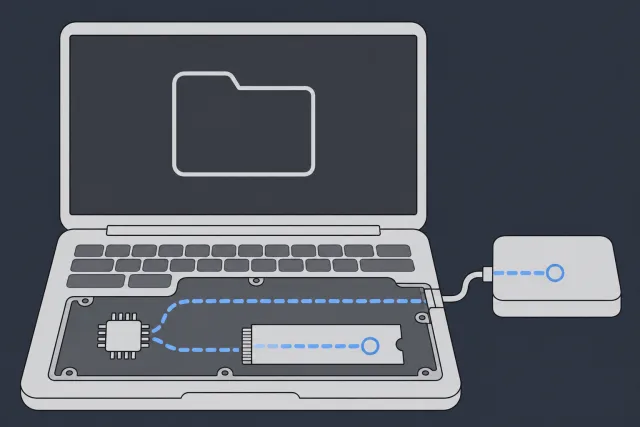
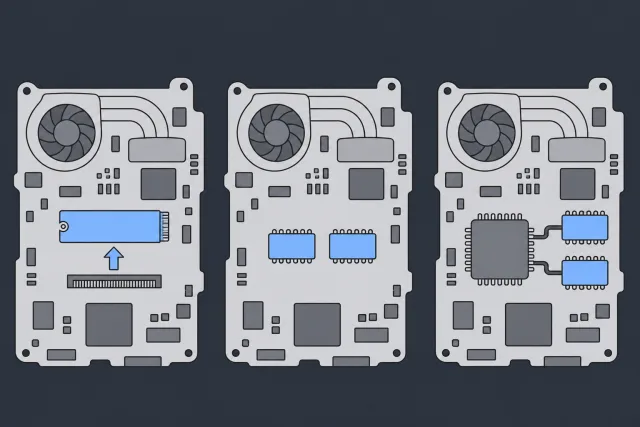
The folder means the same thing on an old Mac and a new one. What changes is how you get to the drive. Some older MacBooks used removable SSD modules. If the Mac failed but the drive still worked, you could pull it out and read it on another machine. Starting in 2016, MacBook Pros with a Touch Bar had storage soldered to the logic board. On an M-series MacBook, separate storage chips hold your photos. To copy them, we need those chips and the Mac's original processor to work together.
If the storage controller fails on a MacBook with soldered storage, you can't just pull out a drive. The data is on chips bonded to the logic board. Getting to it can mean repairing the original board.
Common Causes: Software vs. Hardware
The folder question mark on boot has two broad categories of causes. Figuring out which one you're dealing with determines everything about your next steps. For the options on your model, see how to recover data from a broken MacBook Pro.
Software Causes
Corrupted macOS installation. A failed macOS update is one possible trigger. Updates change files your Mac needs to start. If the update gets interrupted by power loss, a crash, or a dead battery, the Mac may no longer start from that drive. Your personal files can still be there.
Corrupted APFS container. If your drive uses APFS, macOS organizes it into containers and volumes. If the container structure gets corrupted, your Mac may be unable to find the boot volume. Some of your files may also be unreadable.
Wrong startup disk selected. If you've been using Boot Camp or an external drive, your Mac might be trying to boot from a device that's no longer connected. Easiest fix on the list.
Hardware Causes
Failing SSD. Flash storage doesn't last forever. The NAND cells in your Mac's SSD have a limited number of write cycles. After heavy use, cells can start failing. The drive can develop bad blocks and read errors, or it can quit with little warning. One day the Mac boots fine. The next day, question mark folder. If your drive has stopped responding, read about SSD data recovery. Learning the early signs your SSD is failing can help you back up before it's too late.
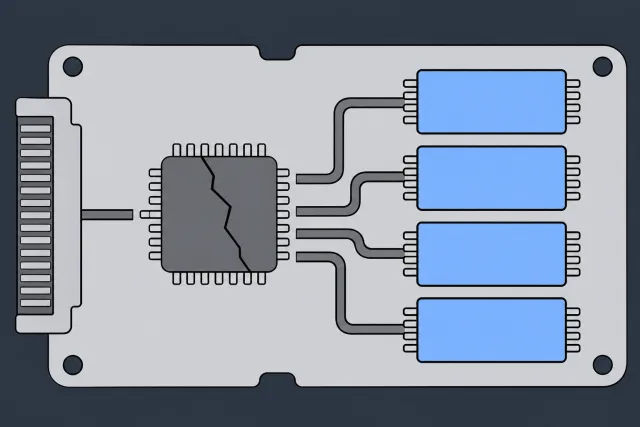
Dead SSD controller. The controller chip manages all read/write operations. If it fails, the storage becomes inaccessible even if the NAND chips holding your data are physically fine. The books are all still on the shelves. The librarian just vanished.
 Illustration
Loose or damaged flex cable (older non-Retina MacBook Pros). The 13-inch, mid-2012 MacBook Pro with a built-in DVD drive uses a ribbon cable to connect the drive to the logic board. Over time it can get pinched, worn, or cracked. The drive can be healthy. The Mac just can't talk to it.
Logic board failure. On Macs with soldered storage, a logic board failure can knock out the storage controller even if the NAND chips are fine. A spill or a power surge can damage the board. If you spilled coffee on your MacBook, shut it down, unplug the charger and leave it off.
| Cause | Type | Data at Risk? |
|---|---|---|
| Corrupted macOS / failed update | Software | Personal files can still be on the drive |
| Corrupted APFS container | Software | Some files or folders may be unreadable |
| Wrong startup disk selected | Software | Changing the selection leaves your files in place |
| Failing SSD (bad NAND blocks) | Hardware | Parts of a file may no longer be readable |
| Dead SSD controller | Hardware | The Mac can't read the files through the failed controller |
| Damaged flex cable | Hardware | A bad cable can hide a working drive |
| Logic board failure | Hardware | Reaching soldered storage can take board repair |
How to Diagnose the Problem
Before you try any fixes, find out whether your Mac can see its internal drive. The wrong fix applied to the wrong problem can destroy your data.
1 Try Booting into macOS Recovery
If the Mac is stuck on the folder, hold the power button for up to 10 seconds until it shuts off. If you're unsure which kind of Mac you have, try the Apple Silicon steps first, then the Intel steps if you don't see Options.
Intel Macs: Shut down completely. Press the power button, then immediately hold Command + R until you see the Apple logo or a spinning globe.
Apple Silicon Macs: Shut down completely. Press and hold the power button until you see "Loading startup options." Click Options, then Continue. If asked, select a user and enter that user's Mac login password.
If Command + R doesn't work on an Intel Mac, shut it down, then turn it on holding Option + Command + R and choose a Wi-Fi network if asked. Once Recovery Mode loads, you'll be able to check whether the internal drive is visible using Disk Utility.
2 Check Disk Utility
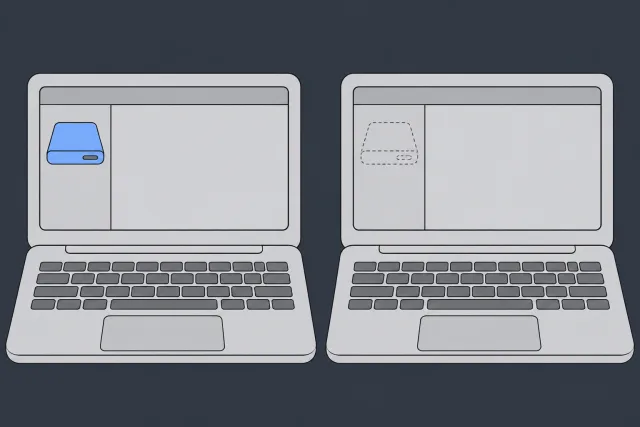
Once in Recovery Mode, select Disk Utility and click Continue. Choose View > Show All Devices if available. Look at the sidebar. Under Internal, the drive (such as APPLE SSD) sits above its volumes (such as Macintosh HD). If all you see is macOS Base System or OS X Base System under Disk Images, you're looking at Recovery itself.
If the drive appears: A listed drive can still be failing. If the volume with your files, such as Macintosh HD - Data, is dimmed, select it and click Mount. Enter your Mac login password if asked. If it mounts, you can copy your files to another Mac before trying First Aid. If it won't mount and it holds your only copy, stop here.
If the drive does NOT appear: Shut down, unplug nonessential devices and look once more in Disk Utility. If your internal drive still doesn't appear in the sidebar, that points to a hardware problem. On older models, the drive cable could be at fault. If you need files that aren't backed up, shut the Mac down here.
 Illustration
3 Run Apple Diagnostics
Disconnect external drives and other accessories first. Leave power, keyboard, mouse, display and wired internet connected if you use them.
Intel Macs: Shut down, then press power and immediately hold the D key. Release it when you see a progress bar or a choice of languages. If D doesn't work, try Option + D.
Apple Silicon: Shut down, press and hold the power button until startup options appear, then release it. Hold Command + D until the Mac restarts.
Apple Diagnostics may ask you to choose a test before it shows the results. Codes VDH001 through VDH004 mean there may be a problem with a storage device. VDH005 means macOS Recovery couldn't start. Write down whatever codes appear.
4 Try an External Boot
If you have a bootable macOS USB installer or an external drive with a version of macOS your Mac can run, try booting from that. Hold Option at startup on Intel or hold the power button until the startup options appear on Apple Silicon. Select the external drive, then click the arrow on Intel or Continue on Apple Silicon.
If the Mac boots from an external drive and you can open your internal drive from there, copy your photos and files to a different drive. If you booted from a USB installer, open Disk Utility to look for the drive without starting an installation. A T2 Mac can block external boot, and an Apple Silicon Mac needs working internal storage even to start from an external drive.
Copy Your Files to Another Mac
Intel: Connect the two Macs with a Thunderbolt cable that fits both. Start the Mac with the question mark while holding T. On the working Mac, open a folder and double-click the other Mac's disk in the sidebar. Unlock it with the affected Mac's login password if asked.
Apple Silicon: Connect the Macs with a Thunderbolt cable and start the affected Mac in Recovery. Quit Disk Utility if it's open. From the Utilities menu, choose the option to share a disk. Select your volume and click Start Sharing. On the working Mac, open a folder and click Network in the sidebar. Double-click the affected Mac, click Connect As, choose Guest, then click Connect.
Drag the folders you want from that disk to a folder on the working Mac. Start with the photos or documents you can't replace. Open a few of the copies, then click the eject icon beside the disk. If the drive disappears during the copy, shut the affected Mac down.
Software Fixes You Can Try Safely
If your Mac still won't start but Disk Utility lists the drive, here are the fixes you can try. If the folder appears only briefly and your Mac boots, start by reselecting the startup disk in Fix 2.
Fix 1: Reset NVRAM / PRAM (Intel Macs Only)
NVRAM stores your startup disk selection. A corrupted NVRAM can make your Mac forget which drive to boot from.
- Shut down the Mac completely.
- Press power, then immediately hold Option + Command + P + R.
- Hold for about 20 seconds. You may hear the startup chime or see the Apple logo more than once.
- Release the keys and let the Mac boot normally.
Apple Silicon Macs handle NVRAM differently and don't need this reset.
Fix 2: Reselect the Startup Disk
Boot into macOS Recovery (Command + R on Intel, hold the power button and choose Options, then Continue on Apple Silicon). Quit Disk Utility if it's open. From the Apple menu at the top left, select Startup Disk and choose the drive you normally use, such as Macintosh HD. Click Restart.
Fix 3: Run First Aid in Disk Utility
Once you've copied your files, open Disk Utility in Recovery and choose View > Show All Devices if available. Click the arrows beside your drive to show everything beneath it. Select the last volume listed under that drive, click First Aid, then click Run. Work up the list, running First Aid on each volume and volume group, then each container, then the drive itself.
First Aid checks and repairs the file system structure. If First Aid finishes without an error, quit Disk Utility and choose Restart from the Apple menu. If it reports "the volume could not be repaired," stop if you still need files from that drive. Don't keep running First Aid over and over hoping for a different result.
Fix 4: Reinstall macOS (Non-Destructive)
In Recovery, connect to the internet and quit Disk Utility if it's open. Select Reinstall macOS and click Continue. If you see both Macintosh HD and Macintosh HD - Data, choose Macintosh HD. If no disk appears, quit the installer. Reinstalling on the existing volume should keep your files and apps.
The key word is "should." If the underlying drive is failing, the reinstall puts heavy read/write load on it, which can accelerate the failure. If your drive showed hardware problems during diagnosis (missing from Disk Utility or a storage error in Apple Diagnostics), do not attempt a reinstall.
When It's a Hardware Failure
If the internal drive still doesn't show up in Disk Utility, or Apple Diagnostics reports storage errors, the Mac or its drive may have a hardware problem. If your Intel Mac shows a globe with an exclamation point, it couldn't load Recovery over the internet. Try Recovery again on another Wi-Fi network, then look for the drive in Disk Utility. The approach depends on which Mac you have.
 Illustration
MacBook Pro / MacBook Air 2012-2015 (Removable SSD)
MacBook Airs and Retina MacBook Pros from these years use proprietary but removable SSD modules. The mid-2012 non-Retina Pro has a removable drive connected by a ribbon cable. On that model, the cable is worth diagnosing before you assume the drive has failed.
If the cable isn't the issue, the drive itself may have failed. If you already have the drive out, put it in an external enclosure made for that exact drive and plug it into another Mac. If another computer can see the drive, check whether you can open and copy the files. If you're asked to initialize or erase the drive, cancel.
Intel MacBook Pro and MacBook Air (2016-2020)
The 2016 and 2017 MacBook Pros with a Touch Bar have soldered storage. The 13-inch Pros from those years with function keys and the 2017 Air have removable SSDs. On Intel MacBook Pros and Airs from 2018 through 2020, the T2 chip encrypts the built-in storage even with FileVault off.
If the T2 chip or storage controller fails, the data is encrypted and tied to that Mac's original T2 chip. Professional MacBook data recovery on a T2 model depends on getting that chip working.
Apple Silicon Macs (M1, M2, M3, M4 - 2020 and Later)
On Apple Silicon MacBooks, including models after M4, the storage controller and the Secure Enclave are part of the main processor. The NAND chips holding your files are separate components on the logic board. The data on them is encrypted with keys tied to that processor.
If the original processor has failed beyond repair, intact NAND chips alone can't give us your files. Your password or recovery key can unlock the data only with the original hardware working.
FileVault Encryption and Why It Complicates Recovery
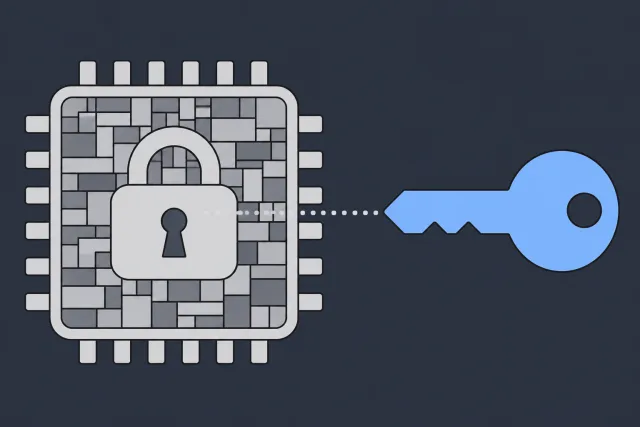
FileVault is Apple's full-disk encryption feature. On Macs with the T2 chip or Apple Silicon, the built-in storage is already encrypted. Turning on FileVault makes the Mac require your password or a recovery key to unlock your files.
Without FileVault
If FileVault is off on an older Intel Mac without a T2 chip, we can try to copy a readable, unencrypted drive on another machine. On a Mac with a T2 chip or Apple Silicon, the built-in drive stays encrypted even with FileVault off. You still need the original chip working to read it.
With FileVault Enabled
If we can read the drive again, your Mac login password or FileVault recovery key lets us unlock and copy your files. Have one of those ready even if you're unsure whether FileVault was on. When you mail your Mac, put the packing slip from the mail-in form in the box. Keep your Apple Account password private.
 Illustration
- Your Mac login password, if your account is allowed to unlock that disk
- Your FileVault recovery key (24 letters and numbers). On a work or school Mac, the person who manages it may have saved the key.
- A password reset with your Apple Account, if your Mac offers it. In Recovery, click "Forgot all passwords?" when asked to select a user. If asked to sign in to your Apple Account, sign in, select your user and set a new login password when prompted.
If the affected Mac runs macOS 26 or later and you sync passwords through iCloud, open your saved passwords on another device using the same Apple Account. Search for "recovery key," select your Mac if it appears and tap or click the dots to reveal the key. Without a way to unlock the disk, a lab can't read the encrypted files.
For a deeper look at how encryption affects data recovery, read our guide on FileVault data recovery.
Professional Mac Data Recovery
When DIY fixes don't work, or when you're dealing with a hardware failure on a Mac with soldered storage, professional data recovery is the path forward. Here's what the process looks like at our lab.
Evaluation
We identify your exact Mac model and storage configuration. Removable or soldered? T2 chip? FileVault? During the diagnostic, we see whether the Mac can reach the drive and read the drive's health information if it's available. All of this happens before we quote you a price for the recovery.
The standard wait is 4 to 6 weeks before we reach your device in line and start the diagnostic. Recovery takes additional time depending on what we find. Your Mac may need a board repair before we can copy your files. If you need us sooner, we start the diagnostic within 5 to 7 days with Priority, within 1 to 2 days with Urgent, or the same day with Emergency. See the extra fee for each rush option.
Recovery Approach by Mac Type
Removable SSD (older MacBooks): We pull the SSD module and connect it to imaging equipment directly, bypassing the Mac entirely. If the drive needs a new board, the work can involve transferring its storage chips.
Soldered SSD with T2 (2018-2020 Intel MacBooks): If the Mac responds in Target Disk Mode, we can copy files through the original T2 chip. If a board fault keeps that chip from working, the job can involve repairing the board long enough to copy the files.
Apple Silicon (2020+): We need the original processor and storage chips working together. If the board has to be replaced, the work can involve moving those chips together. If the software that starts your Mac is damaged, leave the firmware repair to us. From a second Mac, we can try Revive Mac without erasing your files. The Restore Mac option erases the drive.
What NOT to Do When You See the Question Mark Folder
Don't Immediately Erase and Reinstall
People see "reinstall macOS" and reach for Erase in Disk Utility. If the installer shows no disk and you still need your files, quit the installer. A non-destructive reinstall is one thing. Erasing the drive is irreversible.
Don't Run Terminal Commands You Found Online
Forum posts suggest Recovery Mode commands like diskutil resetFusion or diskutil apfs deleteContainer. If you don't understand exactly what a command does, don't run it. Some of these destroy the partition table, delete encryption keys, or wipe the container structure. Copying commands from Reddit is not data recovery.
Don't Keep Restarting the Mac
If the SSD is failing, each boot attempt asks it to read the startup files again. If the drive disappears or the Mac freezes while you're copying, stop. Shut the Mac down.
Don't Ignore It
Some people see the question mark briefly, then it boots normally. They shrug and keep working. Back up your data immediately. If Time Machine is already set up, connect your backup drive and choose Back Up Now from the Time Machine menu. Don't wait for the problem to become permanent.
Don't Take It to a General Computer Repair Shop
A repair can get a Mac running by replacing the drive or the logic board while your files stay on the old parts. If those files are what you need, say so before you approve a repair. You can bring your Mac to our data recovery lab in Lincroft, New Jersey, or mail it in.
How Much Does Mac Data Recovery Cost?
Cost depends on the Mac model and the type of failure. If the drive comes out, we price the work by the drive and its size. Here are the prices for removable SSDs up to 2TB and for MacBooks with soldered storage.
| Scenario | Price | Notes |
|---|---|---|
| Removable SSD without a storage-chip transfer | $1,000 to $1,500 | 2TB and below |
| Removable SSD with a storage-chip transfer to a new board | $1,500 to $2,000+ | 2TB and below |
| MacBook Standard Recovery | $1,500 | Soldered storage, no processor transfer |
| Moving a MacBook's original processor and storage chips to another board | $3,500 + donor board | If your M-series MacBook needs this work, the replacement board costs extra. We quote the total after the diagnostic. |
At MDRepairs, we give you an estimate after the diagnostic. We charge $100 for the diagnostic when you drop off your Mac or when we open your package at the lab. If you change your mind while your Mac is in line, tell us before we start the diagnostic. Once we start, the fee is non-refundable. We credit it toward a successful recovery. We start recovery work only if you approve the estimate. See our full data recovery pricing page for details.
Frequently Asked Questions
What does the folder with a question mark mean on a Mac?
It means your Mac can't find a valid macOS installation to boot from. The disk it normally starts from may be disconnected. This can also be caused by a corrupted macOS installation, a failing SSD, a damaged cable (on older models), or a dead storage controller.
Can I fix the Mac question mark folder myself?
Sometimes. If it's a software issue, reselecting the startup disk can get you back to your desktop. If the drive shows up in Disk Utility, try to copy your files before running First Aid or reinstalling macOS. If it still doesn't appear with Show All Devices selected, shut down if you need the files. Don't erase anything until your data is backed up or recovered.
Does the question mark folder mean my data is lost?
Not necessarily. A damaged copy of macOS or a bad drive cable can stop the Mac from booting while your files are still on the drive. If your photos were already syncing to iCloud, sign in to your iCloud photo library on another device with the same Apple Account to see which ones are there.
Will reinstalling macOS delete my files?
A standard reinstall from Recovery Mode is designed to keep your user data and apps. It replaces the operating system files. However, "Erase All Content and Settings" or formatting through Disk Utility will delete the files on that drive. Always choose the non-destructive option. If the drive is physically failing, stop before reinstalling and recover your files first.
Why does my Mac show the question mark after a macOS update?
macOS updates rewrite critical boot files. If the process gets interrupted by power loss, a dead battery, or a forced shutdown, the Mac may no longer start from that disk. The timing alone won't tell you whether the drive is fine. Look for it in Disk Utility and copy your files before trying First Aid or a non-destructive reinstall.
How do I prevent the Mac folder question mark from happening?
Keep regular backups with Time Machine or a cloud backup service so you have your files even if the Mac won't boot. Don't force-shut down during updates. Keep macOS current. Use a UPS or keep the laptop plugged in during major updates. Pay attention to early warnings like slow boot times, freezing, or kernel panics. Those symptoms can have several causes, so make sure your backup includes your latest files.
Can Apple recover data from a Mac with the question mark folder?
Apple doesn't include data recovery in a standard Mac repair. If you bring a non-booting Mac in for service, the repair may involve erasing or replacing the startup disk. If those files are your only copy, arrange recovery before you approve the repair.
Sources
- If your Mac starts up to a question mark
- Change your Mac startup disk
- How to start up from macOS Recovery
- How to repair a Mac storage device with Disk Utility
- Mount a volume that’s been ejected using Disk Utility on Mac
- Use Apple Diagnostics to test your Mac
- Apple Diagnostics reference codes
- Use an external storage device as a Mac startup disk
- Transfer files between two Mac computers using target disk mode
- Use macOS Recovery on a Mac with Apple silicon
- Reset NVRAM on your Mac
- How to reinstall macOS
- Mac computers with the Apple T2 Security Chip
- Decade of Upgrade: How to Enhance Any Mac Notebook Since 2008
- Apple Hard Drive Cable for 13-inch MacBook Pro (Mid 2012)
- SSD Upgrades for 2013, 2014, and 2015 MacBook Pro
- Flash Memory Guide
- Volume encryption with FileVault in macOS
- If you forgot your Mac login password
- Keep your Apple Account secure on Mac
- How to revive or restore Mac firmware
- Get your Mac ready for service
- Back up your Mac with Time Machine
- If you see a liquid-detection alert on your Mac laptop computer
- Signed system volume security
- View your photos and videos on iCloud.com