FileVault Data Recovery: Recovering Files from an Encrypted Mac
FileVault data recovery is possible only if you can decrypt the drive first: with the login password, the 24-character recovery key, or the Apple ID that key was stored under. No lab can break XTS-AES-128 encryption without one of those. If you have credentials, the failure is just hardware.
- Locate your recovery key (iCloud/Apple ID, a printout, a password manager, or work MDM).
- Try macOS Recovery or Target/Share Disk Mode to copy files off a non-booting Mac.
- For a dead, liquid-damaged, or non-detected Mac, use professional MacBook data recovery.
FileVault data recovery depends entirely on whether you can decrypt the drive first. If you've got the recovery key or your Apple ID credentials, a professional lab can recover files from a failing FileVault-encrypted Mac even when macOS won't boot. Without those credentials, nobody can help you. Not us, not Apple, not the NSA. FileVault uses XTS-AES-128 encryption with a 256-bit key, and there is no backdoor. That's the honest answer. Now let's dig into the scenarios where recovery actually works, what tools exist, and when you need to call a professional.
On this page
What Is FileVault and How Does It Work?
FileVault is Apple's built-in full-disk encryption for macOS. When you turn it on, every single file on your startup disk gets encrypted. Not just your documents or photos. Everything. The operating system files, application data, temp files, swap space. All of it.
The encryption happens transparently. You log in with your password, macOS decrypts data on the fly, and you never notice the difference. Performance impact on modern Macs is essentially zero because Apple's chips handle encryption in hardware.
But here's what matters for data recovery: FileVault wraps the entire APFS volume in an encryption layer. To read anything on that drive, you need the volume encryption key. That key is protected by your login password and a recovery key that Apple generates when you first enable FileVault.
The encryption algorithm is XTS-AES-128 with a 256-bit key. In plain English, that means brute-forcing the key would take longer than the age of the universe. There's no shortcut. No exploit. If you can't supply the correct password or recovery key, that data stays locked.
Can You Actually Recover Data from a FileVault Drive?
Yes. But with conditions.
FileVault data recovery is absolutely possible when at least one of these is true:
- You know the user's login password for that Mac
- You have the FileVault recovery key (a 24-character alphanumeric string)
- You stored the recovery key with Apple and can authenticate with your Apple ID
- The drive was an external or secondary volume that you set a password for
If you've got any of those, the encryption isn't your problem. Hardware or filesystem damage may require assessment by a data recovery lab.
Where it gets impossible: the Mac is dead, you don't have the password, you never saved the recovery key, and you can't remember your Apple ID credentials. That combination means the data is permanently inaccessible. We turn those cases away because we believe in being straight with people rather than taking their money for something that can't be done.
DIY FileVault Recovery Methods
Before you ship your Mac to a lab, try these yourself. Most FileVault "data loss" situations are actually just macOS failing to boot, and the data is perfectly fine underneath.
Method 1: Boot into macOS Recovery
1 Enter Recovery Mode
Intel Mac: Restart and hold Command + R until the Apple logo appears.
Apple Silicon (M1/M2/M3/M4): Shut down completely. Press and hold the power button until "Loading startup options" appears. Click Options, then Continue.
2 Unlock the FileVault Volume
Recovery will ask you to select a user and enter the password. If it accepts your password, you're in. The drive is decrypted and you can access Disk Utility or Terminal.
3 Copy Files via Terminal
Open Terminal from the Utilities menu. Mount an external drive and copy your files:
diskutil list to find your volumes, then cp -R /Volumes/Macintosh HD/Users/yourname/ /Volumes/ExternalDrive/backup/
Method 2: Use Disk Utility in Recovery
If the volume isn't mounting automatically, open Disk Utility in Recovery mode. Select your encrypted APFS volume and click Mount. It'll prompt for the password. Once mounted, you can browse the filesystem through Terminal or use the Disk Utility "Restore" feature to clone it to an external drive.
Sometimes Disk Utility shows the volume as locked. Click on it, then click Mount, and type your password. If it says "Unable to mount," the filesystem might be corrupted. That's when you'd need a professional.
Method 3: Use the Recovery Key Directly
At the FileVault login screen (before macOS boots), if you click the question mark icon next to the password field, macOS will show your recovery key hint. If you stored the key with Apple, click the arrow to reset your password using your Apple ID.
You can also enter the 24-character recovery key directly at the login screen. Just click "Reset it using your recovery key" and type it in. The format looks something like: XXXX-XXXX-XXXX-XXXX-XXXX-XXXX
Finding Your FileVault Recovery Key
Lost your recovery key? Check these places before you give up:
| Location | How to Check |
|---|---|
| iCloud/Apple ID | If you chose "Store with Apple" during setup, go to iforgot.apple.com and authenticate |
| Printed copy | Many people print the key when first enabling FileVault. Check filing cabinets, safes, desk drawers |
| Password manager | 1Password, LastPass, iCloud Keychain on another device, or even a note in your phone |
| IT department | If it's a work Mac, your company's IT team almost certainly has the recovery key in their MDM (Jamf, Mosyle, Kandji, etc.) |
| Another admin account | Any admin user on that Mac can unlock FileVault. If you have a second admin account, try that password |
Using Target Disk Mode and Apple Configurator
Target Disk Mode lets you turn a Mac into an external drive that another Mac can read. It's one of the best tools for FileVault data recovery when macOS won't boot.
Intel Macs (pre-T2)
Connect two Macs with a Thunderbolt or USB-C cable. On the problem Mac, restart and hold the T key. A Thunderbolt icon appears on screen. The working Mac should see the encrypted volume appear in Finder. Click on it, enter the FileVault password or recovery key, and it mounts. Drag your files off.
T2 Intel Macs and Apple Silicon
Target Disk Mode still works on T2 Macs, but the drive might not show up if the T2 chip itself has issues. For Apple Silicon Macs (M1 and later), Apple replaced Target Disk Mode with "Mac Sharing Mode" in macOS Ventura and later.
To use it: shut down the problem Mac completely, then hold the power button until "Loading startup options" shows. Click Options, then select Utilities > Share Disk. The other Mac connects via Finder and can access the encrypted volume after authentication.
Apple Configurator 2 (free from the Mac App Store) can also revive or restore Macs that won't boot at all. It won't bypass FileVault encryption, but it can fix firmware-level problems that prevent the Mac from reaching the login screen.
Common FileVault Data Loss Scenarios
These FileVault scenarios have different technical limits.
macOS Won't Boot (Recovery: Very Likely)
This is the most common one. The Mac shows a prohibitory symbol, a flashing question mark folder, or just hangs at the Apple logo. The data is fine. The operating system is what's broken. Recovery mode usually works, and if it doesn't, we can image the drive and repair the filesystem in our lab.
Accidental File Deletion (Recovery: Depends)
Deleted a folder and emptied the Trash? On an SSD-based Mac with TRIM enabled (which is every Mac made since 2012), the deleted blocks get zeroed out almost immediately. FileVault actually has nothing to do with this problem. The issue is TRIM, and it doesn't care whether the drive is encrypted or not. Recovery from SSD deletion is extremely unlikely regardless of FileVault status.
Drive Making Noises or Not Detected (Recovery: Likely with Professional Help)
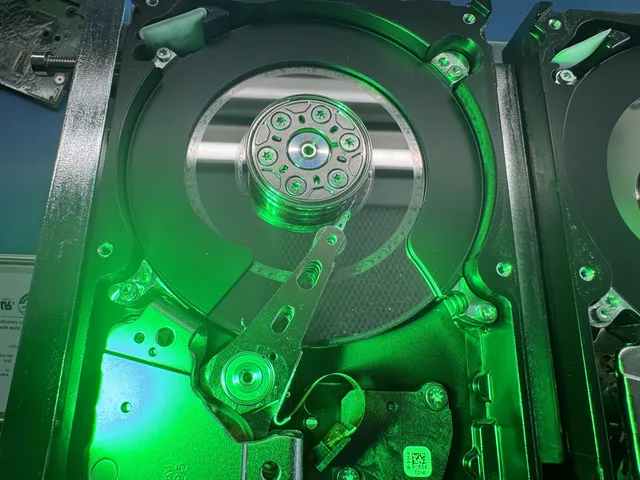
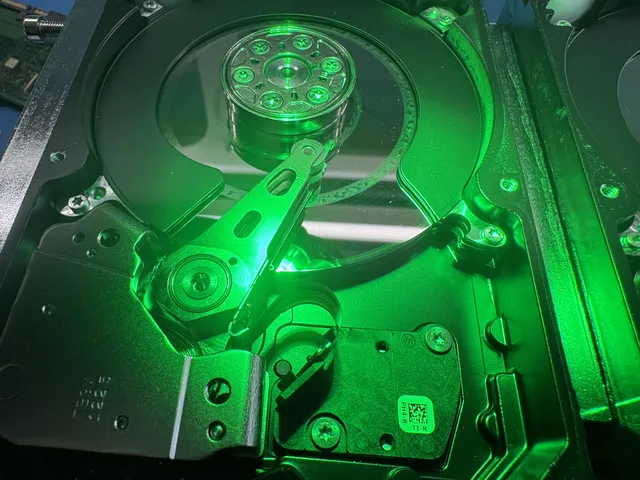
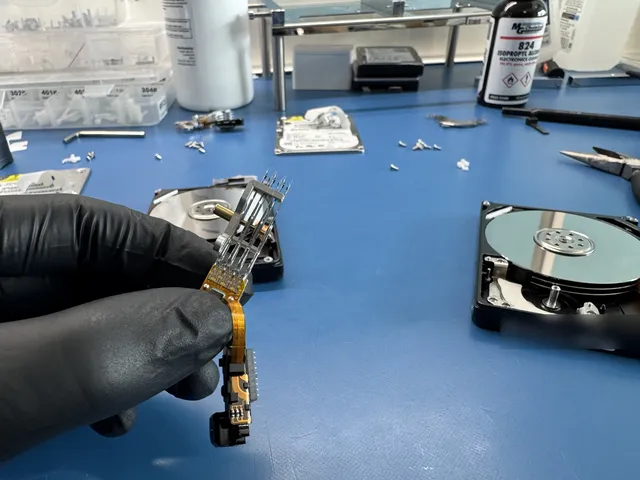
For a Mac with a spinning hard drive, head and platter work takes place in a laminar-flow work area. We open the drive, swap damaged components, image it, then decrypt it using your credentials. The encryption doesn't change our process much, just adds a decryption step after imaging.
Forgot Password and Recovery Key (Recovery: Not Possible)
We're straight with you on this one. If you can't decrypt the drive, we can't read it. We can recover every single byte from the physical drive, but it'll all be encrypted gibberish without the key. No legitimate data recovery company can break FileVault encryption. If someone tells you they can, they're either lying or confused.
Water or Physical Damage (Recovery: Usually Possible)
SSD recovery cost and timing depend on original-board repair, supported firmware access, and the work needed to extract readable data. A dead encrypted controller can make recovery impossible rather than simply more expensive. Obtain a case-specific diagnosis and quote; chip-off is not a promised fallback.
When You Need Professional FileVault Data Recovery
DIY methods do not cover every FileVault problem. Some failures require specialist assessment. Here's when to skip the troubleshooting and call us directly:
- The drive isn't recognized at all. Not in Recovery mode, not in Target Disk Mode, not in Disk Utility. That's a hardware failure.
- Disk Utility shows the volume but can't mount it. APFS corruption on an encrypted volume requires specialized tools that can work with the encryption layer.
- The Mac has a T2 chip and won't enter Recovery. T2 failures can lock out the entire boot process, and only chip-level repair gets around that.
- You need to recover from an Apple Silicon Mac with BridgeOS issues. The M-series chips handle encryption differently than Intel Macs, and recovery requires understanding how the Secure Enclave manages keys.
- Liquid damage or drop damage. Physical damage needs physical repair. Period.
Our process for FileVault cases works like this:
1 Diagnosis
We examine the drive or Mac to determine what's physically wrong. The $100 diagnostic is credited toward a successful recovery. The $100 diagnostic is non-refundable once diagnostics start, and donor drives or replacement parts you approve are non-refundable once ordered, even if recovery fails. You approve the estimate before recovery work starts.
2 Create a Sector-Level Image
We clone the drive bit-for-bit, encrypted data and all.
3 Decrypt the Image
Using your password or recovery key, we unlock the APFS encryption on the cloned image. We work on the clone, never the original, to protect your data.
4 Extract and Verify Files
We pull your files from the decrypted image, verify their integrity, and deliver them on a new external drive.
Our standard recovery estimate is 4–6 weeks; timing may vary by case.
T2 and Apple Silicon Macs: A Different Beast
Modern Macs don't handle encryption the way older ones did. If you have a MacBook Air, MacBook Pro, iMac, or Mac mini from 2018 or later, you need to understand this section.
T2 Security Chip (2018-2020 Intel Macs)
The T2 chip introduced hardware-level encryption that's always on. Even if you never turned on FileVault, your data is encrypted by the T2 chip. The difference is that without FileVault, the decryption key is tied to the hardware itself, so the drive auto-decrypts on boot. With FileVault enabled, the key is also protected by your password.
What this means for recovery: you can't just pull the SSD out of a T2 Mac and read it in another computer. The SSD is encrypted by that specific T2 chip. If the T2 chip or logic board dies, the data is only accessible if you can repair or replace the board while keeping the T2 chip functional. This is chip-level work that requires a real lab.
Apple Silicon (M1, M2, M3, M4)
Apple Silicon takes it further. The SSD controller is built directly into the M-series chip. There's no separate SSD you can remove. The NAND flash storage on the logic board is encrypted by the Secure Enclave inside the M-series chip, and there is no way to decrypt it without that specific chip functioning.
For MacBook data recovery on Apple Silicon, the logic board basically has to work at least partially. We can sometimes repair damaged boards enough to extract data, but if the M-series chip itself is damaged, the encryption keys are gone.
Key Differences by Mac Generation
| Mac Type | Encryption Behavior |
|---|---|
| Pre-2018 Intel (no T2) | SSD can be removed and read externally. FileVault encryption only active if manually enabled. Recovery key unlocks everything. |
| 2018-2020 Intel (T2) | Always encrypted by T2 hardware. SSD tied to that specific logic board. FileVault adds password requirement to boot. |
| 2020+ Apple Silicon | NAND soldered to board, encrypted by Secure Enclave. Cannot be removed. Board must function for any recovery. |
Preventing FileVault Data Loss
Recovery is great, but not needing recovery is better. If you're using FileVault (and you should be, especially on a laptop), protect yourself:
Save Your Recovery Key in Multiple Places
When you enable FileVault, macOS gives you a recovery key. Don't just store it with Apple. Write it on paper and put it in a safe. Save it in a password manager. Email it to yourself. Store it in a locked note on your iPhone. The more places you keep it, the less likely you'll lose access. Just don't tape it to the bottom of your Mac.
Use Time Machine
Time Machine backs up encrypted volumes without any extra configuration. The backup drive itself should also be encrypted (Time Machine offers this option). If your Mac dies, you restore from Time Machine to a new Mac and everything comes back, FileVault and all.
Test Your Backup
Plug in your backup drive once a month and verify that Time Machine is actually running. Check the "Latest Backup" date in System Settings.
Know Your Apple ID Password
If you stored your FileVault recovery key with Apple (which is the default), you need your Apple ID password to retrieve it. Keep your Apple ID credentials somewhere accessible. If you lose both your Mac's login password and your Apple ID password at the same time, you're in serious trouble.
Consider a Cloud Backup Too
iCloud Drive, Backblaze, Arq, or Crashplan. A cloud backup protects you against theft, fire, and natural disasters that could destroy both your Mac and your Time Machine drive. For a data recovery company, we sure do talk about backups a lot. That's because we see what happens when people don't have them.
FileVault vs. Other Encryption: How Recovery Differs
People sometimes confuse FileVault with other encryption methods. The recovery approach is different for each one.
FileVault vs. BitLocker (Windows): Both are full-disk encryption, but BitLocker uses a different key management system (TPM-based). Data recovery concepts are similar. You need the recovery key or password. The main difference is that BitLocker recovery keys are often stored in Azure AD for business machines, while FileVault keys go to iCloud.
FileVault vs. APFS Encryption: They're actually the same thing on modern macOS. FileVault 2 on APFS volumes uses the native APFS encryption mechanism. It's just the user-facing name.
FileVault vs. VeraCrypt/LUKS: Third-party encryption tools like VeraCrypt aren't tied to Apple's hardware. A VeraCrypt-encrypted external drive can be moved between computers freely. Recovery is simpler in some ways (no T2/Secure Enclave to worry about) but the encryption strength is comparable. You still need the passphrase.
Regardless of which encryption you're using, the same rule applies to SSD vs HDD data recovery: the physical recovery process comes first, and decryption comes second. We always image the drive before attempting to decrypt anything.
Frequently Asked Questions
Can a data recovery company bypass FileVault encryption?
No. No legitimate data recovery company can bypass, crack, or circumvent FileVault encryption. The XTS-AES-128 encryption with a 256-bit key is mathematically secure. What we can do is recover data from physically damaged drives that you can then decrypt with your password or recovery key. If someone claims they can break FileVault, they're not being honest with you.
I forgot my FileVault password and recovery key. Is my data gone?
Almost certainly, yes. If you can't authenticate with any admin account on the Mac, don't have the 24-character recovery key, and can't use your Apple ID to retrieve the key from Apple, there's no way to decrypt the data. We always recommend checking with your workplace IT department (if it's a managed Mac), looking through password managers, and searching for printed copies before giving up.
Does FileVault make data recovery harder?
It adds a step, but it doesn't make the physical recovery harder. We clone the encrypted drive the same way we'd clone an unencrypted one. The only difference is that we need your credentials to decrypt the cloned image afterward. If you have the password or recovery key, the encryption doesn't significantly impact the recovery process or success rate.
Can I recover data from a FileVault-encrypted drive if the Mac is dead?
It depends on which Mac. Pre-2018 Intel Macs: yes, we can remove the SSD and decrypt it externally with your recovery key. T2 Macs (2018-2020): we need to repair the logic board enough to access the T2 chip, since the SSD is cryptographically tied to it. Apple Silicon (M1 and later): the logic board must be at least partially functional because the encryption keys live in the Secure Enclave. In all cases, you still need the password or recovery key.
Is FileVault enabled by default on new Macs?
Yes. Since macOS Ventura (2022) on Apple Silicon and T2 Macs, FileVault is enabled by default during setup. On T2 and Apple Silicon Macs, the data is always hardware-encrypted regardless of FileVault status. Turning on FileVault just adds password-based protection to the boot process. If you bought a Mac in the last few years, FileVault is almost certainly on.
How much does FileVault data recovery cost?
For logical issues (macOS won't boot, filesystem corruption), recovery from an encrypted Mac typically runs between $300 and $800. For physical failures requiring head and platter work or chip-level board repair, expect $500 to $1,500+ depending on the severity. You approve the estimate after diagnosis and before recovery work starts. Visit our pricing page for more details on our pricing structure.
Can Apple recover my FileVault-encrypted data?
Apple does not offer data recovery services. If you bring a dead Mac to an Apple Store, they'll offer to replace or repair the hardware, but they won't attempt to recover your files. They may be able to help you retrieve your recovery key if it was stored with Apple via iCloud. For actual data recovery, you need a third-party lab like MDrepairs.
Get help with data recovery
Bring your device to our Lincroft lab during opening hours, or mail it in.
How to mail your deviceThe $100 diagnostic is non-refundable once diagnostics start, and donor drives or replacement parts you approve are non-refundable once ordered, even if recovery fails.
Published by MDrepairs
MDrepairs is a data recovery and electronics repair lab in Lincroft, New Jersey. Our founder and lead technician Joseph Montanti films real cases for our YouTube channel, showing tools, repair steps and recovery outcomes.
Keep reading
- BitLocker Recovery Key Not Working? Check the Key ID Before Resetting
- BitLocker Drive, Lost Recovery Key: What's Possible
- FileVault Mac Won't Boot: Encrypted Drive Recovery