Can You Recover Deleted Files from an SD Card?
In this article
Yes, you can almost always recover deleted files from an SD card. Deleting or formatting may leave photos and videos on the card, but some operations erase or deallocate the data. Stop using the card and run recovery software.
- Stop writing to the card: new files can overwrite your deleted data
- Deleted or quick-formatted: software recovery success rates are high
- Card is damaged or unreadable: use professional SD card data recovery
Yes, you can almost always recover deleted files from an SD card. When you delete photos from your camera or format the card in your drone, the file system may mark the space as "available" while leaving the contents in place. But some operations erase or deallocate that data. Recovery software can look for photos, videos, and documents that are still readable.
At MDrepairs, SD card recovery is one of our highest success-rate services. Whether you accidentally hit "Delete All" on your camera, need to recover photos from an SD card, formatted the card by mistake, or the card just stopped working entirely, the data is almost certainly still there. We'll walk you through everything here: the best free tools to recover deleted files, step-by-step instructions, when to call a pro, and how to prevent SD card data loss going forward.
The Short Answer: What's Recoverable
Here's the quick breakdown of common SD card data loss scenarios and how likely recovery is. The good news: almost every scenario is recoverable.
| Scenario | Recoverable? | Notes |
|---|---|---|
| Accidentally deleted photos from camera | Yes (very high) | Data may remain if it hasn't been overwritten, erased, or deallocated. Stop using the card immediately. |
| Formatted SD card in camera | Depends on format | Some camera formats leave file contents; others erase them. Check the camera and format mode. |
| Card not recognized by device | Yes (high) | Usually a file system corruption issue. Data is still intact on the NAND chips. |
| Physically damaged or cracked card | Yes (moderate) | Requires readable NAND and supported ECC, scrambling, translation, and encryption handling |
| Card from crashed drone | Yes (high) | SD cards survive impacts well. Even if the drone is destroyed, the card usually works fine. |
| Card used in phone | Yes (usually) | Android phones may encrypt SD card data. If encrypted and phone is gone, recovery is much harder. |
Why SD Card Recovery Works So Well
If you've read about SSD data recovery or iPhone data recovery, you might think flash storage is always tough to recover. SD cards are a completely different story though. Here's why.
SD Cards Don't Support TRIM
TRIM is a command that modern SSDs and smartphones use to proactively wipe deleted data blocks. When you delete a file on an SSD, the drive's controller goes through and zeroes out those storage blocks in the background, making the data unrecoverable almost immediately. That's a huge problem for SSD data recovery.
SD cards can also erase or deallocate data. Deleting a photo may just update the file allocation table (FAT) to mark the space as "free," leaving the photo's contents behind. What survives depends on the commands the device sends and how the card handles them.
Simple, Well-Understood File Systems
SD cards almost universally use one of two file systems: FAT32 (for cards 32 GB and under) or exFAT (for cards larger than 32 GB). Both have been around for decades and recovery software knows them inside and out. The data structures are simple, well-documented, and predictable, so recovery tools know exactly where to look for file tables, directory entries, and raw file data.
Compare that to the proprietary, encrypted file systems on iPhones or the complex wear-leveling algorithms on enterprise SSDs. SD cards are about as straightforward as flash storage gets.
No Hardware-Level Encryption (Usually)
Most devices that use SD cards (cameras, drones, dash cams, handheld gaming devices) do not encrypt the data on the card. Your photos and videos are just standard JPEG, RAW, MP4, or MOV files sitting there unencrypted. Recovery software can spot these files by their file signatures (sometimes called "magic bytes") even if the file allocation table is completely trashed.
SD cards are the best-case scenario for data recovery. No TRIM, no encryption, simple file systems, and decades of recovery tools designed specifically for them. If your data was on an SD card when it was lost, the odds are strongly in your favor.
How to Recover Deleted Photos from an SD Card (Step by Step)
If you've accidentally deleted photos or videos from your SD card, here's exactly how to recover them yourself using free tools. This process works for unencrypted SD cards from cameras, drones, dash cams, phones, and other devices.
1 Stop Using the Card Immediately
This is the most critical step. Remove the SD card from your device right now. Do not take any more photos. Do not record any more video. Do not save anything to the card. Every new file you write could overwrite the deleted data you're trying to recover. If your camera is still on, turn it off and eject the card.
2 Connect the Card to Your Computer
Insert the SD card into your computer's built-in card reader. If your computer doesn't have one, use an external USB card reader (you can get one for $5-$10 at any electronics store). For microSD cards, use the microSD-to-SD adapter that came with your card, or a USB reader that has a microSD slot.
When the card appears on your computer, do not open it, do not browse files, and do not let your operating system "fix" any errors it finds. Just let it mount and move on to the next step.
3 Download Recovery Software
For most situations, we recommend starting with one of these free tools:
- PhotoRec: Free, open-source, runs on Windows, Mac, and Linux. The interface looks rough, but it's extremely powerful. Recovers 480+ file types including every photo and video format.
- Recuva: Free for personal use, Windows only. Way friendlier interface. Good for simple deletions.
Both are legitimate, trusted tools. PhotoRec is more powerful for deep recovery; Recuva is easier to use for straightforward situations.
4 Scan the SD Card
Open your recovery software and select the SD card as the target drive. Run a deep scan (sometimes called "full scan" or "advanced scan"). A deep scan examines every sector on the card and searches for file signatures, which means it can find files even if the file system is completely destroyed.
Scanning can take anywhere from 5 minutes to over an hour depending on the card size. A 64 GB card typically takes 15-30 minutes. Be patient and let the scan finish completely.
5 Preview and Recover Files
After the scan completes, the software will show you a list of recoverable files. Most tools let you preview photos before recovering them. Select the files you want and choose a save location.
CRITICAL: Save recovered files to your computer's hard drive or an external drive. NEVER save recovered files back to the same SD card you're recovering from. Saving to the same card will overwrite other deleted data that hasn't been recovered yet.
Best SD Card Recovery Software
There are tons of recovery tools out there. Most are mediocre. Here's an honest look at the ones that actually work well for SD cards.
| Software | Price | Best For |
|---|---|---|
| PhotoRec | Free (open-source) | Deep recovery, formatted cards, corrupted file systems. Recovers 480+ file types. Command-line interface can be intimidating but very powerful. |
| Recuva | Free (personal use) | Simple deletions, beginners. Easy wizard-style interface. Windows only. Good enough for most accidental deletions. |
| Disk Drill | Free trial (500 MB limit) | Preview before buying. Nice interface, works on Mac and Windows. Full version is $89. Free trial lets you verify files are recoverable before paying. |
| R-Studio | $79.99 | Advanced users, RAID recovery, severely damaged file systems. Industry-standard tool used by many professional labs. Overkill for simple deletions. |
Our recommendation: Start with PhotoRec. It's free, it's the most powerful option for SD card recovery, and it handles formatted cards and corrupted file systems better than most paid tools. Yes, the interface is basic (it runs in a terminal window), but there are YouTube tutorials that walk you through every step. If PhotoRec feels too technical, try Recuva instead.
Recovering from Formatted SD Cards
Formatting an SD card is one of the most common causes of data loss. We have a dedicated guide on recovering data from a formatted SD card that goes deeper into this topic. The good news: in most cases, formatted SD cards are fully recoverable. But the type of format matters.
Quick Format vs. Full Format
Formatting outcomes depend on the actual device and operation. SD Association Formatter Quick format initializes file-system structures without overwriting the file contents; its Overwrite format overwrites the user area. Camera and operating-system formatting may behave differently or issue erase/deallocation commands. Recoverability depends on the remaining data, not a universal success percentage.
A full format (also called "overwrite format" or "secure erase") writes zeros to every sector on the card, physically erasing all data. After a full format, recovery is essentially impossible because the original data has been replaced with zeros.
The Good News About Camera Formats
Do not format a card as a recovery step. Formatting behavior depends on the camera, operating system, and chosen option. SD Association Formatter Quick format does not overwrite file contents, while its Overwrite format does; other formatting operations may erase or deallocate data. Preserve the card and determine what remains readable before attempting recovery.
If you accidentally hit "Format" on your camera instead of "Delete Last Photo," or if your camera prompted you to format the card and you said yes, recovery depends on the camera and format mode. Just stop using the card and follow the recovery steps above.
Formatting on a Computer
Formatting an SD card on a computer is slightly riskier. On Windows, the "Format" dialog has a checkbox for "Quick Format." If that box is checked (it is by default), a quick format may leave file contents for recovery. If you unchecked "Quick Format" and did a full format, recovery chances drop significantly.
On macOS, Disk Utility's "Erase" function performs a quick format by default, but the "Security Options" slider lets you choose to overwrite data. If you used the default settings, your data is likely recoverable.
When DIY Recovery Fails
DIY software works great when the SD card is physically healthy and your computer can read it. But sometimes software alone isn't enough.
The Card Isn't Recognized by Any Device
If you insert the SD card into your computer's reader and nothing happens (no drive letter, no notification, nothing at all), the card has a hardware-level problem. Could be a failed controller chip, damaged contact pins, or internal circuitry failure. Software can't help here because it needs the card to be visible to the operating system first.
Physically Damaged Cards
SD cards are small and fragile. They crack, they snap, they get stepped on. If your card is physically broken, bent, or has visible damage, don't try to force it into a reader. You'll risk further damage to the NAND chips where your data is stored. This is a job for a professional lab.
Water-Damaged Cards
SD cards actually survive water exposure better than most people expect. The NAND flash memory chips themselves are fairly water-resistant. If the card got wet, keep it out of the reader until it's been checked for moisture and contamination. Don't use a hair dryer. Drying alone can leave residue behind. A professional can check and clean the card before trying recovery.
Cards from Submerged Drones or Cameras
We see these all the time at our lab. A DJI Mavic that went into a lake, a GoPro lost in the ocean, a dash cam from a flooded car. The SD card inside usually survives even when the device is completely trashed. Saltwater does require professional cleaning of the contacts and circuitry, but the NAND chips themselves are typically fine.
Professional SD Card Recovery
When software won't cut it, a professional lab can go further. Here's what we do at MDrepairs that home software can't touch.
Chip-Off Recovery
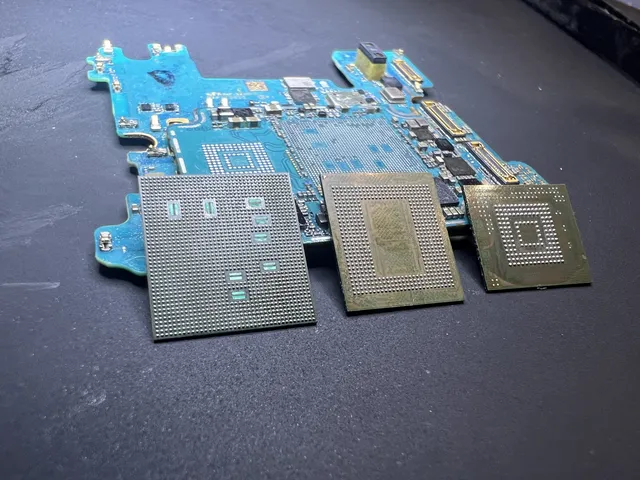
A card or USB drive must be identified before choosing chip-off. Separate NAND packages can sometimes be read externally; monolithic devices may require access to technological pads or traces. Neither method guarantees files: the dump still needs supported error correction, descrambling, and translation, and encryption remains a separate limit.
The NAND chips are where your data actually lives. Even if the card's controller, contacts, and circuit board are completely destroyed, the NAND chips often survive. We read the raw data from these chips, reconstruct the file system, and recover your photos and videos.
Our Process
- Diagnostic: You send us the card (or drop it off). We evaluate the damage and tell you what's recoverable and what it'll cost. No obligation.
- Flash recovery cost and timing depend on whether the device needs connector repair, controlled reading, or supported NAND/monolithic reconstruction. The memory, ECC, scrambling, translation, and encryption determine feasibility. Obtain a firm quote and estimate after diagnosis; chip-off does not guarantee a higher recovery rate.
- File list review: We send you a list of recovered files so you can verify your data is there before paying.
- No data, no charge: If we can't recover your files, you don't pay. Period.
Check our data recovery pricing page for detailed cost information. SD card recovery is typically one of our most affordable services because the process is well-established and success rates are high.
SD Card Recovery by Device
Not all SD card situations are the same. Some devices have quirks that affect recovery. Here's the breakdown by device type.
Camera (DSLR and Mirrorless)
Do not format a card as a recovery step. Formatting behavior depends on the camera, operating system, and chosen option. SD Association Formatter Quick format does not overwrite file contents, while its Overwrite format does; other formatting operations may erase or deallocate data. Preserve the card and determine what remains readable before attempting recovery.
Pro tip: If your camera has dual card slots (many professional cameras do), set one slot to backup mode. This writes every photo to both cards simultaneously, giving you a built-in backup that protects against card failure.
Drone (DJI, Autel, etc.)
We recover a lot of drone footage. SD cards from drones usually fail in one of two ways: the card gets corrupted mid-flight (usually due to a sudden power loss during recording), or the drone crashes and the card is physically damaged.
For corrupted cards, DIY software recovery works well. DJI drones record MP4 and MOV video files that are easy for recovery tools to identify. The tricky part with drone footage is that large video files span many sectors on the card. If the file wasn't properly closed (like during a crash), the last video might be incomplete. That said, recovery tools can usually salvage at least a partial version of that last clip.
If the drone crashed into water, see the section above on submerged devices. The SD card usually survives even when the drone doesn't.
Dash Cam
Dash cams are hard on SD cards. They write continuously, 24/7, overwriting the oldest footage as the card fills up (loop recording). All that constant writing means SD cards in dash cams wear out way faster than in other devices. If your dash cam says the SD card needs to be formatted, it may have reached the end of its write endurance.
For dash cam recovery, time is critical. Dash cams are constantly overwriting old data, so the footage you need might already be partially overwritten. Remove the card as soon as you realize you need old footage. The most recent recordings are most likely to be recoverable.
Android Phone
Android adoptable storage encrypts the card and depends on key material held by the adopting device. A broken phone does not automatically mean the key was destroyed: restoring its original hardware may still allow access. A reset, lost required keys or irreparable security hardware can make the card unrecoverable. Portable-storage cards must be assessed separately.
However, if your phone used the SD card as "portable storage" and it wasn't encrypted separately, recovery can follow the camera-card steps. Seeing the card's capacity on a computer doesn't tell you whether its files are encrypted. Check how the card was set up on the original phone before choosing a recovery method.
Nintendo Switch and Gaming Devices
The Nintendo Switch stores downloaded games and screenshots/video captures on microSD cards. Save files stay in the console's system memory. Downloaded game data on the card is tied to the console, so it can't be meaningfully recovered to use elsewhere. However, screenshots and video captures are stored as standard JPEG and MP4 files and can be recovered normally.
Other handheld gaming devices (Steam Deck, older 3DS, PSP) have varying levels of SD card encryption. Screenshots and media are usually recoverable; game data usually isn't.
How to Prevent SD Card Data Loss
Recovery rates are great for SD cards, but you'd obviously rather not need recovery in the first place. A few simple habits go a long way.
1. Format the Card in Your Camera, Not on a Computer
Do not format a card as a recovery step. Formatting behavior depends on the camera, operating system, and chosen option. SD Association Formatter Quick format does not overwrite file contents, while its Overwrite format does; other formatting operations may erase or deallocate data. Preserve the card and determine what remains readable before attempting recovery.
2. Use Quality SD Cards from Reputable Brands
Cheap, no-name SD cards have higher failure rates. Stick with Samsung, SanDisk, Lexar, Sony, or Kingston. For cameras and drones, get cards rated for video recording (look for V30, V60, or V90 speed ratings). For dash cams, get cards specifically rated for "high endurance" or "continuous recording." Those are built for the constant write cycles that dash cams demand.
3. Back Up After Every Shoot
Make it a habit: when you get home from a shoot, copy everything from the SD card to your computer and an external drive before you do anything else. Don't review photos on the camera. Don't delete the "bad" shots on the card. Just dump the entire card to your computer first. Then you can sort, edit, and delete at your leisure with a backup safely stored.
4. Don't Fill the Card Completely
When an SD card gets close to 100% capacity, the controller has less room to manage data efficiently. This can lead to write errors, corruption, and premature failure. A good rule of thumb: when your card hits 80-85% full, swap it out or offload your files. Most cameras show a remaining shots counter. Pay attention to it.
5. Eject Properly Before Removing
If the SD card is in a computer, always use "Safely Remove Hardware" (Windows) or "Eject" (Mac) before pulling the card out. Removing a card while files are being written can corrupt the file system and potentially damage the data. In cameras and drones, turn the device off before removing the card.
6. Replace Cards Periodically
NAND flash memory has a limited number of write cycles. A card that's been used hard for several years is more likely to develop errors and die on you. If you shoot professionally, swap out your SD cards every 2-3 years. They're cheap compared to the value of the data they hold.
Frequently Asked Questions
Can you recover photos from a formatted SD card?
Do not format a card as a recovery step. Formatting behavior depends on the camera, operating system, and chosen option. SD Association Formatter Quick format does not overwrite file contents, while its Overwrite format does; other formatting operations may erase or deallocate data. Preserve the card and determine what remains readable before attempting recovery.
How much does SD card data recovery cost?
Flash recovery cost and timing depend on whether the device needs connector repair, controlled reading, or supported NAND/monolithic reconstruction. The memory, ECC, scrambling, translation, and encryption determine feasibility. Obtain a firm quote and estimate after diagnosis; chip-off does not guarantee a higher recovery rate.
How long do deleted files stay on an SD card?
Deleted files can stay on an SD card, but overwriting, erasure, or deallocation can make them unreadable. Flash memory also loses charge over time. There's no fixed recovery window. Every new photo you take could overwrite a deleted one, so leave the card unused while you arrange recovery.
Can I recover videos from my drone's SD card?
Yes. Drone footage (MP4 and MOV files from DJI, Autel, and other manufacturers) is stored unencrypted on the SD card and recovers well with standard tools. The most common issue with drone footage recovery is that the last video file may be incomplete if the drone lost power or crashed mid-recording. Recovery software can usually salvage a partial version of that last clip.
Is it safe to use an SD card after recovering data from it?
It depends on why the data was lost. If you simply deleted files by accident, the card is fine to keep using. Just format it in your camera first. If the card had errors, corruption, or was making your device show error messages, it may be failing and should be replaced. SD cards are inexpensive; if there's any doubt about the card's reliability, replace it rather than risk losing more data.
Why does my camera say "Card Error" or "Card Not Initialized"?
Do not format a card as a recovery step. Formatting behavior depends on the camera, operating system, and chosen option. SD Association Formatter Quick format does not overwrite file contents, while its Overwrite format does; other formatting operations may erase or deallocate data. Preserve the card and determine what remains readable before attempting recovery.
Can I recover photos from a microSD card?
Yes. microSD cards use the exact same NAND flash technology and file systems as standard SD cards. They're just physically smaller. The recovery process is identical. Use the microSD-to-SD adapter that came with the card (or a USB reader with a microSD slot) to connect it to your computer, then follow the same recovery steps.
What's the difference between SD card recovery and SSD recovery?
The biggest difference is TRIM. SSDs support TRIM, which actively erases deleted data blocks in the background, making recovery much harder or impossible after TRIM has run. SD cards can also erase or deallocate data, so deleted files don't always survive until new files overwrite them. SD cards also use simpler file systems (FAT32/exFAT) and simpler controllers, making them much more predictable for recovery software. In short: SD card recovery is significantly easier and more successful than SSD recovery. SD cards share this advantage with hard drives and USB flash drives, which also lack TRIM. Our complete guide breaks down recovery chances for every device type.
How to Recover Deleted SD Card Files Without Making the Card Worse
Deleted SD card files are usually recoverable if you stop using the card immediately. Cameras, drones, dashcams, phones, and handheld consoles all write new data quickly, and those writes can overwrite deleted files. Erasure or deallocation can also make deleted files unreadable. Time by itself is not the main problem. Taking more photos, recording more video, letting a dashcam loop, or letting a device rebuild folders on the card is the problem.
Start by removing the SD or microSD card from the device. Do not put it back in the camera to check thumbnails. Do not format it because the camera says it needs formatting. Do not take a test photo. Use a quality card reader connected to a computer, then confirm whether the card appears at the correct capacity. If it mounts and the deleted files are the only issue, scan it with recovery software and save the recovered files to your computer or an external drive, not to the SD card.
For photos, software often does well because JPEG, HEIC, TIFF, and many RAW formats have recognizable file signatures. Video is more fragile. GoPro, drone, DSLR, and mirrorless camera video may be fragmented across the card, and a simple file-carving tool can find pieces without rebuilding a playable file. If the recovered videos will not open, do not keep running scans over and over. At that point, the card image and file system metadata matter.
If the card is not detected, shows 0 bytes, shows the wrong capacity, asks to initialize, gets hot, or has physical damage, software is not the right tool. The computer cannot recover files from storage it cannot reliably read. A lab can work at the controller or NAND level, depending on the card construction. MDrepairs handles SD card recovery for damaged and deleted-file cases in our New Jersey lab, with mail-in service for customers nationwide. The practical rule is simple: if the card reads normally, scan once carefully. If it does not read normally, stop and protect the original media.
Can deleted SD card files come back with their original names?
Sometimes. If the file system records are still intact, recovery software or lab tools may preserve folder names, file names, and timestamps. If the file system is damaged or overwritten, recovery may rely on file signatures instead. That can recover the content but may return generic filenames, especially for photos and videos.
Should I format an SD card before trying recovery?
No. Formatting is only for making a card usable again after you no longer need the missing data. If you need deleted photos, videos, or documents, do not format, initialize, repair, or take new pictures. Remove the card, scan it from another device if it reads normally, and save recovered files elsewhere.
How MDrepairs can help
Real cases like this come through our New Jersey lab every week. If you are dealing with one now, start here.
- Flash Drive & USB Data Recovery Chip-off recovery from snapped and unreadable USB drives. Learn more
- Hard Drive Data Recovery Mechanical, firmware and logical HDD recovery on every brand. Learn more
- Mail-In Data Recovery Free insured shipping both ways (contiguous US), anywhere in the US. Learn more