SD Card Not Showing Up? Fixes Before You Panic
Our founder and lead technician, Joseph Montanti, handles cases personally.
An SD card that works in your camera but is missing on your computer points to a reader or compatibility problem. If your camera supports USB file transfer, connect it to the computer and copy the pictures to a separate drive. Then check the computer's card reader and its SDHC or SDXC compatibility. If a microSD card is not showing up on your phone, reseating it with the phone off and checking the phone's Storage settings are the first steps. A card that works in one device gives you a chance to save the files before troubleshooting the other.
Set a damaged card aside. If the card is cracked, bent, wet, unusually hot, or keeps disconnecting, remove it and leave recovery to a lab. Cancel format prompts, and leave repair commands and write tests until the files are saved or a complete image exists.
On this page
The camera reads the card, but the computer does not
If the camera opens the pictures, save them to a separate drive through its USB connection, if supported, before testing the reader. Stop at a read error, a stalled transfer or a card that drops out.
The camera and computer use different connections to reach the same memory. A working camera therefore makes the computer's reader, adapter, driver and supported card types the first things to check. Check the copied pictures on the computer before changing anything on the card.
A reader that accepts an SD card physically may still be too old to support it. SDHC covers capacities above 2GB through 32GB; SDXC covers capacities above 32GB through 2TB. An SDHC-only reader does not support SDXC cards. The SD Association's compatibility chart explains which combinations work. Match the logos on the card and reader, and check the camera's supported capacities in its manual.
For a microSD card in a full-size adapter, the adapter adds another set of contacts. Try a reader with a direct microSD slot or a different adapter.
Card reader and memory card troubleshooting
- Eject the card on the computer, or turn the camera or phone off before removing it. Inspect the disconnected card and its contacts. For an intact, dry card with dust or dirt on the contacts, wipe them gently with a dry, soft cloth or clean cotton swab, as Sony describes. Leave a wet, corroded, or damaged card out of the device; do not clean inside its slot. Seat an intact card fully when putting it back.
- Try another compatible reader connected directly to the computer. Remove a USB hub or extension from this test.
- Try another USB port. If the reader has a removable cable, use a cable that you know transfers data.
- Try the card on another computer. If it opens there, save the files there before working on the original computer.
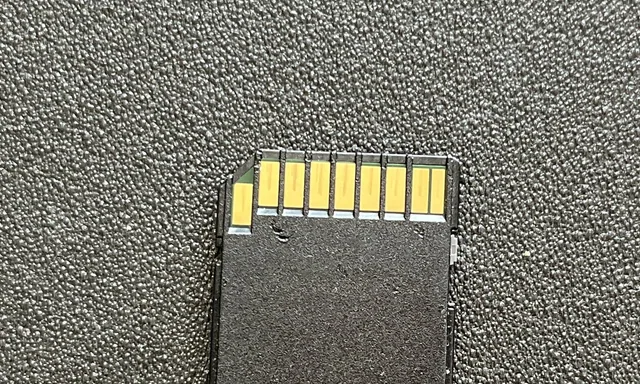
Change one part at a time. If the same card opens through a second reader on the same computer, the original reader or adapter is the part to replace. If other cards also fail in that reader, that reinforces the finding. Use a spare card whose contents are already backed up for this comparison.
The sliding switch on a full-size SD card or adapter is a write-protect switch. It can prevent saving, deleting or formatting; it is not supposed to prevent reading existing photographs. A “card locked” message calls for checking that switch, while a card absent from the device needs the connection checks above. MicroSD cards do not have that switch themselves.
| What you see | What it means | Next step |
|---|---|---|
| Works in camera, absent on computer | The computer's reader or its support for the card is suspect. | Transfer through the camera, then try a compatible reader. |
| Visible in disk tools, absent from file browser | The device is detected, but its volume is hidden, unmounted or unreadable. | Check the volume status and file system. |
| “Needs formatting,” RAW or unallocated | The operating system has no usable file system or partition to open. | Preserve the card before file recovery. |
| Zero capacity or repeated disconnections through different readers | The card is failing to provide stable access to its storage. | Use an SD-card recovery service. |
Find the card in Windows
File Explorer shows usable volumes. Disk Management also shows storage that Windows detects but cannot open, which is why an SD card can appear in one and disappear from the other.
- Press Windows + R, enter
diskmgmt.mscand press Enter. - Find the card by its capacity in the lower pane. Check the whole disk as well as its partition.
- If it has a recognized file system, a healthy volume and no drive letter, right-click that volume, select Change Drive Letter and Paths, then Add. Choose an unused letter.
Microsoft documents the drive-letter procedure. It gives an existing volume a way to appear in Explorer. A RAW or unallocated card needs a different approach: RAW means Windows cannot recognize a usable file system, and unallocated means it has no recognized partition there. Corruption can cause either, while a format intended for another device can also be unreadable to Windows.
If the reader itself has an error in Device Manager, follow Microsoft's driver update or reinstall steps. Right-click Start, open Device Manager and find the reader or affected USB device. Update its driver through Windows or the computer maker's support page. Reinstalling the affected device and restarting Windows is another option when the reader fails with several cards. Avoid uninstalling unrelated USB controllers.
Find the card on a Mac
In Finder > Settings, enable external disks under both General and Sidebar. Those settings control where a connected volume is displayed. They do not repair a damaged card. Apple's Finder device instructions show the two locations.
Next, open Disk Utility > View > Show All Devices. A detected card appears as a physical device, with any recognized volumes beneath it. If an intact card has an unmounted volume, select that volume and try Mount, following Apple's mount instructions. If mounting fails, move to copying or imaging through a device that can read it.
On a Mac laptop with Apple silicon, a new USB or SD accessory may need approval before it can exchange data. Unlock the Mac and accept the connection if prompted; Apple explains this in its accessory permission guidance. System Information's USB or Card Reader section can help establish whether the reader is connected. Seeing the reader there does not establish that the card's memory is readable.
How to fix an SD card that is not showing on your phone
For Android, switch the phone off, reseat the microSD in its tray and restart. Search Settings for Storage and look for the card. Menu names vary by manufacturer and Android version. If an existing volume offers Mount, try that; a Set up or Format prompt is a different operation that can erase the contents. Samsung's SD-card troubleshooting instructions put reseating and testing another device before formatting, with a backup required first.
A portable card can usually be transferred between compatible devices. A card set up as Android internal or adopted storage is encrypted and tied to the original phone. The encryption keys live in that phone's internal storage, as Android's storage documentation explains. Put that card back in the original phone and copy the files through the phone if it still works. Reformatting it for a new phone destroys the existing storage arrangement.
If a different, backed-up card works in the same tray, concentrate on the original card. If neither is detected, check the phone's supported card type and capacity before assuming both cards failed. A damaged tray or contact can affect any card placed in it.
An SD reader connected to an iPhone
An iPhone uses an external reader. With a compatible USB-C or Lightning adapter connected, open Photos and look for the connected camera or card under Imports or Devices, depending on your iOS version. Apple gives the version-specific steps in its camera-adapter import guide. Keep the originals on the card when asked after import, until you have checked your copies.
Photos import and general file access are separate. For ordinary documents, check the card under Locations in the Files app. Apple's external-storage requirements cover supported file systems and partition layout. A card missing only from Photos may have no importable camera pictures rather than a failed connection.
Recover files before repairing the card
The file system stores names, folders and the locations of file contents. An interrupted write can damage those records even when portions of the photographs remain in memory. That is why a format request can appear on a card that held pictures a moment earlier.
If the card stays connected, reports the expected capacity and reads without errors, make a sector-by-sector image onto a different drive. This copies the card's addressable storage into a file, including areas that no longer belong to a visible folder. DMDE's Copy Sectors instructions describe selecting a device as the source and a file as the destination. Check those selections carefully: the destination needs room for the card's full capacity.
Open the resulting image in recovery software and save recovered files to another drive. PhotoRec can scan an image for recognizable file contents. It can recover pictures without the original folder structure, although filenames and folders may be lost. Our SD-card file recovery guide covers this branch in more detail.
CHKDSK, First Aid and formatting change the storage they work on. They belong after recovery or on an expendable copy. Once you have checked the recovered photos and videos, follow the camera or phone maker's formatting instructions if you intend to reuse a card that has no hardware fault. A card that continues producing errors should be replaced.
What happens when the card will not read
A card that stays absent or reports zero capacity through a compatible reader has no usable storage for ordinary recovery software to scan. SD-card data recovery may require access to the flash memory beneath the card's normal interface.
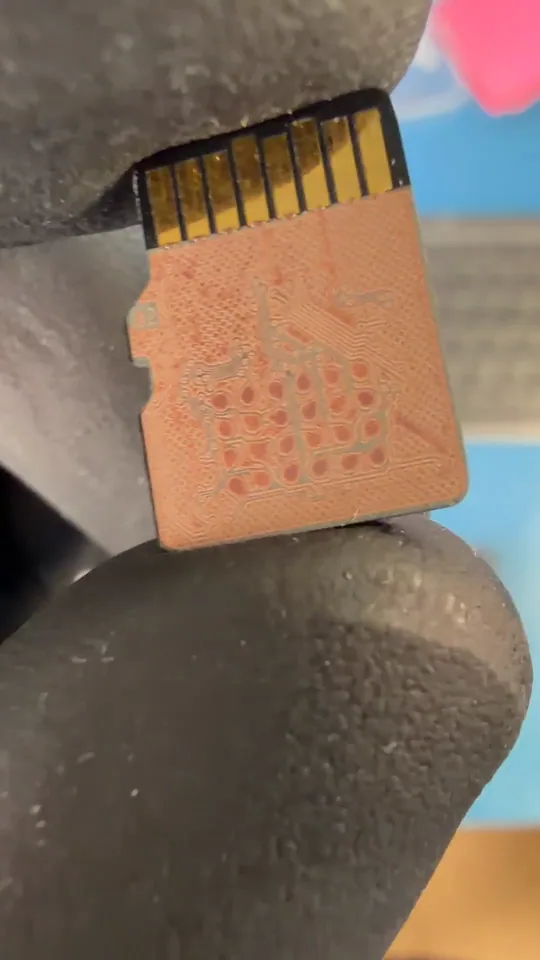
In our recorded recovery of a card containing dog photographs, we exposed the contacts beneath its coating, identified the data connections and wired them to an adapter. PC-3000 Flash read the memory, after which we corrected read errors and reconstructed the scrambled page layout to recover the pictures. That reconstruction matters because a raw memory read is not yet a set of usable files.
Encrypted adopted storage still needs its original phone's keys. Physically damaged memory and unsupported memory layouts also affect whether a readable set of files can be reconstructed.
SD card not detected after formatting
A quick format creates fresh file-system records. In the SD Association's formatter, Quick Format leaves the file contents in place, while Overwrite Format overwrites the user data area. Other devices have their own format behavior, so recovery depends on what the operation erased and whether anything new was recorded afterward.
If the card remains visible with the correct capacity, the image-and-recovery process above is the next step for missing files. If it has vanished from disk tools as well, check the reader and compatibility first. A completed format does not repair a broken connection or damaged flash memory. Once the files are safe, testing an empty replacement card in the same camera or phone helps establish whether that device also needs attention.
Get help with data recovery
Bring your device to our Lincroft lab during opening hours, or mail it in.
How to mail your deviceThe $100 diagnostic is non-refundable once diagnostics start, and donor drives or replacement parts you approve are non-refundable once ordered, even if recovery fails.
Published by MDrepairs
MDrepairs is a data recovery and electronics repair lab in Lincroft, New Jersey. Our founder and lead technician Joseph Montanti films real cases for our YouTube channel, showing tools, repair steps and recovery outcomes.
Keep reading
- USB “Device Descriptor Request Failed”: What It Means for a Flash Drive
- USB Says “Please Insert a Disk” or “No Media”: Can You Recover the Files?
- SD Card Write Protected? Fixes Beyond the Switch