How to Recover a Formatted SD Card
Our founder and lead technician, Joseph Montanti, handles cases personally.
Yes, you can recover files from a formatted SD card when the format left their contents in place. Getting everything back depends on what the camera or computer erased and whether you recorded anything afterward. A quick format can leave photos and videos available for recovery; a completed overwrite removes them.
If you formatted your card by mistake, take it out of the camera and keep it for recovery. Use another card for new pictures. The next job is to preserve what this one still contains, then search that copy for the missing files.
On this page
What happens when you format an SD card
The file system is the card's directory: it connects filenames and folders to the places holding each file. Formatting builds a fresh file system. Some formatting methods leave the old file contents underneath it, which is why recovery software can find photographs on a card that looks empty.
The SD Association distinguishes Quick and Overwrite format in its own Formatter. Quick initializes the file-system information without overwriting file contents. Overwrite also writes across the entire user-data area. That distinction applies to this utility; a camera's Format menu can behave differently.
| What happened | What may remain | Next step |
|---|---|---|
| SD Association Formatter Quick format | File contents can remain after their directory entries are removed. | Image the card and search the image. |
| Camera format | Depends on the camera and selected option; some erase the recording area. | Check that model's manual, then preserve the card. |
| Completed Overwrite format or modern Windows full format | Overwritten contents are gone. | Look for imported files, backups and other copies. |
| Format interrupted before completion | Areas the overwrite never reached may still contain files. | Recover from an image without resuming the format. |
| New pictures taken afterward | Old files survive only where new writes and erasure have not destroyed them. | Preserve the remaining data before further recording. |
| Card now disconnects or gives read errors | There may be a hardware problem as well as a changed file system. | Use the hardware-recovery route below. |
On Windows Vista and later, a full format writes zeros across the formatted volume. Microsoft documents the difference from Windows XP, whose full format checked sectors without the same zero-writing step. Repeating a format never helps find the old pictures.
SD cards hold data as electrical charge in flash memory. Surviving files do not have a fixed expiry date after formatting. New recordings can replace them, and worn flash or long storage in poor conditions can make memory harder to read. Keeping the card unused prevents further recording over it; it does not reverse erasure that already happened.
Make an image before searching for files
An image is a file containing the card's readable sectors, including space that the new file system calls empty. An ordinary copy of the visible folders misses that space. Working from an image lets you try different recovery tools without reading the original card again for every scan.
Wait for the camera’s write light to go out before removing the card. Use a compatible card reader and a computer drive with enough free room for the card's full capacity, plus the files you recover. A card marked 64GB needs roughly that much room for an uncompressed image even if its visible folders are empty. A microSD adapter changes the connector; it does not decrypt a card adopted as phone storage.
Stop for card damage or read errors. Keep cracked, bent or wet cards out of the reader; if a card gets hot, disappears during reading or returns I/O errors, stop and disconnect it. Arrange SD card recovery instead of repeating scans, formatting or repairing the file system.
For a card that reads steadily, Windows users can use Win32 Disk Imager. Its Read operation copies a device into an image file. Its Write operation sends an image to the device, so choosing the correct direction matters.
- Connect the card and dismiss any invitation to format it. Match its drive letter and capacity to the card before selecting it in Win32 Disk Imager.
- Choose an image filename on your computer, such as
sd-backup.img. The destination must have room for the whole card. - Leave Read Only Allocated Partitions unchecked, then select Read and allow the image operation to complete. Leave the card undisturbed while it reads.
- Check that the operation finished without errors and that the image represents the full device; file size alone cannot confirm a complete read. Different displays use decimal GB or binary GiB, so the displayed numbers can differ without any missing sectors.
- Eject the original card and use the saved image for the recovery scan.
On a Mac, you can also use an imaging application with physical-device access. R-Studio's image workflow offers a byte-by-byte image; choose the whole card and save the image to another drive. Select an uncompressed image if you intend to open it in PhotoRec. The tool's own image format may require that tool to read it.
Mac and Linux also include the free command-line tool dd. Use it only for an undamaged card that reads steadily. The examples below use disk4 on Mac and sdb on Linux; replace those names with your card's identifier and the output path with a new image filename on a separate healthy drive. Reversing if= (source) and of= (destination) can overwrite your card.
- On macOS, run
diskutil listand identify the whole card by capacity and device information. Unmount its volumes withdiskutil unmountDisk /dev/disk4; continue only if unmounting succeeds. - For that example card, run
sudo dd if=/dev/rdisk4 of="/Volumes/Recovery/sd-backup.img" bs=4m status=progress. ReplaceRecoverywith your mounted destination drive's name. Apple's installedman ddandman diskutildescribe these options; Terminal's manual instructions explain how to read them. - On Linux, run
lsblk -o NAME,SIZE,MODEL,TYPE,MOUNTPOINTSto identify the card and its mounted partitions. Unmount each mounted card partition, for examplesudo umount /dev/sdb1; do not unmount the destination drive. - Once all card partitions are unmounted, run
sudo dd if=/dev/sdb of="/media/your-user/Recovery/sd-backup.img" bs=4M status=progress, using your actual whole-card identifier and mounted destination path. The GNU dd manual documents the Linux syntax. - Stop with Ctrl+C if reads fail or the card drops out; do not retry a failing card. After a successful completion, check the error output and byte count against the whole card's capacity, then eject it and scan the image.
Recover photos and videos from the image
PhotoRec is free and searches for recognizable file contents, including many camera RAW formats. It is supplied with TestDisk. This approach is useful when formatting removed the directory, though the recovered files usually have generated names and no original folder arrangement.
- Download PhotoRec from CGSecurity and extract it on the computer. Keep the image and the recovery destination on storage other than the SD card.
- Open the saved image. For the command-line version, use
photorec "/path/to/sd-backup.img", replacing the example with your image's path. On Windows, the program isphotorec_win.exe. - Select the partition holding the missing files. For FAT32 or exFAT, select Other as the file-system family. Use Whole for a formatted partition so the search includes its full space.
- Choose a recovery folder on the computer or another healthy drive and confirm it with C. Allow the image scan to finish.
- Open the recovered folders and check the files themselves. PhotoRec creates folders such as
recup_dir.1; its walkthrough explains the selection screens.
View photographs at full size, including the lower part of each image. Play important video clips through and check the audio. A thumbnail or a familiar filename can survive even when some of the file's contents have been overwritten. A recovered file that opens but ends early needs closer checking.
Video is more difficult when its pieces were stored in separate areas of the card. Signature scanning finds recognizable starts, but rebuilding a fragmented clip also requires the correct pieces in the correct order. CGSecurity describes these carving limits. A second scan can help when another tool recognizes a file format differently; it cannot reconstruct bytes that the card no longer returns.
If original names or folders matter, try a file-system recovery tool against the same image. Some old directory records may have survived the format. PhotoRec's generic names do not mean the photos themselves are poor quality; the names and the picture data are separate parts of the recovery.
Choosing a tool for the files you need
Choose software that reads your image format and supports your camera's files. A tool that previews JPEGs may still lack support for a particular RAW variant or fragmented video. Downloading five programs and scanning the physical card five times adds work without preserving anything.
| Tool | Useful feature | Cost category |
|---|---|---|
| PhotoRec | Signature recovery from a raw image; generated filenames. | Free |
| R-Photo | Windows photo and video recovery with image creation and preview. | Free for personal, non-commercial use |
| R-Studio | File-system searches and image support for more involved recovery. | Paid recovery software with a demo |
The supported-file list matters more than a headline claiming to recover every camera. Check your exact RAW extension, such as CR2, CR3, NEF, ARW or RAF. For a video job, preview a full recovered clip before deciding that the software has solved it.
Camera, phone and Nintendo Switch differences
A camera's low-level format can erase more than a normal format. For example, Canon documents a low-level option that processes all recordable sectors. The model and selected option matter more than how quickly the progress bar finished. Use the manual to understand the operation already performed, rather than formatting again to test it.
GoPro recordings may consist of several chapter files. GoPro describes older 4GB chapters and newer 12GB chapters, with other sizes available through supported Labs settings. Several recovered clips can therefore belong to one continuous recording. Check their sequence and duration before assuming the split indicates corruption.
For drone footage, distinguish a missing clip from a clip that exists but will not play. Recovery searches address missing file contents; a damaged video container may need repair after extraction. Keep an untouched copy of each recovered file before using a video repair or joining tool.
An Android card used as portable storage can be treated like a camera card. A card set up as internal or adopted storage is encrypted and tied to its phone. Android's storage documentation explains why putting that card into a computer does not reveal ordinary photos. Preserve the phone and its unlock credentials with the card; a reset or replacement phone is not a route to the old encryption keys.
On the original Nintendo Switch, game saves are in system memory. The microSD card holds downloaded software, screenshots and captured videos. Check the console for saves and any captures stored internally. Recovery of the card is chiefly about files such as captures that have no other copy.
When the card will not read
A card absent from Disk Management or Disk Utility has a different problem from a readable card with an empty directory. A compatible second reader can rule out a reader fault. If the card still exposes no usable storage, consumer software has no sectors to search.
A card listed at its normal capacity but missing from File Explorer may still be accessible to an imaging tool. Select the physical card in a tool such as R-Studio; a drive letter is not required for that method. Creating a new volume to make the letter appear changes the card before you have preserved its old contents.
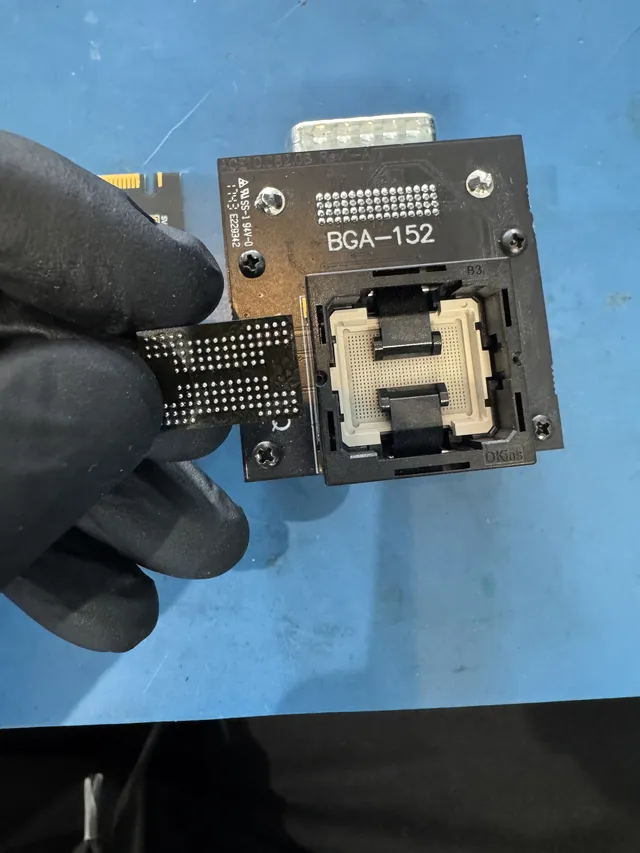
For supported damaged cards, the lab may need to reach the flash memory directly. In one MDrepairs SD card recovery, a card containing dog photos did not appear on the computer. The technician exposed its data connections, wired an adapter and read the memory with PC-3000 Flash, then corrected read errors and rebuilt the data layout to recover the pictures.
That reconstruction is the work between reading raw memory and getting usable files. The card's controller normally handles how the memory is arranged. Direct access has to account for that arrangement, and encryption can still prevent readable files.
SD card recovery at MDrepairs is listed at $299-$2,000, depending on the work involved. A readable formatted card and a damaged card requiring direct memory access involve different work. The diagnostic is $100, credited toward a successful recovery; you approve the estimate before any recovery work starts. See the recovery pricing page.
When old files return after formatting
When data comes back in a recovery scan after formatting, the format left those file contents intact. Old folders returning in normal use, while newly copied files disappear after reconnecting the card, mean the changes are not being retained. Treat that card as unreliable storage.
If those old folders open now, copy the photographs and clips you need to a computer before trying to change anything on the card. Engage the lock tab on a full-size SD card or adapter before copying in a reader that honors the switch; SanDisk's write-protection guidance explains this setting. If you suspect a counterfeit card, recover your files before running a capacity test such as F3 or H2testw because the test writes to the card. Persistent write failures can require replacing the card. Formatting it repeatedly is no substitute for retrieving the readable files and using a different card for the next recording.
Get help with data recovery
Bring your device to our Lincroft lab during opening hours, or mail it in.
How to mail your deviceThe $100 diagnostic is non-refundable once diagnostics start, and donor drives or replacement parts you approve are non-refundable once ordered, even if recovery fails.
Published by MDrepairs
MDrepairs is a data recovery and electronics repair lab in Lincroft, New Jersey. Our founder and lead technician Joseph Montanti films real cases for our YouTube channel, showing tools, repair steps and recovery outcomes.
Keep reading
- USB “Device Descriptor Request Failed”: What It Means for a Flash Drive
- USB Says “Please Insert a Disk” or “No Media”: Can You Recover the Files?
- SD Card Write Protected? Fixes Beyond the Switch