Can You Recover Deleted Files from an SSD?
In this article
TRIM or NVMe deallocation marks logical blocks as no longer needed. Their old contents may become inaccessible before garbage collection physically erases the NAND. Some supported SSDs allow specialist access to still-existing data, but erased or overwritten cells and lost required keys cannot be recovered. There is no universal time limit or guaranteed rescue window.
When SSD recovery is still possible:
- TRIM was disabled: some RAID setups, older OSes, and USB/external SSD enclosures don't pass TRIM
- The drive lost power before the deleted blocks were cleared
- The loss was a failure, not a delete: a lab can check whether the controller, firmware, or file system still allows access
If your SSD failed or stopped showing up (not a simple delete), stop using it and contact our professional SSD data recovery lab.
Can you recover deleted files from an SSD? In most cases, no. SSDs use a feature called TRIM that tells the drive which deleted blocks it can erase. Unlike traditional hard drives where deleted data lingers on magnetic platters waiting to be overwritten, SSDs proactively wipe deleted blocks clean. The data doesn't stick around. It's not hiding somewhere. TRIM destroys it.
We know that's not the answer you wanted. At MDrepairs, we recover data from failed storage devices every single day. We've pulled files off dead hard drives, corrupted flash drives, and damaged SSDs with firmware failures. But when someone calls asking us to recover files they deleted from a working, TRIM-enabled SSD? We tell them it depends on whether the drive has already cleared the blocks. We'd rather save you time and money than pretend otherwise. This guide explains exactly why SSD deletion is different, the situations where recovery might be possible, and what you should do right now to protect your data going forward.
The Short Answer: SSD Recovery Scenarios
Before we get into the technical details, here's a quick-reference breakdown of the most common situations we see when someone's lost data from an SSD.
| Scenario | Recoverable? | Details |
|---|---|---|
| Recently deleted to Recycle Bin / Trash | Yes | File is still there. Just restore it from the Recycle Bin or Trash before emptying. |
| Deleted from a TRIM-enabled SSD (most internal SSDs) | No | TRIM zeroes out the blocks within seconds. Data is physically erased. |
| Deleted from an external USB SSD | Maybe | Many USB enclosures don't pass TRIM commands. Data may still exist. |
| SSD failed before TRIM ran | Rare chance | If the drive died immediately after deletion, TRIM may not have executed yet. |
| Deleted from an encrypted SSD | Depends on the deletion and device state | Ordinary file deletion does not inherently destroy the SSD encryption key. TRIM, erasure, mapping and access to the required keys determine recovery. |
How SSD Deletion Works (And Why It's Different from Hard Drives)
To understand what happens to deleted files, look at how SSDs and hard drives store and delete data. They're completely different technologies, and that difference is everything when it comes to data recovery.
How Hard Drives Handle Deletion
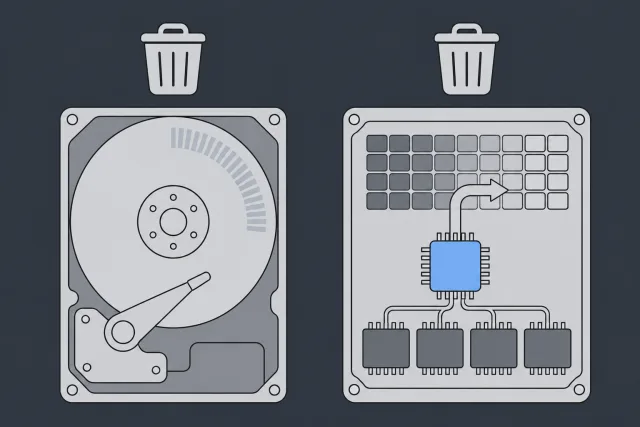
A traditional hard drive stores data on spinning magnetic platters. When you delete a file on an HDD, the operating system doesn't actually erase the data. It simply marks the space as "available" in the file system table. The actual magnetic patterns representing your data remain on the platters, untouched, until the drive happens to write new data to those exact sectors.
That's what we look for during hard drive data recovery. When someone brings us a hard drive with deleted files, we can scan the platters and find data that was "deleted" days, weeks, or even months ago. The magnetic signatures are still physically there. Recovery software can find them. Our lab equipment can read them. It's just sitting there waiting to be found.
How SSDs Handle Deletion
SSDs use NAND flash memory chips instead of magnetic platters. Flash memory has a fundamental limitation that changes everything: you can't overwrite data in place. Before an SSD can write new data to a block, that block must first be completely erased. This erase operation is slow and it wears out the flash cells over time.
To keep SSDs fast and extend their lifespan, modern operating systems send a command called TRIM to the SSD whenever you delete a file. TRIM tells the SSD's controller: "These blocks are no longer needed. You can erase them whenever you're ready." The SSD controller then proactively wipes those blocks clean in the background, so they're pre-erased and ready for new writes.
 Illustration
Completely different from a hard drive. On an HDD, deleted data stays until something happens to overwrite it. On an SSD, deleted data gets intentionally erased by the drive's own controller, usually within seconds to minutes of the delete command. If you want a deeper comparison of how these two technologies handle data loss, we wrote an entire SSD vs HDD data recovery breakdown that covers the differences in detail.
NAND Flash Architecture: Pages and Blocks
To really understand why this matters, you need to know a bit about how NAND flash is organized:
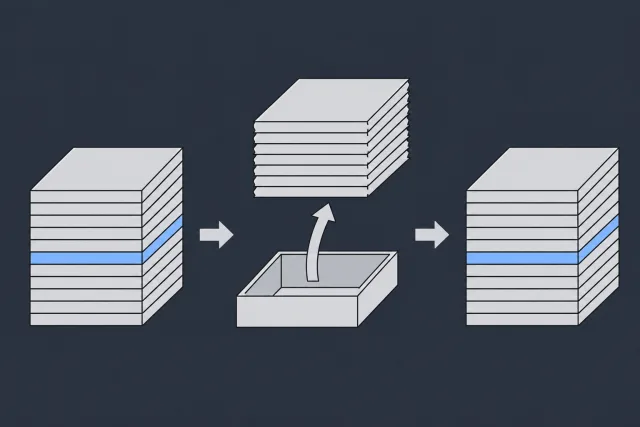
- Pages: The smallest unit of data you can write to. Typically 4KB to 16KB. Data is written one page at a time.
- Blocks: A group of pages (typically 128 to 256 pages per block). The smallest unit you can erase. You can't erase a single page; you must erase an entire block at once.
That block-level erase requirement creates a real problem. Say you want to update just one page within a block. The SSD has to read all the good pages in that block, erase the entire block, then write back the good pages plus the new data. That process is called write amplification, and it's exactly why TRIM and garbage collection exist: to pre-erase blocks so the SSD doesn't have to do this read-erase-write dance every time you save a file.
 Illustration
Wear Leveling and Garbage Collection
SSDs have two additional processes that work alongside TRIM to manage data:
Wear leveling spreads writes evenly across all the NAND flash cells. Flash memory cells have a limited number of write/erase cycles (typically 500 to 3,000 for consumer TLC NAND). Without wear leveling, heavily-used blocks would wear out while others sit unused. The SSD controller constantly shuffles data around to keep wear even across all blocks.
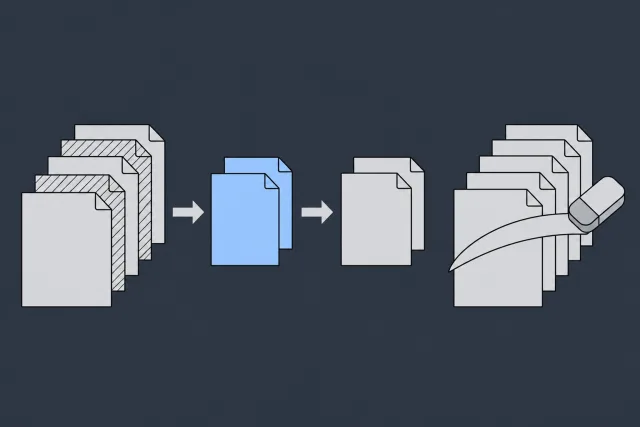
Garbage collection is the SSD's internal housekeeping process. It identifies blocks that contain a mix of valid and invalid (deleted) data, moves the valid data to a clean block, and then erases the mixed block entirely. This runs in the background whenever the SSD is idle, continuously cleaning up and consolidating data.
 Illustration
Both of these processes move and erase data without any instruction from the operating system. Even if TRIM somehow didn't run, garbage collection would eventually erase the blocks containing your deleted data on its own. The SSD is actively working against you when it comes to recovery.
What Is TRIM and Why Does It Destroy Your Data?
TRIM changes what happens to deleted SSD data. Let's break down exactly what happens when you delete a file on a TRIM-enabled SSD, step by step.
The TRIM Process
1 You delete a file
You right-click a file and delete it, or empty your Recycle Bin, or run a format. The operating system removes the file from the file system's index.
2 The OS sends a TRIM command
Your operating system immediately sends a TRIM command to the SSD, telling it exactly which Logical Block Addresses (LBAs) are no longer in use. This happens automatically in the background. You don't see it. You don't control it.
3 The SSD controller marks blocks for erasure
The SSD's firmware receives the TRIM command and marks the corresponding NAND flash blocks as "stale" or "invalid." The controller now knows these blocks can be erased.
4 The controller erases the blocks
Either immediately or during the next idle moment (usually within seconds), the SSD's garbage collection process erases the blocks. The electrical charge representing your data is physically reset. The data is gone.
How Fast Does TRIM Run?
TRIM or NVMe deallocation marks logical blocks as no longer needed. Their old contents may become inaccessible before garbage collection physically erases the NAND. Some supported SSDs allow specialist access to still-existing data, but erased or overwritten cells and lost required keys cannot be recovered. There is no universal time limit or guaranteed rescue window.
The actual erasure happens within seconds to minutes on most SSDs. Some enterprise SSDs with large caches might take slightly longer, but for consumer drives, the data is wiped almost as fast as you can delete it.
When TRIM Is Enabled (Spoiler: Almost Always)
TRIM has been enabled by default in every major operating system for over a decade:
- Windows 7 and later (released 2009): TRIM enabled by default for all recognized SSDs
- macOS 10.10 Yosemite and later (released 2014): TRIM enabled for Apple-branded SSDs; third-party SSDs can enable TRIM via Terminal
- Linux kernel 2.6.33 and later (released 2010): TRIM support available, often enabled via mount options or periodic
fstrim
If you bought a computer with an SSD in the last 10 years, TRIM is almost certainly enabled. You would have had to specifically go out of your way to disable it, and there's almost never a good reason to do so.
TRIM and Encryption: A Double Lock
TRIM or NVMe deallocation marks logical blocks as no longer needed. Their old contents may become inaccessible before garbage collection physically erases the NAND. Some supported SSDs allow specialist access to still-existing data, but erased or overwritten cells and lost required keys cannot be recovered. There is no universal time limit or guaranteed rescue window.
A supported cryptographic erase operation can render encrypted data inaccessible by sanitizing the required key. That is different from ordinary file deletion, and depends on the device and command implementation. Do not run secure erase, sanitize or PSID reset on a drive that contains needed data.
The Rare Exceptions: When SSD Recovery Might Work
So far, this has been pretty bleak. For the vast majority of cases, deleted SSD data is gone for good. But there are a few uncommon situations where deleted data might still be recoverable. These are real exceptions, not false hope.
1. TRIM Is Disabled
If TRIM was never enabled on your system, the SSD behaves more like a hard drive from a data recovery perspective. The operating system deletes the file from its index, but the SSD controller doesn't proactively erase the blocks. The data remains on the NAND chips until it gets overwritten by new data or garbage collection eventually cleans it up.
When would TRIM be disabled?
- Very old systems or operating systems that predate TRIM support
- Some RAID configurations where the RAID controller doesn't pass through TRIM commands
- Specific enterprise configurations where TRIM is intentionally disabled for performance or forensic reasons
- Rare cases where a user manually disabled TRIM in their OS settings
Genuinely rare in 2026. Almost every modern OS and SSD combo has TRIM on by default.
2. External USB SSDs
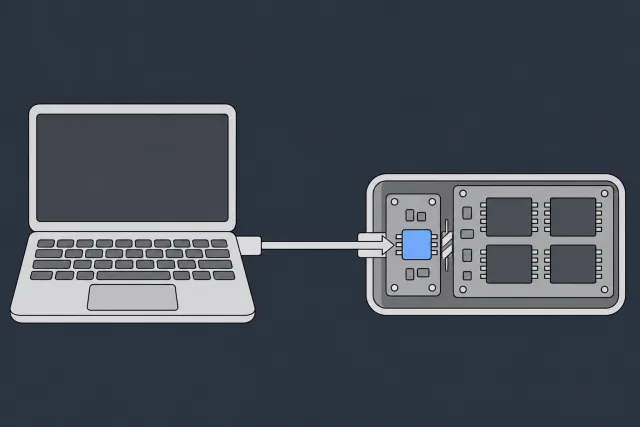
This is probably the most useful exception. Many external SSDs connected via USB don't actually receive TRIM commands. The USB-to-SATA or USB-to-NVMe bridge chip inside the enclosure doesn't always support passing TRIM commands from the OS to the SSD.
 Illustration
If your external SSD's USB controller doesn't support TRIM pass-through:
- The SSD inside the enclosure never receives the TRIM command
- Deleted data stays on the NAND chips (similar to a hard drive)
- Recovery software may be able to find and restore deleted files
- The sooner you try recovery, the better, before the drive's internal garbage collection gets to it
3. Drive Failure Before TRIM Ran
If your SSD experienced a sudden failure, power loss, firmware crash, or controller malfunction immediately after you deleted a file but before the TRIM command could be processed, the data might still physically exist on the NAND chips. The deletion happened at the file system level, but the SSD's controller never had the chance to erase the actual blocks.
Unusual? Sure. But we've seen it. In those cases, a professional data recovery lab might be able to:
- Assess whether the original controller and electronics can provide a reading path
- Use supported controller-level access where available
- Rebuild a virtual translator only when the exact device and surviving metadata permit it
Surviving NAND data is necessary but not sufficient. Encryption, lost mapping, unsupported firmware and damaged cells can prevent recovery. A raw chip read cannot bypass those limits.
4. Enterprise SSDs with Delayed TRIM
TRIM or NVMe deallocation marks logical blocks as no longer needed. Their old contents may become inaccessible before garbage collection physically erases the NAND. Some supported SSDs allow specialist access to still-existing data, but erased or overwritten cells and lost required keys cannot be recovered. There is no universal time limit or guaranteed rescue window.
If you're running enterprise storage and deleted files recently, it's worth checking with your storage administrator before assuming the data is gone. Enterprise systems often have additional protections like snapshots, replicas, and backup systems that may contain copies of the deleted data.
5. SSD Overprovision Areas
SSDs reserve a portion of their NAND flash capacity for internal operations. This overprovisioned space isn't visible to the operating system and is used for wear leveling, garbage collection, and replacing bad blocks. In some cases, remnants of data may exist in overprovisioned areas because the SSD controller moved data around during wear leveling.
Modern SSD recovery depends on a viable controller and encryption path. The lab assesses original-board repair, controlled reading, and firmware or virtual-translator access supported for the exact device. Independent raw-NAND chip-off cannot bypass encryption, and a lost controller path can make recovery impossible.
Can Recovery Software Help?
Google "SSD data recovery software" and you'll find dozens of tools promising to scan your SSD and recover deleted files. Recuva, EaseUS Data Recovery Wizard, Disk Drill, R-Studio, PhotoRec, and plenty more. Let's be honest about what these tools can and can't do on an SSD.
What Recovery Software Actually Does
Data recovery software works by scanning the drive's storage for file signatures, file system metadata, and data patterns. On a hard drive, software can look for deleted data on the platters until something overwrites it. The software can identify file headers (like JPEG image markers or DOCX document signatures) in unallocated space and piece files back together.
Why It Fails on TRIM-Enabled SSDs
On a TRIM-enabled SSD, recovery software scans the unallocated space and finds... nothing. Zeroes. Empty blocks. TRIM has already erased the data that the software is looking for. The file signatures are gone. The data patterns are gone. There's literally nothing left to recover.
You'll watch the software scan for hours, checking every sector, and at the end it'll report either zero recoverable files or a handful of corrupted fragments that are useless. The software isn't bad. The data just doesn't exist anymore.
When Recovery Software CAN Help
Recovery software is worth trying in exactly the scenarios we described in the exceptions section above:
- External USB SSDs where TRIM may not be supported through the USB bridge
- TRIM-disabled systems (rare, but possible)
- Files deleted very recently on a system where TRIM batching is in effect
- Files still in the Recycle Bin or Trash (though you don't need recovery software for that, just restore them normally)
If you're in one of these situations, start with PhotoRec (free, open-source, available for Windows/Mac/Linux). It's as good as or better than most paid tools for file signature-based recovery.
When MDrepairs CAN Help with SSDs
OK, enough about what we can't do. Let's talk about what we can do. There's a big difference between deleted data (files you intentionally removed) and inaccessible data (files still on the SSD that you can't get to because the drive failed).
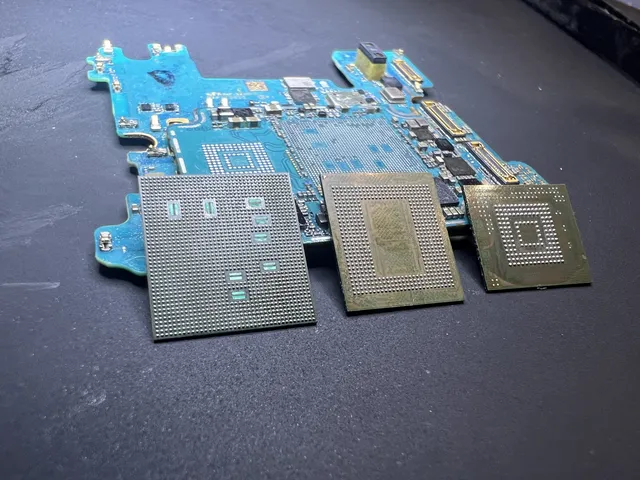
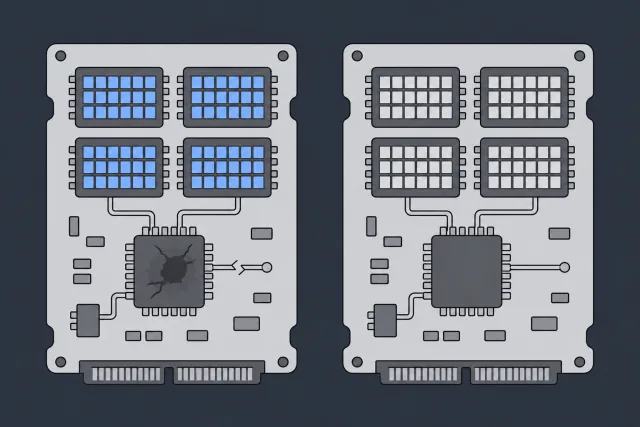
When an SSD fails due to a hardware or firmware problem, the data is usually still sitting on the NAND flash chips. TRIM can't run on a dead drive. Garbage collection can't run on a dead drive. The data is trapped, not erased. That's where our lab comes in.
 Illustration
SSD Failures We Recover Data From
| Problem | Can We Help? | What We Do |
|---|---|---|
| Firmware corruption | Yes | Repair or rebuild the SSD's firmware to make the drive accessible again. |
| Electronic failure (dead controller, blown capacitor) | Yes | Board-level repair or direct NAND chip reading to extract data. |
| NAND degradation (excessive wear, bad blocks) | Depends on the diagnosed fault | Requires a viable original reading/encryption path; chip-off is not a general fallback |
| SSD not detected by computer | Yes | Diagnose whether it's a controller, firmware, or connection issue and repair. |
| Corrupted file system | Yes | Rebuild the file system structure or extract files directly from the NAND. |
| Power surge damage | Yes | Replace damaged components on the PCB and access the intact NAND chips. |
| Accidentally deleted files (TRIM already ran) | Depends on what is still readable | No lab can recover blocks that have actually been erased. |
Notice the pattern: when the drive has failed, we check whether we can still read the data on its chips. We can't recover data when the data itself has been erased by TRIM. The drive working correctly and running TRIM is what destroys the data. Ironically, a drive failing can sometimes preserve data that would otherwise have been erased.
If your SSD stopped working, won't show up in your computer, or is making your system crash, don't assume your data is lost. That's a hardware problem, and hardware problems are exactly what we fix. Your data is likely still on the chips.
SSD vs HDD: Recovery Comparison
People ask us all the time how recovering deleted files differs between hard drives and SSDs. This side-by-side comparison lays it out.
| Factor | Hard Drive (HDD) | Solid State Drive (SSD) |
|---|---|---|
| Storage technology | Magnetic platters | NAND flash memory chips |
| What happens when you delete a file | File system entry removed; data stays on platters | File system entry removed; TRIM erases the blocks |
| How long deleted data survives | Until overwritten (could be days, months, or years) | Depends on when the drive makes the blocks unreadable or erases them |
| Recovery software effectiveness | Highly effective for recently deleted files | Ineffective on TRIM-enabled drives |
| Professional recovery for deleted files | Usually successful | Almost never successful |
| Professional recovery for failed drives | Usually successful | Usually successful (data is still on NAND chips) |
| TRIM support | No (not applicable to magnetic storage) | Yes (enabled by default on all modern systems) |
| Garbage collection | No | Yes (continuously consolidates and erases blocks) |
| Wear leveling | No | Yes (moves data around constantly) |
The fundamental difference comes down to this: hard drives are passive about deletion (they leave data alone until something overwrites it), while SSDs are active about deletion (they proactively erase data to maintain performance). This active erasure is great for SSD performance and longevity, but it's terrible for data recovery. On USB flash drives and SD cards that lack TRIM, deleted data can stay in place until something overwrites it. Our guide to recovery by device type breaks down all the differences.
If you're dealing with a hard drive instead of an SSD, your chances of recovering deleted files are dramatically better. Hard drives are what our lab handles most frequently, and our success rate on failed HDDs is very high. The technology simply preserves deleted data in a way that SSDs don't.
How to Protect Your SSD Data
With an SSD, prevention is everything. These are the most effective ways to protect yourself from permanent data loss on an SSD.
1. Set Up Automatic Backups
Honestly, nothing else comes close. If your SSD dies or you accidentally delete something critical, a backup gives you another copy.
- Windows: Use File History (built into Windows 10/11) to continuously back up your files to an external drive. Or use Windows Backup to create full system images.
- macOS: Time Machine is excellent. Plug in an external drive, enable Time Machine, and it handles everything automatically. It keeps hourly, daily, and weekly snapshots of your entire system.
- Linux: Use
rsync, Timeshift, or Borgbackup for automated local and remote backups.
2. Use Cloud Storage
Cloud sync services give you a second copy of your important files on remote servers. If you accidentally delete a file, most cloud services keep deleted files in their own trash for 30 to 90 days.
- Google Drive: 15 GB free, keeps deleted files for 30 days
- OneDrive: 5 GB free (1 TB with Microsoft 365), keeps deleted files for 30 days (93 days for work accounts)
- Dropbox: 2 GB free, keeps deleted files for 30 days (180 days on paid plans)
- iCloud Drive: 5 GB free, recently deleted files available for 30 days
3. Consider RAID (But Understand Its Limits)
RAID (Redundant Array of Independent Disks) mirrors or distributes your data across multiple drives. If one drive fails, the data is still on the other drive(s). RAID 1 (mirroring) is the simplest approach: everything you write goes to two drives simultaneously.
4. Enable Version History
Many applications and cloud services keep version histories. If you accidentally overwrite or corrupt a file, you can roll back to a previous version.
- Google Docs/Sheets/Slides: Automatically keeps every version forever
- Microsoft 365: Version history for OneDrive and SharePoint files
- macOS: Some apps support "Revert To" under the File menu, using macOS version history
5. Monitor Your SSD's Health
SSDs have a limited lifespan measured in total bytes written (TBW). NAND flash cells degrade over time. Monitoring your SSD's health with SMART data lets you spot potential failures before they happen and replace the drive proactively.
- Windows: CrystalDiskInfo (free) reads SSD SMART data and alerts you to problems
- macOS: DriveDx or smartmontools
- Linux: smartmontools (
smartctl -a /dev/sda)
Key SMART attributes to watch on SSDs: Percentage Used (how much of the SSD's rated lifespan has been consumed), Available Spare (remaining spare NAND blocks), and Media Errors (uncorrectable read errors indicating NAND degradation).
Frequently Asked Questions
Can you recover deleted files from an SSD?
TRIM or NVMe deallocation marks logical blocks as no longer needed. Their old contents may become inaccessible before garbage collection physically erases the NAND. Some supported SSDs allow specialist access to still-existing data, but erased or overwritten cells and lost required keys cannot be recovered. There is no universal time limit or guaranteed rescue window.
What is TRIM and why does it make SSD recovery impossible?
TRIM is a command that your operating system sends to the SSD when you delete a file. It tells the SSD's controller which data blocks are no longer needed, and the controller then erases those blocks in the background. This keeps the SSD fast by pre-erasing blocks for future writes. TRIM has been enabled by default on all major operating systems since at least 2010.
Is SSD data recovery possible if TRIM is disabled?
If TRIM is disabled, software can look for files in space that has not been erased or overwritten. Deleted data stays on the NAND chips until overwritten. However, TRIM is enabled by default on virtually all modern systems, and the SSD's internal garbage collection may still erase data even without TRIM. Having TRIM disabled in 2026 is extremely unusual.
Can recovery software find deleted files on an SSD?
TRIM or NVMe deallocation marks logical blocks as no longer needed. Their old contents may become inaccessible before garbage collection physically erases the NAND. Some supported SSDs allow specialist access to still-existing data, but erased or overwritten cells and lost required keys cannot be recovered. There is no universal time limit or guaranteed rescue window.
Why can hard drive data be recovered but SSD data can't?
Hard drives store data as magnetic patterns on spinning platters. When you delete a file, the magnetic patterns remain until something new overwrites them. This can take days, months, or even years. SSDs store data as electrical charges in NAND flash cells. When you delete a file, TRIM tells the SSD to erase those cells. The fundamental technologies handle deletion completely differently.
Can MDrepairs recover data from a failed SSD?
For an SSD with a failed controller, the first question is whether the original reading path can be restored. A same-model donor does not automatically decrypt the original NAND. Some legacy unencrypted designs support raw-NAND reconstruction, but that is not a general fallback for modern SATA or NVMe SSDs.
Should I try data recovery software before calling a professional?
TRIM or NVMe deallocation marks logical blocks as no longer needed. Their old contents may become inaccessible before garbage collection physically erases the NAND. Some supported SSDs allow specialist access to still-existing data, but erased or overwritten cells and lost required keys cannot be recovered. There is no universal time limit or guaranteed rescue window.
How can I prevent losing data on an SSD?
A backup gives you another copy if you delete something from your SSD. Set up automatic backups using Windows File History, macOS Time Machine, or a cloud backup service. Follow the 3-2-1 rule: keep 3 copies of important data, on 2 different types of storage, with 1 copy offsite. Monitor your SSD's health with SMART monitoring tools to catch failures before they happen. And check our pricing page to understand your options if a drive does fail.
When SSD deleted-file recovery stops being DIY
If the deleted files were on an SSD with TRIM enabled, recovery may be limited or impossible once the drive has cleared those blocks. Still, do not make the situation worse by installing software, saving scan results, cloning to the same SSD, or continuing to use it as a boot drive. Every write can reuse space that once held deleted data. If the SSD is also failing, disappearing, or read-only, stop all attempts immediately.
A lab can confirm whether TRIM, encryption, file system damage, or SSD failure is the real barrier before you spend time on the wrong fix. MDRepairs provides SSD data recovery for deleted-file cases, failed drives, and complex flash problems. Start through mail-in data recovery. The $100 diagnostic counts toward a successful recovery. You review the estimate and approve it before recovery work starts.
How MDrepairs can help
Real cases like this come through our New Jersey lab every week. If you are dealing with one now, start here.