Can You Recover Deleted Files from a Hard Drive?
In this article
Yes, deleted files on a traditional hard drive are often recoverable. Deletion marks file space as reusable, and the contents may remain until overwritten. Some hard drives also support TRIM, which can make deleted data unreadable. Recovery depends on the drive and what happened after deletion.
- Stop using the drive immediately: every write risks overwriting your files
- Drive is healthy? Scan it from a separate computer using free tools (Recuva, PhotoRec)
- Clicking, beeping, or not detected? Power it off and use professional hard drive data recovery
Yes, you can recover deleted files from a hard drive. When you delete a file on a traditional spinning hard drive (HDD), the operating system marks its space as available. The file's contents may remain on the magnetic platters until something overwrites them. But some hard drives also support TRIM, which can make deleted data unreadable. Like SSDs that use TRIM or iPhones that encrypt everything, the exact device and deletion process matter. Recovery depends on what is still readable.
We're MDrepairs, a professional data recovery lab in New Jersey. We recover data from failed and damaged hard drives every single day. It's our bread and butter. Below, we'll explain how HDD deletion works, what free software to try first, and when it's time to call a professional lab like ours.
The Short Answer: Can You Recover Deleted HDD Files?
So how recoverable is your data? It depends on the scenario:
| Scenario | Recoverable? | Notes |
|---|---|---|
| Recently deleted files (Recycle Bin emptied) | Very likely (90%+) | Data may remain unless overwritten or affected by TRIM. Don't write to the drive. |
| Quick format | Very likely (85%+) | Quick format replaces filesystem records; TRIM can also make old data unreadable. |
| Drive clicking or beeping | Likely (70-90%) | Mechanical failure. Needs work in a clean, filtered work area. Data on platters is usually intact. |
| Drive not spinning at all | Likely (70-85%) | Usually a PCB or motor issue. Platters are often fine. |
| Full format (Windows Vista+) | Not from overwritten sectors | A completed full format writes zeros across the formatted volume. An interrupted format may leave some areas untouched. |
| Overwritten with new data | Unlikely (10-30%) | Once new data physically overwrites old data, it's gone. Some files may survive if only partially overwritten. |
| Severe physical damage (fire, flood) | Case-by-case (40-70%) | Depends on platter condition. We've recovered data from drives pulled out of house fires. |
How Hard Drive Deletion Actually Works
To understand how hard drive recovery works, you need to know what happens, and what doesn't happen, when you delete a file on an HDD.
The Magnetic Platters Are Key
Inside every traditional hard drive are one or more spinning magnetic platters. These are the actual disks where your data lives. A tiny read/write head floats nanometers above the platter surface, magnetizing microscopic areas to store your ones and zeros. When you save a file, the drive writes a magnetic pattern onto the platter. When you read a file, it reads that pattern back.
The key point: deleting a file can leave its contents on the platter, but TRIM can affect recovery.
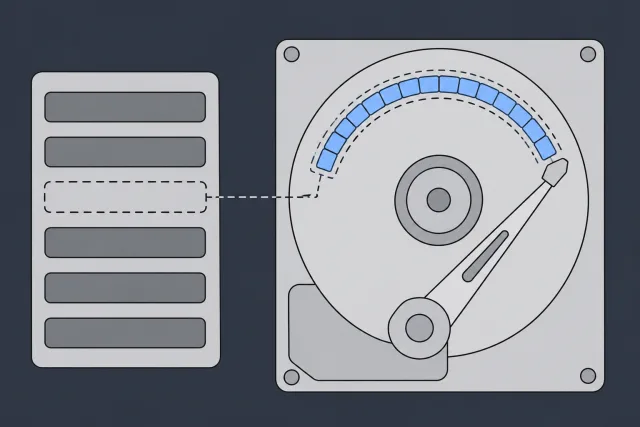
When you hit "Delete" and empty your Recycle Bin, the operating system does two things:
- Removes the file's entry from the file system table. Think of this like ripping a page out of a book's table of contents. The chapter is still there; you just can't find it from the index anymore.
- Marks those disk sectors as "available", telling the drive "you can write new data here whenever you need to."
Without TRIM, deleted file contents can remain on the platters until overwritten. With TRIM, the drive may stop returning that data even before you save new files.
 Illustration
Some Hard Drives Support TRIM
TRIM is a key factor in deleted-file recovery. Solid-state drives have a feature called TRIM that actively wipes deleted data in the background. When you delete a file on an SSD, the TRIM command tells the drive to electrically reset those flash cells, permanently destroying the data, usually within seconds. This is why SSD data recovery is so much harder (and sometimes impossible) compared to HDD recovery.
Some hard drives also support TRIM. Whether it affects a deletion depends on the model and the commands sent by the operating system. A spinning disk doesn't guarantee that deleted data stays readable.
No Per-File Encryption (Usually)
Modern iPhones and many SSDs encrypt data at the hardware level. When you delete something on an iPhone, the encryption key for that data is destroyed, making recovery essentially impossible even if you could read the raw storage. We covered this in our post on recovering deleted data from iPhones.
Traditional hard drives don't do this. Unless you've specifically enabled full-disk encryption (BitLocker, FileVault, etc.), the data on your platters is stored in plain magnetic patterns. No encryption keys to worry about. No hardware-level security features blocking access. The data is right there, readable by anyone with the right tools.
When Does HDD Data Actually Get Destroyed?
Besides TRIM making deleted sectors unreadable, these are common ways hard drive data gets destroyed:
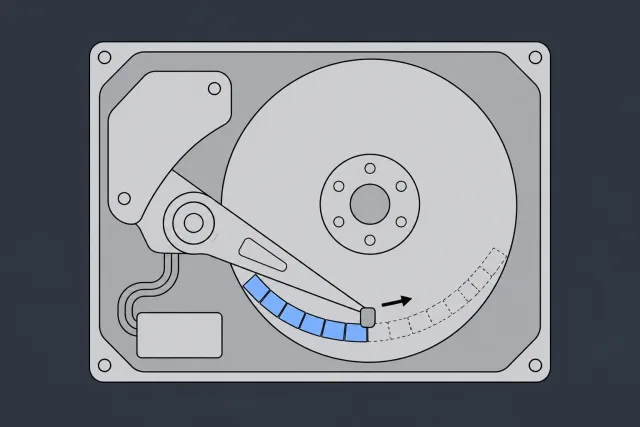
- Overwriting: The drive writes new data to the exact same sectors where your deleted file lived. This is the most common way data gets lost for good. The more you use the drive after deletion, the more likely this becomes.
- Intentional wiping: You use a secure erase tool (like DBAN) that deliberately writes random data or zeros across the entire drive. You should do this before selling a drive. But it does make recovery impossible.
- Physical platter damage: Severe scratches on the platter surface, fire damage that warps the platters, or corrosion that eats into the magnetic coating. A lab can try reading the undamaged areas.
 Illustration
We've recovered data from drives that sat in a drawer for 5 years after a "deletion disaster." The data was all still there. Time alone doesn't destroy data on an HDD. Only overwriting or physical damage does.
DIY Recovery: Free Software You Can Try First
Honestly, if your hard drive is physically healthy (it spins up normally, your computer detects it, and it's not making any unusual noises), you might be able to recover your deleted files yourself using free software. Try this first and save your money if you can.
Option 1: Recuva (Windows, Free)
1 Recuva by Piriform
Best for: Windows users who need a simple, free tool for recently deleted files.
Recuva is a free Windows tool by the makers of CCleaner. It's the easiest option for beginners. To use it:
- Download and install Recuva on a different drive than the one you're recovering from.
- Launch it and select the type of files you want to recover (or choose "All Files").
- Point it at the drive where you deleted your files.
- Run the scan. For better results, choose "Deep Scan." It takes longer but finds more.
- Recuva will show found files with a color-coded status: green (excellent condition), yellow (partial), red (probably overwritten).
- Select the files you want and recover them to a different drive.
Limitations: Recuva only works on drives that are physically healthy and detectable by Windows. It won't help if the drive is clicking, not spinning, or not showing up in Disk Management.
Option 2: PhotoRec (Windows, Mac, Linux, Free)
2 PhotoRec by CGSecurity
Best for: Advanced users, formatted drives, all operating systems.
Don't let the name fool you. PhotoRec recovers way more than just photos. It supports over 480 file formats including documents, videos, archives, and databases. It works on Windows, Mac, and Linux.
- Download PhotoRec (it comes bundled with TestDisk).
- Run it from a terminal or command prompt.
- Select the disk you want to recover from.
- Choose the partition type (usually Intel/PC for Windows drives).
- Select whether to search the whole disk or just unallocated space.
- Choose a destination folder on a different drive for recovered files.
- Let it run. On large drives, this can take hours.
Why PhotoRec is powerful: It ignores the file system entirely and reads raw data from the disk surface. This means it can find files even after formatting, partition deletion, or file system corruption. The downside is it doesn't preserve original file names or folder structure.
Option 3: TestDisk (Windows, Mac, Linux, Free)
3 TestDisk by CGSecurity
Best for: Recovering lost partitions, fixing boot sectors, undeleting files on ext2 and FAT/NTFS.
TestDisk is more of a partition recovery and repair tool than a file recovery tool. It excels at:
- Recovering entire deleted or lost partitions.
- Rebuilding damaged boot sectors.
- Fixing partition tables.
- Undeleting files from FAT, NTFS, and ext2 file systems.
When to use TestDisk vs. PhotoRec: If your entire partition disappeared (drive shows as "unallocated" in Disk Management), try TestDisk first. Before using its Write or repair options, make a full drive image or copy your files to another drive. If the partition is there but files are deleted or the drive was formatted, use PhotoRec.
When DIY Won't Work
Free recovery software is great, but it has one massive limitation: it only works on drives that are physically functional. The software needs the drive to spin up, be detected by the operating system, and respond to read commands. If any of those things aren't happening, no software in the world will help.
These are the situations where you need professional hard drive data recovery:
Clicking or Beeping Sounds
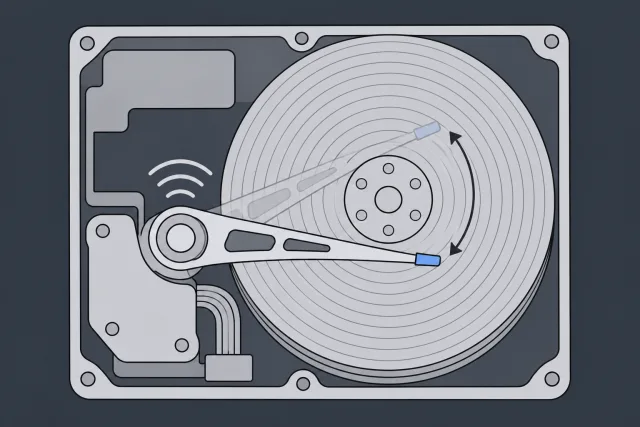
A clicking hard drive usually means the read/write heads have failed. They're trying to move into position, failing, resetting, and trying again. That's the click you hear. The data on the platters is almost always fine. The heads just can't read it anymore. Head swaps require a clean, filtered work area.
 Illustration
Beeping typically means the platters can't spin. The motor is trying to start but the platters are stuck (sometimes called "stiction"). This needs professional intervention to free the platters without damaging the surface.
Drive Not Spinning At All
If you plug in your drive and hear absolutely nothing (no spin-up sound, no vibration), the issue is usually electrical. A blown TVS diode, failed PCB (the circuit board on the back of the drive), or seized motor can all cause this. The data on the platters is typically completely unaffected. We can replace the PCB, repair the electronics, or transplant the platters to a working donor drive.
Head Crash
A head crash is exactly what it sounds like: the read/write head physically contacts the spinning platter surface. This is the worst-case mechanical scenario because it can scratch the platter coating, permanently destroying data in the scratched areas. However, head crashes often affect only a portion of the platter surface. We can try to recover data from the unaffected areas.
Water, Fire, and Impact Damage
We've recovered data from drives pulled out of flooded basements, house fires, and cars that were in accidents. The key question is always: what condition are the platters in? If the platters are intact and the magnetic coating isn't damaged, we can check whether we can still read the files. We've swapped platters into new drive bodies, cleaned contamination in our laminar-flow work area, and read data from drives that looked completely destroyed on the outside.
RAID Arrays
RAID recovery adds a layer of complexity because the data is spread across multiple drives in a specific pattern. If one or more drives in a RAID 5, RAID 6, or RAID 10 array fail, the data needs to be reconstructed using the parity information and stripe order. Consumer software can't handle this. It requires specialized tools that understand RAID configurations and can rebuild virtual arrays from raw disk images.
How Professional Hard Drive Recovery Works
When DIY software can't get the job done, this is what actually happens when you send a hard drive to a professional recovery lab like MDrepairs. No mystery, no black box. We'll walk you through the entire process.
1 Diagnosis
We start by evaluating the drive in a controlled environment. We check the PCB for electrical damage, listen for mechanical symptoms, and test whether the drive can be safely powered on. If we suspect internal damage, we open the drive in our laminar-flow work area to inspect the platters and heads. The $100 diagnostic is credited toward a successful recovery. You approve our estimate before recovery work starts.
2 Laminar-flow work (if needed)
We open hard drives in a laminar-flow work area, where filtered air helps keep particles away from the platters. Even a single dust particle on a spinning platter can cause a head crash. Common procedures include:
- Head swap: Replacing failed read/write heads with compatible donor heads. This requires precise alignment and a compatible donor drive (same model, same revision).
- Platter transplant: Moving the platters from a damaged drive body into a healthy donor chassis. This is delicate work. The platters have to stay perfectly aligned or the data becomes unreadable.
- Motor repair: Freeing seized motors or transplanting the spindle assembly.
- Contamination cleaning: Removing dust, debris, or fluid from the platter surface using specialized techniques.
3 Imaging
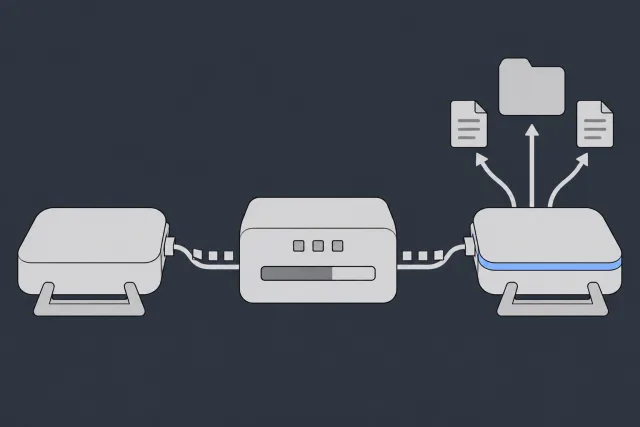
Once the drive is functional (either repaired or original), we create a sector-by-sector image of the entire drive using specialized hardware tools. We don't work on the original drive directly. We image it and then work from the copy. This protects the original data even if something goes wrong during the recovery process. The imaging process reads every sector on the drive, retrying bad sectors with different parameters to maximize data capture.
 Illustration
4 Data Extraction
With the drive image complete, we use professional data recovery software to rebuild the file system and extract your files. This is where we recover your actual documents, photos, videos, and folders, with original file names and directory structure intact whenever possible. We verify the recovered files are functional (not corrupted) before delivering them to you.
5 Delivery
We copy your recovered data to a new external drive or upload it to secure cloud storage for download. You get a full file listing so you can verify everything is there.
Want to know what this costs? Check out our data recovery pricing page for a full breakdown. Logical hard drive recovery costs $1,000 to $1,500. For head swaps in our laminar-flow work area, the range is $1,500 to $3,000+. We quote platter work after diagnosis.
What Affects Recovery Success
Not all data recovery cases are created equal. Several factors determine whether your deleted hard drive files can be recovered, and how much of the data we can get back:
| Factor | Impact on Recovery | Details |
|---|---|---|
| How it was deleted | High | Simple deletion (Recycle Bin) = easiest. Completed full format or secure wipe = overwritten data cannot be recovered. |
| Time since deletion | Moderate | Time itself doesn't destroy data. But the longer you use the drive, the more likely overwriting becomes. |
| Drive usage after deletion | Very High | This is the #1 factor. If you kept using the drive heavily after deletion, new data may have overwritten your files. |
| Physical condition | High | Healthy drive = software recovery. Mechanical failure = work in a clean, filtered work area. Platter damage = check which surfaces are readable. |
| File system type | Low-Moderate | NTFS and ext4 are well-supported by recovery tools. Older file systems like FAT32 are generally easier to recover from. |
| Drive capacity & fill level | Low-Moderate | A nearly full drive is more likely to overwrite deleted data quickly because there's less free space available. |
| File size & fragmentation | Low | Large files are more likely to be fragmented (split across the disk). Fragmented files can still be recovered but may have higher risk of partial overwriting. |
Can You Recover Files After Formatting?
We get this question constantly, so we'll break it down.
Quick Format: Recovery May Be Possible
A quick format replaces filesystem metadata and can also trigger TRIM on supported drives. On a drive without TRIM, file contents may remain until overwritten. We cover the difference in detail in our factory reset recovery guide. That leaves recovery tools a chance to find what is still readable.
Imagine tearing up a library's card catalog. Every book is still on the shelves. Recovery tools just walk through and figure out what's there.
Quick format recovery is one of the most straightforward cases we handle. The result depends on the surviving data and any writes after formatting.
Full Format: It Depends on the Windows Version
Most people don't know this: the behavior of "full format" changed in Windows Vista.
- Windows XP and earlier: A "full format" was basically just a quick format plus a surface scan for bad sectors. It did NOT overwrite your data. Recovery after a full format on XP is just as easy as after a quick format.
- Windows Vista and later (7, 8, 10, 11): A full format writes zeros across the formatted volume. Data overwritten by those zeros cannot be recovered. If the format was interrupted, some areas may not have been overwritten.
If you ran a full format on a modern Windows version and you absolutely need the data, it's worth contacting us for an evaluation. If the format was interrupted, some areas may not have been overwritten. But we'll be honest about your chances. If the format completed successfully on a healthy volume, the overwritten data is gone.
macOS Erase: Similar to Quick Format
Disk Utility's "Erase" can leave old file contents behind on a hard drive without TRIM, much like a quick format. Recovery may be possible. However, if you chose Security Options that overwrite the data, the overwritten files cannot be recovered.
How to Prevent Losing Hard Drive Data
Recovery is great, but prevention is better. A few steps can save you from ever needing us.
The 3-2-1 Backup Rule
It's the gold standard for data protection, and simpler than it sounds:
- 3 copies of your data (the original plus two backups)
- 2 different types of storage media (e.g., internal drive + external drive, or drive + cloud)
- 1 copy off-site (cloud backup, or a drive stored at a different physical location)
If you follow this rule, no single event (drive failure, accidental deletion, ransomware, fire, theft) can wipe out all your data. Most people don't do this. Most of our customers wish they had.
Monitor Your Drive's Health with SMART
Every modern hard drive has a built-in health monitoring system called SMART (Self-Monitoring, Analysis and Reporting Technology). It tracks things like reallocated sectors, spin retry count, temperature, and power-on hours. Many drive failures give warning signs weeks or months before the drive actually dies.
We put together a full guide on this: How to Check Hard Drive Health. It covers free tools like CrystalDiskInfo (Windows) and smartmontools (Mac/Linux) that let you monitor your drive's SMART data and catch problems early.
Quick SMART Check (Windows)
- Download CrystalDiskInfo (free).
- Open it. It immediately reads SMART data from all connected drives.
- Look for a "Good" status in green. If it says "Caution" (yellow) or "Bad" (red), back up your data immediately.
- Pay special attention to Reallocated Sectors Count and Current Pending Sector Count. Any non-zero value for these is a warning sign.
Replace Aging Drives Proactively
Hard drives have mechanical parts. They wear out. The average lifespan of a consumer HDD is roughly 3-5 years of regular use, though many last longer. If your drive is approaching that age and contains data you can't afford to lose, consider replacing it before it fails. A new 2TB external drive costs $60. Data recovery costs considerably more.
Use Surge Protectors
Power surges are a common cause of sudden hard drive failure. They can fry the PCB (circuit board) on the back of the drive, making it unresponsive. A good surge protector costs $20-40 and can prevent a $500+ recovery bill. Use one for any computer that stores important data.
Frequently Asked Questions
How much does hard drive data recovery cost?
It depends on what's wrong with the drive. Logical recovery (deleted files, formatting, corruption) on a physically healthy drive costs $1,000 to $1,500. Head swaps in a laminar-flow work area cost $1,500 to $3,000+. We quote platter work after diagnosis. Severe physical damage cases can go higher. The diagnostic comes first; recovery work follows your approval of the estimate. Check our pricing page for more details.
Can I recover deleted files from an HDD for free?
Yes, if the deleted files are still readable. Tools like Recuva, PhotoRec, and TestDisk are all free and can recover recently deleted files from a working hard drive. If it's your boot drive, shut the computer down. Use a separate computer to scan the affected drive as a non-boot drive, and save recovered files elsewhere.
How long does professional hard drive recovery take?
The standard wait for diagnosis is 4 to 6 weeks. Recovery takes extra time. Parts, drive condition and imaging affect the schedule. For an earlier diagnostic start, ask about rush options and confirm availability with the lab. Rush doesn't set a recovery completion date. Call us to discuss your timeline.
Is deleted data on an HDD really still there?
It can be. Deletion marks the file's space as reusable, and its contents may remain until overwritten. Some hard drives also support TRIM, which can make deleted data unreadable. The exact drive and what happened after deletion determine your chances.
Can you recover data from a hard drive that won't turn on?
It depends on what failed. A drive that won't power on usually has an electrical issue: a blown TVS diode, dead PCB, or failed motor. In all of these cases, the data on the magnetic platters is typically completely unaffected. We can repair or replace the failed components, image the platters, and recover your data. It's actually one of the more straightforward professional recoveries.
Does freezing a hard drive help with recovery?
This is an old trick that occasionally worked on drives with stiction (stuck platters) in the 1990s and early 2000s. We do not recommend it. Modern drives are built differently, and freezing introduces moisture that can cause corrosion and additional damage. Condensation on the platters can cause head crashes when the drive warms up. If your drive has stiction, a professional lab can safely free the platters without the risks of temperature shock and moisture damage.
What's the difference between recovering deleted files from an HDD vs. an SSD?
The biggest difference is TRIM. SSDs use TRIM to proactively erase deleted data in the background, usually within seconds of deletion. Once a block has been erased, a lab cannot recover what was stored there. Some HDDs also support TRIM. On drives without it, deleted contents may remain until overwritten. Other non-TRIM storage types like USB flash drives and SD cards share these same advantages. Learn more on our SSD data recovery page.
Should I attempt recovery myself or go straight to a professional?
If the drive is physically healthy (spins up normally, no unusual sounds, detected by your computer), it's reasonable to try free software like Recuva or PhotoRec first. But if the drive is making any unusual noises (clicking, beeping, grinding), not spinning up, or not detected by your computer, go straight to a professional. Running a mechanically failing drive risks permanent platter damage. The data may be perfectly recoverable right now, but continued operation could destroy it. When in doubt, call us for a free consultation: (732) 933-7717
Accidentally Deleted a Hard Drive: What to Do First
If you accidentally deleted files from a hard drive, or deleted a whole folder tree that was sitting on that drive, the first move is not recovery software. The first move is to stop the drive from changing. On a hard drive, deletion usually removes file system records and marks the old space as available. The magnetic data can still be on the platters, but Windows, macOS, indexing services, updates, downloads, and even normal browsing can reuse that space without asking you.
If the deleted data was on an external hard drive, unplug it safely and leave it powered off until you are ready to scan it from another computer. If it was on your main Windows drive, shut the computer down. Do not install Recuva, PhotoRec, Disk Drill, or any other tool onto the same drive you are trying to recover. Installing the tool can overwrite the exact documents, pictures, or project files you want back.
For a healthy secondary hard drive that still mounts normally, connect it as a non-boot drive and scan it from a separate system. Recover found files to a different storage device, never back to the deleted drive. For a deleted partition, a drive showing RAW, or a drive that was quick formatted, avoid CHKDSK, First Aid, repair prompts, initialization prompts, and formatting prompts. Those tools are designed to make a file system usable again, not preserve deleted data.
If the drive clicks, beeps, spins down, disappears, reports bad sectors, or takes a long time to list folders, stop software work. Logical deletion and physical failure are handled very differently. In our lab, we first stabilize and image failing media, then recover files from the clone so the original is not being hammered during recovery. For physical symptoms, use hard drive recovery handled in a lab. For nationwide cases, the safest path is to power the drive off, label what happened, and use secure mail-in recovery rather than continuing experiments on the original disk.
I accidentally deleted a hard drive. Is the data still there?
Often, yes. On a traditional hard drive, deletion normally removes file records and marks the space as reusable, but the underlying magnetic data can remain until overwritten. The critical factor is what happened after deletion. New writes can overwrite the space where the deleted files were stored. Stop using it and recover to another drive.
Can I recover deleted files from my Windows C: drive while the PC is still running?
It is risky. A running Windows system constantly writes logs, updates, browser cache, thumbnails, and temporary files to the C: drive. Those writes can overwrite deleted data. If the missing files matter, shut the computer down and scan the drive from another machine or from a dedicated recovery environment, saving recovered files somewhere else.
How MDrepairs can help
Real cases like this come through our New Jersey lab every week. If you are dealing with one now, start here.