External Hard Drive Not Showing Up? Here's How to Fix It
In this article
A cable, port or connection problem can keep an external drive from appearing. If the drive has no signs of physical damage, try a known-good cable and another USB port. Stop if it makes unusual sounds or repeatedly disconnects.
- Swap the USB port and cable, and try a second computer to isolate the fault.
- On Windows, open Disk Management to assign a drive letter or spot a RAW/unallocated partition; on Mac, check Disk Utility.
- If the drive clicks, beeps, or won't spin, power it off now and get professional external hard drive data recovery: running software makes it worse.
A cable, port or connection problem can keep an external drive from appearing. If the drive has no signs of physical damage, try a known-good cable and another USB port. Stop if it makes unusual sounds or repeatedly disconnects.
MDrepairs evaluates external drives with detection, mounting, power or mechanical symptoms. This guide starts with basic connection checks and explains when to pause for diagnosis.
A documented partial recovery
An external hard drive spun without unusual noises but would not initialize. The documented work included replacing read heads and preserving firmware information needed to access the data. Most of the data was recovered, with some unreadable data remaining. A quiet drive is not proof that its internal parts are healthy, and partial recovery is a possible outcome.
Related manufacturer guidance: Apple: back up before Disk Utility repair.
Quick Connection Checks
A connection fault is one possible explanation. Check a known-good cable and port only if the drive has no signs of physical damage. These checks do not prove that the internal drive is healthy.
Try these in order:
1. Switch the USB Port
USB ports go bad. They get loose, they accumulate dust, and sometimes the controller behind them just stops working. If you're plugged into a front USB port on a desktop, switch to a rear port. Front ports are connected via internal cables that can come loose. Rear ports connect directly to the motherboard.
Also, make sure you're using a USB 3.0 port if your drive supports it. Some older USB 2.0 ports can't deliver enough power for larger external drives, especially the 3.5-inch desktop models that don't have a separate power adapter.
2. Try a Different Cable
USB cables fail more often than people think. The connectors wear out. The internal wires fray. A cable that charges your phone fine might not have the data lines intact. If you've got another USB cable that fits your drive, swap it out.
For drives with a separate power adapter (the bigger desktop-style externals), make sure the power cable is firmly seated and the adapter's LED is on. No light? The power brick might be dead.
3. Try a Different Computer
On an undamaged, stable drive, another computer can help isolate a connection or compatibility issue. A drive that works there may still have an intermittent fault, so back up accessible files before further troubleshooting.
4. Listen to the Drive
Seriously, put your ear close to it. A healthy external hard drive makes a soft spinning sound when you plug it in. Here's what different sounds tell you:
- Spinning normally, no clicking: Good sign. Probably a software or driver issue.
- Clicking or ticking: Bad sign. The read/write heads are failing. Stop using the drive immediately.
- Beeping: The platters are stuck and can't spin. This needs professional recovery.
- Complete silence: Either a dead PCB (circuit board), a bad cable, or a dead power supply.
Windows-Specific Fixes for External Hard Drive Not Showing Up
If your drive spins up fine but Windows doesn't show it in File Explorer, there are several things to check. Windows might see the drive but not know how to display it. Or it might not see it at all.
Check Disk Management
Disk Management can show disks and volumes that do not appear in File Explorer. Check it without accepting initialization or formatting prompts.
1 Open Disk Management
Right-click the Start button and select Disk Management. Or press Win + R, type diskmgmt.msc, and hit Enter.
2 Look for Your Drive
Scroll through the bottom panel. Your external drive should appear as a separate disk (Disk 1, Disk 2, etc.). Look at its status:
- "Unallocated" means the drive has no partition. You can create one, but this will erase any existing data.
- RAW means Windows cannot recognize a usable file system on that volume. The cause can include corruption, an unsupported file system or a device fault. Preserve the data before choosing a repair.
- "Healthy" but no drive letter means it just needs a letter assigned.
- Not listed at all means Windows can't detect the drive. Move on to Device Manager.
3 Assign a Drive Letter (If Missing)
Right-click the partition on your external drive. Select Change Drive Letter and Paths. Click Add, choose a letter, and hit OK. The drive should appear in File Explorer immediately.
Check Device Manager
If the drive doesn't show up in Disk Management at all, check Device Manager to see if Windows detects the hardware.
1 Open Device Manager
Right-click the Start button and select Device Manager. Or press Win + R, type devmgmt.msc, and hit Enter.
2 Expand "Disk drives" and "Universal Serial Bus controllers"
Look for your external drive under Disk drives. If you see it with a yellow warning triangle, there's a driver issue. If you see an "Unknown Device" under Universal Serial Bus controllers, that could be your drive failing to enumerate properly.
3 Update or Reinstall the Driver
Right-click the device, select Uninstall device, then unplug the drive, wait 10 seconds, and plug it back in. Windows will reinstall the driver automatically. For more detailed steps, see Microsoft's driver update guide.
Update USB Drivers
Sometimes the problem isn't the drive's driver. It's the USB controller driver on your motherboard. This is especially common after a Windows update that replaces working drivers with generic ones.
In Device Manager, expand Universal Serial Bus controllers. Right-click each "USB Root Hub" entry and select Update driver. Choose "Search automatically." If Windows says the best driver is already installed, try uninstalling each root hub and restarting your computer. Windows will reinstall fresh USB drivers on reboot.
Before Using CHKDSK
A RAW volume is a reason to plan recovery before repair. CHKDSK changes file-system records and is not a way to recover files from a RAW volume. If the files matter, do not run a repair command on the only copy.
If you understand the risk and want to proceed:
Running CHKDSK
Use file-system repair only on stable media after securing a backup or image. CHKDSK /f changes the file system, and /r adds a sector scan. Do not use either as a diagnostic test on a drive with suspected physical failure.
Disable USB Selective Suspend
Windows has a power-saving feature that turns off USB ports to save energy. Sometimes it turns off a port and never turns it back on. This is a known issue, especially on laptops.
To disable it: Open Control Panel > Power Options. Click Change plan settings next to your active plan, then Change advanced power settings. Expand USB settings > USB selective suspend setting and set it to Disabled.
Check if the Drive Needs Initialization
Initialization is a setup step for a confirmed new, empty disk. A used drive from Linux or a NAS may have a file system Windows does not recognize; that does not make it safe to initialize. Cancel the prompt if the disk contains data you need.
Be aware: if this is a used drive with data on it, initializing it can wipe the partition table. If the drive had data you need, don't initialize it. That's a case for professional data recovery.
Mac-Specific Fixes for External Hard Drive Not Showing Up
Macs are a bit pickier about external drives than Windows PCs. If your external hard drive isn't showing up on your Mac, here's what to check.
Check Finder Preferences
This one is embarrassingly simple but catches people all the time. Your Mac might see the drive just fine but Finder is configured not to show external drives on the desktop or sidebar.
Open Finder, go to Finder > Settings (or Preferences on older macOS versions). Under the General tab, check the box for External disks. Then go to the Sidebar tab and make sure External disks is checked there too.
Check Disk Utility
Disk Utility is macOS's version of Disk Management. Open it from Applications > Utilities > Disk Utility or search for it with Spotlight (Cmd + Space).
Click View > Show All Devices in the top-left. This reveals the physical disk, not just the partitions. If your drive appears here but is grayed out, the file system may be corrupted or the drive may be formatted as NTFS (which macOS can read but not write to by default).
Run First Aid
First Aid checks and repairs file-system structures. Before using it, secure a backup of a stable, readable drive. If the drive is unstable, damaged or contains your only copy of important files, stop and plan recovery before attempting repair.
Check System Information
If the drive doesn't appear in Disk Utility at all, check System Information. Click the Apple menu, hold Option, and select System Information. Navigate to USB in the left sidebar. If your drive appears here, macOS sees the hardware but can't mount the file system. If it doesn't appear here, it's a connection problem or hardware failure.
Try Terminal Commands
For the more technical users, Terminal can reveal what's happening. Open Terminal and type:
List All Disks
diskutil list
This shows every disk and partition macOS can see. Look for your external drive. It'll usually be /dev/disk2 or higher.
Try Mounting Manually
diskutil mountDisk /dev/disk2
Replace disk2 with whatever identifier matches your drive. If macOS can mount it, the drive will appear on your desktop and in Finder.
Check System Log for Errors
log show --predicate 'subsystem == "com.apple.diskarbitrationd"' --last 5m
This shows recent disk-related system events, which can reveal why macOS refuses to mount the drive.
NTFS Format Issue
If the drive was formatted on a Windows PC using NTFS, your Mac can read it but won't show it as writable. The drive should still appear in Finder, though. If it doesn't, the issue is something else. If you need to write to an NTFS drive on Mac, you'll need third-party software like Paragon NTFS or Tuxera.
Not Detected, Not Recognized, or Not Working: What Each One Means
People describe this problem three different ways, and each phrasing actually points to a different layer of the problem. Matching your symptom to the right layer tells you which fixes above are worth your time.
External hard drive not detected
If a drive remains undetected after known-good cable, port and computer checks, the fault could involve the enclosure, power supply, firmware or the drive. Further diagnosis is needed before choosing a repair or recovery method.
External hard drive not recognized
"Not recognized" is different: Windows or macOS knows something is plugged in but cannot make sense of it. You will see messages like "USB device not recognized," a drive with no letter, or a disk marked RAW or unallocated. That points to a partition table, file system, or driver problem, so the Windows fixes and Mac fixes above apply. Do not format the drive to make the error go away; formatting replaces the very file system map a recovery tool needs.
External hard drive not working
Not working can describe connection, power, file-system or internal drive problems. Clicking, beeping, repeated spin-downs or intermittent detection are reasons to stop repeated power tests and request diagnosis.
When Your External Hard Drive Not Showing Up Means Hardware Failure
An undetected or intermittently detected drive needs further diagnosis. The enclosure, power supply, firmware and internal hardware can produce similar symptoms; the symptom alone does not identify the failed part.
Here's how to tell:
Clicking or Ticking Sounds
Repeated clicking can indicate that the drive cannot complete normal operation. The sound alone does not identify the faulty component. Keep it powered off if the files matter.
If the drive clicks, keep it powered off and ask for a diagnosis. Do not open it or run repeated software scans. Some mechanical faults require internal work with appropriate contamination control; other faults need a different approach.
Beeping Sounds
Beeping from an external hard drive means the platters are stuck. They can't spin. This happens when the heads land on the platter surface instead of parking properly (a "head crash" at rest), or when the spindle motor seizes. The beeping is the motor trying and failing to spin the platters.
A diagnostic is needed to assess the fault and recovery options.
Drive Not Spinning At All
If you plug in the drive and hear absolutely nothing, a few things could be happening. The PCB (the green circuit board on the bottom of the drive) might have blown a component, often caused by a power surge. The USB-to-SATA bridge inside the enclosure might have failed. Or the motor could be dead.
A quick test: remove the drive from its enclosure and connect it directly to a PC using a SATA cable, or try a different USB-to-SATA adapter. If it spins up, the enclosure was the problem. If it still does nothing, it's the drive itself.
Drive Shows Up Briefly Then Disappears
A drive that appears briefly and disconnects may have a cable, power, bridge, firmware or internal drive fault. Stop repeated reconnection attempts and preserve any existing backup.
Don't keep plugging it in and out hoping for a different result. Each power cycle puts stress on a drive that's already struggling.
When to Call a Professional
Not every external hard drive problem needs a professional. But some absolutely do. Here's a simple breakdown:
| Symptom | DIY Fix Possible? |
|---|---|
| Drive not showing up, different port/cable fixes it | Yes |
| Drive shows as "Unallocated" in Disk Management | Maybe, if no data needed |
| Drive shows as RAW, data needed | Maybe, with caution |
| Missing drive letter | Yes |
| Driver issue / yellow triangle | Yes |
| Clicking, ticking, beeping | No. Stop using it. |
| Drive not spinning | No |
| Drive shows up then disappears | No |
| Dropped drive, water damage | No |
If the data matters and safe checks fail, seek a provider with the equipment and experience for the suspected fault. Ask who will carry out the work and how the data will be protected.
Opening an HDD requires suitable contamination control. MDrepairs does head and platter work in a laminar-flow work area at its Lincroft lab.
Diagnostics cost $100, credited toward a successful recovery and non-refundable once diagnostics start. Approved donor drives or replacement parts are non-refundable when ordered, even if recovery fails. The estimate needs your approval before recovery work starts.
For mail-in service, confirm shipping instructions and the diagnostic terms before sending the device. Review the diagnosis and written quote before authorizing recovery work.
Mistakes That Make It Worse (Don't Do These)
When people realize their external hard drive isn't showing up and their data might be at risk, panic sets in. They start Googling and trying everything they find. Some of those "fixes" will make recovery impossible. Here are the big ones to avoid.
Don't Open the Drive
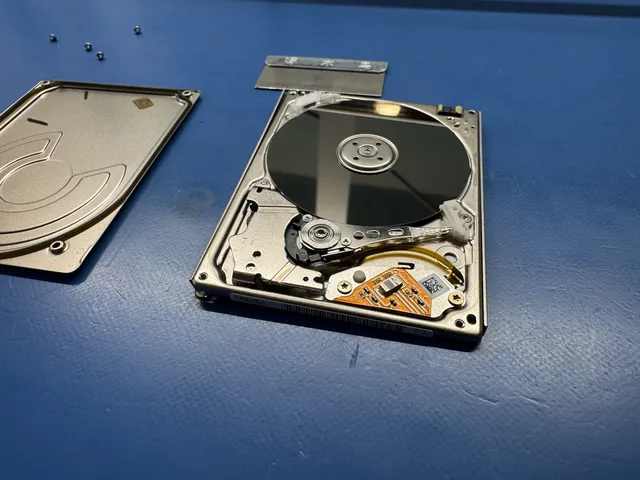
Do not open a hard drive outside suitable controlled conditions. Contamination or accidental contact with the platters can reduce the remaining recovery options.
Hard drives are assembled in cleanrooms with filtered air. The tolerances between the read/write heads and the platter surface are measured in nanometers. You can't replicate that environment at home. Don't try.
Don't Put It in the Freezer
This "trick" has been circulating on the internet since the early 2000s. The theory is that cooling the drive contracts the metal components and might free stuck parts. In reality, putting a hard drive in a freezer introduces moisture. When you take it out, condensation forms on the platters and PCB. Water on platters causes corrosion that can happen in minutes. Water on the PCB can short-circuit components.
This advice was questionable 20 years ago with simpler drive designs. With modern drives, it will almost certainly make things worse. Don't do it.
Don't Run Recovery Software on a Failing Drive
Avoid recovery scans on a clicking, beeping, dropped or unstable drive. Additional reads can stress damaged media. A recovery provider can assess whether controlled imaging or hardware work is appropriate.
Recovery software is designed for logical failures: accidentally deleted files, formatted partitions, corrupted file systems. If the drive is healthy enough to be recognized by your computer and isn't making weird sounds, software recovery can work. If there's any sign of physical failure, software makes it worse.
Don't Keep Power-Cycling the Drive
Repeated power cycles are not a repair method. If a drive repeatedly fails to identify or disconnects, keep it powered off and arrange diagnosis.
Try each fix once. Methodically. If you've gone through the steps in this guide and nothing works, that's your answer. The drive needs professional attention.
Don't Format the Drive
Cancel formatting prompts if the drive contains files you need. Formatting writes file-system structures and can reduce recovery options. Preserve the original drive while deciding how to recover the data.
If this helped, these guides cover related scenarios we see in the lab:
Frequently Asked Questions
Why is my external hard drive not showing up in File Explorer but visible in Disk Management?
This usually means the drive is missing a drive letter assignment. Open Disk Management, right-click the partition on your external drive, select "Change Drive Letter and Paths," and assign a letter. It can also happen if the file system is RAW or corrupted, which means Windows detects the hardware but can't read the partition.
Can I recover data from an external hard drive that isn't showing up?
Recoverability depends on the failure and the condition of the stored data. A connection issue may be straightforward to resolve; mechanical or electronic damage needs a different diagnosis. No recovery outcome can be promised from this symptom alone.
Why does my external hard drive keep disconnecting and reconnecting?
An intermittent connection may involve the cable, port, power supply, enclosure or internal drive. If one known-good connection check does not resolve it, stop repeated testing and arrange diagnosis.
Is it safe to run CHKDSK on an external hard drive that isn't showing up properly?
The absence of unusual sound does not prove a drive is healthy. CHKDSK changes file-system records. Use repair only after securing a backup or image of stable media; avoid it on a drive with signs of failure.
My external hard drive is clicking. Can I still save my data?
Clicking can indicate a mechanical fault, but the sound alone does not establish which part has failed or what is recoverable. Stop powering the drive and request diagnosis instead of running scans or opening it yourself.
Why does my external hard drive show up as RAW?
RAW means Windows cannot recognize a usable file system. Corruption, an unsupported format or a device fault can be involved. Cancel formatting prompts and assess the condition of the drive before choosing recovery software or a professional service.
What is the difference between a drive that is not detected and one that is not recognized?
Not detected means the computer sees nothing at all, which points to cable, port, power, or a dead drive. Not recognized means the computer sees the device but cannot read it, which points to a partition, file system, or driver problem. The fixes are different, so identify which one you have first: check Disk Management on Windows or Disk Utility on Mac.
Do I need to eject my external hard drive before unplugging it?
Yes. Always. When your operating system writes data to an external drive, it doesn't always write it immediately. It caches data and writes it in batches for performance reasons. If you yank the cable while data is still being cached, you can corrupt the file system. That's one of the most common causes of drives showing up as RAW or not mounting. Use "Safely Remove Hardware" on Windows or "Eject" on Mac before unplugging.
How much does it cost to recover data from an external hard drive that won't show up?
Logical recovery typically costs $200–$500; mechanical recovery ranges from $500–$1,200. Recovery pricing depends on the diagnosed failure. MDrepairs charges a $100 diagnostic, credited toward successful recovery. Confirm shipping and return-media charges in your quote.
When to stop troubleshooting an external drive
If safe connection checks fail, pause before CHKDSK, First Aid or recovery scans. Repair tools change file-system records, and scans can stress an unstable drive. Keep a clicking, beeping, dropped or repeatedly disconnecting drive powered off. Cancel formatting prompts if the files matter.
Keep the drive powered off while arranging an evaluation. MDrepairs offers external drive recovery and nationwide mail-in service. Confirm packing, shipping coverage and return-media charges in the quote. The $100 diagnostic is credited toward successful recovery and still applies if recovery is unsuccessful.
External hard drive not showing up: what to check first
When an external hard drive is not showing up, separate connection problems from drive failure before trying repairs. Start with the basics: use a known-good USB cable, connect directly to the computer instead of a hub, and try another port. For desktop-size external drives, confirm the power adapter is correct and stable. A weak adapter can spin the drive partially, then drop it before the operating system mounts it.
Next, check whether the computer sees the hardware at any level. On Windows, look in Disk Management and Device Manager. On macOS, check Disk Utility and System Information. If the drive appears with the correct capacity but no drive letter, the issue may be partition, file system, or mount related. If it asks to initialize, format, or repair, do not accept if you need the files. Those prompts mean the computer cannot interpret the volume safely.
If the external drive does not appear at all, listen carefully. A healthy hard drive usually spins up smoothly and stays spinning. Clicking, beeping, repeated spin-downs, or vibration followed by silence can indicate mechanical or electronic failure. Many external drives also include a USB bridge board inside the enclosure. Sometimes the bridge fails while the internal drive is still readable. Other models, especially some WD My Passport and similar portable drives, have USB integrated directly on the drive board or use hardware encryption through the bridge, so removing the bare drive is not always a simple fix.
Avoid file-system repair, initialization and formatting until the needed files are backed up. On stable media, an image can preserve the original before recovery work. If the drive disconnects, makes unusual sounds or was dropped, stop and request diagnosis. MDrepairs offers external drive recovery with nationwide mail-in service.
Why is my external hard drive not showing up on my computer?
The cause may be a bad cable, weak power supply, failed USB bridge, damaged file system, or a failing internal drive. If the drive appears in Disk Management or Disk Utility, the problem may be logical. If it clicks, beeps, or never identifies, it is more likely hardware related.
Should I initialize or format an external hard drive that is not showing up?
No, not if you need the data. Initialization and formatting create new file system structures and can overwrite information needed for recovery. If the computer prompts you to initialize or format, cancel the prompt and make a recovery plan before writing to the drive.
Every Way a Failing Drive Gets Recovered
If the safe checks do not resolve the problem, the cause may still be a connection, firmware, file-system or hardware fault. The next step is diagnosis. Review the relevant recovery service and request an initial quote before authorizing work.
How MDrepairs can help
Real cases like this come through our New Jersey lab every week. If you are dealing with one now, start here.
- Undetected Hard Drive Recovery Recovery when a drive is not detected or shows no capacity. Learn more
- Data Recovery Services Every device and failure type, recovered in our New Jersey lab. Learn more
- Mail-In Data Recovery Free insured shipping both ways (contiguous US), anywhere in the US. Learn more
- Data Recovery Cost What recovery really costs - flat tiers, no data no charge. Learn more