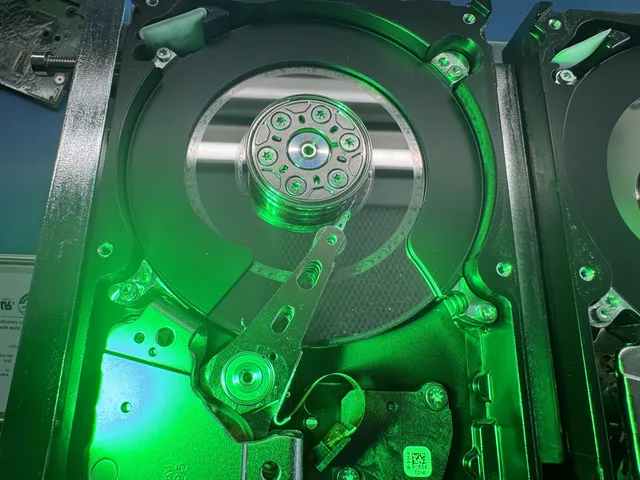
External Hard Drive Not Working: Full Triage Guide
In this article
Match your drive's exact behavior below and follow only that section. We'll tell you plainly which situations are DIY-friendly and which aren't.
Symptom 1: no light, no sound, nothing
The drive is electrically dead to the world. Possible causes:
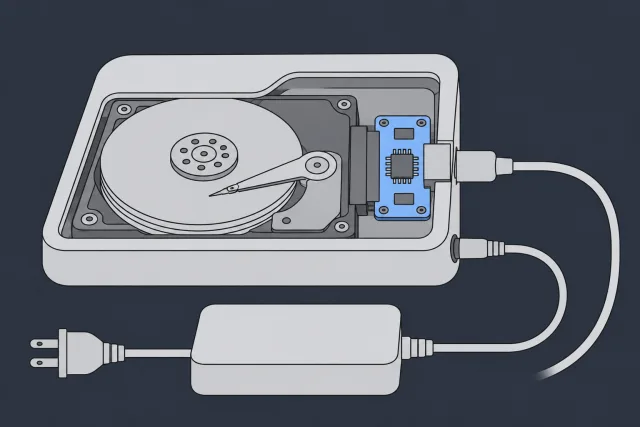
- Cable and port. Try a different cable (USB cables fail constantly and invisibly) and a different port, directly on the computer, never through a hub. For desktop-size drives with power bricks, verify the brick: right voltage, snug barrel connector, and ideally test with an identical known-good adapter.
- The enclosure's electronics. The USB bridge board sits inside the case.
- The drive's own board. Less common: the drive's PCB took a hit (power surge, bad adapter). Distinct smell of burnt electronics is the giveaway.
 Illustration
Symptom 2: light on, drive never spins up
Power is arriving but the motor isn't turning. You'll know because a spinning 2.5 or 3.5 inch drive has a feel: faint vibration and a soft whir. Dead giveaway variants:
- Silence with light: insufficient power (front-panel USB ports and hubs are notorious for this on portable drives), a failed drive PCB, or on desktop units a failing power adapter that lights the LED but can't spin the motor. Cheap checks first: rear ports, no hub, known-good adapter.
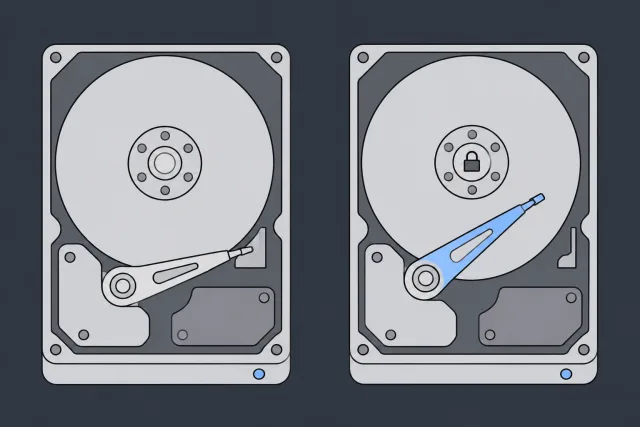
- A faint repeating buzz or chirp every few seconds: the motor trying and failing. Two classic causes are a seized spindle or heads stuck on the platter surface instead of parked.
- Beeping from the drive itself: almost always stuck heads on portable drives that got bumped while running. Do not keep trying; each attempt drags the stuck heads across your data.
 Illustration
If the cheap power checks don't wake it, stop. Spin-up failures are mechanical or electronic, there is no software fix by definition (software can't reach a drive that never spins), and repeat attempts have a real cost. See our external hard drive recovery service.
Symptom 3: spins up fine, never shows on the computer
You feel it running, sounds normal, but nothing appears in File Explorer or on the Mac desktop. Check the deeper layers before assuming the worst:
- Look in Disk Management (Windows) or Disk Utility (Mac), not just the file browser. If the drive appears there but has no drive letter, an unmounted volume, or shows as RAW or unallocated, your hardware layer is fine and you've actually got symptom 4; skip down.
- If it's absent even from Disk Management/Disk Utility: try the other cable/port/computer trio once. Still absent while audibly spinning points at the USB bridge, the drive's firmware, or weak heads that can't complete the drive's self-identification.
- If it appears, then disappears, then reappears: a struggling drive resetting under load. Stop plugging it in; every mount attempt is stress on whatever's failing.
Symptom 4: shows up, but won't open or asks to format
The mechanics survived; the file system didn't. You'll see "You need to format the disk before you can use it," the drive showing as RAW, a greyed-out volume on Mac, or endless spinning when you double-click the drive letter. Two rules:
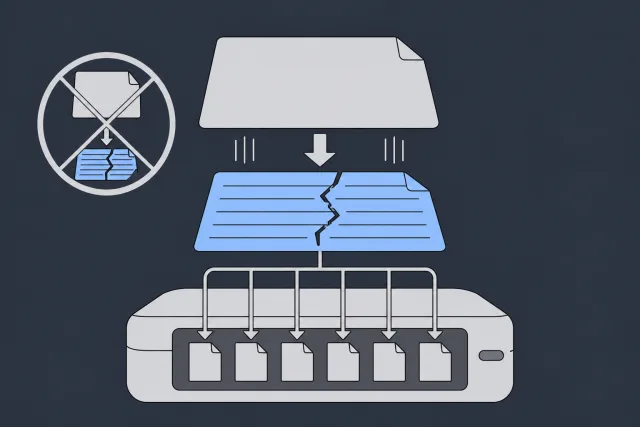
- Never accept the format prompt. Formatting writes a fresh empty file system over the damaged one your files live in.
- Don't run chkdsk or First Aid on it if the files matter. Repair utilities fix the file system by rewriting it, and on a corrupted volume they routinely amputate the very structures recovery tools use to find your data.
 Illustration
If the drive is healthy and the files are expendable-ish, read-only recovery software pointed at the RAW volume is a legitimate DIY path. If the corruption arrived alongside physical symptoms (slowness, noises, disconnects), the corruption is a symptom of dying hardware, and scanning it for hours makes everything worse. That combination goes to the lab. We covered the disappearing-drive flavor of this in detail in our guide to an external drive not showing up, and the random-disconnect flavor in this post on drives that keep dropping.
The whole guide in one table
| Symptom | Usual cause | Safe next step |
|---|---|---|
| No light, no sound | Cable, adapter, enclosure board | Swap cable/port/adapter; then suspect enclosure |
| Light, no spin, silence | Weak power or drive PCB | Rear port, no hub, known-good adapter |
| Light, buzz/chirp retries | Stuck heads or seized motor | Power off, lab. No retries |
| Beeping | Heads stuck on platters | Power off, lab |
| Spins, not in Disk Mgmt | Bridge, firmware, weak heads | One cable/port/PC test, then lab |
| Spins, RAW/format prompt | File system corruption | Decline format; read-only tools or lab |
| Clicking sounds | Head failure | Power off immediately, lab |
That clicking row gets its own deep dive in our hard drive clicking guide, and if your drive mounts but reports zero bytes or unallocated space, there's a dedicated walkthrough for the unallocated/0-bytes case too.
After this is over: make the next failure boring
External drives fail more than internal ones. They get dropped, unplugged mid-write, cooked in hot cars, and powered by whatever port is nearest. Whatever the outcome of this round, the fix for next time is boring and absolute: two copies on different devices, three if the files are truly irreplaceable. An external drive that is one of two copies is a convenience item when it dies. An external drive that is the only copy is a crisis. You've just lived the difference.
 Illustration
Frequently Asked Questions
Why is my external hard drive not working all of a sudden?
Sudden total failure is usually electronic or mechanical: a failed USB bridge in the enclosure, a dead power adapter, a drive PCB hit by a surge, or heads that failed on the last spin-up. Gradual failure (slower and slower, then gone) points at the mechanism or accumulating bad sectors. The drive's exact behavior (light, spin, sounds, what Disk Management shows) narrows it down fast; that's the whole point of triaging by symptom.
How do I get data off an external hard drive that won't turn on?
If it won't power up at all, start with cable, port, and power adapter swaps; those fix a big share of cases for pocket change. If it stays dead, the drive has to come out of the enclosure, and what happens next depends on the model: some connect straight to a computer, while many WD and Seagate portables use hardware encryption tied to the enclosure board, meaning the bare drive is unreadable without lab tools. If the data matters, that's the point to stop and get professional help.
Can I fix an external hard drive without losing data?
Depends entirely on which failure you have. If the only fault is the adapter or enclosure, the drive inside can still be healthy. File system corruption: recoverable, but only if you avoid format prompts and repair utilities until the files are safely copied off. Mechanical failures: not DIY-fixable at all, and attempts cost data. Match the symptom first; the safe path follows from it.
Why does my external drive have power but not show up?
A lit LED only proves electricity arrived. For the drive to appear, the motor has to spin, the heads have to read the drive's own firmware, the bridge board has to translate USB, and the computer has to mount a file system. A failure at any link shows the same symptom. Check Disk Management or Disk Utility first: present-but-unmountable is a software-layer issue, absent-entirely is hardware-layer trouble.
When is professional recovery actually necessary?
Three unambiguous triggers: any unusual sound (clicking, beeping, buzzing), the drive absent from Disk Management/Disk Utility after basic cable and power checks, and any physical event (drop, water, surge) preceding the failure. Add a fourth if the files are irreplaceable: when you're not sure, ask before experimenting.
How MDrepairs can help
- Hard Drive Data Recovery Mechanical, firmware and logical HDD recovery on every brand. Learn more
- Data Recovery Services Every device and failure type, recovered in our New Jersey lab. Learn more
- RAID Data Recovery Array reconstruction for RAID 0/1/5/6/10, NAS and servers. Learn more
- Mail-In Data Recovery Free shipping both ways (contiguous US). Learn more