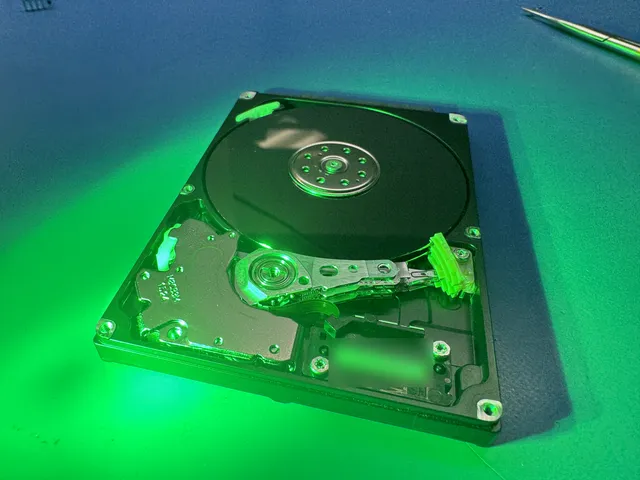
External Hard Drive Not Showing Up? Here's How to Fix It
Our founder and lead technician, Joseph Montanti, handles cases personally.
An external hard drive that is not showing up may have a connection problem, a file system the computer cannot read, or a fault inside the drive. For a G-DRIVE, check its required power supply and whether it was formatted for Mac before treating a missing Windows drive letter as failure. An external SSD that appears not to turn on needs a cable, port and detection check too; it has no spinning motor to listen for.
A drive that disappeared once has given you a reason to secure those files before changing settings.
Keep a failing drive off. Keep a drive disconnected until inspection after a drop, liquid exposure, a frozen copy, read errors or a lost connection; beeping, grinding and repeated hard clicks also mean a hard drive must stay off. Leaves your files alone. Cancel any initialize, format or erase prompt while the drive contains needed files.
On this page
- Applies to
- External hard drives and SSDs on Windows or Mac, including G-DRIVE models
- What you need
- A working data cable and, to copy Mac files already on a G-DRIVE, a compatible Mac
Start with the cable, port and power supply
A drive needs both a reliable data connection and enough power to operate. An activity light shows that some circuitry has power; the computer still has to identify the storage and open a usable volume before the files appear.
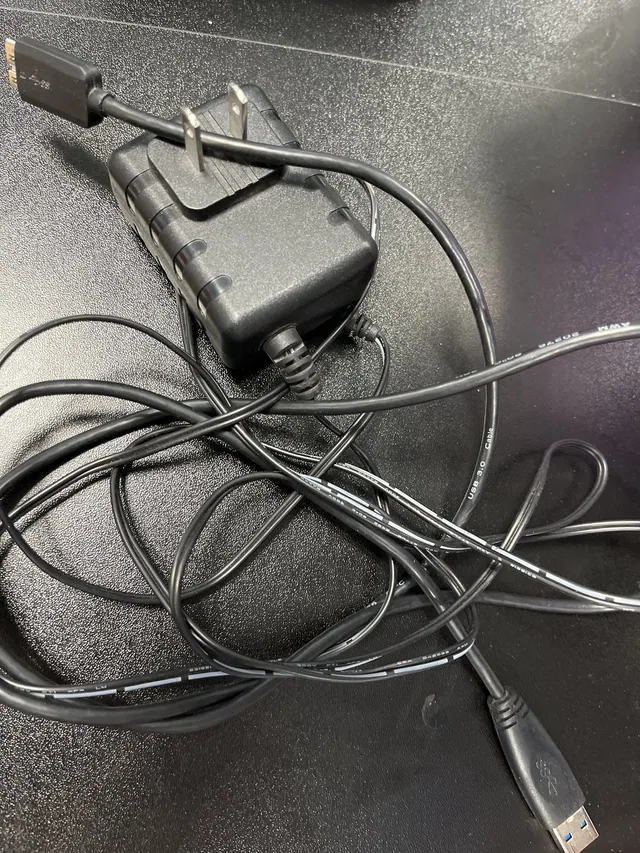
- Leaves your files alone. Connect an undamaged drive directly to the computer, bypassing a hub or dock. Try another compatible port; on a desktop PC, a rear motherboard port is a useful alternative to a front connection.
- Leaves your files alone. Use a known-good data cable that matches the drive's interface. A cable can supply power while its data connection fails.
- Leaves your files alone. For a desktop drive with a separate power adapter, check that the correct adapter is connected firmly to the drive and a working outlet. Use its power switch if it has one.
- If the drive remains stable but absent, try one compatible second computer. Risk to your files. Copying keeps a faulty drive running, so end the transfer if it stalls or the drive disconnects. If it opens there, copy the files before investigating the first computer.
Seagate's external-drive checks cover the cable, port, second computer and desktop power supply. Bundled backup software is separate from basic drive detection: installing it is generally unnecessary just to make an ordinary USB disk appear.
G-DRIVE not showing up on Windows
Some G-DRIVE models arrive formatted for macOS. For example, the G-DRIVE manual specifies APFS formatting, a USB-C connection, separate power and a power button. Windows may detect that physical drive without displaying its Mac volume in File Explorer.
If the drive already holds Mac files, connect it to a compatible Mac and copy them there. Reformatting for Windows erases the contents. A genuinely new, empty drive can instead be set up for the computer you intend to use, following its model's instructions. G-DRIVE covers several products, so check the model on the case rather than assuming they all share the same connection and power requirements.
An external SSD with no sign of life
Silence is normal for an SSD. Look for it in Disk Management or Disk Utility after the cable and port check.
USB-C describes the connector, while USB and Thunderbolt describe different connection capabilities. Match the drive and cable to the computer's supported interface. This matters with professional external SSDs: SanDisk publishes specific host-power requirements for the PRO-G40 SSD and separate Thunderbolt detection guidance. A plug that fits is only the beginning of that compatibility check.
If a correctly connected SSD stays absent from the computer's storage tools, its USB electronics, power circuitry, controller or flash storage needs diagnosis. HDD remedies such as freeing stuck heads have no application to an SSD.
Detected by the computer, but missing from your files
A USB connection, a detected disk and a mounted volume are successive stages. The computer can recognize an enclosure before it can read the drive inside it. It can also read a disk's identity while being unable to use the partitions that contain your folders; see Microsoft's disk troubleshooting reference for the Windows states below.
| What the computer shows | Meaning | What to do |
|---|---|---|
| Healthy data partition, no drive letter in Windows | The volume exists without an Explorer letter. | Add an unused drive letter to that data partition. |
| RAW or a request to format | Windows cannot recognize a usable file system. | Check format compatibility and preserve existing files before repair. |
| Unallocated or Not Initialized on a previously used disk | The expected partition layout is unavailable. | Recover the data before creating a replacement layout. |
| Disk Utility sees an unmounted Mac volume | The disk is present, but the volume is not open for use. | Try Mount once on a stable, undamaged drive. |
| Only a USB device appears, with no usable disk capacity | The computer has reached USB electronics but has not obtained usable storage. | Investigate the connection or drive fault instead of creating partitions. |
Windows: Disk Management and Device Manager
Right-click Start and choose Disk Management, or press Windows + R, enter diskmgmt.msc and press Enter. In its lower pane, locate the external disk by its capacity and partition layout. Check the whole list rather than assuming the external drive is Disk 1.
If its existing data partition is healthy and has a recognized file system, a missing letter is a straightforward fix:
- Right-click that partition and choose Change Drive Letter and Paths.
- Risk to your files. Assigning a letter opens the volume in Windows and allows writes to it. Select Add, choose an unused letter, then confirm with OK.
- Open the resulting drive in File Explorer and save the needed files elsewhere.
This follows Microsoft's drive-letter instructions. System and recovery partitions serve other purposes and should not be assigned letters as part of this check.
A new, empty disk may need initialization and a new volume. A previously used Linux, NAS or Mac disk may instead use a format Windows does not support. The same setup prompt can appear in both situations, which is why the drive's history matters before clicking through it.
If it is absent from Disk Management
Open Device Manager from the Start menu, or run devmgmt.msc. Expand Disk drives and Universal Serial Bus controllers. A warning triangle or Unknown Device entry means Windows has reported a problem with the device or its connection. Open Properties and read Device status; the error code distinguishes a missing driver from other faults.
Leaves your files alone. For a confirmed driver problem, use the computer or device manufacturer's supported update or reinstall procedure. If accessible data is already backed up and the manufacturer directs a driver reinstall, target the affected device. Uninstalling every USB root hub is unnecessary and can disrupt other connected devices.
Leave USB selective suspend enabled during ordinary troubleshooting. It allows Windows to suspend an idle port and wake it when needed; Microsoft recommends keeping it enabled. If the fault specifically follows sleep or a system update, use the computer manufacturer's guidance for that model and driver.
CHKDSK is a repair step
CHKDSK /f changes file-system records, and /r adds a sector scan. Use repair only after making a backup or image of stable media. A drive that keeps disconnecting needs its access problem resolved before a long scan can be useful. A RAW volume also needs a readable file system before CHKDSK can repair it; formatting it just to run the command would replace the structures you are trying to recover.
When the fault is inside the drive
Repeated hard clicking means an HDD is struggling to complete its read or startup sequence. The heads must locate and read information on the platters; damaged heads or unreadable areas can leave the drive retrying. Soft occasional seek clicks during normal use are different. Seagate describes that difference and identifies insufficient power as a common cause of an intermittent beep.
A drive that cannot get its platters turning can also make a beeping or buzzing sound. Weak supplied power and an internal mechanical obstruction require different repairs. A power LED may remain on in either situation. Diagnosis establishes which part is preventing startup.
The drive can also spin quietly with failed heads. In Joe's WD20SDRW recovery, the external drive spun without unusual noise but would not initialize; inspection found failed heads and small platter scratches. He replaced the heads and used a saved copy of the drive's translator, the information that maps where its data is stored, to regain access after that map became corrupt during the work. Most files were recovered, with an unreadable portion remaining.
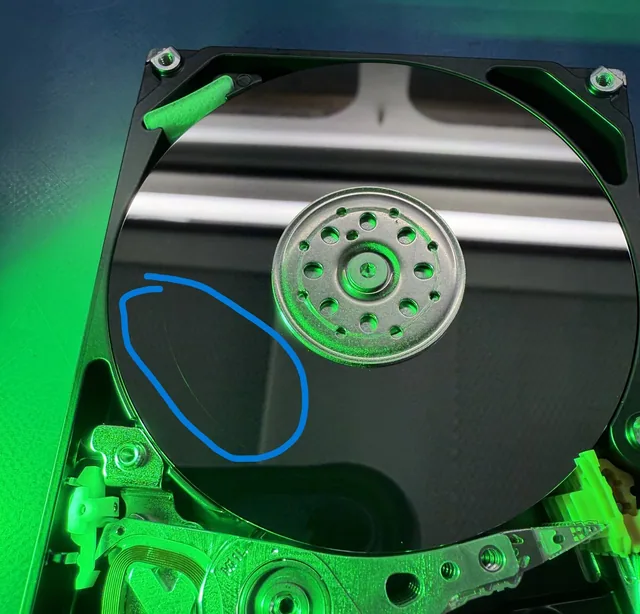
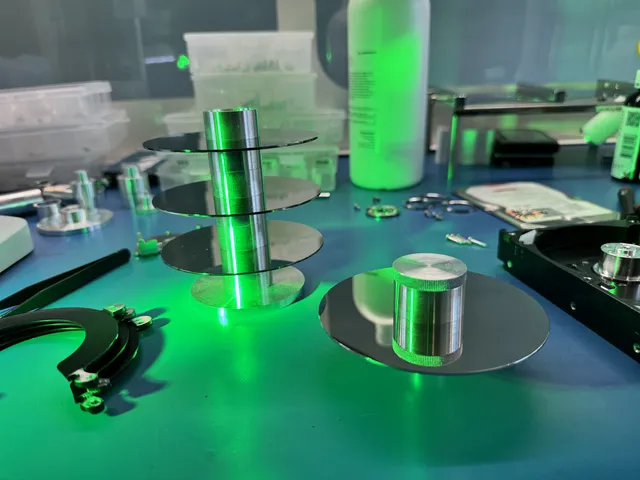
In the recorded Hitachi repair, an undetected drive clicked during attempts to read its internal information. Joe found badly damaged heads, fitted donor heads in the controlled work area and read the customer's files. These jobs required access to the mechanism before software could read the data.
The enclosure can fail separately from the disk, but removing the case is not a universal cable swap. The WD20SDRW recording required board work to convert its integrated USB connection for recovery. Keep the original drive electronics and enclosure together so their role can be assessed. Opening the sealed disk mechanism exposes its recording surfaces to contamination, while freezing or tapping it adds physical risks without repairing the failed part.
For an inaccessible drive whose files matter, external-drive recovery starts with identifying whether the problem is in the connection, file system, electronics or mechanism. Recovery pricing follows the type of work:
| Recovery type | Price range |
|---|---|
| Hard Drive - Firmware / Logical | $1,000 - $1,500 |
| Hard Drive - Head Swap | $1,500 - $3,000+ |
Diagnosis is $100, credited toward a successful recovery; you review and approve the recovery estimate before the work starts.
Mac: a missing icon, an unmounted volume or no disk
Leaves your files alone. First check Finder's display settings. Choose Finder > Settings, open General and enable External disks for the desktop. Then open Sidebar and enable External disks there too. Apple's connected-device instructions show these controls. A volume hidden from the sidebar may still be mounted and readable.
Open Applications > Utilities > Disk Utility, then choose View > Show All Devices. This shows physical devices as well as their volumes. Risk to your files. Mounting a writable volume lets macOS add small files of its own. If a stable drive has a volume that is merely unmounted, select the volume and click Mount. If it mounts successfully, copy out the files before further changes.
A failed mount and an absent device are different problems. Hold Option while opening the Apple menu and select System Information. Check USB or Thunderbolt for the connected device. An entry there shows communication with that interface; Disk Utility still needs readable disk information and a usable volume.
Leaves your files alone. On Macs that ask for permission when a new accessory connects, unlock the Mac and approve your own drive. Apple's port guidance explains the accessory prompt and direct-connection checks.
Terminal checks and First Aid
Terminal users can enter diskutil list to see the disks and partitions macOS recognizes. Match the external device's name and capacity before using its identifier. On a stable disk, diskutil mountDisk /dev/ requests mounting of its eligible volumes; replace disk2 with the actual identifier from the list. The built-in man diskutil reference documents both commands. A failed mount is information to investigate, rather than a reason to repeat the request indefinitely.
First Aid repairs formatting and directory structures. Apple explicitly calls for a current backup before using Disk Utility repair. Risk to your files. First Aid writes its changes to the drive you select. After the data is preserved on stable media, follow its volume, container and device repair order. When the only copy remains inaccessible, recovery comes before repair.
An NTFS disk from Windows may be readable on a Mac without being writable. Apple's external-drive format guidance distinguishes that limitation from a missing disk. If you can read the files, copy them to another device; changing the format is a later decision once those copies are checked.
Fixes to avoid on an undetected external drive
- Accepting Initialize on a used drive. Initialization erases the disk even if Windows cannot show you its files.
- Running First Aid on the only copy. First Aid writes repairs to the original file system. Save a separate copy before starting it.
- Reconnecting a clicking hard drive. Another startup can worsen the physical damage. Our clicking drive case explains when to leave it unplugged.
Inside external hard drives that computers couldn't detect
In undetected external hard drives, we found platter damage as often as we found weak heads or bad sectors.
In 2026 we reached the firmware on an undetected drive and saved a copy of its modules. The drive later stopped responding. Its platter surfaces were too damaged for us to reach the firmware again, and we recovered no files.
Get help with data recovery
Bring your device to our Lincroft lab during opening hours, or mail it in.
How to mail your deviceThe $100 diagnostic is non-refundable once diagnostics start, and donor drives or replacement parts you approve are non-refundable once ordered, even if recovery fails.
More lab videos
Published by MDrepairs
MDrepairs is a data recovery and electronics repair lab in Lincroft, New Jersey. Our founder and lead technician Joseph Montanti films real cases for our YouTube channel, showing tools, repair steps and recovery outcomes.
Keep reading
- BitLocker Recovery Key Not Working? Check the Key ID Before Resetting
- exFAT Drive Corrupted? Cross-Platform Rescue Guide
- External Drive Painfully Slow? It May Be Dying