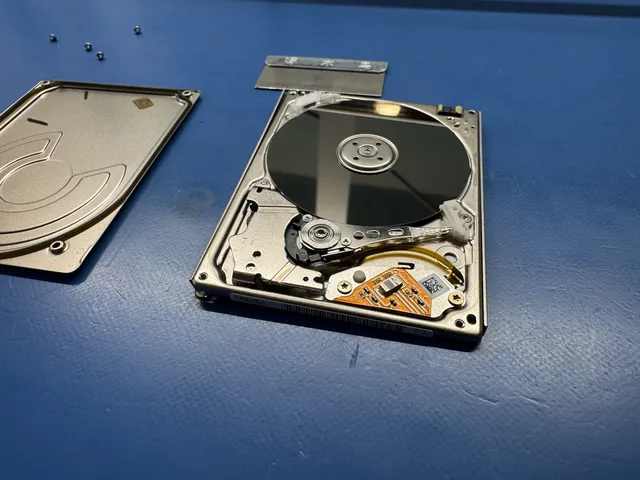
A Professional Guide to Recovering Data from a Dead Hard Drive
In this article
Data recovery from a dead hard drive depends on what failed and whether the platters can still be read. The single most important move is to stop using the drive: power it down and do not run CHKDSK or recovery software on a physically failing drive.
- Repeated hard clicks, beeping, or grinding: power off now. The sound alone won't tell you which part failed.
- Spins but not detected, or shows 0 MB: do not initialize or scan it. A connection, head, or firmware fault can look like this. The reading can't tell you whether the files are intact.
- Either way, once the drive is stable, we make a copy and look for your files there. See how we handle hard drive data recovery.
When a hard drive fails, your actions in the first few minutes can determine whether your data is recoverable or lost forever. As data recovery professionals, we've seen common mistakes turn a solvable problem into a permanent one.
The single most important step is to immediately stop using the drive. Power down the computer, unplug the device, and resist the urge to turn it back on to "just check one more time."
What to Do the Moment Your Hard Drive Fails
That moment of failure is critical. Whether it's an external drive that suddenly disconnects or an internal drive that causes your computer to freeze, your immediate response sets the stage for a successful recovery. The goal isn't to repair the hard drive - it's to prevent further damage to the delicate magnetic platters where your data is stored. If you're comparing quotes, ask whether the hard drive repair cost includes copying your files.
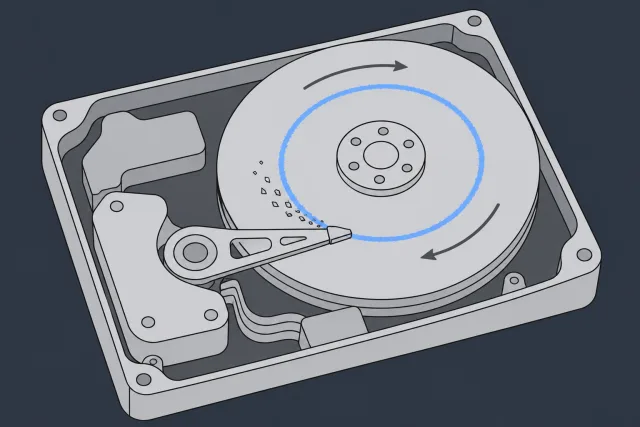
Each time you power on a physically failing drive, you risk catastrophic damage. If the read/write heads have failed, they can physically scrape across the platter surfaces, much like a phonograph needle digging into a vinyl record. We call this rotational scoring. A scraping head can cut a ring through the magnetic layer that holds your files, destroying the data in its path.
 Illustration
Your Immediate Action Plan
The objective is to preserve the drive in its current state until we can diagnose the fault.
Power Down Completely: Do not simply restart. Perform a full shutdown of the computer. If the system is frozen, press and hold the power button. For an external drive, safely eject it if possible, then unplug both the power and data cables.
Physically Disconnect the Drive: If the failed drive is internal, leave the computer powered off. If it's an external USB or Thunderbolt drive, disconnect it from your machine. With the drive still off, open your backup on another device and look for the photos or files you need.
Do Not Run Any Software: This is a common and costly mistake. It’s tempting to run utility software like CHKDSK or a downloadable recovery app. In repair mode, CHKDSK changes the file system. A recovery app looks for files. On a failing drive, they can cause irreversible damage by forcing the weakened components to read bad sectors repeatedly.
The Professional Takeaway: The moment you hear repeated hard clicks or grinding, or if the drive disappears while you're reading files, the only safe action is to power it down and leave it off.
What to Avoid at All Costs
The actions you don't take are just as important as the ones you do. Several common reactions can make professional recovery significantly more difficult, or even impossible.
Never shake, tap, or attempt to open the hard drive enclosure. The internal components are aligned with microscopic precision, and even a slight jolt can cause further damage. Opening the drive requires a clean, filtered work area. The platters are so sensitive that a single speck of dust can cause a head crash and damage the data where the head hits.
MDRepairs does head and platter work in a filtered, laminar-flow work area. Leaving the drive off protects the platters until our engineers can inspect them.
How to Diagnose Your Dead Hard Drive's Symptoms
When a hard drive fails, it often provides clues about the nature of the problem. Learning to interpret these signals is the first step in understanding if your data is recoverable. The sounds it makes - or its silence - tell a story about what has gone wrong internally.
A common misconception is that all "dead" drives are the same. In reality, mechanical, electrical, logical, and firmware failures can look alike. The cause determines how we get the files back, which is why running generic software is so risky.
What Are the Symptoms Telling You?
Think back to what you heard before you turned the drive off. Was it making unusual noises, or was it silent when it should have been spinning? These sounds come from moving parts. An SSD has no motor or heads to listen for.
Mechanical failures involve the physical breakdown of moving parts, such as the spindle motor or the read/write head assembly.
Here's what those sounds can mean.
- Clicking, Ticking, or Grinding: A soft click as the drive works or shuts down can be normal. Repeated hard clicks can mean the heads are trying again and again to read. Grinding can mean a head is scraping a platter.
- Beeping or Buzzing: An external drive can beep if it isn't getting enough power. A stuck motor can also keep the platters from spinning.
- Complete Silence (No Spin): If the drive is not spinning at all, it may have lost power, the motor may have failed, or the heads could be stuck to the platters.
These can be signs of physical failure. If a head is damaged, powering the drive on again can score the platter.
If your hard drive starts clicking loudly and repeatedly, beeping, or grinding, stop immediately. Further power-on attempts can cause more damage. Head and platter work requires a clean, filtered work area.
Silent Failures: Logical and Electrical Issues
Unlike the audible drama of a mechanical failure, logical and electrical problems are often silent. A logical failure means the drive's hardware is functional, but the data has become inaccessible due to file system corruption, an accidental format, or a damaged partition table.
Electrical failures occur when a component on the printed circuit board (PCB) fails, for example after a power surge. This can prevent the drive from powering on or communicating with the computer.
A logical or electrical fault can cause the symptoms below. A damaged head can cause some of them too.
- The drive spins up, but the computer does not recognize it.
- The operating system prompts you to format or initialize the drive. Cancel the prompt if you want the files.
- Files and folders have disappeared or appear corrupted.
- Connecting the drive causes the computer to freeze or become unresponsive.
Leave the drive off if it was dropped, made unusual sounds, or stalled or cut out during a read. If an external drive simply doesn't appear, try a USB cable you know works in a different port on the computer. If the files open normally, copy the ones you need to another drive.
If that quiet drive still doesn't appear with your files, look for the disk itself. On Windows, open Start, search for Create and format hard disk partitions, and open that result. On a Mac, click the desktop, choose Go > Utilities, and open the app with the hard drive and stethoscope icon. Choose View > Show All Devices. Look for the drive and its capacity. Dismiss any offer to initialize, erase, format, or repair it.
The takeaway is clear: if you hear repeated hard clicks or grinding, shut it down immediately. If the disk itself is missing or shows 0 MB, power it down. A recovery program needs the computer to be able to read the disk.
The Hidden Culprit: Firmware Corruption
Firmware is the set of instructions built into the drive. When this complex code becomes corrupted, the drive can become completely unresponsive, even if all physical components are in perfect condition.
Firmware issues are challenging to diagnose because they can mimic other failures. A drive with a firmware fault might not spin up, it could be detected with an incorrect size (e.g., 0 MB), or it may appear in the system with a garbled model name.
Resolving firmware corruption requires specialized laboratory tools like the PC-3000, which allow our engineers to access the drive's service area and manually repair the damaged code. This is a highly technical process that no consumer software can perform.
To clarify, this table breaks down the symptoms and what can cause them.
Common Hard Drive Failure Symptoms and Their Meanings
Use this table to match your drive's symptoms to a possible cause and understand the best next step for recovery.
| Symptom | Possible Cause | What It Means For Your Data | Recommended Next Step |
|---|---|---|---|
| Repeated hard clicks, grinding, or beeping | Mechanical or power | If a head is scraping a platter, it can destroy data where it touches. | Power down immediately. Do not use software. We can diagnose what failed. |
| No power, no spin, no sound | Electrical / Mechanical | While the platters aren't spinning, the heads can't read your files. | Leave it off. We can diagnose why it won't spin. |
| Drive spins but is not detected | Cable, heads, circuit board, or firmware | The computer can't reach the files, even though the motor runs. | Do not format. If the disk itself still doesn't appear, power it down for a diagnostic. |
| Detected with wrong size (0 MB) | Firmware, heads, or connection | The computer isn't reading the drive's capacity. A 0 MB reading doesn't mean your files were erased. | Leave the drive off. We can diagnose why it reports the wrong size. |
| Computer freezes when connected | Unreadable sectors or a connection fault | The computer can freeze while it waits for the drive to finish a read. Data is at risk. | Power down. Repeated attempts put more wear on a failing drive. A lab imager can skip unreadable spots. |
| OS prompts to format drive | Unrecognized or damaged file system | The computer can't read the file system. This can also happen if the disk was formatted for a different operating system. | Do NOT format. If the drive is stable and shows its full capacity, make an image before trying recovery software. Stop if it hangs or disconnects. |
Remember, hard drive failure is not a question of if, but when. Learning to spot these signs is critical.
By correctly identifying what your drive is trying to tell you, you can avoid making a bad situation worse. If you are unsure, a professional diagnostic can assess the problem.
When Is Data Recovery Software a Good Idea? (And When Is It a Disaster?)
We've seen it happen: a user panics, downloads a data recovery program, and inadvertently turns a recoverable case into a permanent loss. Commercial software tools serve a very specific, narrow purpose: recovering from logical data loss on a physically healthy drive.
Understanding this distinction is crucial. Using software on a physically failing drive is one of the most destructive actions you can take.
The Green Light: Scenarios Where Software Might Work
Before attempting a software-based recovery, look for signs that the drive is stable. It should stay connected, show the correct capacity, read without stalling, sound normal, and have no history of a drop.
If your drive meets these criteria, software may be a reasonable option for these situations:
- Accidental File Deletion: You emptied the Recycle Bin or used Shift + Delete.
- Accidental Formatting: You quick-formatted the wrong partition. Files that haven't been overwritten may still be there.
- RAW File System: The drive shows up as "RAW" or prompts for formatting because the computer can't read the file system. If the drive stalls or disappears, stop.
Even in these ideal scenarios, follow this golden rule: Never install or run recovery software on the source drive. The installation process writes new data, which can overwrite the very files you are trying to recover. For a drive-to-drive clone, choose the original as the source and an empty drive of equal or greater capacity as the destination. Cloning overwrites the destination. Scan the copy and save recovered files to another healthy drive.
The Red Flags: When to Power Down Immediately
The real danger lies in misdiagnosing a physical failure as a logical one. Running a software scan on a mechanically failing drive is akin to forcing an engine with a broken piston to run at high RPMs. If a failing head scrapes the platter, the damage there is irreversible.
Crucial Warning: If you hear repeated hard clicks, grinding, or beeping, or if the computer can't see the disk itself, stop. Unplug it immediately.
When software repeatedly attempts to read from a drive with failing read/write heads, you risk rotational scoring. This is when the heads physically crash into the platters, scraping off the magnetic material. No data recovery lab can recover data that has been physically destroyed.
Why Software Can't Fix Hardware Problems
Data recovery software is an application that communicates with the drive through the operating system. It has no ability to diagnose or bypass deep-level hardware faults.
A file recovery program cannot:
- Repair a damaged read/write head assembly.
- Un-seize a stuck spindle motor.
- Rewrite corrupted firmware on the drive's controller.
- Read data where a scratch has removed the magnetic layer.
When software encounters a bad sector, it may try to read it again and again. That keeps the heads working over the same spot. If a head is scraping the platter, each pass can destroy more data.
If there is any possibility that your drive is suffering from a physical failure, power it down and have us diagnose the fault. Our diagnostic costs $100. We explain what failed and credit that fee toward a successful recovery.
Your Three Options on a Dead Drive: DIY, Software, or a Lab
Every dead-drive situation ultimately comes down to three paths. The right one depends entirely on which failure category you are in, and picking wrong is how recoverable cases become permanent losses. Here is the honest comparison we walk clients through on the phone.
| Option | What it can fix | What it cannot fix | Risk on a dead drive |
|---|---|---|---|
| DIY (cables and ports) | Bad cable or dead USB port on an otherwise healthy external drive | Failed enclosure electronics, heads, motor, PCB, or firmware | Only try a connection if the drive has been quiet and stable and hasn't been dropped. Keep the original enclosure. |
| Recovery software | Deleted files, a quick format, or a RAW file system on a physically healthy drive, working from a copy | Any drive that makes repeated hard clicks, beeps, is not detected, or shows the wrong capacity | High if the heads are damaged. A scan keeps them moving over the platters. |
| Professional lab | Mechanical, electrical, and firmware failures; the drive is imaged first, then data is extracted from the copy | Overwritten data or data from the part of the surface a scratch has scraped away | We stabilize the drive before copying it and work from the copy to limit further damage. |
The pattern to remember: software works on healthy drives with logical problems, hardware problems need hardware answers. If you are not certain which category you are in, that uncertainty is itself the signal to stop and ask before powering the drive on again.
Inside a Professional Data Recovery Lab
When a drive containing your critical files fails, sending it to a laboratory can feel daunting. At a professional facility like MDRepairs, we utilize highly specialized tools, controlled environments, and established protocols designed for one purpose: to safely extract data from failed storage devices, including HDDs, SSDs, RAID systems, and smartphones.
When your drive reaches the front of our queue, a data recovery engineer starts the diagnostic. We charge $100 for the diagnostic when your drive arrives. It covers finding the fault and preparing your estimate. Once the diagnostic starts, that fee is not refundable. We focus on identifying the precise point of failure - mechanical, electrical, firmware, or logical - as this determines the correct recovery strategy.
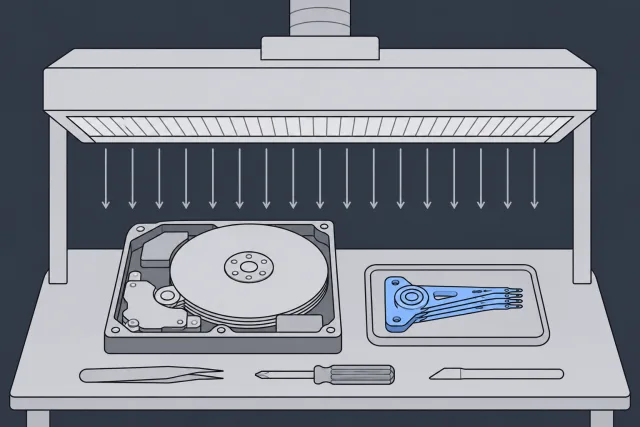
The work area for head and platter procedures
We use a filtered, laminar-flow work area for head and platter work.
 Illustration
Inside a hard drive, the read/write heads float nanometers above the rapidly spinning platters. In this microscopic environment, a single dust particle is a massive obstacle. Opening a drive in a normal room allows contaminants to settle on the platters, which can cause a head crash and permanently damage the data where the head hits.
Head and platter procedures take place in that work area:
- Head Stack Assembly (HSA) Replacement: If the read/write heads have failed, we carefully replace the entire assembly with a matching one from a compatible donor drive.
- Platter Transplant: For drives with a seized motor, we can transplant the data-bearing platters into a functional donor chassis.
- Stiction Remediation: We can release heads that have become physically stuck to the platter surface.
Opening a physically failed drive outside a clean, filtered work area can let dust onto the platters.
Firmware-Level Tools for Complex Failures
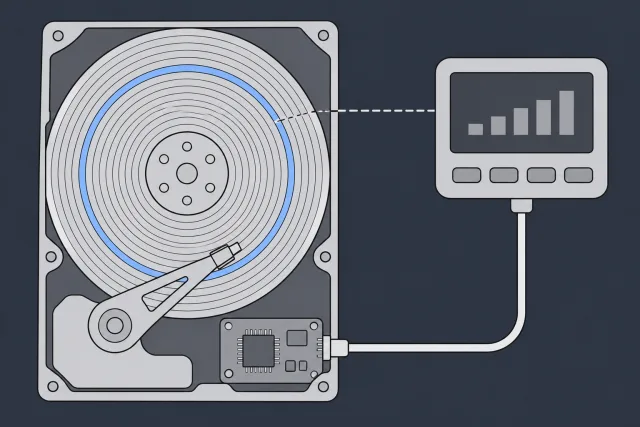
A drive can be physically intact but inaccessible because its firmware is damaged. Part of that firmware lives in a protected service area on the platters. A glitch here can keep the drive from finishing startup, cause it to report an incorrect size (0 MB), or make it disappear from the system.
 Illustration
Lab-grade tools like the PC-3000 from ACE Lab are essential for these cases. This hardware and software suite allows our engineers to communicate directly with the drive's service area, using commands the computer doesn't use to open your files.
This gives us the ability to:
- Diagnose and repair specific corrupted firmware modules.
- Reset internal error logs that prevent the drive from initializing.
- Selectively disable a single failing head to clone data from the remaining healthy surfaces.
Consumer software can only interact with what the operating system can see. We work at a much deeper level to recover data even when the drive appears completely unresponsive.
The Golden Rule: Always Image the Drive First
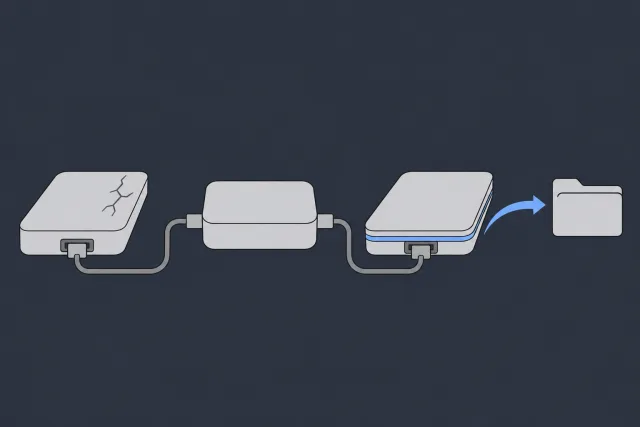
After stabilizing the drive through mechanical or firmware repair, we never perform the recovery directly from your original media. The first and most critical step is to create a sector-by-sector clone of the drive using dedicated hardware imagers. These devices are designed to handle read errors and bad sectors that can stall a standard computer.
 Illustration
By working from a clone of the sectors we could read, we can set the original drive aside. If we need another pass to find a file, we read the copy.
This safety-first protocol is a cornerstone of professional data recovery. Once a stable clone is secured, our engineers work to reconstruct the file system and extract your data. Before you pay, you can click through the folders in your recovery report to see which files came back and which may be damaged. We then transfer the recovered data to a new external drive or a USB flash drive. Whether you use our mail-in data recovery service from New York or mail a drive from across the country, it comes to our lab in Lincroft, New Jersey.
What to Expect: Data Recovery Costs, Timelines, and Policies
Facing data loss is stressful enough without adding financial uncertainty. At MDRepairs, we believe in transparent pricing and clear policies. The cost of recovery depends on the nature of the failure and the drive you have.
Our data recovery prices are tiered based on the complexity of the engineering work required.
What Determines the Cost of Recovery?
It's a common misconception that recovery cost is based on how many files you need back. In reality, the type of failure, the model, and the capacity of the drive all help determine the cost. Recovering a single critical file from a drive with a failed head assembly requires the same complex repair as recovering several terabytes.
Here is a breakdown of what influences the final quote:
- Logical Issues: These cases involve accidental deletion, formatting, or minor file system corruption on a healthy drive.
- Electrical Damage: A failed PCB can require a compatible board and the drive-specific settings stored on the original board.
- Firmware Corruption: This requires specialized hardware like the PC-3000 to manually repair the drive's internal operating code. This is a lab-only service.
- Mechanical Failure: The work depends on which parts are damaged. Replacing read/write heads requires a clean, filtered work area and a compatible donor drive.
You can start with a free phone consult. We diagnose the fault in the lab. After the $100 diagnostic, you approve the estimate before we begin recovery work.
A Realistic Look at Turnaround Times
We understand the urgency of data loss. Our service levels are designed to meet different needs and timelines.
For our nationwide mail-in data recovery services, you can generally expect:
- Standard Service: The standard wait is 4 to 6 weeks before we reach your device in line and start the diagnostic.
- Rush Service: If you need us sooner, we start the diagnostic within 5 to 7 days with Priority, within 1 to 2 days with Urgent, or the same day with Emergency.
Recovery takes additional time after the diagnostic. How long depends on what we find, whether we need donor parts, and the time it takes to copy and verify your files. The same diagnostic start times apply if you use our mail-in data recovery service from California.
Frequently Asked Questions
When a hard drive fails, it raises many urgent questions. Here are clear, professional answers to the most common concerns.
If the Drive Is Dead, Is My Data Gone Forever?
A "dead" drive can mean a physical component - like the read/write heads or the circuit board - has failed, preventing access to the data. What we can recover depends on which parts of the platters we can still read.
Professional data recovery labs like ours are equipped with the technology to bypass or repair these failed components. We work directly at the hardware level to access the raw data and reconstruct your files.
Why Can't I Just Run a Recovery Program?
This is a critical distinction. A file recovery app is designed for logical issues on a physically healthy drive, such as recovering accidentally deleted files. It cannot address hardware failures.
If the computer can't detect the drive, recovery software has nothing to scan. If the drive makes repeated hard clicks or grinds, a scan keeps the damaged parts moving, which can cause the read/write heads to crash into the platters. This physically scrapes away the magnetic layer where your data is stored, permanently destroying data where the head hits.
Any sign of a physical problem - unusual noises, failure to be detected - is a firm stop sign. The only safe action is to power it down.
What Is This Going to Cost Me?
The cost of professional data recovery depends on the type of failure, the model, and the drive's capacity. A simple logical recovery is much less complex than a mechanical failure.
The cost tiers are based on the work required:
- Logical Recovery: This shares a price tier with firmware work and covers deleted or formatted data on a healthy drive.
- Firmware/Electrical Recovery: The work can involve repairing the PCB or using specialized tools to fix the drive's internal code.
- Mechanical Recovery: Replacing internal components like the read/write heads also involves sourcing a matching donor drive.
You can start with a free phone consult. The $100 diagnostic covers finding the cause and giving you an estimate. If we can't get any files back, there's no recovery fee.
Why Do You Need Filtered Air to Open My Hard Drive?
When we open a drive for head or platter work, filtered air helps keep dust and skin particles off the exposed platters.
Inside a hard drive, the read/write heads float nanometers above platters spinning at thousands of RPM. If a drive is opened in a normal environment, a single dust particle landing on a platter can catch a passing head. The head can gouge the surface and destroy the data in its path.
Head replacement and platter work require a clean, filtered work area.
If your hard drive has failed, leave it off so we can diagnose the fault. At MDRepairs, head and platter work takes place in a filtered, laminar-flow work area. Our nationwide mail-in service makes it easy to get help from anywhere in the U.S.
Start with a free phone consult today: get your free quote.
How to recover data from a dead hard drive safely
To recover data from a dead hard drive safely, first decide what dead means. A drive that is not mounting may still spin normally and identify to the computer. That can be a file system, partition, or firmware issue. A drive that makes repeated hard clicks, beeps, spins down during a read, smells burned, or does not power on should stay off. The recovery path is different, and using the wrong method can damage the drive.
If the drive is stable and shows the correct model and capacity, do not scan the original for lost files. The safer approach is to clone or image the drive to another storage device first, then run recovery software against the clone. To make an image, select the whole original drive as the source in your imaging software. Save the image as a file on a different, healthy drive with free space at least equal to the original drive's capacity. Open the saved image in your recovery app, scan it, and save the files you find to a healthy drive. If the original drive disconnects, hangs, or reports a read error while you're making the image, stop and power it down. Unstable drives need controlled imaging tools that can skip damaged areas, manage timeouts, and return to weak zones later.
If the drive is not detected, do not open it at home. Hard drives require a clean environment when the internal head and platter assembly is exposed. Dust, fingerprints, and an incorrect head swap can damage the media surface. Also avoid freezer tricks, tapping the drive, swapping circuit boards at home, or repeated power cycling. Those shortcuts may produce a brief change, but they often create more damage than they solve.
In a lab, the goal is to stabilize the drive, repair the access path, image the media, then rebuild files from the image. That may involve electronics repair, firmware work, head replacement, platter cleaning, or logical reconstruction. MDRepairs performs dead hard drive recovery in our New Jersey lab and accepts mail-in cases nationwide. If the files matter, power the drive off, keep the original cable and enclosure if it is external, and get advice before writing anything to it.
Frequently Asked Questions
Can you retrieve data from a dead hard drive?
If the platters are intact, a lab may be able to repair electronics, work around firmware issues, replace failed heads, image the drive, and rebuild the file system. If the platters are scratched, we can look for areas that still read. We can read toward a scratch from either direction and stop before the heads reach it. That can bring back part of a photo archive.
How can I recover files from a dead hard drive at home?
Only try at home if the drive shows its full capacity, sounds normal, and reads without stalling. In that case, clone it first and recover from the clone. If the drive makes repeated hard clicks, beeps, will not spin, disappears, or was dropped, stop using it and contact us for a diagnostic.
Every Way a Failing Drive Gets Recovered
Clicking, not spinning, not detected, or dropped after a fall, each failure needs a different bench process, from head swaps to firmware repair on PC-3000 hardware. If the steps in this guide did not bring the drive back, leave it off so we can diagnose what failed. See the full range of data recovery services we handle in the lab, or start a mail-in case. The form gives you a packing slip to put in the box with your drive. For addresses on the mainland or on islands you can drive to, it also provides a free UPS 2nd Day Air label (contiguous US). The diagnostic is $100, credited toward a successful recovery. That covers finding the fault and preparing your estimate.
Sources
- Identifying Hard Drive Sounds and Determining What They Mean
- Reasons for Hard Drive Noise
- When Data Loss Occurs
- chkdsk
- USB External Troubleshooter
- Resolve External Drive Not Detected by Windows
- Initialize new disks
- View all devices or only volumes in Disk Utility on Mac
- format
- Restore a disk using Disk Utility on Mac
- PC-3000 Express
- Create a disk image using Disk Utility on Mac