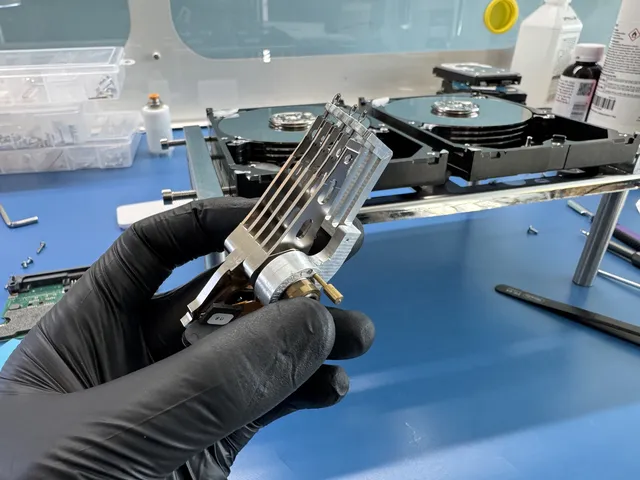
What to Do After a Server Crash: Data Recovery Checklist
In this article
A server crash doesn't automatically mean your data is gone. In most cases, the data is still sitting on the drives. But what you do in the next few hours matters more than anything else. The wrong move, like trying to force a degraded RAID array to rebuild, or running chkdsk on a failing disk, can turn a recoverable situation into a permanent loss. We're MDrepairs, a professional data recovery lab in New Jersey. If you need broader guidance on server data recovery, we have a complete guide covering every scenario. This guide is the exact checklist we'd walk you through if you called us right now.
Stop what you're doing. Don't reboot the server again. Read this first.
The First 60 Minutes: What to Do Immediately
Follow these steps in order.
1 Power Down the Server
If the server is still running in a degraded state, shut it down cleanly if possible. If it's frozen or unresponsive, hold the power button. Yes, a hard shutdown isn't ideal, but a server running on a failing drive is actively making things worse with every second of disk activity.
2 Document Everything Before You Touch Anything
Grab your phone and take photos of:
- The front of the server (drive bay indicators, LED status lights)
- Any error messages on screen or via IPMI/iDRAC/iLO
- The RAID controller screen (BIOS-level RAID config)
- The physical drive positions in the bays (label which slot is which)
This information is critical. If you end up needing professional recovery, those photos can save hours of diagnostic time and potentially save your data.
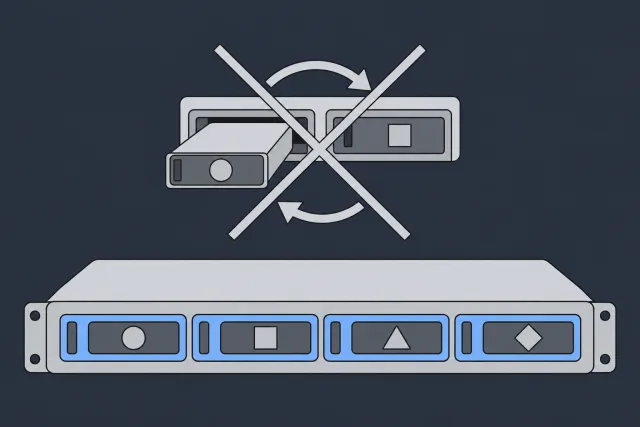
3 Do NOT Swap or Reseat Drives Yet
Your instinct is going to be "let me pull the bad drive and put it back in" or "let me try a new drive." Don't. If the RAID is in a degraded or failed state, removing or rearranging drives can corrupt the RAID metadata. Leave every drive exactly where it is.
 Illustration
4 Check Your Backups
Before you spend any time on recovery, verify your backup situation. Do you have recent backups? Are they accessible? Are they actually complete? A surprising number of businesses discover their "automated backups" stopped working weeks ago and nobody noticed. Check now. If your backups are good, you might not need recovery at all.
Types of Server Crashes and What They Mean for Your Data
Not all server crashes are the same. The type of failure determines your recovery options, your timeline, and your chances of getting everything back. Let's break down the most common scenarios.
Hardware Failure: Drive Death
This is the big one. A physical drive fails, and depending on your RAID configuration, the server either keeps running in a degraded state or goes down completely. Common symptoms include clicking or grinding noises from the drive bay, SMART warnings in the RAID controller log, or a drive simply disappearing from the array.
Single drive failure in a RAID 5 or RAID 6? Your data is probably fine. The redundancy is doing its job. But you're running without a safety net until that drive gets replaced and the array rebuilds.
Multiple drive failures? That's where things get serious. RAID 5 can tolerate one drive loss. RAID 6 can handle two. Lose more than that and the array is toast without professional help.
RAID Controller Failure
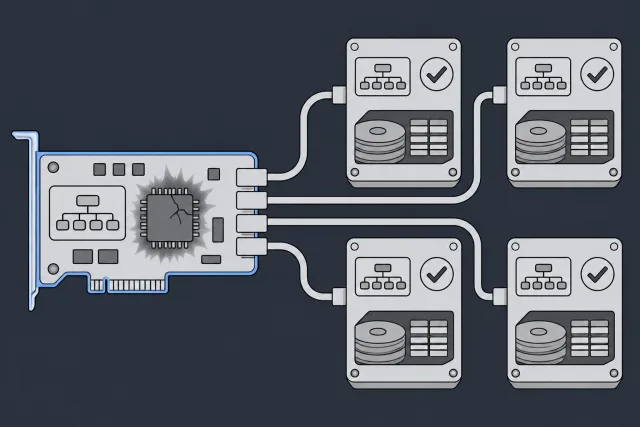
Sometimes the drives are perfectly healthy but the RAID controller itself dies. This is actually good news from a data recovery perspective. Your data is intact on the drives. The challenge is that RAID configuration metadata lives on both the controller and the drives, and you need the right controller (or a compatible one) to reassemble the array.
 Illustration
Replacing a dead RAID controller with the exact same model usually works. A different model, even from the same manufacturer? Risky. Different manufacturers store RAID metadata in different formats, and even firmware versions within the same product line can cause compatibility issues.
Software Crash: OS Corruption
The operating system crashed, got corrupted, or won't boot. Maybe a bad Windows update, a corrupted boot sector, or a failed kernel upgrade on Linux. The drives are healthy, the RAID is intact, but the OS layer is broken.
This is typically the easiest server crash to recover from. An operating system can crash and leave the files on the array intact. If the array is readable, you can mount the RAID volumes from a live boot environment and copy your files.
Power Failure and Surge Damage
A sudden power loss, especially without a UPS, can cause all sorts of problems. The file system might be in an inconsistent state because writes were in progress when power cut out. The RAID controller's write cache might have had pending data that never made it to the drives. And in the worst case, a power surge can fry multiple components simultaneously.
If you had a UPS with battery backup and it did its job, you're probably fine after a clean reboot. If not, proceed carefully.
Ransomware and Cyberattacks
Your server got encrypted by ransomware. This is an increasingly common scenario and it's a whole different beast. The drives are healthy, the RAID is fine, but your actual files are encrypted and inaccessible.
Recovery options here depend on the specific ransomware variant, whether you have offline backups, and whether volume shadow copies or previous file versions survived the attack. Don't pay the ransom as your first move. Call a professional first.
| Crash Type | Typical Recovery Method |
|---|---|
| Single drive failure (RAID 5/6) | Replace drive, rebuild array (carefully). Or professional recovery if rebuild fails. |
| Multiple drive failure | Professional RAID recovery required. Individual drive imaging and virtual rebuild. |
| RAID controller failure | Replace with identical controller, or professional virtual RAID reconstruction. |
| OS corruption | Boot from live environment, mount volumes, copy data off. |
| Power surge (no UPS) | Depends on component damage. Often PCB-level repairs plus data imaging. |
| Ransomware | Depends on variant, backup availability, and whether shadow copies survived. |
| Fire/water damage | Head and platter work in a clean, filtered work area, followed by imaging. Time-critical to prevent corrosion. |
RAID Server Crash Data Recovery: What You Need to Know
Most servers run some form of RAID, and that's where server crash data recovery gets complicated. RAID recovery isn't like recovering a single hard drive. It's a completely different process that requires understanding how the array was configured, which drives were part of it, and how data was striped across them.
How RAID Works (Quick Overview)
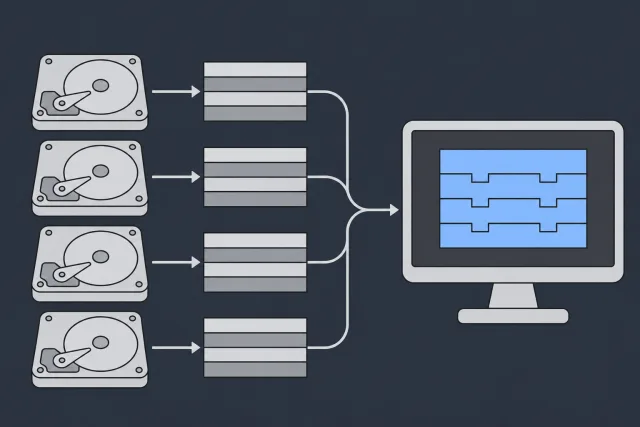
RAID splits your data across multiple drives for performance, redundancy, or both. RAID configurations include:
- RAID 0: Data striped across drives for speed. Zero redundancy. If one drive fails, the entire array is lost. Recovery requires imaging all drives and reassembling the stripes manually.
- RAID 1: Simple mirroring. Two drives with identical copies. If one fails, the other has everything. Easiest to recover from.
- RAID 5: Data striped with distributed parity. Can survive one drive failure. Rebuild stress is the main danger here.
- RAID 6: Like RAID 5 but with double parity. Survives two simultaneous drive failures. More resilient, but also more complex to recover if it does fail.
- RAID 10: Mirrored stripes. Great performance and redundancy. Can lose one drive per mirror pair.
Why RAID Rebuilds Fail
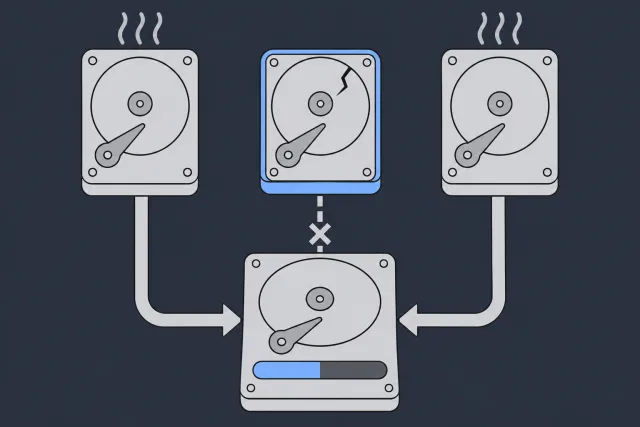
A drive fails in a RAID 5. The admin replaces it and kicks off a rebuild. During the rebuild, a second drive fails. Game over.
Why does this happen so often? Because all the drives in a RAID array are usually the same age, same model, same workload. They've been running 24/7 for the same number of hours. If one drive failed from wear, the others are statistically close behind. The rebuild process hammers every remaining drive with intensive sequential reads for hours or days. That stress is often enough to push another aging drive over the edge.
 Illustration
What Professional RAID Recovery Looks Like
When a RAID array fails beyond a simple rebuild, we don't try to fix it in place. Instead, we pull all the drives and bring them into the lab. Here's the process:
- Image every drive individually. We create sector-by-sector clones of each drive so we're never working on the originals. If a drive has bad sectors or mechanical issues, we use PC-3000 for controlled imaging.
- Determine the RAID configuration. We figure out the stripe size, block order, drive rotation, parity layout, and which drive was in which position. Sometimes the RAID controller metadata is intact and this is straightforward. Other times, we have to reverse-engineer it from the raw data patterns.
- Virtually reconstruct the array. Using the drive images, we rebuild the array in software. No physical drives are stressed. No rebuilds are attempted. We assemble the virtual array and verify it produces valid file system structures.
- Extract the data. Once the virtual array is verified, we pull the files that still read: documents, databases, VM images, the works.
 Illustration
The Complete Server Crash Data Recovery Checklist
Print this out. Tape it to the server rack. When things go sideways, you want a list to follow, not guesswork.
Immediate Response (First 30 Minutes)
- Stop all write operations to the affected server or storage
- Photograph everything: error screens, drive LEDs, cable connections, RAID status
- Document the RAID level, controller model, and drive positions
- Do NOT reboot more than once (if it didn't come back the first time, repeated reboots won't help and can cause more damage)
- Do NOT pull drives from the array unless instructed by a recovery professional
- Check IPMI/iDRAC/iLO for detailed error logs if available
Assessment (30-60 Minutes)
- Check backup status immediately. Verify last successful backup date and completeness
- Identify the failure type: hardware, software, power, or security incident
- Listen to the drives. Clicking, grinding, or beeping means mechanical failure. Do NOT power on again
- Check SMART data via the RAID controller management interface if accessible
- Determine how many drives are affected. One failed drive in RAID 5 is manageable. Two is critical
- Note the exact error messages. "Degraded" is different from "Offline" is different from "Foreign"
Decision Point
- If backups are complete and recent: restore from backup (fastest path)
- If one drive failed in RAID 5/6 and remaining drives are healthy: consider a careful rebuild (see warnings below)
- If multiple drives failed, drives are making noises, or RAID shows "offline/foreign": stop. Call a professional data recovery lab
- If ransomware: disconnect from network immediately. Do NOT pay the ransom. Call a professional
- If the data is business-critical and you can't afford to lose it: skip DIY entirely and call a recovery lab
If You Proceed with DIY Recovery
- Clone the drives first. Never work on the originals. Use dd, ddrescue, or a hardware duplicator to image every drive to a separate disk
- Work on the clones only. If something goes wrong, you still have the originals
- Keep every original drive in its labeled position. Mark them: "Bay 0," "Bay 1," etc. with a permanent marker or tape
- Test your rebuild on the clones. Import the cloned drives into a matching RAID controller and attempt the rebuild there
- Verify the data after rebuild. Open files, check databases, confirm everything is intact
Critical Mistakes That Destroy Server Data
These are the mistakes that turn a recoverable crash into a permanent loss.
Mistake #1: Forcing a RAID Rebuild Without Imaging First
An admin replaces the failed drive, starts the rebuild, and a second drive fails during the process. Now instead of recovering one failed drive and rebuilding, you've got a completely broken array with no redundancy and a partially completed rebuild that scrambled the parity data.
Always image every surviving drive before attempting a rebuild. Always.
Mistake #2: Swapping Drive Positions
RAID controllers track which drive is in which slot. The stripe order, parity calculations, everything depends on drive positions. If you pull drives out and put them back in the wrong order, the controller sees a completely different data layout. Depending on the controller, it might try to "fix" this automatically, writing new parity data over your existing data. That's catastrophic.
This is why we tell you to photograph the bays and label each drive before touching anything.
Mistake #3: Running chkdsk or fsck on a Degraded Array
File system repair tools like chkdsk (Windows) and fsck (Linux) are designed to fix logical inconsistencies. But on a degraded RAID array, the "inconsistencies" they find might actually be correct data that just looks wrong because a drive is missing. The repair tool "fixes" things by deleting or moving data, causing real corruption on top of what was already a recoverable situation.
Never run file system repair tools on a degraded or failed array.
Mistake #4: Repeatedly Power Cycling a Failing Server
If the server didn't come back after one reboot, a second reboot isn't going to fix it. Each power cycle puts stress on failing drives (the most dangerous moments for a hard drive are startup and shutdown). We've seen clients reboot a server 15+ times "trying to get it to come back." By the time they called us, the drives that were recoverable on the first boot had been ground into failure by the repeated spin-up/spin-down cycles.
Mistake #5: Initializing or Reformatting the Array
Some RAID management interfaces have an "Initialize" button right next to the "Rebuild" button. Initialization wipes everything. If you're exhausted and frustrated, step away and come back in the morning. Or just call a professional.
Can You Recover Server Data Yourself?
Honestly? Sometimes, yes. It depends on what happened and what you're working with.
When DIY Recovery Makes Sense
- OS corruption on a healthy array. Boot from a live USB, mount the RAID volume, copy your data off. This is standard sysadmin work. You don't need a recovery lab for this.
- Single drive failure in RAID 1 (mirror). The other drive has a complete copy. Pull the good drive, mount it in another system, copy the data.
- Single drive failure in RAID 5/6 with healthy remaining drives. You can attempt a rebuild, but image the surviving drives first. Use GNU ddrescue to create disk images before doing anything else.
- Deleted files on a healthy server. If the server is running fine and you just accidentally deleted something, tools like PhotoRec or R-Studio can help.
When You Need a Professional
- Multiple drive failures. Two or more drives failed in a RAID 5, or three+ in a RAID 6. Professional virtual RAID reconstruction is the only path forward.
- Drives making mechanical noises. Clicking, grinding, beeping. Head and platter work needs a clean, filtered work area.
- RAID controller shows array as "Foreign" or "Offline." This usually means the RAID metadata is damaged. Forcing an import can make things worse.
- Any situation where the data is worth more than the cost of recovery. If your server has business-critical databases, customer records, financial data, or anything that would cost your business significant money or reputation to lose, don't gamble with DIY. The cost of professional recovery is almost always less than the cost of permanent data loss.
How Professional Server Crash Data Recovery Works
So you've decided to send the drives to a lab. Here's what actually happens, step by step. No mystery, no black box.
Step 1: Intake and Initial Assessment
You ship us the drives (or bring them in if you're local to New Jersey). We do NOT need the server chassis, rails, cables, or anything else. Just the drives, labeled with their slot positions. We document everything on arrival, photograph the drives, and log the case.
Step 2: Drive Diagnostics
Each drive gets individual diagnostics. We check SMART data, listen for mechanical issues, test read performance, and assess overall health. This tells us which drives are healthy, which have bad sectors, and which need physical work. We perform head and platter work in a laminar-flow work area.
Step 3: Imaging
We image the readable sectors of each drive onto our lab drives. We use professional imaging hardware that handles bad sectors, slow-responding drives, and intermittent failures far better than consumer tools. Imaging takes longer on a drive with extensive bad sectors.
Step 4: RAID Reconstruction
Using the drive images (never the originals), we reconstruct the RAID array virtually. We determine the stripe size, block order, parity layout, and disk rotation. If the RAID controller metadata is intact, this is relatively straightforward. If the metadata is damaged or missing, we reverse-engineer the configuration from the data patterns. This is where experience matters. An experienced technician can look at hex data across multiple drives and determine the RAID parameters. It's part science, part pattern recognition built over years of doing this work.
Step 5: File System Analysis and Extraction
Once the virtual array is assembled, we mount the file system and verify the data is accessible and intact. We check directory structures, open sample files, verify database integrity, and confirm that everything looks right. Then we extract everything to our recovery media.
Step 6: Verification and Delivery
We provide you with a file listing so you can confirm we got what you need. You review it, and once you're satisfied, we transfer the recovered data to a new drive or external media. We keep an offline copy for two weeks after we mail the drive back, then delete it.
Virtual Server and VM Recovery
Modern servers often run multiple virtual machines, and that adds another layer of complexity to server crash data recovery. If your VMware ESXi host, Hyper-V server, or Proxmox box crashed, the recovery process has to account for both the underlying storage and the virtual disk formats on top of it.
VMware ESXi Recovery
ESXi uses VMFS (Virtual Machine File System), which is a clustered file system designed for virtual environments. When an ESXi host crashes, the key files you need to recover are:
- VMDK files: These are the virtual disk images. Each VM has one or more VMDK files that contain everything that VM had on its virtual hard drive.
- VMX files: Configuration files that define the VM's hardware settings (CPU, RAM, network adapters, etc.)
- Snapshot files (delta VMDKs): If you had snapshots, each snapshot creates a delta VMDK that contains only the changes since the snapshot was taken.
The good news: even if the ESXi host is destroyed, as long as the datastore drives are recoverable, we can extract the VMDK files and mount them on a new host.
Hyper-V Recovery
Hyper-V stores virtual machines as VHD or VHDX files, usually on NTFS or ReFS file systems. These file formats are well-understood. If the Hyper-V host crashed but the VHD/VHDX files are intact, copy them to a new host and work from those copies.
The tricky scenario is when Hyper-V was using Storage Spaces or a clustered shared volume (CSV). Those add complexity to the recovery process because the volume metadata is separate from the file system metadata.
Recovery from SAN and NAS Storage
If your VMs lived on a SAN (iSCSI, Fibre Channel) or NAS (NFS, SMB), the server crash might not have affected the storage at all. Check the SAN/NAS first. If the storage device is healthy and the LUNs or shares are still accessible, your data is safe. You just need to rebuild the server and reconnect to the storage.
If the SAN or NAS itself failed, that's a different story. These devices typically use their own RAID configurations, proprietary file systems, and sometimes custom volume management. We recover from all major NAS brands: Synology, QNAP, Buffalo, Drobo, NetApp, EMC, HPE, and others.
How to Prevent Server Data Loss
Recovery is what we do. But we'd rather you never needed us. Here's what actually prevents server crashes from becoming data disasters. Start with a solid disaster recovery plan.
The 3-2-1 Backup Rule (It Applies to Servers Too)
Three copies of your data. Two different storage types. One copy offsite. You've probably heard this before. The question is whether you've actually implemented it.
For servers, this typically means:
- Primary: Your production data on the server's RAID array
- Local backup: A separate NAS, external drive array, or tape drive in the same building
- Offsite backup: Cloud backup (AWS S3, Azure Blob, Backblaze B2), or tapes stored at a separate facility
The offsite copy is the one most businesses skip. And it's the one that saves you from fire, flood, theft, and ransomware.
Monitor Drive Health with SMART
Every modern server drive reports SMART (Self-Monitoring, Analysis and Reporting Technology) data through the RAID controller. Set up alerts. Most RAID controllers can send email notifications when a drive starts showing warning signs. Key metrics to watch:
- Reallocated Sectors Count: Non-zero means the drive is remapping bad sectors. It's compensating for physical defects. Replace the drive proactively.
- Current Pending Sector Count: Sectors the drive couldn't read but hasn't given up on yet. Another early warning sign.
- UDMA CRC Error Count: Interface communication errors. Could indicate a bad cable, bad backplane connection, or a dying drive controller.
Don't wait for a drive to fail completely. Replace it when SMART says it's starting to struggle. Enterprise drives are cheap compared to downtime and recovery costs.
Use RAID 6 or RAID 10 for Production Servers
RAID 5 was fine when drives were 500GB and rebuild times were measured in hours. With modern 4TB, 8TB, 16TB drives, a RAID 5 rebuild can take days. That's days of running without redundancy on drives that are the same age as the one that just failed. RAID 6 gives you that second parity drive. RAID 10 gives you both speed and redundancy. Either one is worth the extra drive cost for production systems.
Replace Drives Proactively
Enterprise hard drives are rated for about 5 years of continuous operation. Consumer drives, less. If your server has been running the same drives for 4+ years, start planning replacements. Don't wait for failure. A controlled, planned replacement (replace one drive, let it rebuild, then replace the next) is infinitely safer than an emergency recovery at 2 AM.
Test Your Backups
Having backups isn't enough. You need to verify they actually work. Schedule quarterly restore tests. Pick a random file, a random database, a random VM, and actually restore it. Make sure the data is complete and functional.
Server Health Monitoring Checklist
- Set up RAID controller email alerts for drive warnings and failures
- Monitor SMART data weekly (or use automated monitoring like Nagios, Zabbix, or PRTG)
- Check backup completion logs daily
- Perform a test restore quarterly
- Replace drives older than 4-5 years (or sooner if SMART shows degradation)
- Maintain a UPS with battery backup and test it annually
- Keep a spare drive of the same model on hand for quick replacement
Use a UPS with Automatic Shutdown
An uninterruptible power supply protects against sudden power loss, which is one of the top causes of server crashes. But just having a UPS isn't enough. Configure it to trigger a clean shutdown of the server if power doesn't return within a few minutes. A UPS that keeps a server running for 20 minutes during a 2-hour outage just delays the problem. Eventually the battery dies and you get the same unclean shutdown you were trying to prevent.
Frequently Asked Questions
How much does server crash data recovery cost?
It varies widely depending on the number of drives, RAID configuration, and failure type. See our cost page or ask for a free quote for your array. Mechanical failures can mean head and platter work on several drives. The $100 diagnostic is credited toward a successful recovery. You approve the estimate before recovery work starts. Check our data recovery services page for more details.
How long does server data recovery take?
We start diagnostics in about 4–6 weeks. Recovery time varies by case. The queue, parts, device condition, imaging and delivery affect the schedule. Healthy drives image quickly. Drives with bad sectors or mechanical issues take longer because the imaging hardware has to carefully work around the damaged areas. Large arrays with many terabytes of data also take longer simply due to the volume of data. For business-critical situations where downtime is measured in dollars per hour, ask about rush diagnostic availability. Rush options move the diagnostic start ahead in the queue only; they do not set a recovery completion date.
Can you recover data from a RAID 0 server?
Yes, if the drives are physically intact. RAID 0 has no redundancy, so the loss of any single drive means the array can't function normally. But the data from the surviving drives is still valid. If the "failed" drive still has readable sectors, we can image those parts. We reconstruct the RAID 0 stripe pattern from the drive images and extract whatever data is recoverable.
Should I try to rebuild my RAID before calling a professional?
Only if you've imaged every surviving drive first. The rebuild process itself is the biggest risk to your data. If a second drive fails during a RAID 5 rebuild, you've lost your only remaining redundancy. If you have complete disk images as insurance, a rebuild attempt is reasonable. Without images, you're gambling. If the data is irreplaceable, skip the DIY attempt entirely.
Can you recover data from an encrypted server?
If you have the encryption key or credentials, yes. BitLocker (Windows), LUKS (Linux), and FileVault (macOS Server) all use strong encryption that we can't break without the key. But if you have the key, we can decrypt the volumes during recovery. If you've lost the key AND the data, that's a much harder situation, but call us anyway. Sometimes there are backup keys stored in Active Directory or recovery partitions.
Do I need to send the entire server to you?
No. Just the drives. Remove the hard drives or SSDs from the server, label each one with its bay position (Bay 0, Bay 1, Bay 2, etc.), and ship them to us. We don't need the server chassis, power supplies, cables, or anything else. Taking photos of the RAID controller configuration screen before removing the drives is extremely helpful though.
What if my server is still under warranty? Will recovery void it?
Removing drives from a server does not void the warranty on the server itself. The drives have their own warranties, and those are typically voided by physical repair work (like opening the drive enclosure in a cleanroom). But here's the thing: if the drives failed and your data is gone, the manufacturer's warranty just replaces the hardware. They don't recover your data. You need us for that. The drives and the data are two separate problems with two separate solutions.
How MDrepairs can help
- RAID Data Recovery Array reconstruction for RAID 0/1/5/6/10, NAS and servers. Learn more
- Data Recovery Services Every device and failure type, recovered in our New Jersey lab. Learn more
- Mail-In Data Recovery Free shipping both ways (contiguous US). Learn more
- Data Recovery Cost What recovery really costs - flat tiers. Learn more