Plex Media Server Drive Failed? Library + Metadata Recovery
Our founder and lead technician, Joseph Montanti, handles cases personally.
If a drive in your Plex media server has failed, you're probably looking at two different problems: the actual media files (.mkv, .mp4, .mov, photos, family videos) on the dead drive, and the Plex library database that tracked them. Rebuilding the library is free. Recovering the irreplaceable media off a failed drive is lab work. The fastest mistake to make is to keep using the array (or worse, start a RAID rebuild) while the failed drive is still in it. That can turn a single-drive recovery into a multi-drive nightmare.
The failed drive may hold home videos that have no other copy.
On this page
Two Problems, Not One
When a Plex server drive fails, two things are at risk. They have different recovery paths.
Problem 1: The Plex library database and metadata. This includes watch history, ratings, posters, descriptions, custom collections, view state, and the catalog of what's in your library. It lives at a known path on the Plex server's system drive (which is usually different from the media drive). If the media drive failed but the system drive is fine, the metadata is also fine. Plex just doesn't know where the media went.
Problem 2: The actual media files. These are the irreplaceable ones: photos, family videos, ripped DVDs, audio recordings. They live on whichever drive (or RAID volume) holds your media library. When that drive fails, the files are stuck on it.
Rebuilding metadata (Problem 1) is free and well-documented. You point Plex at recovered media and it re-scans, re-downloads posters, and rebuilds the library. You lose watch history and any custom edits you made, but the catalog comes back.
Recovering the actual media files (Problem 2) is the lab job. This is where we come in.
Why Plex Server Drives Fail
Home Plex servers are special in one important way: drives in them run continuously for years with no maintenance. That use pattern produces failure modes that desktop drives rarely see.
1. 24/7 Spinning HDDs Eventually Die
A consumer 8TB drive bought in 2019 has been running 50,000+ hours by now. Many are well past their MTBF (mean time between failures) rating. Sudden failures are common. The drive that was fine yesterday is clicking today.
2. Heat in Cramped Cases
Many home Plex servers are mini-PCs, NUCs, or repurposed desktops with stacked drives and minimal airflow. Drives run hotter than they should, sometimes hitting 50C+. Heat accelerates wear.
3. Power Issues
Home electrical environments are noisy. Brownouts, summer thunderstorms, the breaker that trips. A drive in the middle of a write during a power event can corrupt its file table or its servo data. Without a UPS, every storm is a roll of the dice.
4. SSD Wear-Out (Cache Drives)
If you're running an SSD as a cache, transcode scratch, or write buffer, it's getting hammered. Consumer SSDs are rated for a few hundred TB of writes. A Plex server with active transcoding and frequent library rescans can burn through that endurance in a year or two.
5. RAID Pool Failures
Many enthusiasts run their Plex media on RAID-5, RAID-6, Synology SHR, unRAID, or ZFS. When one drive fails, the array degrades. If a second drive fails during rebuild, you've lost the whole pool. Our Synology recovery guide covers the NAS side of this.
6. Filesystem Corruption
The drive itself is fine but the filesystem (NTFS, ext4, ZFS) has metadata corruption. Common after a host crash mid-write. The drive shows up but the operating system can't navigate the directory structure.
7. Cable, Controller, or HBA Issues
Sometimes the "failed drive" isn't actually failed. The SATA cable is loose, the SAS controller is overheating, or the HBA card is throwing errors. Worth verifying with a fresh cable in a different port before assuming the drive itself is dead.
The Plex Metadata Database
Plex stores its metadata in a SQLite database. On most platforms, the file is named com.plexapp.plugins.library.db. Knowing where it lives helps you understand what you can rebuild for free vs what needs lab work.
| Plex Host OS | Database Location | Notes |
|---|---|---|
| Windows | %LOCALAPPDATA%Plex Media ServerPlug-in SupportDatabases | Per-user install |
| macOS | ~/Library/Application Support/Plex Media Server/Plug-in Support/Databases/ | Per-user install |
| Linux (Plex Media Server package) | /var/lib/plexmediaserver/Library/Application Support/Plex Media Server/Plug-in Support/Databases/ | System install |
| Synology DSM 7 | /volume1/PlexMediaServer/AppData/Plex Media Server/Plug-in Support/Databases/ | Path varies by volume number |
| QNAP | /share/CACHEDEV1_DATA/.qpkg/PlexMediaServer/Library/Plex Media Server/Plug-in Support/Databases/ | App store install |
| NVIDIA Shield | /data/data/com.plexapp.mediaserver.smb/files/Plex Media Server/Plug-in Support/Databases/ | Android app install |
| Docker container | Wherever the config volume is bind-mounted | Usually /config or /data inside the container |
Alongside com.plexapp.plugins.library.db you'll see a com.plexapp.plugins.library.blobs.db (which holds posters, thumbs, and other binary assets) and various WAL and journal files. The metadata folder also contains a Media folder with cached posters and a Plug-in Support folder with various per-agent caches.
If your Plex server's system drive (the one running PMS) is intact and only the media drive failed, the database is fine. You just need to recover the media. If the system drive failed and took the database with it, you can still rebuild metadata from scratch, but you lose your watch history, custom collections, and any ratings.
How a Failed Drive Shows Up in Plex
The Plex interface gives a few telltale signs that a media drive is in trouble.
- "Unavailable" badges on movies, TV episodes, or photo albums
- Empty libraries where there were thousands of items yesterday
- Plex Media Server crashes on startup if the database is corrupt
- Scan errors in the Plex log mentioning specific paths or files
- Slow library loads as Plex retries timed-out reads from a failing drive
- "Could not access library" toast notifications in the app
- Direct play fails, transcoding hangs on items from the failed drive
At the OS level, the signs are clearer:
- The drive doesn't appear in Disk Management, Disk Utility, or
lsblk - Clicking, beeping, or buzzing sounds from the drive bay
- Capacity reads wrong (a 12TB drive showing as 8MB on the SMART screen)
- Repeated S.M.A.R.T. errors in the host OS event log
- RAID controller reports the drive as failed or in pre-failure
- NAS interface shows the drive in red or warning state
What NOT to Do
The Plex community has a lot of helpful advice. Some of it can hurt you in a recovery situation.
- Start a RAID rebuild with a known-failing drive in the array. If a drive is throwing errors and you replace it with a fresh one and start a rebuild, the rebuild stresses every remaining drive heavily. A second drive can fail during a rebuild. RAID-5 with two failed drives is gone.
- Run chkdsk, fsck, or Disk Utility "Repair" on a failing drive. Repair tools write to the filesystem. On a mechanically failing drive, those writes can be the last operations the drive ever completes. Stop. Image the drive first, repair the image.
- Reformat the drive hoping that wipes the corruption. A reformat overwrites the file table, making recovery much harder.
- Keep the failing drive powered on waiting for "one more chance." Some failure modes (head crashes, motor failures) get worse with continued spinning. Power off and ship to a lab.
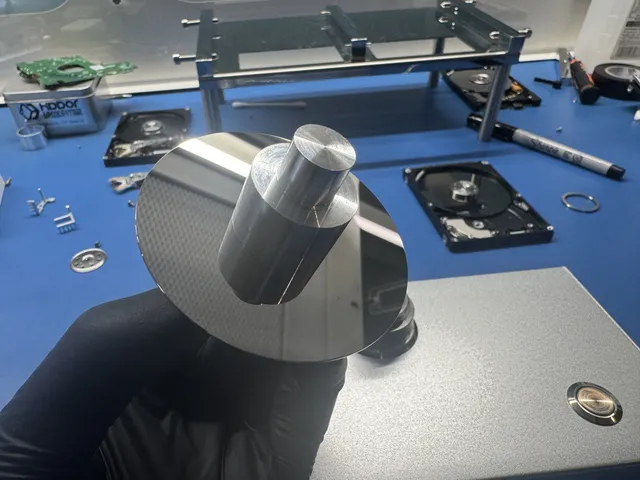
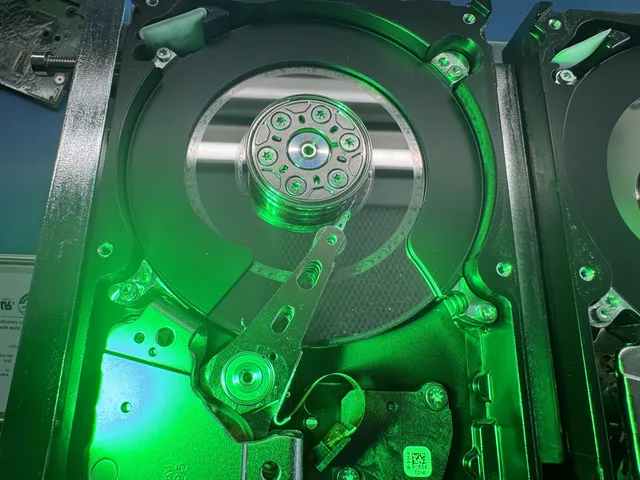
- Open the drive yourself. Head and platter work requires a clean, filtered work area. Opening one in a normal room exposes the platters to dust that destroys them within seconds.
- Install free recovery software onto the same drive the failed files came from. The installer overwrites free space, including the very blocks that hold your deleted files.
- Trust a service that has never sent you a quote in writing. Sketchy operators count on you not checking their work. Get a written quote and recoverable file list before authorizing.
- Use file recovery utilities on a drive making mechanical noises. Software-level recovery doesn't fix hardware failure. Continued use of a clicking drive accelerates total loss.
Diagnose the Drive Before Anything Else
Before you decide whether this is a lab job or DIY-recoverable, check what the drive is actually doing.
On Windows: open Disk Management. On macOS: open Disk Utility. On Linux: lsblk -a. Does the drive show up at all? If yes, it's communicating. The filesystem may be the problem, but the drive itself is alive. If no, this is hardware level and lab territory.
If the drive does show up, pull SMART data. On macOS, Disk Utility shows SMART status. On Windows, use CrystalDiskInfo. On Linux, smartctl -a /dev/sdX. Look at: Reallocated Sectors, Current Pending Sectors, Uncorrectable Sectors, and Power-On Hours. High Reallocated count plus growing Pending Sectors = the drive is dying. SMART overall is the cheapest sanity check.
If the drive is communicating, try a basic read test. On macOS: dd if=/dev/diskX of=/dev/null bs=1M count=100. On Linux similar. On Windows, a quick file copy from the drive to elsewhere. If reads hang, retry, or fail with I/O errors, the drive is mechanically struggling. Stop reading. Don't try harder.
For mechanical hard drives, listen carefully. Healthy drives make a steady hum and quiet head movement. Clicking, beeping, grinding, or repeated startup attempts are all bad signs. Power it off immediately.
Before condemning the drive, swap the SATA cable. Move to a different port on the motherboard or HBA. If the drive's in an external enclosure, remove it and connect to SATA directly. Sometimes the "drive failure" is a $5 cable.
If after those checks the drive seems healthy but the filesystem is the problem, software recovery may work. If the drive is mechanically struggling, only lab-level recovery is safe. Pick the right path.
RAID Setups vs Single Drives
The recovery process branches based on whether your media lived on a single drive or on a RAID array.
Single Drive (Direct-Attached)
One drive holds all the media. When it fails, it's a single-drive recovery. Easier to image, more straightforward filesystem to walk. Typical cost lower because there's less work involved.
RAID-1 Mirror
Two drives mirror each other. If one fails, the other still has everything. Recovery is reading the surviving drive. Often free or close to it because no actual recovery is needed. Just rebuild the mirror with a fresh second drive.
RAID-5 with One Failed Drive
Three or more drives with one parity drive's worth of redundancy. If one fails, the array runs degraded. Replace the failed drive and rebuild. The rebuild stresses remaining drives. Sometimes triggers a second failure.
RAID-5 with Two Failed Drives
Pool is offline. This is lab territory. Recovery is virtual RAID reconstruction from images of all the drives. See our RAID-5 recovery guide for the deeper process.
RAID-6 with Two or Three Failed Drives
RAID-6 survives two failures. Three failures takes the array offline. Recovery requires imaging all surviving drives plus the failed ones, then reconstructing.
Synology SHR or unRAID
Custom RAID variants. SHR is essentially RAID with flexible drive sizes. unRAID stores each file on a single drive plus parity. Recovery on these is similar to standard RAID with vendor-specific quirks. We handle both.
ZFS Pools
ZFS is its own beast. Pool integrity is strong but when ZFS goes bad, it goes really bad. Recovery requires ZFS-aware tooling. Don't try to mount a corrupted ZFS pool on a different machine before talking to a lab.
Rebuilding the Plex Library (Free Path)
If your media is back (recovered, restored from backup, or simply living on a drive Plex lost track of), rebuilding the Plex library is straightforward and free. You don't need a lab for this.
If Plex remembers your library was at /mnt/media/movies, place the recovered media at that exact path. Plex re-finds existing items without re-scanning everything.
In Plex web UI, go to Settings > Manage > Libraries. For each library, click the three-dot menu and choose Refresh All Metadata. Plex scans the path, finds items, re-downloads posters and descriptions.
Items Plex couldn't find during the refresh go to library trash. Settings > Library > Empty Trash. This removes the catalog entries for missing items so the library only shows what's actually there.
If the metadata database survived but lost watch state, there's not much to do. Watch state is per-user inside the DB. If the DB was lost entirely, watch history is gone. There's no service that restores it.
For people running Plex Pass with sync features, some viewing data also lives on Plex's servers and may resync on next login. Don't count on it but check.
Lab Recovery of the Media Files
When the drive is mechanically failed or the filesystem is too damaged for DIY tools, here's what happens at MDrepairs.
Shipping
You ship us the drive (or the whole array, if RAID is involved). You generate a free prepaid UPS label on the mail-in form (contiguous US) and signed-for shipping. Our shipping guide covers safe packaging.
Diagnostics
We perform a diagnostic on each drive. We tell you what's wrong, what's recoverable, and what it costs. We deliver this in writing. You decide whether to proceed.
Imaging
If you approve the work, we image each drive in lab. Imaging is bit-for-bit copying onto lab storage. We use hardware imagers that handle bad sectors gracefully, retry with timing adjustments, and never write back to the source drive.
RAID Reconstruction (If Applicable)
For RAID setups, we virtually rebuild the array from drive images. This requires knowing or determining the RAID level, stripe size, disk order, parity rotation, and any other layout details. Most of this we extract from on-disk metadata. Some we infer.
Filesystem Recovery
With a clean image of the volume, we recover the filesystem (NTFS, ext4, APFS, ZFS, btrfs, exFAT). Damaged filesystem structures get reconstructed where possible. We walk directory trees and extract files.
File Validation
Recovered media files (mostly video and image) get validated. We check that .mkv and .mp4 files have valid container headers and can play. We check JPEG and HEIC headers for image files. We don't watch every video but we spot-check.
Delivery
Recovered files go onto a healthy external drive. We ship it back to you signed-for. You plug it into your new Plex server, point Plex at it, and you're back.
Cost and Turnaround
Plex media recoveries scale with drive size, drive count (for RAID), and the type of failure.
| Scenario | Typical Range | Notes |
|---|---|---|
| Single drive, filesystem corruption only | $1,000 to $1,500 | Software-level recovery on a healthy drive |
| Single drive, mechanical failure (HDD) | $1,500 to $3,000+ | Imaging plus filesystem rebuild |
| Single SSD, controller or NAND failure | $1,000 to $2,000+ | SSD recovery is harder than HDD |
| RAID-5 with one failed drive, healthy array | Quoted per case | Image all drives, rebuild virtually |
| RAID-5 with two failed drives | Quoted per case | More complex reconstruction |
| Synology / unRAID / ZFS pool recovery | Quoted per case | Vendor-specific tooling required |
| Large multi-drive NAS (40TB+) | Quoted per case | Imaging time alone is significant |
Our standard recovery estimate is 4–6 weeks and may vary by case. The $100 diagnostic is credited toward a successful recovery and is non-refundable once diagnostics start. Approved donor drives or replacement parts are non-refundable once ordered, even if recovery fails. You approve the estimate before recovery work starts. More on our service flow here.
Protecting What You Have Going Forward
After a Plex drive failure, the question is how to make sure it never bites you again. Here's what works.
3-2-1 Rule (Yes, Even at Home)
Three copies of your important media, on two different media types, with one offsite. For Plex users this means: your live media on the server, a backup copy on a different drive (or NAS), and an offsite copy somewhere (Backblaze, cloud storage, a relative's house with a sync). Family videos deserve the same protection as business data.
Separate Irreplaceable from Replaceable
You can re-rip a movie. You can re-purchase music. You cannot re-record your kid's first steps. Identify the irreplaceable portion of your library (home videos, family photos, original audio recordings) and protect it more aggressively than the rest. Three copies of family videos, one copy of ripped Blu-rays.
SMART Monitoring
Set up SMART monitoring on every drive in your Plex server. Tools like scrutiny on Linux, CrystalDiskInfo on Windows, smartmontools generally. Get alerts when reallocated sectors increase. Replace drives proactively, not reactively.
RAID Is Not a Backup
RAID provides uptime, not data protection. RAID-5 with all drives the same age and same firmware is one electrical event from total loss. A backup is data in a different physical place than the original. RAID doesn't satisfy that requirement.
Run an Offsite Backup
For irreplaceable content, an offsite copy is non-negotiable. Backblaze, rclone to a cloud bucket, or a relative's NAS with a VPN. Costs are low. The peace of mind is high.
Use Snapshots If Your Filesystem Supports Them
ZFS, btrfs, and Synology Hyper Backup all support snapshot-based protection. If you accidentally delete something or a malicious script wipes your media, snapshots roll back. They protect against accidents better than RAID does.
Don't Run Older Drives Past Manufacturer-Recommended Life
Consumer drives are designed for desktop use. Running 24/7 in a server is harder on them than the rating accounts for. After 5 years of 24/7 use, plan a replacement schedule. Don't wait for failure.
UPS for the Server
An uninterruptible power supply prevents drive corruption from sudden power loss. A basic CyberPower or APC UPS sized for your server is under $200. Cheaper than one recovery.
"But It's Just Movies"
We get it. If your library is 100% ripped Blu-rays you can re-rip, the calculus is different.
But ask honestly: is your library actually 100% replaceable? Check your library for:
- Family home videos that were originally on phones or camcorders
- Photo backups synced from phones
- Recordings of school plays, recitals, sports games
- Concert audio you recorded yourself
- Old VHS or DV tapes that were transferred to digital years ago and have since been thrown out
- Voicemails and audio messages saved from family members
- Original photography or videography that lives nowhere else
That fraction of the library is the part worth recovering.
For more on this kind of value calculation, our is data recovery worth it piece walks through the math.
FAQ
Will Plex recover its database on its own if I restore the media?
Plex doesn't restore the database itself, but if you put media back at the original paths and refresh the libraries, Plex re-finds it. You lose watch history but the catalog rebuilds automatically.
What if I had multiple drives in JBOD mode and one died?
JBOD (just a bunch of disks) means each drive is independent. Lose one and you lose the media on that one drive only. The others are unaffected. Single-drive recovery process applies.
Do you recover from external USB drives used for Plex media?
Yes. We open external enclosures to access the bare drive inside. The recovery process is the same as a drive that was directly attached. Note that some externals use hardware encryption on the enclosure board, in which case the encryption keys are needed.
What about Plex on a NAS like Synology or QNAP? Different recovery process?
NAS recoveries focus on the array as a whole rather than a single drive. The Plex application is just one app on the NAS. Recover the underlying storage, restore the Plex app config, and the library comes back. More on Synology recovery here.
I have Plex Pass with cloud sync. Doesn't that protect me?
Plex's cloud sync syncs some media to Plex's servers for offline mobile playback, but it's not a full backup. It also doesn't cover content you didn't sync. Don't treat Plex Pass as a backup.
Can you recover from a clicking hard drive?
Yes, this is core lab work. Clicking usually means head failure. Head and platter work is done in a laminar-flow work area. More on clicking drives here.
What if I never set up RAID and a single drive failed?
Send us the drive for assessment.
Can I just send you the drive without the server?
Absolutely. We need the drive itself, not the server, the NAS chassis, or the case. The drive alone has all the data.
How long until I have my media back?
Our standard recovery estimate is 4–6 weeks and may vary by case. Rush moves the diagnostic start ahead in the queue without setting a recovery completion date. Confirm availability with the lab. More on timing here.
Do you keep the recovered data after I get it back?
No. Our policy is to securely wipe lab copies after delivery and customer confirmation. Your media doesn't sit on our storage. Privacy and security are key for home video especially.
MDrepairs is an independent data recovery lab serving home and business users nationwide via mail-in service. We're not affiliated with Plex Inc. Our specialty is recovering data when standard tools have failed.
Get help with data recovery
Bring your device to our Lincroft lab during opening hours, or mail it in.
How to mail your deviceThe $100 diagnostic is non-refundable once diagnostics start, and donor drives or replacement parts you approve are non-refundable once ordered, even if recovery fails.
Published by MDrepairs
MDrepairs is a data recovery and electronics repair lab in Lincroft, New Jersey. Our founder and lead technician Joseph Montanti films real cases for our YouTube channel, showing tools, repair steps and recovery outcomes.
Keep reading
- Windows Storage Spaces Failure: Preserve the Pool Before Resetting Disks
- Synology Volume Crashed: What to Do While Files Are Still Readable
- RAID 1 Recovery: Why a Mirror Does Not Save Every Deleted File