How to Recover Deleted GoPro Videos from an SD Card
In this article
If you've accidentally deleted GoPro videos from your SD card, you can almost certainly recover them. GoPro cameras store everything on removable microSD cards using simple file systems (FAT32 or exFAT) that don't support TRIM. That means when you delete a video, the GoPro just marks that storage space as available. It doesn't actually wipe the data. Your footage sits on the card's NAND flash chips until something new overwrites it. This is the same reason photo recovery from SD cards works so well. So if you stop using the card right away, recovery is straightforward.
For lab assessment, contact MDrepairs. If you're dealing with general SD card deletion rather than GoPro-specific issues, our SD card file recovery guide covers that in depth. The good news: in the vast majority of these cases, the video files are still sitting right there on the card waiting to be recovered.
This guide covers everything. We'll walk through the free DIY recovery tools, give you step-by-step instructions, explain what's happening at the hardware level so you understand your odds, and tell you exactly when it's time to call a professional instead of trying it yourself.
Can You Actually Recover Deleted GoPro Videos?
Short answer: yes, almost always. Here's a quick breakdown of the most common GoPro data loss scenarios and how recoverable each one is.
| Scenario | Recoverable? | Details |
|---|---|---|
| Accidentally deleted videos on the GoPro | Yes (very high) | Data stays on the card until overwritten. Stop recording immediately and recovery is nearly guaranteed. |
| Formatted SD card in the GoPro | Yes (high) | GoPro performs a quick format that only clears the file table. The actual video data remains intact on the NAND chips. |
| "SD Card Error" message on GoPro | Yes (high) | Usually file system corruption, not hardware failure. Data is almost always intact underneath. |
| GoPro crashed or lost power mid-recording | Partial (high) | The last file may be incomplete, but everything recorded before that is fully recoverable. The incomplete file can often be partially salvaged too. |
| SD card physically damaged | Yes (moderate) | Requires readable NAND and supported ECC, scrambling, translation, and encryption handling |
| Card from a GoPro used underwater (flooded) | Yes (moderate-high) | MicroSD cards are surprisingly water-resistant. Dry it out, and recovery often works normally. If corroded, professional recovery is needed. |
| Recorded over deleted footage | Partial (varies) | Any footage that wasn't overwritten by new recordings can still be recovered. The more you recorded after deleting, the less you'll get back. |
Why GoPro SD Card Recovery Works So Well
To understand why GoPro videos are so recoverable, you need to understand a few things about how SD cards actually store and delete data. This isn't just academic stuff. Knowing this will help you make better decisions during the recovery process.
No TRIM on SD Cards
Modern SSDs and smartphones use a feature called TRIM that proactively erases deleted data blocks in the background. When you delete a file on an SSD, the drive's controller goes through and zeroes out those storage cells almost immediately. That makes recovery extremely difficult.
SD cards don't do this. The SD card specification (including SDHC, SDXC, and the newer SDUC standard) doesn't include a TRIM command. When your GoPro deletes a video, it simply updates the file allocation table (the card's index of what's stored where) to mark those sectors as "free." The actual video data, every frame of it, stays right where it was on the NAND flash cells. Nothing erases it until your GoPro records new footage to those exact same cells.
GoPro Uses Simple File Systems
Every GoPro camera formats its SD cards using either FAT32 or exFAT. These are the simplest, most well-understood file systems in existence. Recovery software has been dealing with FAT32 and exFAT for literally decades. The data structures are predictable, the file headers are standardized, and the recovery algorithms are battle-tested.
This is a huge advantage. Compare it to recovering data from an iPhone's encrypted APFS file system or a RAID array's XFS partition. GoPro SD cards are about as straightforward as storage gets from a recovery standpoint.
Standardized Video Containers
GoPro cameras record in MP4 format (specifically using the H.264 or H.265/HEVC codec depending on your model and settings). MP4 files have well-known file signatures, sometimes called "magic bytes," that recovery software can use to identify and reconstruct video files even when the file system is completely trashed.
Here's what this means in practice: even if the file allocation table on your SD card is corrupted beyond repair, recovery software can do a raw scan of every sector on the card, find the MP4 file headers, and piece your videos back together from scratch. This technique is called "file carving" and it works remarkably well for GoPro footage.
No Encryption
GoPro cameras don't encrypt the data on your SD card. Your videos are just standard MP4 files sitting there in plain form. There's no encryption key, no secure enclave, no hardware-level protection. If the NAND flash chips are intact, the data is readable. Period.
The Most Important Thing: Stop Using the Card
Before we get into the actual recovery steps, let's talk about the single most important factor that determines whether you'll get your footage back: what you do in the first 60 seconds after realizing the data is gone.
The moment you realize your GoPro videos were deleted or the card has an error, you need to:
- Stop recording immediately. Turn off the GoPro. Don't hit record "just to test if it works." Every second of new recording could overwrite your deleted footage.
- Remove the SD card from the GoPro. Take it out and set it aside. Don't put it in another device. Don't let your computer "repair" it.
- Don't format the card. If your GoPro says "SD Card Error" and prompts you to format, do NOT format. Formatting creates new file system structures that can overwrite data.
- Handle the card carefully. Put it in a safe spot. Don't bend it, don't get it wet, don't leave it in extreme heat.
Think of it like this: your SD card is a whiteboard. Deleting a file is like erasing the label that says "meeting notes are here" while leaving the actual notes written on the board. New recordings are like writing over those old notes with new ones. If you stop writing immediately, the old notes are still perfectly readable. But every new line you write makes the situation worse.
Step-by-Step: Recover Deleted GoPro Videos Yourself
If you've followed the first rule (stop using the card), here's exactly how to recover your deleted GoPro footage using free tools. This process works for every GoPro model, from the old Hero3 all the way to the latest Hero13 Black.
1 Remove the SD Card and Connect It to Your Computer
Take the microSD card out of your GoPro. You'll need a microSD-to-USB adapter or a computer with a built-in SD card slot (using a microSD-to-SD adapter). Don't use the GoPro itself as a card reader by connecting it via USB. Using a dedicated card reader gives you a more stable, faster connection and avoids any chance of the GoPro modifying the card during the process.
Important: When Windows or Mac asks if you want to "fix" or "repair" the card, click Cancel or Ignore. You don't want the operating system writing anything to the card before you've recovered your files.
2 Download and Install Recovery Software
For GoPro video recovery, we recommend starting with one of these free tools:
- PhotoRec (free, open-source, Windows/Mac/Linux). Despite the name, it recovers video files just as well as photos. It's the go-to recommendation in the data recovery industry.
- Recuva (free for personal use, Windows only). More user-friendly interface than PhotoRec. Great for beginners.
- TestDisk (free, open-source). Comes bundled with PhotoRec. Better for fixing file system issues and recovering entire partitions rather than individual files.
Install the software on your computer, not on the SD card. Never install anything to the card you're trying to recover.
3 Select the SD Card and Start a Deep Scan
Open your recovery software and select the GoPro's SD card as the target drive. In PhotoRec, you'll see it listed by its drive letter (Windows) or device name (Mac/Linux). Choose "Whole disk" or "Deep scan" mode. This tells the software to scan every sector of the card rather than just looking at the file system, which is critical when files have been deleted or the card is corrupted.
Set the file types: Most recovery tools let you filter by file type. Select MP4 (for video), JPEG/JPG (for photos), and LRV and THM (GoPro's low-resolution proxy video and thumbnail files). This speeds up the scan and reduces clutter in your results.
4 Wait for the Scan to Complete
A deep scan of a 64 GB microSD card typically takes 15 to 30 minutes. A 128 GB card might take 30 to 60 minutes. A 256 GB card could take over an hour. Don't interrupt the scan. Let it run to completion. The software is reading every single sector on the card and looking for file signatures, which takes time but is thorough.
You'll usually see a progress bar and a running count of recovered files. Don't worry if it looks like it found way more files than you expected. Recovery software often finds fragments of old files from previous uses of the card.
5 Preview and Save Recovered Files
Once the scan finishes, browse through the recovered files. Most tools will let you preview videos before saving them. Look for your footage by file size (GoPro 4K videos are typically 3-5 GB per clip), date, or just play through the previews.
Critical rule: Save your recovered files to your computer's internal drive or an external drive. Never save them back to the same SD card you're recovering from. Saving files to the source card would overwrite the exact data you're trying to recover.
6 Check the Recovered Files
Play through each recovered video to make sure it's complete and not corrupted. GoPro videos that were fully written before deletion should play perfectly. Videos that were interrupted mid-recording (from a power loss or crash) might play for most of their length and then cut off. That's normal, and you've recovered everything that was there to recover.
If some videos are corrupted or won't play, don't panic. Jump to the corrupted files section below for repair options.
Best Free Software for GoPro Video Recovery
You don't need to spend money on recovery software for a basic GoPro SD card recovery. Here are the tools we recommend, ranked by effectiveness for GoPro footage specifically.
| Software | Platform | Price | Best For |
|---|---|---|---|
| PhotoRec | Win / Mac / Linux | Free | Best overall. Raw file carving finds videos even when file system is destroyed. Excellent MP4 recovery. |
| Recuva | Windows only | Free | Easiest to use. Good for simple deletion recovery. Won't work on heavily corrupted cards. |
| TestDisk | Win / Mac / Linux | Free | Best for partition recovery. If your GoPro says the card needs to be formatted, try TestDisk first. |
| Disk Drill | Win / Mac | Free (500 MB limit) | Polished interface with good preview. Free version only recovers 500 MB, not enough for most GoPro footage. |
| R-Photo | Win / Mac / Linux | Free | Good for photo-heavy cards. Decent video recovery. Less effective on corrupted file systems than PhotoRec. |
What About Paid Recovery Software?
Paid tools like R-Studio, UFS Explorer, and GetDataBack offer advanced features that can help in tricky situations, like reassembling fragmented video files or recovering from cards with bad sectors. Don't spend $50-$80 on software unless you've already tried the free options and they didn't work.
The one exception: if your recovered MP4 files are corrupted and won't play, a paid tool might do a better job of reconstructing the file containers. But try the free approach first.
Recovering from a Formatted GoPro SD Card
Formatting a GoPro SD card is one of the most common ways people lose footage. Maybe you hit "Delete All" by accident. Maybe you formatted the card in the GoPro settings without realizing it still had footage on it. Maybe someone borrowed your GoPro and formatted the card before handing it back.
Here's the good news: formatting a GoPro SD card does NOT erase your videos.
What Formatting Actually Does
When you format an SD card in a GoPro (or in your computer), the device performs a "quick format" by default. A quick format does two things:
- Creates a new, empty file allocation table (FAT). This is the card's index that tells the camera where each file starts and ends.
- Creates a new, empty root directory. This is where the folder structure (like DCIM/100GOPRO/) gets set up.
What it does NOT do: erase any of your actual video data. The MP4 files are still sitting there on the NAND flash cells, completely intact. The card just has a fresh, empty index that no longer points to them.
This is exactly the same scenario as deleting individual files. The data is there. The file system just doesn't know about it anymore. Recovery software can find it by scanning the raw sectors.
How to Recover After Formatting
The recovery process is identical to the step-by-step above. The key difference is that your recovery software won't find any files through the normal file system scan, because the file system has been replaced with a fresh one. You'll need to run a deep scan or raw file carving scan. PhotoRec does this by default, which is another reason it's the best tool for formatted card recovery.
One thing to know: after formatting and recovering, your recovered files won't have their original filenames. The filenames were stored in the file allocation table, which got wiped during formatting. You'll get files named things like "recup_001.mp4" or "f0012345.mp4." The video content inside is perfectly fine though.
Dealing with Corrupted or Incomplete GoPro Files
Sometimes you recover a GoPro video file and it won't play. The file is there, it's the right size, but VLC or your media player chokes on it. This is a common issue with GoPro footage, and it usually happens for one of these reasons:
Why GoPro Files Get Corrupted
- Power loss during recording. GoPro ran out of battery, the camera shut off unexpectedly, or the battery got knocked loose during an impact. The camera didn't have time to finalize the MP4 file container.
- Card pulled during write. You removed the SD card while the GoPro was still writing data to it.
- File system corruption. A bad sector on the card, or the card being used in multiple devices without formatting between uses, can corrupt the file system metadata that MP4 files depend on.
- Fragmented recovery. If the file was stored in non-contiguous sectors (fragmented) and the recovery software didn't reassemble the fragments in the correct order.
How to Fix Corrupted GoPro MP4 Files
MP4 files have a specific internal structure. They contain a "moov atom" (basically the file's index) that tells media players where each frame of video and audio data is located within the file. When a GoPro loses power mid-recording, it often doesn't get a chance to write this moov atom. The result: the video data is all there, but no player can figure out how to read it.
Here's how to fix it:
1 Try VLC Media Player First
VLC can sometimes play corrupted MP4 files that other players refuse to touch. Open VLC, go to Media > Open File, and select the corrupted file. VLC will try to reconstruct enough of the file structure to play it. If it works, you can use VLC's "Convert/Save" feature to export a repaired copy.
2 Use a Reference File with Untrunc
Untrunc is a free, open-source tool that repairs corrupted MP4 files by using a "reference file" from the same camera with the same settings. Record a short 10-second clip on the same GoPro with the same resolution and frame rate settings. Use that as the reference file. Untrunc will reconstruct the missing moov atom based on the reference file's structure. This works remarkably well for GoPro footage because all clips from the same camera with the same settings have identical container structures.
3 Try GoPro's Built-in Repair
Some GoPro models (Hero5 and newer) have a built-in file repair feature. If you put the SD card back in the GoPro and power it on, the camera may detect the corrupted file and offer to repair it. This doesn't always work, and it requires the original card to still be readable, but it's worth a shot if the other methods fail.
4 Use dav1d or FFmpeg for Manual Repair
For advanced users: you can use FFmpeg to attempt a manual repair. The command ffmpeg -i corrupted.mp4 -c copy repaired.mp4 will try to copy the valid portions of the file into a new, properly structured MP4 container. If the file has a missing or damaged moov atom, try ffmpeg -i corrupted.mp4 -c copy -movflags faststart repaired.mp4 to force FFmpeg to rebuild the atom at the beginning of the file.
Recovery by GoPro Model
While the recovery process is basically the same for every GoPro, there are some model-specific things worth knowing. Different GoPro generations use different video codecs, file sizes, and card requirements, all of which can affect your recovery.
| GoPro Model | Video Format | Max Resolution | Recovery Notes |
|---|---|---|---|
| Hero13 Black | MP4 (HEVC/H.265) | 5.3K / 60fps | Large file sizes. 256GB+ cards common. HEVC files recover well with PhotoRec. Uses exFAT. |
| Hero12 Black | MP4 (HEVC/H.265) | 5.3K / 60fps | Same as Hero13. HDR footage creates larger files. Recovery process identical. |
| Hero11 Black | MP4 (HEVC/H.265) | 5.3K / 60fps | First model with 10-bit color. Slightly larger files but no impact on recovery. |
| Hero10 Black | MP4 (HEVC/H.265) | 5.3K / 60fps | GP2 processor. Generates heat, so battery-related shutdowns (and corrupted last files) are more common. |
| Hero9 Black | MP4 (H.264 or HEVC) | 5K / 30fps | Supports both codecs. H.264 mode uses larger files but recovers more reliably from fragments. |
| Hero8 Black | MP4 (H.264 or HEVC) | 4K / 60fps | Reliable recovery. Standard file structure. No known quirks. |
| Hero7 and older | MP4 (H.264) | 4K / 30fps or lower | H.264 only. Smaller file sizes. Recovery is straightforward and fast. Some older models use FAT32 on smaller cards. |
| GoPro MAX | MP4 (HEVC) / 360 | 5.6K / 30fps (360) | 360 files are larger. Recovery works the same but you'll need the GoPro Player app to view 360 footage after recovery. |
A Note on HEVC vs. H.264
Newer GoPro models (Hero9 and later) default to HEVC (H.265) encoding. HEVC produces smaller files at the same quality, which means less data per minute of recording. From a recovery standpoint, this is actually good news: HEVC files take up less space on the card, so there's more "room" for deleted data to survive before being overwritten.
However, HEVC files are more complex internally. If a HEVC file gets partially overwritten or fragmented during recovery, it's harder to repair than an H.264 file would be. For critical recovery situations, if your GoPro supports both codecs and you're still recording (for future reference), H.264 is slightly more "recovery-friendly" because the simpler encoding is more forgiving of minor data corruption.
When DIY Recovery Won't Work
There are times when no amount of software will get your footage back. Here's when you're dealing with a problem that needs professional intervention:
Physical Damage to the SD Card
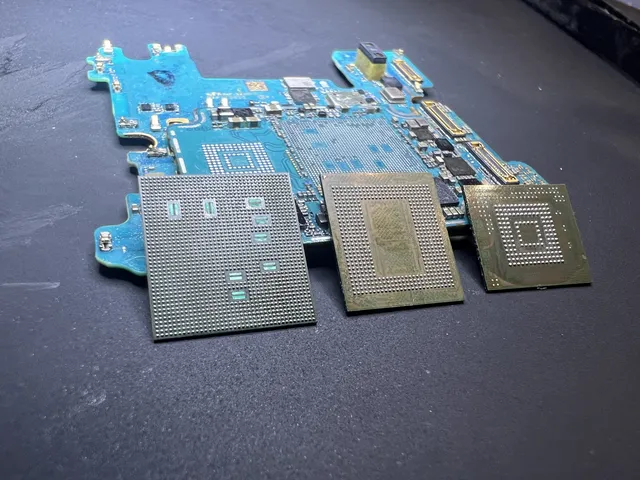
A card or USB drive must be identified before choosing chip-off. Separate NAND packages can sometimes be read externally; monolithic devices may require access to technological pads or traces. Neither method guarantees files: the dump still needs supported error correction, descrambling, and translation, and encryption remains a separate limit.
Water or Corrosion Damage
GoPro cameras are built for extreme conditions, and the SD cards inside them often survive things that would kill other electronics. The NAND flash memory itself is surprisingly water-resistant.
When a supported NAND reconstruction is appropriate, the lab preserves physical dumps, addresses correctable read errors, and reconstructs logical sectors before extracting files. The result must be validated. Intact-looking chips, a recognized header, or a completed read do not guarantee complete photos, video, or documents.
The Card Is Completely Unresponsive
You plug the card into your computer and nothing happens. No drive letter appears, the card reader doesn't detect anything, the card is basically dead to any device you put it in. This usually means the SD card's controller chip has failed. The data is still on the NAND chips, but you can't access it through normal channels.
Direct NAND recovery can help on a supported flash device when its normal interface cannot be restored. It requires readable memory and reconstruction of the original controller's page layout, ECC, scrambling, and logical mapping. Encryption or an unsupported error-correction scheme can prevent recovery even after a successful dump.
Severe Overwrite
If you continued recording on the GoPro for a long time after deleting the important footage, much of that footage may now be permanently overwritten. A 128 GB card recording 4K/60fps HEVC footage fills up in roughly 3 to 4 hours. If you've recorded several hours of new footage after the deletion, most or all of the deleted data is likely gone for good. A professional can sometimes recover fragments, but don't expect complete files.
Professional GoPro SD Card Recovery
When software can't get the job done, a professional data recovery lab is your next step. Here's what to expect.
What a Professional Lab Does Differently
A professional lab like MDrepairs has tools and techniques that go far beyond what any software can do:
- A card or USB drive must be identified before choosing chip-off. Separate NAND packages can sometimes be read externally; monolithic devices may require access to technological pads or traces. Neither method guarantees files: the dump still needs supported error correction, descrambling, and translation, and encryption remains a separate limit.
- Flash reconstruction: The lab uses PC-3000 Flash for supported SD card work.
- Hardware repair: Replacing damaged controller chips or repairing corroded traces on the card's circuit board to make it readable again.
- Partial file reconstruction: Manually piecing together fragmented video files using hex editors and deep knowledge of the MP4 container format.
What to Look for in a Recovery Lab
Not all data recovery companies are equal. Many are just brokers who ship your card to another lab and add a markup. Here's what separates a real lab from a middleman:
- When a supported NAND reconstruction is appropriate, the lab preserves physical dumps, addresses correctable read errors, and reconstructs logical sectors before extracting files. The result must be validated. Intact-looking chips, a recognized header, or a completed read do not guarantee complete photos, video, or documents.
- Payment terms. The $100 diagnostic is credited toward a successful recovery and is non-refundable once diagnostics start. Approved donor drives or replacement parts are non-refundable once ordered, even if recovery fails. You approve the estimate before recovery work starts.
- Diagnostic. You receive the recovery estimate after the paid diagnostic.
- Transparent pricing. Avoid any lab that won't give you a price range upfront or charges "emergency" fees without explanation.
How Much Does Professional GoPro Recovery Cost?
Professional SD card recovery pricing varies based on the type and severity of the issue:
| Issue | Typical Cost | What's Involved |
|---|---|---|
| Logical recovery (file system issues) | From $299 | Card is physically fine but has corruption. Software-based recovery with professional tools. |
| Supported flash reconstruction | $1,750 - $2,000 | Requires readable NAND and supported ECC, scrambling, translation, and encryption handling |
| Water/corrosion damage | $299 - $2,000 | Card needs cleaning, possible controller repair, then data extraction. |
| Severe physical damage | $1,750 - $2,000 | Card is cracked, bent, or crushed. Requires careful NAND chip extraction and advanced reconstruction. |
At MDrepairs, SD card recovery starts at $299 for straightforward cases, and the diagnostic fee is credited toward your recovery. We'll give you an exact quote after evaluating the card.
How to Prevent GoPro Data Loss
Recovery is great, but prevention is better. Here are the habits that'll keep your GoPro footage safe going forward.
Use the Right SD Card
GoPro cameras are demanding. They write high-bitrate 4K and 5.3K video continuously, which requires a fast, reliable SD card. Using a card that's too slow causes dropped frames, recording errors, and file corruption. Here's what to use:
- Speed class: V30 minimum for 4K recording. V60 or V90 for 5.3K or high-frame-rate modes.
- Brands: Stick with SanDisk Extreme or Extreme Pro, Samsung EVO Select or PRO Plus, or Lexar Professional. These are the cards GoPro tests with and recommends.
- Capacity: 128 GB or 256 GB is the sweet spot. Smaller cards fill up too fast. Cards over 512 GB aren't supported by all GoPro models.
- Avoid counterfeits: Buy from authorized retailers (Amazon sold-by-Amazon, Best Buy, B&H Photo). Counterfeit SD cards are everywhere and they cause data loss. If a 256 GB SanDisk Extreme is selling for $12, it's fake.
Format in the Camera, Not on a Computer
Always format your SD card using the GoPro's built-in format option (Preferences > Reset > Format SD Card). Never format on a computer. The GoPro creates the exact folder structure and file system settings it needs. Formatting on a computer can create a file system configuration that the GoPro doesn't expect, leading to errors.
Back Up Immediately After Every Session
This is the single best habit you can develop. After every recording session, before you format the card for the next session:
- Remove the SD card from the GoPro.
- Insert it into your computer.
- Copy all files to your computer AND to a backup drive or cloud storage.
- Verify the copies play correctly.
- Only then format the card in the GoPro for next time.
Don't Delete Individual Files on the GoPro
It's tempting to review footage on the GoPro's screen and delete clips you don't want. Resist that urge. The tiny screen on a GoPro makes it nearly impossible to judge footage quality. And accidental deletions happen when you're scrolling through thumbnails with cold, wet, or gloved hands. Transfer everything to your computer first, review on a real screen, and then format the card.
Replace Old or Worn SD Cards
SD cards don't last forever. NAND flash memory has a finite number of write cycles, and GoPro usage (constant recording and formatting) wears cards out faster than most other uses. The same applies to dashcam SD cards, which take even more abuse from constant heat and loop recording. Replace your SD card every 1-2 years if you use your GoPro frequently. A brand-new 128 GB card costs around $15-20. That's cheap insurance against data loss.
Enable GoPro Cloud Auto-Upload
If you have a GoPro subscription, enable auto-upload. When your GoPro is charging and connected to Wi-Fi, it'll automatically upload your footage to GoPro's cloud. It's not instant (uploading large 4K files over Wi-Fi takes time), but it gives you a backup copy without any effort. Even if your SD card fails, your footage is in the cloud.
Watch: Real Data Recovery in Our Lab
Here's a look at how we recover data from storage devices in our lab. This gives you an idea of the tools and processes involved in professional data recovery.
Frequently Asked Questions
Can you recover deleted GoPro videos after formatting the SD card?
Do not format a card as a recovery step. Formatting behavior depends on the camera, operating system, and chosen option. SD Association Formatter Quick format does not overwrite file contents, while its Overwrite format does; other formatting operations may erase or deallocate data. Preserve the card and determine what remains readable before attempting recovery.
How long do deleted GoPro videos stay on the SD card?
Deleted videos stay on the SD card indefinitely until they're overwritten by new data. There's no timer, no automatic cleanup, and no TRIM process that erases them in the background. If you delete a video and immediately remove the card without recording anything else, that video could theoretically be recovered months or even years later. The only thing that destroys the data is writing new data to the same physical sectors.
Why won't my recovered GoPro video play?
The most common reason is a missing or damaged "moov atom," which is the MP4 file's internal index. This happens when the GoPro loses power during recording or the card is pulled while the camera is still writing. Try opening the file in VLC, which can sometimes play files that other players can't. For a proper fix, use the free tool Untrunc with a reference file from the same GoPro. It'll reconstruct the missing moov atom and make the file playable.
Is it worth paying for professional GoPro recovery?
It depends on how valuable the footage is to you. If software recovery worked, you obviously don't need professional help. But if the SD card is physically damaged (cracked, dead controller, corroded contacts), or if software found nothing, a professional lab is your only option. At MDrepairs, SD card recovery starts at $299, with a separate paid diagnostic credited toward successful recovery. For irreplaceable footage from a wedding, vacation, or extreme sports event, most people feel it's worth it.
Can I recover GoPro 360 footage from a GoPro MAX?
Yes. The GoPro MAX stores 360 footage as standard MP4 files on the SD card, just like any other GoPro. The recovery process is identical. The only difference is that after recovery, you'll need the GoPro Player desktop app (or a 360-capable video player) to view and edit the recovered 360 files. Standard media players will show a distorted flat projection of the 360 content, but the actual footage is fine.
Does putting a GoPro SD card in the freezer help with recovery?
No. This is an old myth from the hard drive era (and it barely worked for hard drives either). SD cards are solid-state. There are no moving parts, no heads, no platters. Temperature has no meaningful effect on whether the NAND flash cells are readable. If anything, extreme cold can cause condensation when the card warms back up, which could actually damage the contacts. Just use recovery software or send it to a lab.
What's the difference between .MP4, .LRV, and .THM files on a GoPro?
.MP4 files are your actual high-resolution video footage. .LRV (Low Resolution Video) files are proxy files that the GoPro creates for smoother playback on the camera's small screen and in the GoPro app. .THM (Thumbnail) files are small JPEG images used as preview thumbnails. When recovering deleted footage, focus on recovering the .MP4 files. LRV files are lower quality duplicates, and THM files are just thumbnails. But if you can only recover the LRV version of a video, it's better than nothing. LRV files are typically 240p or 360p.
Can I recover GoPro videos from a card that says "SD Card Error"?
A card or USB drive must be identified before choosing chip-off. Separate NAND packages can sometimes be read externally; monolithic devices may require access to technological pads or traces. Neither method guarantees files: the dump still needs supported error correction, descrambling, and translation, and encryption remains a separate limit.
How MDrepairs can help
Real cases like this come through our New Jersey lab every week. If you are dealing with one now, start here.
- SD Card Data Recovery Monolithic chip-off recovery for corrupted and dead SD cards. Learn more
- Flash Drive & USB Data Recovery Chip-off recovery from snapped and unreadable USB drives. Learn more
- Data Recovery Services Every device and failure type, recovered in our New Jersey lab. Learn more
- SSD Data Recovery Controller, NAND and firmware recovery for SATA, M.2 and NVMe SSDs. Learn more