BitLocker Data Recovery: How to Recover an Encrypted Drive
In this article
BitLocker data recovery is possible only if you have the 48-digit recovery key and the drive is readable: without the key, no one can decrypt the data, including Microsoft. A failing or physically damaged BitLocker drive must be imaged before any decryption attempt.
- Find your recovery key (Microsoft account, Azure AD, or a printout) first.
- If the drive clicks, won't mount, or is corrupt, stop and image it.
- For physical failure, use professional hard drive data recovery before decrypting.
BitLocker data recovery is possible if you have the recovery key, the drive isn't physically damaged, and the encryption metadata is intact. Without the recovery key, nobody can decrypt your data. Not us, not Microsoft, not the FBI. That's how encryption works. But if you do have the key (or the drive was auto-encrypting through your Microsoft account), there are real paths to getting your files back. We handle BitLocker-encrypted drives in our lab. Some are straightforward unlocks. Others involve pulling data from drives with failing hardware while the encryption layer adds another challenge on top. The outcome depends entirely on your specific situation.
If your BitLocker-encrypted drive is failing, making noises, or not being recognized by your computer, stop using it. Every minute a damaged drive runs is another minute of potential data loss, encrypted or not. Reach out to our lab and we'll tell you exactly where things stand.
What BitLocker Actually Does to Your Drive
BitLocker is Microsoft's full-disk encryption feature. It's built into Windows 10 Pro, Enterprise, and Education editions, plus all editions of Windows 11. When BitLocker is enabled, it encrypts every single sector on your drive using AES-128 or AES-256 encryption. That includes your operating system, your programs, your documents, temporary files, swap files. Everything.
Here's what matters for data recovery: BitLocker doesn't just scramble your files individually. It encrypts the entire volume at the block level. That means the raw data on the drive looks like random noise to anything that doesn't have the decryption key. You can't just pull out individual files, skip the encrypted ones, or read partial data. It's all or nothing.
How the Encryption Works
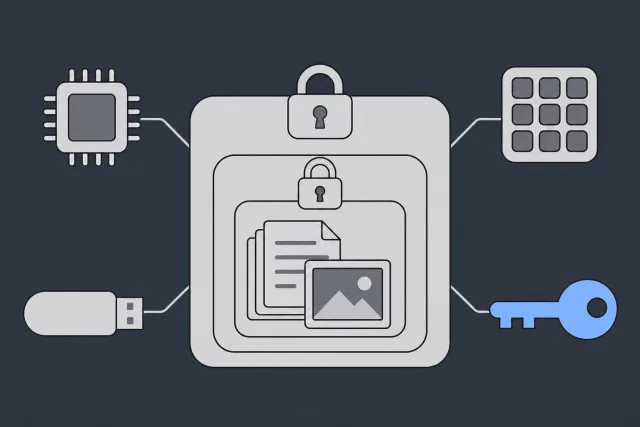
BitLocker uses a layered key system. Your actual data is encrypted with a Full Volume Encryption Key (FVEK). The FVEK is encrypted by a Volume Master Key (VMK). The VMK is then protected by one or more "key protectors," which could be a TPM chip, a PIN, a USB startup key, or the 48-digit recovery key.
 Illustration
When you boot your computer normally, the TPM chip (a security chip on your motherboard) automatically provides its portion of the key. You don't even notice it happening. The drive decrypts transparently in the background. But when something changes, like a BIOS update, a hardware swap, or the drive gets moved to a different computer, the TPM won't release its key. That's when BitLocker asks for the recovery key.
BitLocker vs. Device Encryption
A lot of people don't even know BitLocker is running on their machine. Windows 10 and 11 can automatically enable "Device Encryption" on supported hardware. This is essentially BitLocker under a different name. If your laptop came with Windows 11 and has a TPM 2.0 chip (most do), there's a good chance your drive is already encrypted. You won't see the BitLocker logo or control panel entry, but the encryption is active.
This catches people off guard constantly. Their SSD dies, they pull it out, connect it to another machine to recover files, and find nothing readable. The data is encrypted, and they never set it up, never saved a recovery key, and had no idea it was happening.
manage-bde -status. If it says "Protection Status: Protection On" and "Encryption Method: XTS-AES 128" (or similar), your drive is encrypted. Save your recovery key immediately. Don't wait until you need it.
The Recovery Key: Your Only Way In
The 48-digit BitLocker recovery key is the single most important piece of information for encrypted drive recovery. Lose this key, and you lose your data. Full stop. No backdoors, no master passwords, no special tools that can crack it. AES-256 encryption would take billions of years to brute-force with current technology.
Where to Find Your Recovery Key
Microsoft provides several places where the recovery key might be stored. Check all of them before assuming it's lost.
1 Microsoft Account
If you signed into Windows with a Microsoft account, the recovery key was likely uploaded automatically. Go to account.microsoft.com/devices/recoverykey and sign in. If your key is there, you'll see it listed alongside the device name.
2 Azure Active Directory
If the computer is managed by an organization (work or school laptop), the recovery key is probably stored in Azure AD. Contact your IT department. They can look it up by device name or key ID.
3 Printed or Saved File
When you manually enable BitLocker, Windows prompts you to save the recovery key. You might have printed it, saved it to a USB drive, or saved it as a text file somewhere. Check your documents, email (search for "BitLocker" or "recovery key"), USB drives, and any safe where you keep important papers.
4 Active Directory (Domain Environments)
In corporate environments using on-premises Active Directory, recovery keys are often backed up to the domain controller automatically through Group Policy. Your sysadmin can retrieve it from the computer object's properties in AD.
If you've checked all four locations and can't find the key, the situation is serious. Without it, the data on that drive is cryptographically inaccessible. We can still recover the raw encrypted data from a physically damaged drive, but it will remain encrypted and unreadable without the key.
Common BitLocker Data Recovery Scenarios
We see BitLocker recovery cases fall into a few distinct categories. Each one has a different recovery path and a different success rate.
Scenario 1: BitLocker Asks for Recovery Key After an Update
You install a Windows update, a BIOS update, or change something in the boot configuration. The TPM detects the change and refuses to release the encryption key automatically. BitLocker pops up a blue screen asking for the 48-digit recovery key.
Recovery path: Enter the recovery key from your Microsoft account or backup. Once unlocked, the drive works normally. You can suspend BitLocker temporarily before future updates to prevent this from happening again.
Success rate: Depends on the drive condition and access to the recovery key.
Scenario 2: Drive Moved to a Different Computer
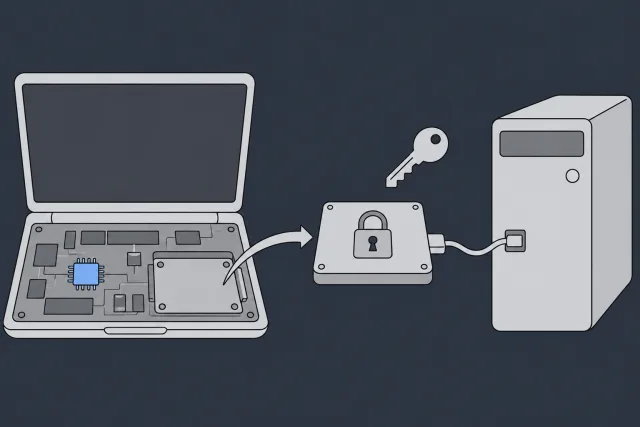
You pulled a BitLocker-encrypted drive from one machine and connected it to another (USB adapter, dock, or installed internally). The new machine doesn't have the original TPM chip, so BitLocker won't auto-unlock.
 Illustration
Recovery path: Windows will usually detect the BitLocker volume and prompt for the recovery key. Enter it, and you get full access. On some systems, you might need to use the command line: manage-bde -unlock D: -RecoveryPassword YOUR-KEY-HERE.
Success rate: Depends on the drive condition and access to the key.
Scenario 3: Corrupted BitLocker Volume
The drive is working (no physical damage), but the BitLocker metadata is corrupted. Maybe a sudden power loss during a write operation, a bad sector in the wrong spot, or file system corruption. The drive might show up as RAW in Disk Management, or Windows says it needs to be formatted.
Recovery path: This one's trickier. The BitLocker metadata includes multiple copies of the encryption headers stored at different locations on the volume. If one copy is damaged, Windows tries the backups. If all copies are damaged, things get complicated. Professional tools can sometimes reconstruct the metadata from partial data. But the recovery key is still required.
Success rate: Depends on the extent of the corruption and access to the key.
Scenario 4: Physically Damaged Encrypted Drive
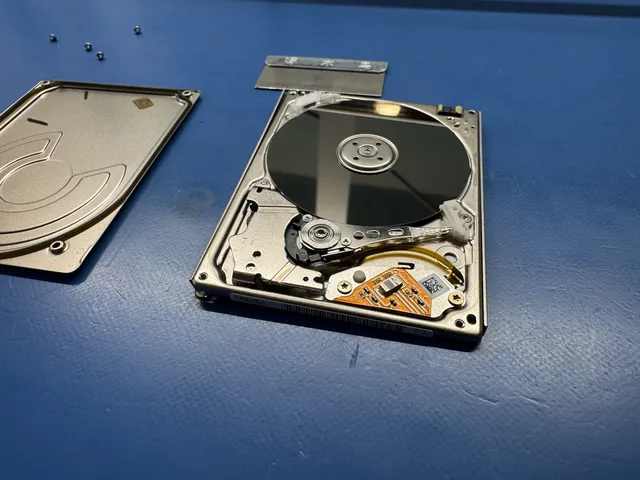
The worst case. The drive has both BitLocker encryption and physical damage: clicking heads, dead motor, failing SSD controller, bad NAND blocks. Recovery requires fixing the hardware first, imaging the encrypted data, then decrypting the image.
Recovery path: Hardware repair and imaging, with head and platter work in a laminar-flow work area to extract the raw encrypted data. Then decryption using the recovery key. Both steps have to succeed. If the imaging misses critical sectors that contain the BitLocker metadata or key data, decryption can fail even with the correct recovery key.
Recovery depends on: physical damage severity and whether the encryption metadata can be recovered.
DIY BitLocker Recovery Methods
If the drive is physically healthy (no weird noises, still detected by the computer), there are a few things you can try before calling a lab.
Method 1: Unlock via Command Prompt
Open Command Prompt as Administrator and try these commands:
Check BitLocker status:
manage-bde -status
This shows all volumes and their encryption status. Note the drive letter of your encrypted volume.
Unlock with recovery password:
manage-bde -unlock D: -RecoveryPassword 123456-123456-123456-123456-123456-123456-123456-123456
Replace D: with your drive letter and the numbers with your actual 48-digit recovery key.
If the volume is damaged, try repair:
repair-bde D: E: -RecoveryPassword 123456-123456-123456-123456-123456-123456-123456-123456
This attempts to repair the BitLocker metadata and decrypt the data to drive E:. The destination drive needs enough free space to hold all the data.
The repair-bde tool is specifically designed for situations where the BitLocker metadata is damaged but the drive hardware works. It's built into Windows and it's free. Not many people know about it.
Method 2: Check for Auto-Unlock Keys
If the encrypted drive was a secondary (non-OS) drive on the original computer, BitLocker may have stored an auto-unlock key in the registry. Boot into the original Windows installation and the drive should unlock automatically. This obviously only works if the original OS drive is also intact.
Method 3: Use a Recovery Environment
If your OS drive is encrypted and Windows won't boot, you can boot from a Windows installation USB. Select "Repair your computer" and open Command Prompt from the recovery environment. Then use the manage-bde -unlock command from there.
When the Drive Itself Is Failing
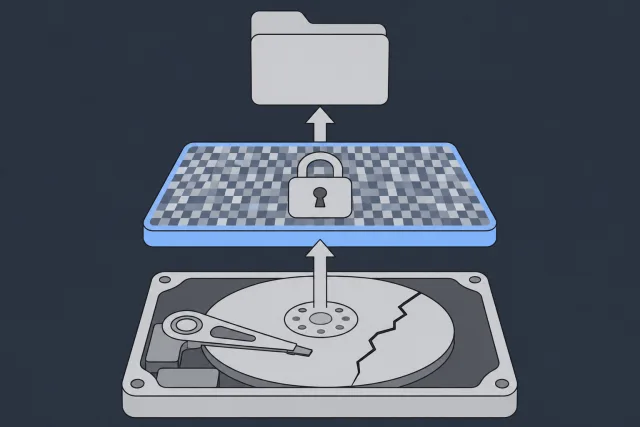
BitLocker encryption sits on top of the physical storage medium. If the hard drive or SSD beneath it starts failing, you've got a two-layer problem. The hardware needs to work well enough to read the encrypted data, and the encrypted data needs to be intact enough to decrypt.
 Illustration
Hard Drives (HDDs) with BitLocker
A BitLocker-encrypted hard drive with mechanical failure (clicking, grinding, not spinning) needs work in a clean, filtered work area when its heads or platters are exposed. Head swap, motor replacement, platter transplant, whatever the failure demands. The difference is what happens after imaging.
With a normal (unencrypted) drive, once we have a disk image, we can immediately browse and extract files. With a BitLocker drive, the image is still encrypted. We need the recovery key to decrypt it. And the image needs to be complete enough that the BitLocker metadata sectors are intact. If the imaging process missed sectors in the first 3 sectors of the volume, or the backup metadata at the end of the volume, decryption gets much harder.
This is why we use professional imaging tools that prioritize reading the most critical sectors first. We know where BitLocker stores its metadata, and we target those areas early in the imaging process before the drive potentially degrades further.
SSDs with BitLocker
SSD data recovery is already more complex than hard drive recovery because of how NAND flash works. Add BitLocker encryption on top, and the complexity increases significantly.
If your SSD also encrypts its memory, we first need to get its controller chip reading again so we can copy the drive. Then we use your BitLocker recovery key to unlock the copy. That key can't unscramble data read straight from the NAND memory chips.
SSDs also have a feature called TRIM that permanently erases deleted blocks. On a BitLocker-encrypted SSD, TRIM complicates recovery even further because those trimmed sectors are gone for good.
Professional BitLocker Data Recovery
When DIY methods fail or the drive has physical damage, professional recovery is the next step. But not every data recovery lab handles encrypted drives the same way. Some shops won't even touch BitLocker volumes. Others will try and make things worse.
What We Do Differently
At MDrepairs, we deal with encrypted drives. Our process accounts for the encryption from the very beginning, not as an afterthought.
Step 1: Evaluation. We determine whether the issue is logical (BitLocker metadata corruption, lost key prompt) or physical (drive hardware failure). This determines the entire recovery approach.
Step 2: Imaging (if physical damage). We image the drive using hardware tools that can prioritize specific sector ranges. We target the BitLocker metadata locations first: the volume header (first 3 sectors), the backup header (last sectors of the volume), and the key protector areas. Getting these sectors intact is critical.
Step 3: Metadata analysis. We examine the BitLocker metadata to confirm the encryption algorithm, key protector types, and volume structure. This tells us exactly what's needed for decryption.
Step 4: Decryption. Using your recovery key, we decrypt the volume image. If the metadata is partially damaged, we use specialized tools to reconstruct it from the backup copies. Once decrypted, we extract your files to a clean drive.
Step 5: Verification. We verify file integrity across all recovered data. Encrypted recovery adds an extra verification layer because even a single corrupted sector in the wrong place can cascade into larger data corruption after decryption.
BitLocker vs. Other Encryption Tools
BitLocker isn't the only encryption option out there. Different encryption tools create different recovery challenges. Here's how the major ones compare.
| Encryption Tool | Platform | Recovery Difficulty |
|---|---|---|
| BitLocker | Windows | Moderate (with key), impossible (without) |
| FileVault 2 | macOS | Moderate (with key), impossible (without) |
| VeraCrypt | Cross-platform | Hard (no centralized key backup) |
| LUKS | Linux | Hard (key management varies) |
| Hardware SED | Drive-level | Very hard (key stored on drive controller) |
BitLocker actually has one advantage over most competitors when it comes to recovery: Microsoft's ecosystem makes key backup relatively easy. Your key often ends up in your Microsoft account automatically. VeraCrypt, for example, has no cloud backup. If you lose your VeraCrypt password and recovery file, the data is permanently inaccessible.
Chip-off is a possible method for certain supported, unencrypted flash devices, not a universal last resort. Raw NAND needs compatible error correction, descrambling, and controller-layout reconstruction. Modern encrypted SSDs and phones require their original or specifically supported reading/security path; memory removal does not bypass encryption.
How to Avoid BitLocker Lockouts
Prevention is always cheaper than recovery. These steps take about ten minutes and could save you thousands of dollars and weeks of stress.
Back Up Your Recovery Key (Right Now)
Seriously. Stop reading this article, go to account.microsoft.com/devices/recoverykey, and check if your key is stored there. If it is, great. Write it down on paper and store it somewhere safe (not on the encrypted drive itself, obviously). If it's not there, open BitLocker settings and save the key.
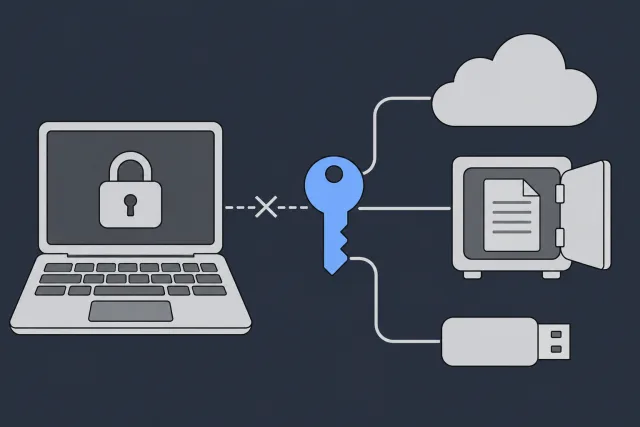
Store copies in at least two places:
 Illustration
- Your Microsoft account (automatic cloud backup)
- A printed copy in a fireproof safe or safety deposit box
- A USB drive stored separately from the computer
- A password manager (1Password, Bitwarden, etc.)
Suspend BitLocker Before Major Changes
Before BIOS updates, Windows feature updates, or hardware changes, suspend BitLocker temporarily. Open an admin Command Prompt and run:
manage-bde -protectors -disable C:
This suspends protection for one reboot. After the update completes and you restart, BitLocker automatically re-enables. This prevents the TPM from triggering a recovery key prompt.
Keep Regular Unencrypted Backups
The best insurance against BitLocker data loss is having an unencrypted backup on a separate drive. Use Windows backup, a third-party tool, or even just manually copy your important folders to an external drive monthly. If your encrypted drive dies and you can't find the recovery key, that backup is your only lifeline.
Know Whether Encryption Is Active
Run manage-bde -status periodically. If your drive is encrypted and you didn't know it, save the recovery key immediately. Windows 11 enables Device Encryption by default on many machines. Don't get caught off guard.
How Much Does BitLocker Recovery Cost?
The cost depends on whether the issue is purely logical (software/key related) or involves physical drive damage.
| Situation | Typical Cost | Notes |
|---|---|---|
| Key recovery from Microsoft account | Free (DIY) | Self-service through Microsoft |
| BitLocker metadata repair (drive healthy) | $1,000 - $1,500 | Software-based, no cleanroom needed |
| Encrypted HDD with physical damage | $1,500 - $3,000+ | Laminar-flow work area + imaging + decryption |
| Encrypted SSD with controller failure | $1,000 - $2,000+ | Original controller repair. Chip-off reads the chips without unlocking your files. |
| Encrypted drive, no recovery key | N/A | Recovery not possible without key |
The quote depends on the drive and what it takes to read it. But the pricing is transparent. We evaluate the drive, give you a fixed quote, and you decide whether to proceed. The $100 diagnostic is credited toward successful recovery. Any donor drives or replacement parts you approve are non-refundable once ordered, even if recovery fails. We start recovery after you approve the estimate.
For a full breakdown of our pricing across all drive types, check the data recovery pricing page.
Frequently Asked Questions
Can you recover data from a BitLocker-encrypted drive without the recovery key?
No. BitLocker uses AES-128 or AES-256 encryption, which is mathematically unbreakable with current technology. Without the recovery key (or the original TPM chip releasing its stored key), the data remains encrypted and inaccessible. No data recovery lab in the world can bypass this encryption. Anyone who claims they can is either lying or confused about what BitLocker actually does. Your only option is finding the recovery key through your Microsoft account, Azure AD, or wherever it was originally saved.
Does reformatting remove BitLocker encryption?
A quick format removes the file system structure but doesn't actually overwrite the encrypted data on the drive. A full format writes zeros to every sector, which destroys both the encryption and the data beneath it. If you accidentally quick-formatted a BitLocker volume, recovery may still be possible because the encrypted data and metadata might still exist on the drive. But you'll need the recovery key and professional tools. If you did a full format, the data is gone. Stop using the drive immediately and read our guide on recovering deleted files for more context on format recovery.
Why does BitLocker keep asking for my recovery key?
BitLocker triggers the recovery key prompt when the TPM detects a change in the boot configuration. Common triggers include BIOS/UEFI updates, boot order changes, adding or removing hardware, Windows updates that modify the boot manager, Secure Boot setting changes, and even some driver updates. The TPM is doing its job: it detected something different about the system and wants to verify you're the authorized user. You can prevent most of these prompts by suspending BitLocker before making changes. Run manage-bde -protectors -disable C: before updates.
Is BitLocker recovery harder than recovering an unencrypted drive?
Yes, always. With an unencrypted drive, we can read and extract files directly from a disk image, even a partial one. With BitLocker, the entire image has to be decrypted first, and decryption requires intact metadata sectors. If the imaging process missed critical metadata sectors due to physical damage, decryption might fail even with the correct recovery key. We also can't identify or preview file contents during imaging because everything looks like random data until decrypted. This makes damage assessment harder during the recovery process.
Can I recover data from a BitLocker drive if the TPM chip failed?
Yes, as long as you have the 48-digit recovery key. The TPM chip is just one of several "key protectors" that can unlock BitLocker. The recovery key is designed specifically as a fallback for situations where the TPM fails, the motherboard dies, or the drive gets moved to a different computer. Connect the drive to any Windows computer, enter the recovery key when prompted, and the drive unlocks normally. The TPM is a convenience feature for automatic unlocking. The recovery key is the universal backup.
What happens if I lose my BitLocker recovery key and the drive is working fine?
If the drive is currently unlocked and working, you can generate a new recovery key right now. Open an admin Command Prompt and run: manage-bde -protectors -get C: to see your current key, or manage-bde -protectors -add C: -RecoveryPassword to generate a new one. Save it immediately to your Microsoft account, print it, and store it somewhere safe. Do this today. If the drive ever locks and you don't have the key, nobody can help you.
Does BitLocker slow down my SSD or hard drive?
The performance impact depends on the hardware. Encryption and decryption happen at the CPU level. On very old hardware without AES-NI, the performance hit can be noticeable.
BitLocker Encrypted Drive Data Recovery: What Actually Has To Work
BitLocker encrypted drive data recovery is two recoveries in one. First, the storage device has to be stabilized well enough to read the encrypted sectors. Second, the BitLocker metadata and the correct unlock material have to be available so the recovered sectors can be decrypted into usable files. If either side is missing, the result is usually a perfect copy of encrypted noise.
The most important item is the BitLocker recovery key, password, TPM based unlock path, or a valid key protector from the original Windows environment. A lab cannot bypass BitLocker by repairing the drive. Encryption is doing exactly what it was designed to do: prevent readable data without authorization. What a lab can do is recover damaged BitLocker volumes from failing SSDs, HDDs, USB drives, RAID members, and formatted Windows installs when enough encrypted data and metadata remain intact.
For a failing disk, the priority is not to keep trying passwords, repairs, or Windows prompts. Every boot attempt, unlock attempt, CHKDSK run, or reinstall can write to the same media you are trying to preserve. In the lab, we image the device with controlled reads, handle bad sectors strategically, and then work from the clone. If the BitLocker header, FVE metadata, and file system structures are readable, the recovery key can be used against the image instead of the unstable original drive.
Formatting or reinstalling Windows does not always remove the encrypted data immediately. A quick format may replace file system structures while leaving large areas of BitLocker encrypted content behind. A full overwrite, SSD TRIM event, secure erase, or factory reset is far more damaging because the encrypted payload may be gone, not merely inaccessible. That distinction matters when deciding whether a case is recoverable.
If the drive is clicking, disconnecting, showing the wrong size, asking to format, or only appearing in Disk Management, stop testing it in Windows. For BitLocker cases, we usually want the original device, any known recovery keys, the Microsoft account or business account recovery key location, and context about recent repairs or reinstalls. Our data recovery lab can handle the physical recovery side, but the unlock credentials determine whether the recovered image becomes usable files.
Can BitLocker encrypted drive data be recovered without the recovery key?
BitLocker is strong encryption, not a simple password screen that can be bypassed during drive repair. A lab may be able to recover the encrypted sectors from a failed drive, but readable files still require a recovery key, password, valid TPM unlock path, or another legitimate key protector from the original system.
Should I try CHKDSK or repair tools on a BitLocker drive that will not unlock?
No, not if the data matters. CHKDSK and repair utilities can write changes to a damaged encrypted volume before the data is secured. The safer process is to image the failing device first, then attempt BitLocker unlock and file system repair on the clone. That preserves the original evidence if the first repair attempt fails.