Forgot Your Android Pattern Lock? Check Your Options Before a Reset
In this article
Forgot your Android pattern lock? On a modern encrypted phone, you can't read your private files without a working way to unlock it. A factory reset erases the files stored on the phone. Your Google password doesn't replace the screen lock. Before you reset anything, check whether fingerprint or face unlock still works, whether Extend Unlock is already keeping the phone unlocked, and whether your model offers a way to use a recently changed lock.
Don't keep guessing. If a fingerprint or your face still opens the phone, get your files off now. Don't restart it while you still have that access: phones can require the pattern again after a restart. If the screen demands the pattern, stop entering guesses and follow the checks below. Also look for photos and backups you can open from another device.
The Honest Truth About Modern Android Locks
Your screen lock protects more than the home screen. Modern Android phones encrypt private files and use your PIN, pattern, or password to protect access to them. Reading the storage chip by itself doesn't turn those files into readable photos or messages.
If the phone still accepts your fingerprint or face, you may have a chance to copy files before it asks for the main lock again. If it has restarted and requires the forgotten pattern, a Google account sign-in won't unlock those files. Resetting the phone lets you set it up again, but removes the data stored on it.
Android and iPhone both protect private files with encryption, but their supported unlock options differ. A lockout isn't the same as an erase. There is no "law enforcement bypass" available to private labs.
Which Android Version Are You On?
Check the model and software version before following a lock-reset guide. If the phone still opens, look in Settings under About phone and Android version. If it won't open, use the model on the box or your account's device list. Don't enter patterns just to find out which recovery screen appears.
| Phone or Setting | What to Check | What It Means for Your Files |
|---|---|---|
| Modern encrypted Android | Does a known lock or enrolled biometric still open it? | Copy files while you have access |
| Phone demanding the main lock | Read the prompt without guessing | A Google password won't replace it |
| Samsung with a recently changed lock | Check the previous-lock option and its requirements below | The previous lock may still work |
| Extend Unlock already set up | Look for an unlocked padlock | It may be keeping an existing session open |
| Android 4.4 or earlier | Look for the old "Forgot pattern" option | Google documents account reset only for these versions |
| Older phone with unknown settings | Identify its actual encryption state | Age alone doesn't show whether files are readable |
| Phone already factory reset | Look for copies saved before the reset | A reset isn't data recovery |
Board-level recovery aims to preserve the original storage and its required security components while restoring a usable path to the files. A new logic board or raw NAND dump does not supply the original keys. The exact device, damage, and security state determine whether extraction is possible.
Path 1: Check What Still Unlocks the Phone
If you searched for "check pattern lock" or "pattern lock check," start by reading what the phone is asking for. A screen pattern, your Google password, and a SIM PIN are different credentials. There isn't a Google page that shows your saved screen pattern. Don't test a list of common patterns on the phone.
Try the options that erase nothing first. Fingerprint, face unlock, and Extend Unlock must already be set up. If the phone asks for the pattern instead, they won't replace that request. If anything below gets you in, copy your files before changing settings.
1. If the screen offers your enrolled fingerprint or face, try that. If it opens, keep the phone on and start copying your files. Stop if it asks for the pattern; don't keep testing it.
2. If you had Extend Unlock, formerly Smart Lock, set up, check whether the phone is already unlocked near your trusted device or place. Swipe to open it. Extend Unlock keeps a session unlocked after you authenticate; it can't unlock a phone that now demands the pattern.
3. On Samsung phones running One UI 6.1 or later, a previous PIN, password, or pattern can work within 72 hours of a change if you didn't delete it. Use the "Forgot PIN/password/pattern?" prompt to enter the previous lock you know and set a new one. Follow Samsung's previous-lock procedure only when those conditions match. Don't guess the previous lock or force a prompt on another phone.
4. For Android 4.4 or earlier only, Google's old "Forgot pattern" option lets you sign in with the Google account already on the phone and choose a new lock. Use an existing prompt and follow Google's instructions for that older version. This is not a modern Android unlock method.
5. If no supported option opens the phone, stop. Check your Google Photos and existing backups from another device before deciding whether to erase. A Google password reset can help you reach your account, but it doesn't remove the phone's pattern.
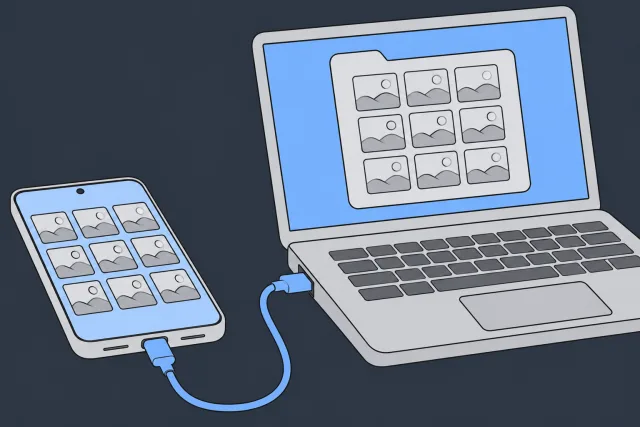
If fingerprint or face unlock still works, save the files you can't lose first. On an unlocked phone, connect a USB cable to a Windows computer, tap the USB notification, and select File Transfer. Copy your photos, videos, and documents to the computer, then open the copies to check them. See Google's file-transfer steps. This copies accessible files, not every app's private data. Check backup or export options inside the apps you use too.
 Illustration
Biometrics aren't a permanent substitute for the pattern. Pixel phones require the main lock after a restart, failed fingerprint recognition, and periodic security checks. Other models have their own rules. Don't restart or turn on Lockdown while you're trying to save files through an unlock method that still works.
Path 2: What Find Hub Can and Can't Do
Google's Find My Device is now called Find Hub. It can locate, ring, secure, or erase a phone. It doesn't reveal a forgotten pattern or replace an existing screen lock with a new password.
1. From another device, open google.com/android/find.
2. Sign in with the Google account on the phone and select the right device. Find Hub may also ask for the phone's screen lock.
3. Read the available actions. "Mark as lost" locks the phone using its existing PIN, pattern, or password. It isn't a way to replace a forgotten one.
4. Leave "Factory reset" or "Erase" alone if you still need files stored only on the phone. Use those actions only after checking your saved copies and deciding to erase the device.
Samsung's former remote Unlock feature in Find My Mobile or SmartThings Find is no longer available. Having enabled it in the past doesn't make it a current recovery route. Extend Unlock is different: it must have been set up beforehand and only keeps an authenticated phone unlocked. Samsung's previous-lock option is also separate and has the conditions listed above.
Path 3: Check an Already Authorized ADB Connection
Android Debug Bridge (ADB) lets a developer's computer communicate with a phone. This check only makes sense if USB debugging was already on and this computer was already authorized. You can't approve a new computer through a screen you can't unlock.
If you already use ADB on this computer:
- Connect the phone and run adb devices. If it says "unauthorized," "offline," or shows no phone, stop. Don't reboot or change the phone's software to force access.
- If it lists the phone as "device," try copying an accessible shared folder with adb pull /sdcard/DCIM ./phone-photos. This copies camera files to the computer; it doesn't remove the screen lock.
- If access is denied or the files aren't available, stop. Don't delete lock files, unlock the bootloader, or flash a recovery image.
An authorized connection only gives the access that the phone currently allows. It doesn't decrypt locked user storage or guarantee access to every app's files. Check any copied files on the computer before doing anything that erases the phone.
If USB debugging wasn't already enabled and authorized, skip ADB. Unlocking the bootloader to install tools can factory reset the phone. A custom recovery such as TWRP doesn't make an unknown encryption key disappear.
Old Android: Check Encryption Before Assuming Chip-Off Will Help
An old model name isn't enough to tell whether its files can be read without the lock. Software and encryption settings matter. Removing a storage chip doesn't remove encryption, and changing the phone's software can destroy the data you're trying to save.
Before trying anything on an old phone, check:
- The exact model and Android version, if you already know them
- Whether a known fingerprint or other enrolled unlock method still works
- Whether the phone offers the documented old "Forgot pattern" option
- Whether there are photos or backups saved outside the phone
- Whether encryption was actually enabled, rather than assuming it was off because of the phone's age
Don't use a list of old Galaxy, Pixel, or other models as proof that chip-off will recover your photos. An encrypted chip read still needs its keys. Keep the phone and its original parts intact while you check the options that don't erase anything.
If you can't check the old phone's encryption settings, leave that question open. Not remembering an encryption setting doesn't prove the files are unencrypted. Don't reset the phone to investigate; a reset removes the data instead of identifying a way to recover it.
What NOT to Do Right Now
- Keep guessing the pattern. Wrong entries can cause lockout delays. Some Samsung models also have an optional Auto factory reset setting. Don't assume every Android phone has the same attempt limit or erase behavior.
- Factory reset before checking your copies. A reset deletes data stored on the phone. It doesn't recover it.
- Use "Erase" in Find Hub to remove the pattern while keeping files. Remote erasure is still erasure.
- Restart a phone that still opens with a fingerprint or face. Get your files off before losing that access.
- Unlock the bootloader or flash software to get around the lock. Bootloader unlocking can reset the phone, and different software doesn't supply missing encryption keys.
- Delete pattern or password files. Removing a lock file doesn't decrypt encrypted user files.
- Agree to a reset described as "data recovery." Confirm whether you will receive your existing files or an erased phone.
Factory Reset Protection (FRP) Explained
Factory Reset Protection helps prevent someone else from using a protected Android phone after a reset. During setup, the phone can ask for the previous screen lock or a Google account that was already added and synced to it. FRP doesn't start because you drew too many wrong patterns.
This is separate from recovering your files. Passing the ownership check after a reset doesn't undo the erasure. You can restore only what was backed up, and some Google backup data also needs the screen lock used when the backup was made.
Before choosing a reset, sign in to the phone's Google account on another device. If you can't, use Google's account recovery process first. Getting back into your account can help with backups and post-reset setup, but it won't change the forgotten pattern on the locked phone.
A flat battery or time spent in a drawer isn't an FRP reset. If you already erased the device and setup asks for the previous account, recover that account or get help from the phone's manufacturer with proof of ownership. Don't reset it again expecting the original files to return.
Common Scenarios
"I changed my pattern last week and now I can't remember it"
Check whether your fingerprint or face still opens the phone and copy your files if it does. Samsung's previous-lock option has a short window after a change, so last week's change is outside it. A Google password won't reset a modern phone's pattern. Check your saved photos and backups before you consider erasing.
"My phone has been sitting in a drawer for a year and I forgot the pattern"
A restarted phone can require its main lock before biometrics work. Check for copies in your Google account from another device. Only the old Android version listed in Path 1 supports Google's "Forgot pattern" method. Don't reset the phone while it holds photos you still need.
"My elderly parent died, I want to recover photos from their phone, I don't have the pattern"
Don't reset the phone or test possible patterns. Look for photos already shared with family or copied to a computer. For a Google account, use Google's process for a deceased person's account rather than trying to guess the password. Access to account data and access to an encrypted phone are separate questions.
"My kid set a pattern on the phone and now they can't remember it"
Don't have them keep testing shapes on the screen. Check the same non-erasing options in Path 1 and look for photos already backed up. A child's Google account doesn't replace the phone's screen lock. Resetting the phone still erases its local files.
"I bought a used phone and it's pattern-locked"
You're not going to get data off it without the original owner. And even if you did, that data isn't yours. Return the phone to the seller. Our iPhone Unavailable guide has parallel info if you've encountered this on an iPhone.
"My old Galaxy S5 needs photos recovered, I forgot the pattern"
Check its actual Android version and encryption settings if you know them. The model name alone doesn't show whether an account-reset option exists or whether the storage is unencrypted. Keep the original phone intact, don't reset it, and check old computers and cloud accounts for copies.
Check Your Backups Before a Reset
A copy saved outside the phone can give you your files without changing the locked device. Check the accounts and computers you actually used. Don't erase first and hope a backup turns up later.
 Illustration
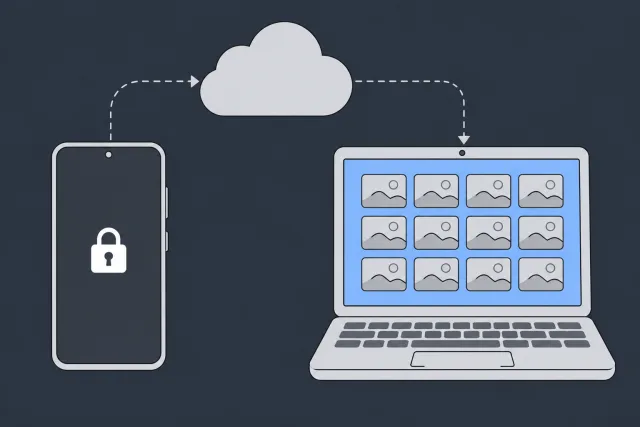
Open Google Photos on Another Device
Sign in to photos.google.com with the account used on the phone. Open the pictures and videos you need, including recent ones. Seeing a picture in the phone's gallery wasn't proof it had finished backing up. What you can open on the website is already saved to that account.
Check Other Accounts You Used
If photos seem missing, check whether you used a different Google account for backup. Keep track of which account contains them. Recovering access to that account doesn't require erasing the phone.
Look for Computer Copies
Check computers where you previously copied photos or documents. Open the files to confirm that they are the ones you need. Keep those copies safe before changing anything on the phone.
Check What a Device Backup Contains
A Google device backup and a Google Photos library aren't the same thing. Some backed-up data is protected by the phone's screen lock, and not every app backs up all its data. Don't assume a listed device backup will restore everything without the forgotten pattern.
Decide Whether You Can Accept an Erase
If the files exist only inside the locked phone, a reset won't recover them. Leave it unerased if you still need those files. If you've checked your copies and choose to reuse the phone, follow its maker's reset procedure, then restore the backup during setup.
Keep the distinction clear: opening a saved copy retrieves your data. Erasing a phone only makes it ready to set up again.
When a Recovery Lab Can Actually Help
Here's the honest list. Pattern forgotten on its own:
| Situation | Lab Can Help? | Why |
|---|---|---|
| Modern Android (2018+), no other info | No | Encryption is mathematically locked |
| Modern Android, have Google account | Check existing backups | The account won't replace a forgotten screen lock |
| Old Android (pre-2017), no encryption enabled | Original-hardware recovery assessment | Requires a viable original reading/encryption path; chip-off is not a general fallback |
| Old Android with user-enabled encryption | No | Same encryption math as new phones |
| Pattern forgotten + phone physically broken | Maybe | Requires a viable original reading/encryption path; chip-off is not a general fallback |
| Pattern forgotten + Google account also lost | Rarely | Only on very old phones |
Check the table above for your situation. Call us for a free consult. If you're in a "No" row, we'll tell you that on the phone and save you the trip.
Cost
Flash recovery cost and timing depend on whether the device needs connector repair, controlled reading, or supported NAND/monolithic reconstruction. The memory, ECC, scrambling, translation, and encryption determine feasibility. Obtain a firm quote and estimate after diagnosis; chip-off does not guarantee a higher recovery rate.
Some older devices with unencrypted, supported storage permit independent chip or ISP reads. Age alone does not establish that: model, software version, actual security configuration, and storage health matter. Modern encrypted devices require their original hardware/security path and appropriate unlock credentials; chip-off does not bypass those requirements.
| Scenario | Typical Range | Why |
|---|---|---|
| Original-hardware recovery assessment | $1,500 to $2,000 | Requires a viable original reading/encryption path; chip-off is not a general fallback |
| Old Android, encryption enabled, lock lost | Usually not possible | Same math as modern |
| Modern Android, pattern lost, no other way to unlock it | Not possible | Encryption keys sealed |
| Phone with hardware damage + pattern known | $1,500 to $2,000 | Standard repair + extraction |
Our pricing page has the full structure.
Prevention
The next time this could happen to you starts now. Build the safety net.
Write Down Your Screen Lock Somewhere Safe
Password manager, locked notes app on another device, encrypted file on a Mac/PC, even a piece of paper in a fireproof safe. Don't store it in plain text where someone could find it (so not in Notes app on the same phone). But store it.
Keep Your Google Account Recovery Info Up to Date
In your Google account, open Security & sign-in and review your recovery phone number and email. Keep them current while you can still sign in. These help you recover the account, not the phone's pattern.
Use Biometrics Plus a Pattern You Can Remember
Fingerprint or face unlock can be convenient, but the phone will still ask for your main screen lock at times. Keep a secure record that you can reach without this phone. Don't wait until a restart to discover you've forgotten it.
Back Up to Google Photos and Google One
Turn on backup while the phone is accessible, then check what has actually saved. Open your pictures from another device and review the device backup's details. Not every app saves everything, and some backup data needs your screen lock to restore. See also the iPhone backup guide.
Choose a Screen Lock You Can Remember
A PIN, pattern, or password still needs to be kept safe. Switching to a PIN doesn't create an easier recovery route if you forget it. To change the lock in Settings, you'll need to enter the current one first. Back up your files before making changes.
Understand Extend Unlock Before You Use It
Extend Unlock, formerly Smart Lock, can keep the phone unlocked in selected situations after you enter your screen lock. Find it under Settings > Security & privacy > More security & privacy on supported phones. Setup requires your current PIN, pattern, or password. It isn't a backup plan for a forgotten lock.
Add a Trusted Contact for Account Recovery
If your Google account offers Recovery contacts, find it under Security & sign-in and invite someone you trust. Set it up before you lose account access. A recovery contact helps with Google sign-in, not with unlocking the phone's encrypted storage.
Check Your Saved Copies
Open your backed-up photos and documents from another device. If something is missing, copy it while you can still open the phone. Don't rely on changing a forgotten pattern just because fingerprint unlock still works; Settings can require the current lock.
FAQ
Can a recovery lab break my Android pattern?
Modern Android protects private files with encryption. A storage-chip read or a Google password doesn't replace the screen lock. Check the non-erasing options in Path 1 before doing anything else. If the phone demands a lock you don't know and none of those options applies, Google's supported way to reuse it is an erase, not recovery of the files inside.
What about pre-2018 Androids?
Some older devices with unencrypted, supported storage permit independent chip or ISP reads. Age alone does not establish that: model, software version, actual security configuration, and storage health matter. Modern encrypted devices require their original hardware/security path and appropriate unlock credentials; chip-off does not bypass those requirements.
Why is iPhone the same situation?
Both systems use encryption to protect private files, but their recovery options differ. An iPhone with a timer can still accept the correct passcode after the wait. Apple also offers a previous-passcode option after a recent change. See the iPhone Unavailable guide for those steps.
Can I just have someone "hack" my own phone?
Owning the phone doesn't make encrypted files readable without the required unlock. Ask whether a proposed "unlock" erases the device or retrieves existing files. A factory reset removes the lock by deleting the local data; it isn't a way to recover your photos.
I'm sure I'd recognize my pattern if I saw a list of likely ones. Can you help guess?
Don't test lists of patterns on the phone. If you want to jog your memory, draw what you remember on paper without entering it on the device. Read any lockout warning and stop if you're unsure. Failed attempts can make access harder, and a Samsung phone with Auto factory reset enabled can erase itself.
What if I have an unlocked bootloader and root?
Those settings don't automatically decrypt your files. If ADB was already enabled and the computer authorized, use only the copy check in Path 3. Stop if access is denied. Don't unlock the bootloader now, install TWRP, or delete lock files to test a workaround; a bootloader unlock can erase the phone.
Can you recover with just my SIM card?
A SIM card isn't a copy of the phone's photo library or app storage. It may hold contacts you saved there. On a working Android phone, Google Contacts can import those through Organize > Manage SIM. That doesn't unlock the original phone or recover files stored inside it.
How do I know if encryption was enabled on my old phone?
Don't infer that from its age or from whether you remember changing a setting. The exact model, software, and configuration matter. If it still opens, check its security settings before making any changes and copy the files you need. We can verify when the phone arrives at the lab.
What's the actual percent chance you'll recover my data?
Some older devices with unencrypted, supported storage permit independent chip or ISP reads. Age alone does not establish that: model, software version, actual security configuration, and storage health matter. Modern encrypted devices require their original hardware/security path and appropriate unlock credentials; chip-off does not bypass those requirements.
What do I pay if nothing can be recovered?
The $100 diagnostic is credited toward a successful recovery and is non-refundable once diagnostics start. Donor drives or replacement parts you approve are non-refundable once ordered, even if recovery fails. You approve the estimate before recovery work starts.
Does mail-in work for old Android pattern lock cases?
Yes. Our mail-in service covers the US. We provide prepaid shipping within the contiguous US and signed-for return.
MDrepairs is an independent data recovery lab serving customers nationwide via mail-in service.
When a Phone Needs the Lab, Not Another App
A damaged phone needs a working path to its files and the credentials required to unlock them. Reading its storage or repairing its board doesn't replace a forgotten screen lock. Our professional data recovery services cover phones, tablets, and the drives and cards that back them up.
How MDrepairs can help
Real cases like this come through our New Jersey lab every week. If you are dealing with one now, start here.
- Cell Phone Data Recovery Board-level recovery from dead, water-damaged and locked phones. Learn more
- Samsung Galaxy Data Recovery Recovery from cracked, water-damaged and bricked Galaxy phones. Learn more
- Cell Phone Repair Screen and board phone repair for every brand, NJ local. Learn more
- Hard Drive Data Recovery Mechanical, firmware and logical HDD recovery on every brand. Learn more