What Is TRIM and Why Does It Make SSD Recovery So Hard?
In this article
TRIM or NVMe deallocation marks logical blocks as no longer needed. Their old contents may become inaccessible before garbage collection physically erases the NAND. Some supported SSDs allow specialist access to still-existing data, but erased or overwritten cells and lost required keys cannot be recovered. There is no universal time limit or guaranteed rescue window.
That is the short version. But if you want to understand why this matters so much for data recovery, why your SSD is fundamentally different from a hard drive, and whether there are any situations where recovery is still possible, keep reading.
What Is TRIM in Plain English?
Think of a hard drive like a whiteboard. When you erase something, the marks are still faintly visible. You can trace over them and figure out what was there. An SSD with TRIM is more like an Etch-a-Sketch. The moment you shake it, everything is gone. Completely, permanently gone.
TRIM is an ATA command (technically called "DATA SET MANAGEMENT") that your operating system sends to your SSD. It tells the drive which data blocks are no longer in use. The key word there is "tells." Your OS is not erasing the data itself. It is giving the SSD permission to erase those blocks whenever the SSD's internal controller decides to clean house.
And that cleanup happens fast. On most modern SSDs, the controller acts on TRIM commands within seconds to minutes. Sometimes faster.
The reason TRIM exists has nothing to do with security or privacy. It exists because of how flash memory works at a physical level. SSDs cannot simply overwrite data the way hard drives can. They have to erase an entire block before writing new data to it. TRIM lets the drive do that erasing ahead of time so writes stay fast.
Pretty clever engineering. Terrible for data recovery.
Why SSDs Need TRIM
To understand why TRIM exists, you need to understand three things about flash memory: write amplification, garbage collection, and the erase-before-write problem.
The Erase-Before-Write Problem
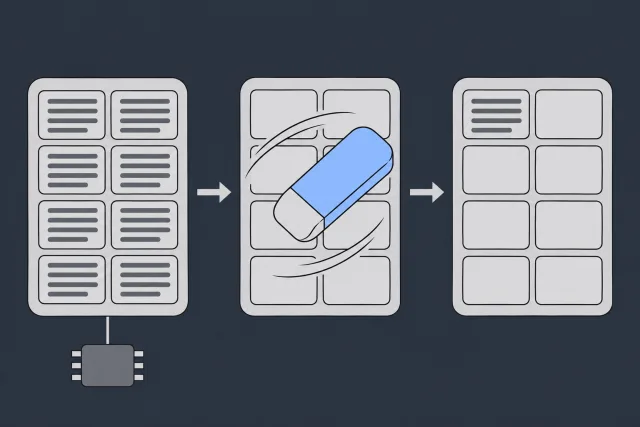
A hard drive can write new data directly over old data. One pass and it is done. SSDs cannot do this. Flash memory cells have to be completely erased before they can accept new data. And here is the catch: SSDs can write data in small chunks called pages (usually 4KB to 16KB), but they can only erase data in much larger chunks called blocks (usually 256KB to 4MB).
 Illustration
Imagine you want to change one sentence in a book, but you can only erase entire chapters at a time. You would have to copy the whole chapter somewhere safe, erase the original chapter, then rewrite the entire chapter with your one sentence changed. That is basically what an SSD has to do without TRIM.
Write Amplification
Write amplification is the ratio of actual data written to flash versus the data the user asked to write. If you write 1GB of data but the SSD has to internally move and rewrite 3GB of existing data to make room, your write amplification is 3x.
Without TRIM, write amplification gets ugly. The SSD has no idea which blocks contain valid data and which contain deleted junk. So when it needs to free up space, it has to:
- Read an entire block (including "deleted" data it does not know is deleted)
- Copy all the valid pages to a new block
- Erase the old block
- Write new data
With TRIM, the SSD knows exactly which pages are garbage. It can skip them entirely during cleanup. Write amplification drops dramatically. The drive runs faster and the flash memory cells last longer.
Garbage Collection
Garbage collection is the SSD's internal process of consolidating valid data and freeing up blocks. It runs in the background on the drive's controller. Think of it like a janitor who comes through at night, cleaning up empty desks and reorganizing the office.
Without TRIM, the janitor has no idea which desks are empty. He has to check every single one. With TRIM, the janitor has a clear list: "Desks 14, 27, and 33 are empty. Clean those up whenever you get a chance."
That is why TRIM makes SSDs so much faster over time. A brand new SSD is fast because every block is pre-erased. After months of use without TRIM, performance degrades because the drive is constantly shuffling data around. TRIM keeps the drive running like new.
How TRIM Works Step by Step
Here is exactly what happens when you delete a file on an SSD with TRIM enabled:
The entire process, from "I deleted that file" to "the data is physically gone," can take less than a minute on a modern SSD. Sometimes less than 10 seconds.
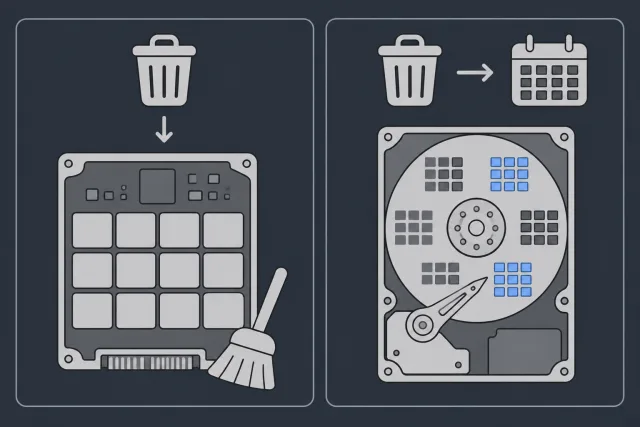
Compare that to a hard drive, where deleted data can sit untouched for months or years until the drive happens to write something new in that exact spot.
 Illustration
TRIM vs. No TRIM: The Recovery Difference
This is the part that matters most if you are reading this because you lost data.
When you delete a file from your SSD, the drive erases the blocks marked by TRIM. If that's how you lost your files, see our guide to recovering deleted files from an SSD. Corruption, controller failures and firmware bugs don't trigger TRIM. If one of those faults cut off access to your files, TRIM hasn't erased them.
On a hard drive, the picture is completely different. We recover files that were deleted weeks or months ago. The data just sits there on the magnetic platters until something new writes over it. Even then, we sometimes recover partial data from hard drives that have been partially overwritten.
TRIM or NVMe deallocation marks logical blocks as no longer needed. Their old contents may become inaccessible before garbage collection physically erases the NAND. Some supported SSDs allow specialist access to still-existing data, but erased or overwritten cells and lost required keys cannot be recovered. There is no universal time limit or guaranteed rescue window.
When TRIM Doesn't Run
Here is the good news. TRIM does not always run. There are several scenarios where TRIM either cannot execute or has not executed yet. These are your windows of opportunity for recovery.
External SSDs over USB
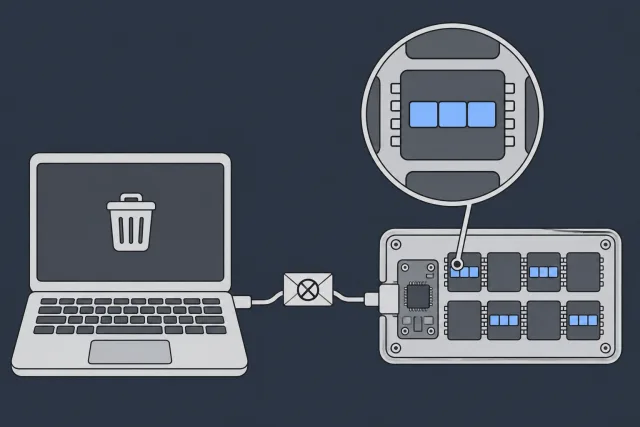
This is a big one. Many USB enclosures and USB-to-SATA bridges do not pass TRIM commands through to the drive. The USB protocol historically did not support TRIM, and while newer USB Attached SCSI Protocol (UASP) enclosures can handle it, plenty of cheap enclosures still cannot.
If your SSD is in an external enclosure that does not support TRIM, deleted data may still be on the drive. The SSD's internal garbage collection can still clean things up over time, but without the OS telling it what to erase, it is much slower and less thorough.
 Illustration
Some RAID Configurations
Hardware RAID controllers have historically been terrible at passing TRIM commands. Many older RAID cards simply ignore TRIM entirely. Even some modern controllers only support TRIM passthrough in certain RAID levels (usually RAID 0 and RAID 1, but not RAID 5 or 6).
Old Operating Systems
TRIM support was not universal until relatively recently:
- Windows 7 was the first Windows version to support TRIM (2009)
- macOS 10.10.4 added TRIM support for third-party SSDs (2015). Before that, only Apple-branded SSDs got TRIM.
- Linux has supported TRIM since kernel 2.6.33 (2010), but many distros did not enable it by default until much later
- Windows XP and Vista have zero TRIM support
If someone was running an SSD on Windows Vista (it happens more often than you would think), TRIM never ran. That data might still be there.
TRIM Manually Disabled
Some users and system administrators disable TRIM intentionally. Forensic investigators do this to preserve evidence. Some database administrators disable it for specific workloads. If TRIM was disabled on your system, the deleted blocks may still be readable.
The Drive Was Powered Off Quickly
TRIM is not instantaneous in all cases. If you deleted a file and immediately pulled the power cable (or the system crashed), the TRIM command may not have been sent or the garbage collection may not have run yet. There's no set time for the SSD to stop returning the old data.
Can You Disable TRIM to Protect Data?
Technically, yes. On Windows you can run fsutil behavior set DisableDeleteNotify 1 in an elevated command prompt. On macOS, you can disable TRIM through Terminal. On Linux, you remove the "discard" mount option from your fstab.
Should you do this? No. Absolutely not.
Here is why.
Disabling TRIM will destroy your SSD's performance over time. As the drive fills up with "deleted" data it does not know is deleted, it has to work harder and harder to find clean blocks. Write speeds plummet. The drive stutters during heavy use. Worst of all, the extra write amplification wears out your NAND flash cells faster, shortening the drive's lifespan.
Disabling TRIM can slow the drive down and wear it out faster.
The math does not work. A much better strategy is maintaining proper backups (we will get to that). Backups protect you from every type of data loss. Disabling TRIM protects you from exactly one type of data loss, and it does so poorly.
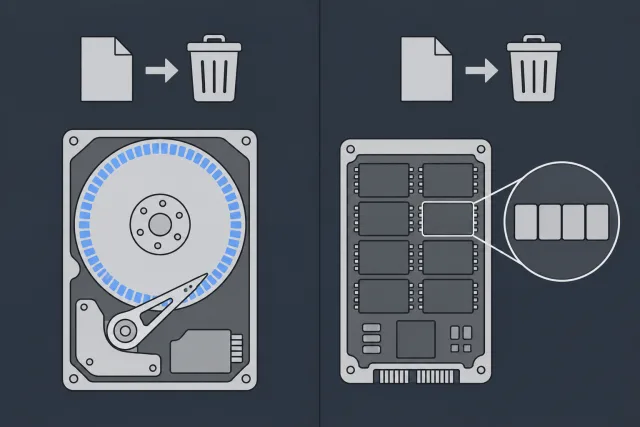
What Happens When You Delete a File: SSD vs. HDD
Let us walk through the same action on both drive types, side by side. You delete a 500MB video file.
 Illustration
Traditional Hard Drive
- You delete the file and empty the trash
- The file system removes the directory entry (like ripping a page out of a book's index)
- The 500MB of data stays exactly where it is on the magnetic platters
- The space is marked as "available" for new writes
- Days, weeks, or months later, something might overwrite part of that space
- Recovery depends on which file contents are still readable
Recovery window: Days to months
SSD with TRIM Enabled
- You delete the file and empty the trash
- The file system removes the directory entry
- The OS immediately sends TRIM commands for all LBAs used by the file
- The SSD controller marks those blocks as invalid
- Within seconds to minutes, garbage collection erases the NAND cells
- The data is electrically gone. Zeros. Nothing left to recover.
Recovery window: Seconds to minutes
The difference is stark. On a hard drive, deletion is basically a clerical change. The data stays put. On an SSD with TRIM, deletion triggers an active, physical destruction of the data. It is not just marked as gone. It is actually, physically gone. For a full breakdown of how these two technologies compare when it comes to data recovery, read our SSD vs HDD data recovery comparison.
This is why data recovery professionals always ask what type of drive you have as one of the first questions. The answer helps us decide how to look for the files.
Recovery Scenarios: When SSD Data CAN Be Recovered
We do not want to paint a completely hopeless picture. There are real scenarios where SSD data recovery works. They just look different from what most people expect.
1. Controller or Firmware Failure
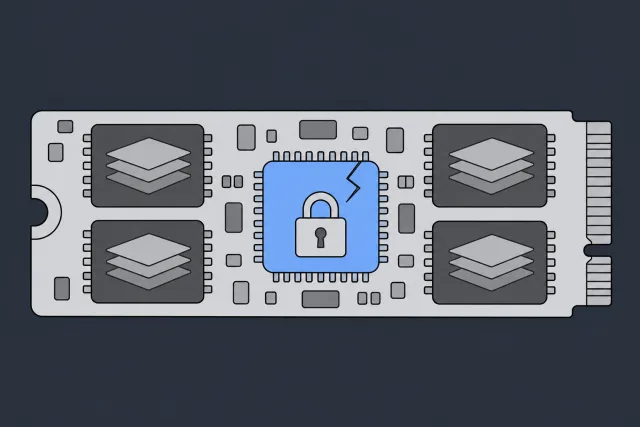
If the SSD's controller chip dies or its firmware gets corrupted, the data on the NAND chips may be perfectly intact. TRIM never ran because the controller was not functioning. The data is just sitting there on the flash chips, locked behind a dead controller.
 Illustration
We can repair the board to get your controller chip reading those files again. Some models let us work on the firmware (drive software) or rebuild the file map with a virtual translator. Chip-off (reading NAND memory chips alone) can't unlock encrypted files.
2. Corrupted File System (Without Format)
If the file system gets corrupted (maybe from a power surge, a crash during a write, or a software bug), the data itself may be untouched. The corruption affects the file system metadata, not the actual file data. And since no files were "deleted" from the OS perspective, TRIM was never triggered.
3. Accidental Format (Quick Format, No TRIM Support)
A quick format on a hard drive barely touches the data. On a modern SSD with TRIM, though, Windows sends TRIM commands for the entire drive during a quick format. Once the drive erases those blocks, the data is gone.
But if the SSD is in a USB enclosure that does not pass TRIM, or if the OS does not support TRIM, a quick format may only wipe the file system structures. The actual data could still be on the NAND chips.
4. Partial TRIM Execution
If power was lost during TRIM execution, or if the drive was disconnected during garbage collection, some data may have survived. This is unpredictable. Some blocks may be erased, others not. You might get partial recovery.
5. Logical Damage Without Deletion
Virus encrypting your files? Ransomware? If the malware encrypted the files in place (overwrote them with encrypted versions), the original data is gone regardless of drive type. But if the malware deleted the originals after making encrypted copies, they may still be readable on a hard drive or an SSD if their blocks haven’t been erased or overwritten.
Some ransomware variants work by encrypting a copy and deleting the original. Others encrypt in place. The behavior matters for recovery.
What a Professional Lab Does with SSD Recovery
When an SSD arrives at our lab, the approach is completely different from a hard drive recovery. Here is what the process actually looks like.
Initial Assessment
First, we determine what happened. Did the drive fail mechanically (controller death, power surge damage)? Did the user delete files or format the drive? Is TRIM enabled? Was the drive internal or external? What operating system was it used with?
These questions tell us what to check in the diagnostic.
Imaging Without TRIM
If the drive is functional, we connect it using methods that prevent TRIM from running. We use write blockers and forensic imaging tools that block TRIM commands from reaching the drive.
If we just plugged the SSD into a normal computer, the OS might send TRIM commands for blocks that still hold deleted files.
NAND Chip Reading (Advanced Cases)
On some older unencrypted SSDs, we can piece files together from NAND memory chips. Putting data in order, correcting errors with ECC and rebuilding the flash translation layer, your drive's file map, can't replace a missing encryption key. Keep every original part.
The challenge here is that SSDs scramble data across multiple NAND chips using complex algorithms (wear leveling, interleaving, encryption). Reassembling the raw data from individual chips into usable files requires understanding the specific controller's data layout. Every SSD model is different.
This is time-consuming, expensive, and not always successful. But for critical data on a dead SSD, it is sometimes the only option.
The Honest Truth
We decline recovery work we know will fail. Not because we do not want the business, but because we know the data is gone and we will not charge someone for a recovery we know will fail.
If you deleted files from a TRIM-enabled internal SSD, what matters is whether the drive has cleared the blocks that held them. That is just the reality of how TRIM works.
We would rather be honest about that upfront than take your money and deliver empty results. You can check our data recovery pricing page for more on how we handle costs.
How to Protect Your SSD Data
Since TRIM makes SSD recovery so difficult, prevention is genuinely your best strategy. Here is what actually works.
1. Backups. Backups. Backups.
We cannot stress this enough. The 3-2-1 backup rule exists for a reason:
- 3 copies of your data
- 2 different storage types (e.g., SSD + external HDD, or SSD + cloud)
- 1 copy offsite (cloud storage or a drive stored at a different location)
Cloud backup services like Backblaze, iDrive, or Carbonite run continuously in the background and cost $5-10 per month. That is cheaper than a single data recovery attempt, and infinitely more reliable.
2. Use Time Machine or File History
macOS Time Machine and Windows File History create versioned backups automatically. If you accidentally delete a file or save over something, you can go back in time and grab the old version. These work regardless of TRIM because the backup copy is separate from the deleted file.
3. Do Not Rely on the Recycle Bin
TRIM or NVMe deallocation marks logical blocks as no longer needed. Their old contents may become inaccessible before garbage collection physically erases the NAND. Some supported SSDs allow specialist access to still-existing data, but erased or overwritten cells and lost required keys cannot be recovered. There is no universal time limit or guaranteed rescue window.
4. Be Careful with Quick Format
On modern Windows, a quick format of an SSD triggers TRIM for the entire drive. This is different from formatting an HDD, where quick format barely touches the data. If you are reformatting an SSD and might need the data later, stop. Make a full image backup first.
5. Act Fast on Accidental Deletion
If you just deleted something critical, power off the drive immediately. Do not shut down Windows through the normal process. Hold the power button or pull the plug. Every second the drive stays powered on is a second for TRIM and garbage collection to erase your data.
Then contact a professional SSD recovery lab before trying anything yourself. Recovery software can sometimes make things worse by writing to the drive and triggering additional TRIM activity.
Frequently Asked Questions
Does TRIM delete my data?
TRIM or NVMe deallocation marks logical blocks as no longer needed. Their old contents may become inaccessible before garbage collection physically erases the NAND. Some supported SSDs allow specialist access to still-existing data, but erased or overwritten cells and lost required keys cannot be recovered. There is no universal time limit or guaranteed rescue window.
Can data recovery software recover files from a TRIM'd SSD?
TRIM or NVMe deallocation marks logical blocks as no longer needed. Their old contents may become inaccessible before garbage collection physically erases the NAND. Some supported SSDs allow specialist access to still-existing data, but erased or overwritten cells and lost required keys cannot be recovered. There is no universal time limit or guaranteed rescue window.
Is TRIM enabled by default?
Yes, on all modern operating systems. Windows 7 and later enable TRIM automatically for any detected SSD. macOS enables TRIM automatically for Apple-branded SSDs, and since macOS 10.10.4, you can enable it for third-party SSDs using the trimforce command (and it is on by default for most configurations in recent macOS versions). Most modern Linux distributions enable TRIM by default as well.
How long does TRIM take to erase deleted data?
It varies by SSD manufacturer and controller, but typically seconds to minutes. Samsung SSDs tend to act on TRIM commands almost immediately. Some other manufacturers may batch TRIM operations and run them during idle time. Time alone won’t tell you whether the drive has cleared those blocks.
Does TRIM work on external SSDs?
It depends on the USB enclosure. Many older or cheaper USB-to-SATA adapters and enclosures do not pass TRIM commands through to the drive. Newer enclosures with UASP (USB Attached SCSI Protocol) support are more likely to support TRIM passthrough, but it is not guaranteed. If your external SSD enclosure does not support TRIM, deleted data may persist longer on the drive.
Is there any way to check if TRIM has already run on my deleted files?
There is no reliable way to check from the user side. The SSD's controller handles TRIM and garbage collection internally, and it does not report back to the OS about which blocks have been erased. The only way to know for sure is to attempt a read of those sectors using forensic tools. If they come back as all zeros, TRIM has done its job.
Does TRIM affect SSD lifespan?
TRIM actually extends SSD lifespan. By telling the drive which blocks are free, TRIM reduces write amplification. Lower write amplification means fewer unnecessary writes to the NAND flash cells. Since flash memory has a limited number of write cycles (typically 1,000 to 3,000 for TLC NAND), reducing unnecessary writes directly extends the drive's useful life. Disabling TRIM shortens lifespan. That said, SSDs do still fail eventually, and knowing the warning signs of SSD failure can help you back up before it is too late.
Can a data recovery lab bypass TRIM?
No, we can’t recover files once your SSD erases the space TRIM marked for reuse. If the controller chip died before TRIM ran, your files may still be on the NAND memory chips. Repairing the board can let us copy them.
How MDrepairs can help
- NVMe SSD Data Recovery Recovery from M.2 NVMe drives not detected in BIOS. Learn more
- Samsung SSD Data Recovery Recovery from Samsung 860/870 EVO and SATAFIRM S11 faults. Learn more
- Data Recovery Services Every device and failure type, recovered in our New Jersey lab. Learn more
- Mail-In Data Recovery Free shipping both ways (contiguous US). Learn more