Toshiba Canvio Not Detected: Fix and Recovery Guide
Our founder and lead technician, Joseph Montanti, handles cases personally.
Canvio drives (Basics, Advance, Flex, Gaming, Partner) are some of the most common portable drives we see, and they mostly fail the same handful of ways. This guide covers the checks that are safe to do at home, the ones that quietly destroy data, and what recovery looks like when the easy stuff doesn't work.
On this page
Why Canvio drives stop being detected
Roughly in order of what we actually see on the bench:
- Cable and connector problems. The Micro-B connector on most Canvio models is fragile, and the port wears loose. This is the best-case scenario, and it's genuinely common.
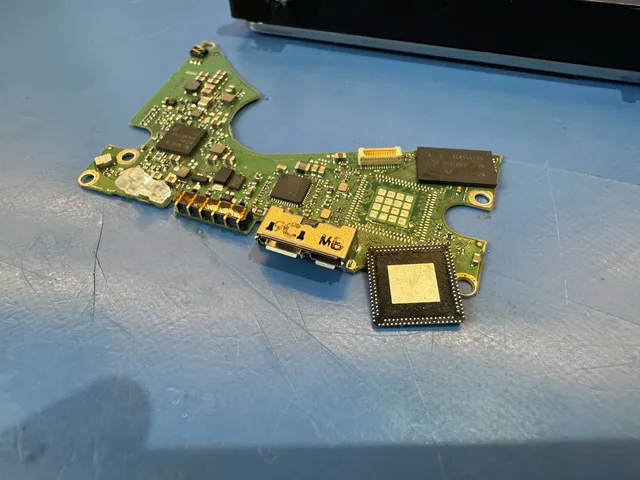
- The USB bridge fails. The little board that translates USB to the drive's native interface can die from a power surge, a bad plug-in, or just age. The disk inside may be perfectly healthy.
- The drive loses power stability. Canvios are bus-powered. A weak laptop port, an unpowered hub, or a long cheap cable can starve the drive so it spins up and drops out repeatedly. That connect-disconnect cycling is also an early warning sign of real failure, so don't ignore it if a good port doesn't fix it.
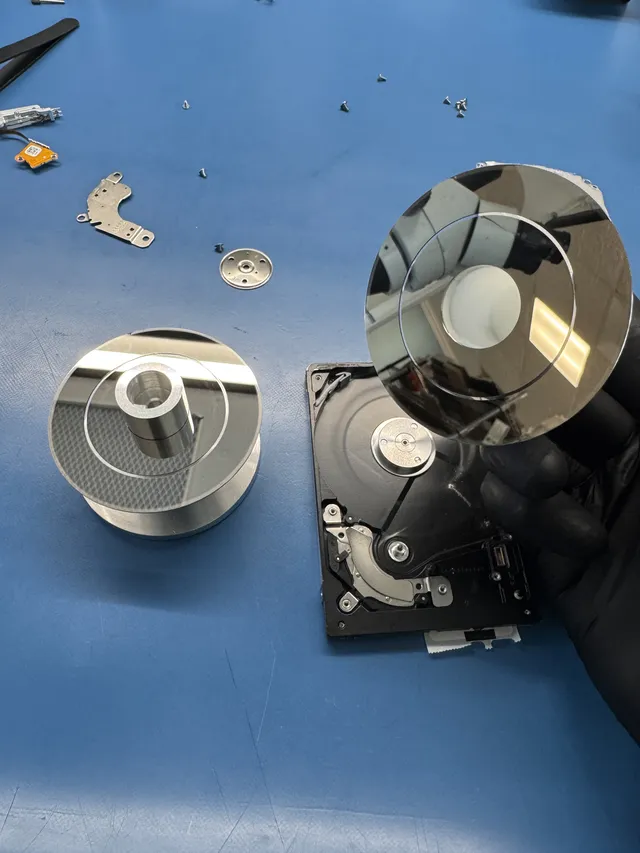
- Mechanical failure. These are 2.5-inch laptop-class drives, usually Toshiba's own. Drops, bumps while running, and age produce failed heads or a seized motor: clicking, beeping, or total silence.
- Logical corruption. The drive detects but shows as RAW, unallocated, or asks to be formatted. The hardware works; the file system is scrambled.
Safe checks before anything else
These cost nothing and can't hurt a healthy drive. Do them in order, and stop immediately if the drive starts making unusual noises:
Why the old enclosure-swap trick usually fails on a Canvio
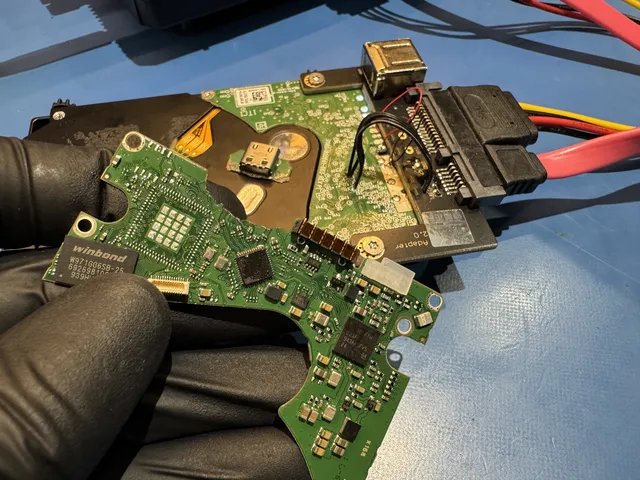
For years, the standard move for a dead external was: shuck the enclosure, pull out the bare SATA drive, connect it directly or drop it in a new enclosure. On most modern Canvio drives, that door is closed.
What this means practically: if the safe checks don't bring the drive back, the fix is board-level or cleanroom-level work, not an $8 enclosure from Amazon. Opening the case yourself mostly adds pry damage and voids nothing useful, since the drive inside isn't independently usable anyway.
Model-by-model notes
| Model | What we see most |
|---|---|
| Canvio Basics | Worn Micro-B connectors, bridge failures, drop damage; the highest-volume model by far |
| Canvio Advance / Flex | Same platform as Basics; Flex adds USB-C cabling confusion (use the supplied cable) |
| Canvio Gaming | Long always-on sessions next to hot consoles; heat-accelerated mechanical wear |
| Older Canvio (separate bridge board) | Pre-native-USB units where the internal drive is standard SATA; more recovery paths available |
If yours is an older Canvio with a genuinely separate SATA drive inside, more DIY paths exist, but the same rule applies: only if the drive sounds healthy. The broader Toshiba troubleshooting flow, including Windows and Mac fixes, is covered in our Toshiba external drive troubleshooting guide; this post stays focused on the Canvio-specific hardware realities.
When it's a recovery job, not a fix
Draw the line here. It's a professional recovery case if:
- The drive clicks, beeps, or grinds (mechanical failure; every power-on risks platter damage)
- It was dropped and hasn't been right since
- It detects then disconnects in a loop even on good ports and cables
- It shows in Disk Management as the right size but every access hangs or errors
- It's not detected anywhere, on any computer, with any cable, and the data matters
For Canvio hardware specifically, recovery means donor-part work on Toshiba's 2.5-inch mechanics in a cleanroom, or bridge/PCB-level repair that respects the encryption where present. That's exactly the work our Toshiba data recovery service does daily, and it's the same lab process we apply to any external hard drive recovery: flat $100 diagnostic credited toward the recovery, written quote before work starts, no data, no recovery charge.
Last practical note: when a Canvio does come back, whether from a cable swap or a full recovery, move the important data to at least two places before you celebrate. A drive that disappeared once has told you something about its future, and a recovered drive should be retired on principle, warranty replacement or not. Toshiba's warranty covers the hardware; it explicitly does not cover your files, and no manufacturer's does.
Frequently Asked Questions
Why is my Toshiba Canvio light on but the drive not showing up?
The light only proves the board is receiving USB power. It doesn't mean the drive spun up or enumerated. A lit LED with no detection usually points to a failed USB bridge, drive electronics, or a mechanical problem preventing the disk from reporting ready. If you also hear clicking or beeping, that's mechanical, and continued power-ons make it worse.
Can I take the drive out of a Canvio enclosure and connect it with SATA?
On most modern Canvios, no. The USB port is soldered to the drive's own circuit board, so there's no SATA connector inside, and models with hardware encryption need the original electronics to decrypt the data anyway. Older Canvio units with a separate bridge board are the exception. If you're not sure which you have, don't open it; ask first.
My Canvio asks to be formatted. Should I click format?
No. That prompt means Windows sees the drive but can't read the file system. Formatting replaces the file system and turns a very recoverable logical problem into a harder one. Close the prompt, stop using the drive, and either run read-only recovery software (only if the drive sounds healthy) or get a professional opinion.
Are Toshiba Canvio drives reliable?
They're as reliable as any portable 2.5-inch drive, which is to say: fine until they're dropped, and mortal like everything with spinning platters. The failure patterns we see aren't unusually bad for the class. The real issue is that portables get carried around with the only copy of things. Whatever drive you buy next, buy two.
How much does Toshiba Canvio data recovery cost?
It tracks the failure, not the brand. Logical recoveries on a healthy drive sit at the low end; mechanical failures needing cleanroom donor work run into the hundreds to low thousands. You'll get a firm written quote after the flat $100 diagnostic (credited toward recovery), and if we can't get your data, there's no recovery charge.
Get help with data recovery
Bring your device to our Lincroft lab during opening hours, or mail it in.
How to mail your deviceThe $100 diagnostic is non-refundable once diagnostics start, and donor drives or replacement parts you approve are non-refundable once ordered, even if recovery fails.
Published by MDrepairs
MDrepairs is a data recovery and electronics repair lab in Lincroft, New Jersey. Our founder and lead technician Joseph Montanti films real cases for our YouTube channel, showing tools, repair steps and recovery outcomes.
Keep reading
- External Drive Says “The Parameter Is Incorrect”: Data-Safe Checks
- External Hard Drive Freezes File Explorer or the Computer: Safe Next Steps

- “The Semaphore Timeout Period Has Expired” During a Drive Copy