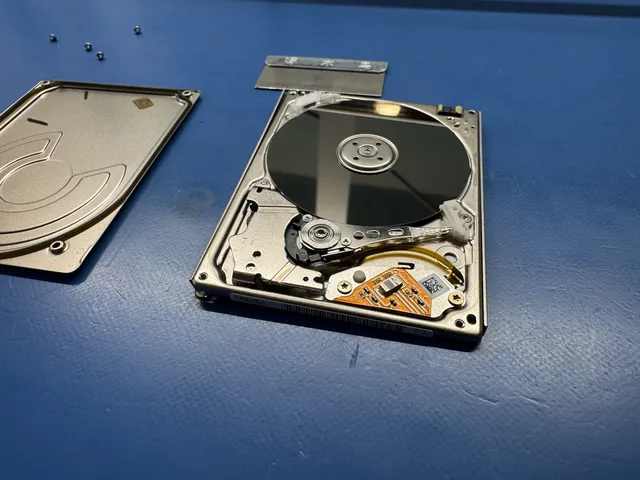
Toshiba External Hard Drive Not Showing Up: Fixes
Our founder and lead technician, Joseph Montanti, handles cases personally.
A Toshiba external hard drive not showing up can have a connection problem, a missing drive letter, an unreadable file system or an internal fault. Start with a working USB cable and a direct computer port, then check Disk Management in Windows or Disk Utility on Mac. The result tells you whether the computer sees a disk that it has not opened, or has not detected the disk at all.
Leave a physically failing drive off. If the drive beeps, grinds, makes new repetitive hard clicks or fails after a drop or liquid exposure, disconnect it and do not power it again for connection tests before inspection. Preserve the needed files or a full copy before First Aid, CHKDSK, formatting or partition changes.
On this page
- Applies to
- Toshiba Canvio drives on Windows or Mac, including Basics, Advance, and Flex
- What you need
- A working USB data cable that fits your Canvio, often the wide Micro-B type
What to check when a Toshiba Canvio does not appear
At home with a stable, undamaged drive
- Try a working USB data cable in a port on the computer.
- Check whether Disk Management or Disk Utility lists the Toshiba and shows its capacity.
When the Canvio needs inspection
- Keep the drive unplugged after a drop or if it starts clicking.
- If the drive drops offline even once during a copy, stop and unplug it for inspection.
Check the USB cable, port and power
Canvio portable drives get their power through USB. A bad cable can interrupt data, power or both, so an illuminated light does not settle whether the connection is usable. Toshiba's Canvio Flex manual calls for a direct connection to a compatible USB port and excludes passive hubs and keyboard ports.
- Leaves your files alone. Connect a known-working data cable that fits the drive's connector. Many Canvio models use the wide USB Micro-B connector; match your actual model.
- Leaves your files alone. Connect directly to the computer. On a desktop, a rear motherboard port removes the front-panel connection from the path. Try a different direct port.
- Leaves your files alone. If the drive remains quiet and stable but is not recognized, try it on a second computer.
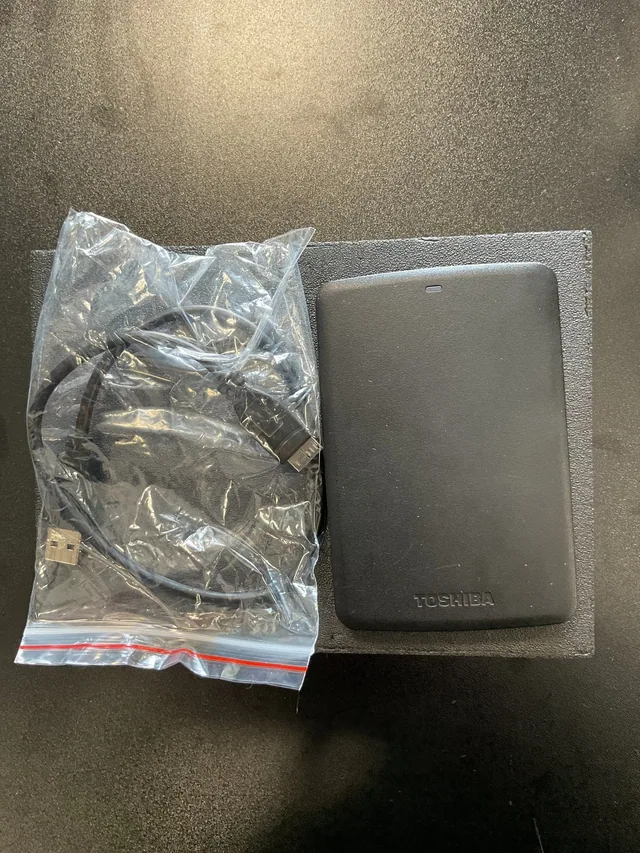
If it works on the second computer, save the files there before troubleshooting the first. If it stays absent with another cable and computer, the drive's connector, electronics or internal mechanism needs examination.
Disconnect the Toshiba if a copy hangs, the connection drops or repeated clicking begins; leave it off for inspection.
USB 2.0 is not automatically incompatible. Toshiba lists the Canvio Basics as USB 2.0 compatible as well as supporting newer USB connections. Use a suitable powered port and the right cable; the port's color is less useful than its specifications.
A blinking Power/Access lamp on the Canvio Flex means the drive is in operation. Its manual advises ejecting before disconnecting it. Read the computer's disk status next rather than treating the light as a code for a failed bridge board.
Windows 11: Disk Management and Device Manager
Leaves your files alone. If the Toshiba spins up but is missing from File Explorer, open Disk Management from the Start button's right-click menu, or press Windows-R and run diskmgmt.msc. Find the external disk in the lower pane by its capacity and partitions. It may be labeled Toshiba, TOSHIBA EXT or by a model identifier.
| Disk Management result | What it means | What to do |
|---|---|---|
| Healthy, recognizable volume with no letter | Windows has a volume but no Explorer drive letter for it. | Add an unused drive letter. |
| RAW | Windows cannot recognize the file system. | Recover needed files before repairing or formatting. |
| Unallocated or Not Initialized on a previously used drive | Windows has not found a usable partition layout. | Keep the existing disk contents for recovery. |
| No disk listed | Disk Management has no disk to expose. | Check Device Manager and the connection path. |
Risk to your files. Windows can write to the Toshiba volume once it opens it under the new letter. For a healthy volume with a missing letter, right-click the volume and choose Change Drive Letter and Paths > Add. Pick an unused letter and confirm. Microsoft documents that procedure. A RAW or unallocated area needs a different response; creating a new volume would write a new layout over the disk you are trying to recover.
Disk Management's labels describe what Windows can read at that moment. Damaged file-system records and unreadable areas of the disk can produce similar results. Microsoft's disk-status troubleshooting explains these states.
If Windows lists “TOSHIBA External USB 3.0”
Open Device Manager, or run devmgmt.msc. Look under Disk drives and Universal Serial Bus controllers. A Toshiba External USB 3.0 device entry means Windows has identified a device on USB; it still needs a usable disk and volume before files appear in Explorer.
For a yellow warning symbol, open Properties > General and read Device status. Code 28 concerns missing drivers; Code 10 means the device failed to start and can involve more than a driver. Use Microsoft's error-code instructions for the actual code.
If those instructions call for reinstalling a driver, save your work, right-click the affected Toshiba entry and choose Uninstall device, then restart Windows. Windows attempts to reinstall it on restart. For a USB-controller driver, obtain the correct update through Windows Update or the computer manufacturer's support page. Microsoft's driver guide covers both routes. Removing every USB root hub is unnecessary for a single unidentified drive.
Toshiba's Flex manual says the required USB drivers are already in Windows. Backup installers stored on a drive are separate from Windows detecting the disk. Keep those files in place while recovering your data.
If disconnects mainly follow sleep, check the connection and the computer maker's applicable fixes. Microsoft strongly recommends leaving USB selective suspend enabled; disabling it system-wide is not a general Toshiba recovery fix.
When the Toshiba is missing on Mac
Leaves your files alone. Open Finder > Settings, then enable External disks in both General and Sidebar. This makes a mounted external volume visible on the desktop and in Finder's sidebar. Apple's Finder guide shows these options.
Next open Applications > Utilities > Disk Utility and choose View > Show All Devices. Risk to your files. On a writable volume, Mount allows the Mac to create files of its own. Select an unmounted volume below the physical Toshiba disk and click Mount. If the physical disk is absent, check USB in System Information: hold Option while opening the Apple menu, then choose System Information. This separates a missing disk from a volume macOS has detected but has not opened.
Many Canvio models ship as NTFS, which macOS normally reads without writing. A visible, read-only NTFS volume is therefore a format limitation. A completely absent disk still needs the detection checks. Canvio Flex ships as exFAT, so its Mac problem should not automatically be blamed on NTFS. Apple covers the formats in its external-storage guidance.
If an NTFS Toshiba reads normally on a Windows computer, copy the files there. Reformatting for cross-platform use comes after the files are safe elsewhere. Buying an NTFS write driver does not repair a broken cable or an unreadable disk.
For a stable drive whose files have already been copied or recovered, First Aid can repair supported file-system structures. Follow Apple's order: volumes first, then containers, then the physical disk. Risk to your files. First Aid writes any repairs directly to the Toshiba. Select each item, choose First Aid and Run, and let it finish. A failing or inaccessible original containing the only copy belongs in the recovery path before that procedure.
Canvio Basics, Advance, Flex and other models
The model name helps with the connection and factory format. It is not a reliable list of failure causes. These are the differences Toshiba documents for the linked products; a previously reformatted drive may now use another file system.
| Canvio model | Documented feature | Relevance when missing |
|---|---|---|
| Basics | NTFS, USB powered, no software installation required | Check cable and Windows volume status; expect native Mac access to NTFS to be read-only. |
| Advance | NTFS with optional backup and security software | If you enabled password protection, use the original security software to unlock access. |
| Flex | exFAT; Type-A and Type-C computer cables supplied | Use the matching supplied cable; factory formatting already supports Mac and Windows. |
| Ready | NTFS, USB powered, Micro-B drive connection | Confirm the direct USB connection before looking for a driver. |
| Slim | NTFS with downloadable security/backup software | Account for any password protection you configured. |
| Gaming | exFAT factory format and firmware intended for gaming use | Check its present format if a console has since configured it. |
Manufacturer references: Advance, Flex, Ready, Slim and Gaming. For an older portable drive, use its exact product number in Toshiba's manual archive.
Can another enclosure fix it?
An enclosure swap requires a separate internal drive with the interface the new enclosure accepts. Toshiba's 2025 catalog illustrates the textured Canvio Advance with the USB controller and connector on the hard drive's own circuit board. A SATA-to-USB adapter needs a SATA connector; it cannot attach to that USB-only interface. The exact internal model and board must be identified before choosing this route. Keep the original drive electronics with the case for inspection instead of treating every Canvio as a removable SATA disk.
Fixes to avoid on a missing Toshiba hard drive
- Formatting a used Canvio before backing up the files you need. A quick format removes the table that locates your files. A full format also overwrites the data.
- Trying power again after a drop. Each new startup can worsen physical damage to the hard drive.
- Opening the sealed hard drive. We open hard drives in a dust-free enclosure. Opening the housing improperly can void the warranty.
When the hardware needs attention
A hard drive's heads read data and positioning information from spinning platters. Repetitive hard clicking can mean the mechanism is retrying reads it cannot complete. A stalled motor can make a beeping sound when it cannot turn the platters, whether from inadequate power or an internal mechanical problem. Normal spinning establishes rotation, while reading still depends on the heads, electronics and drive firmware. Seagate explains normal and abnormal sounds in its hard-drive sound guide.
For the physical-recovery path, this recorded Hitachi job shows an undetected drive that clicked while Joe tried to read its internal service information. He found mangled heads, replaced them with donor heads in the work chamber and then recovered the files. Head damage required internal work before imaging could proceed.
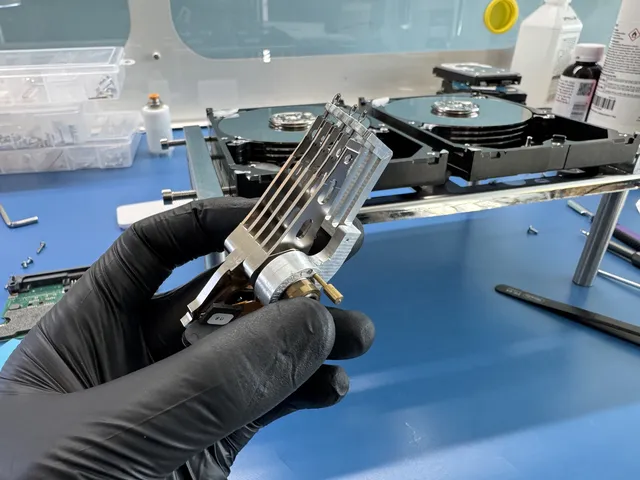
Persistent disconnects, read attempts that hang, a wrong reported capacity or continued absence after the connection checks warrant external hard drive recovery. A RAW volume with the only copy of needed files also belongs here if you cannot make a stable full copy.
Mechanical work requires the drive to be opened in a controlled work area. Opening the sealed mechanism on a desk, freezing it or repeatedly scanning an unstable disk adds risk without fixing the failed part. The lab first needs to determine whether access is blocked by the interface, firmware, media or a combination.
Recovery pricing is agreed after diagnosis. The diagnostic costs $100 and is credited toward successful recovery, and you approve the estimate before recovery work starts.
Get help with data recovery
Bring your device to our Lincroft lab during opening hours, or mail it in.
How to mail your deviceThe $100 diagnostic is non-refundable once diagnostics start, and donor drives or replacement parts you approve are non-refundable once ordered, even if recovery fails.
Published by MDrepairs
MDrepairs is a data recovery and electronics repair lab in Lincroft, New Jersey. Our founder and lead technician Joseph Montanti films real cases for our YouTube channel, showing tools, repair steps and recovery outcomes.
Keep reading
- BitLocker Recovery Key Not Working? Check the Key ID Before Resetting
- exFAT Drive Corrupted? Cross-Platform Rescue Guide
- External Drive Painfully Slow? It May Be Dying