iPhone Error 4013: What It Means for Your Data
In this article
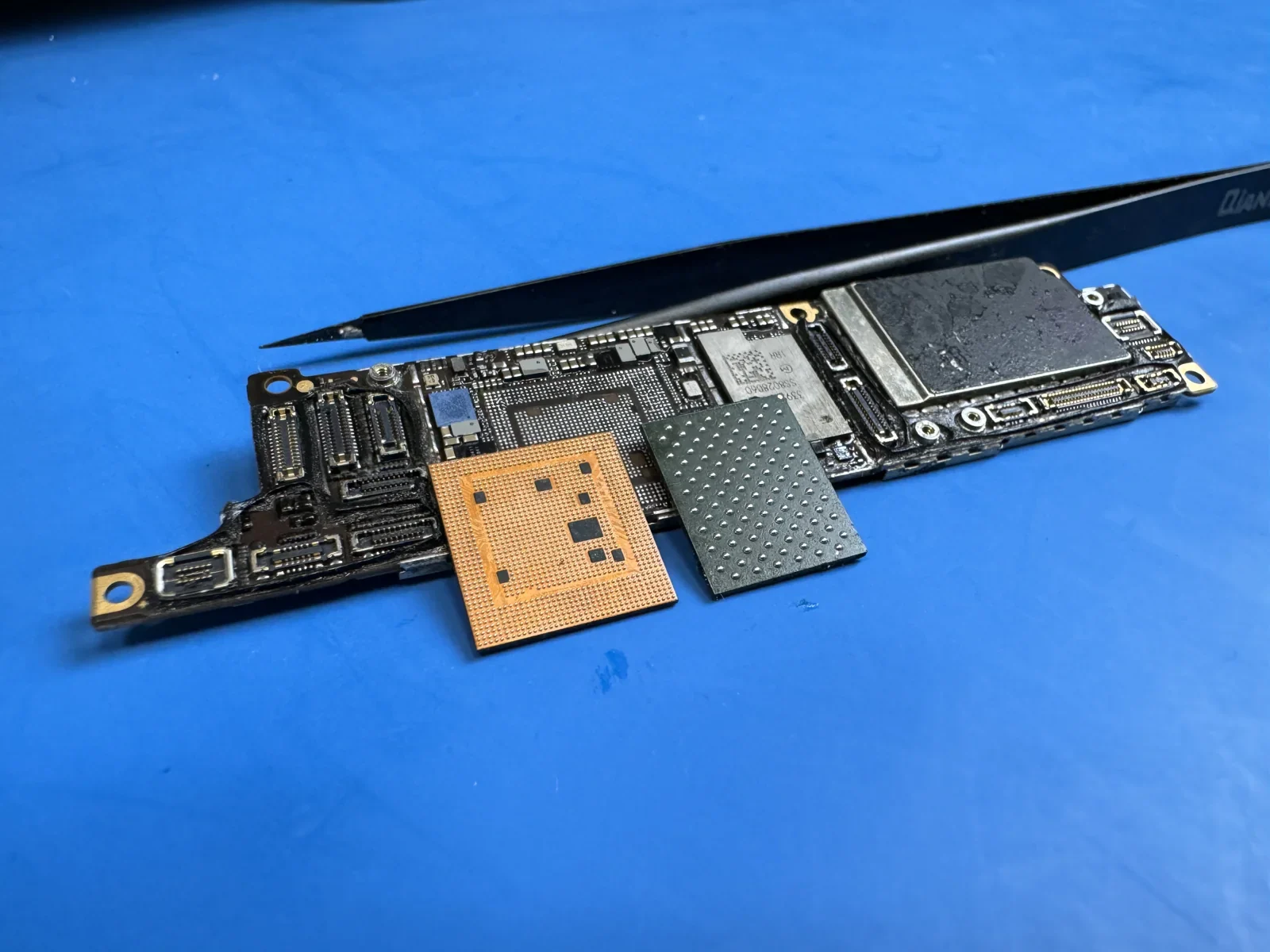 Original phone logic board and components on the MDrepairs workbench.
iPhone error 4013 means iTunes or Finder lost communication with the iPhone during a restore or update. Your data may still be intact, but restoring through the error can erase it, so try safe fixes first.
- Swap the USB cable and port, then retry on another computer.
- Do not click "Restore," which erases the iPhone, if the data matters.
- If 4013 persists, use professional iPhone data recovery.
iPhone error 4013 means iTunes or Finder lost communication with your iPhone during an update or restore, and the process failed. Your phone isn't bricked forever, but the data situation is complicated. The error can be triggered by a hardware-level disconnect between your iPhone and computer. A failing NAND storage chip, a loose logic board connection, or a bad USB cable can all cause it. The good news: your data usually still exists on the NAND flash chip inside the phone. The bad news: getting to it often requires board-level repair work that goes way beyond what the Genius Bar can handle.
Sometimes it's a simple fix. Other times the phone needs microsoldering under a microscope. The outcome depends heavily on what caused the error in the first place and what you do next.
If you've already tried Apple's recommended steps and your iPhone is still stuck, talk to a data recovery specialist before doing anything else. A restore attempt on a phone with failing storage can wipe data permanently.
What Is iPhone Error 4013?
Error 4013 is an iTunes/Finder error code that appears when your computer can't finish communicating with your iPhone during a software update or restore. Apple categorizes it alongside errors 9, 4005, and 4014 as USB communication failures. But that description is misleading because it makes the problem sound like a cable issue. Sometimes it is.
Here's what actually happens behind the scenes. When you update or restore an iPhone through iTunes (or Finder on macOS Catalina and later), the computer sends data to the iPhone in chunks. The iPhone's processor writes that data to the NAND flash storage chip. If at any point during this transfer the iPhone stops responding, the computer throws error 4013 and aborts the entire process.
The error can pop up at different stages: during an iOS update (going from iOS 17 to iOS 18, for example), during a factory restore through iTunes, or during a DFU mode restore. In some cases the phone gets stuck in a boot loop after the failed update, restarting endlessly without ever finishing. The stage where it fails tells you something about severity. Failing during a standard update might be minor. Failing during DFU restore usually points to hardware that software can't fix.
What Causes Error 4013
There are two categories of causes: software/connection issues and hardware failures. Most guides online focus heavily on the first category. That's because those fixes are easy to write about.
Software and Connection Issues
Bad USB cable. This is the easiest one to rule out. Third-party Lightning or USB-C cables are notorious for dropping connections during data transfers. The cable works fine for charging but can't maintain the sustained, high-speed data link needed for an iOS restore. Apple's own cables aren't immune either, especially if they're old or damaged.
Outdated iTunes or macOS. Old versions of iTunes or macOS may not support the restore protocol for newer iPhone models. Apple updates this regularly, so outdated software can choke on a modern phone.
USB port problems. USB hubs, extension cables, and front-panel ports don't always provide reliable connections. The restore process needs a clean, direct USB link.
Security software interference. Antivirus programs and firewalls can interrupt communication between iTunes and your iPhone, adding enough latency to cause timeouts.
Hardware Failures (The Real Problem)
When the simple fixes don't work, the phone needs diagnosis. This is where things get serious for your data.
Failing NAND flash storage. This is a hardware cause of error 4013. The NAND chip is where all your data lives. Over time, NAND cells degrade. They can only handle so many read/write cycles before they start failing. When too many cells go bad, the iPhone can't reliably write data during a restore, and the process fails. Your data is still on the chip, but the phone's controller can't access it properly.
CPU (A-series chip) issues. The main processor handles all the communication during a restore. If the CPU has a damaged solder joint or a cracked die, it can intermittently lose contact with other components on the logic board. Drops cause all kinds of data recovery scenarios, which we cover in our broken phone recovery guide. The impact jarrs the BGA (ball grid array) solder connections under the CPU.
Logic board micro-fractures. The logic board is incredibly dense, with traces thinner than a human hair connecting everything. Drops, bends, or thermal cycling can crack these traces. A cracked trace between CPU and NAND produces exactly the communication failure that triggers error 4013.
Tristar/Hydra chip failure. This IC controls Lightning or USB-C communication. If it fails, the phone can't maintain a USB connection with the computer, and restores die mid-process.
Apple's support page says error 4013 means the device disconnected during the update or restore. They recommend a different cable, port, or computer. But Apple doesn't discuss hardware causes because they don't do board-level repair. If the basics don't work, their answer is: replace the phone.
Is Your Data at Risk?
This is the question everyone really wants answered. Short answer: your data is probably still there, but it's in a vulnerable position.
When error 4013 interrupts an update, the iPhone is often left in a half-updated state. The old iOS version has been partially erased, and the new version hasn't fully installed. The phone can't boot. It sits on the "connect to iTunes" recovery screen, or it's completely unresponsive.
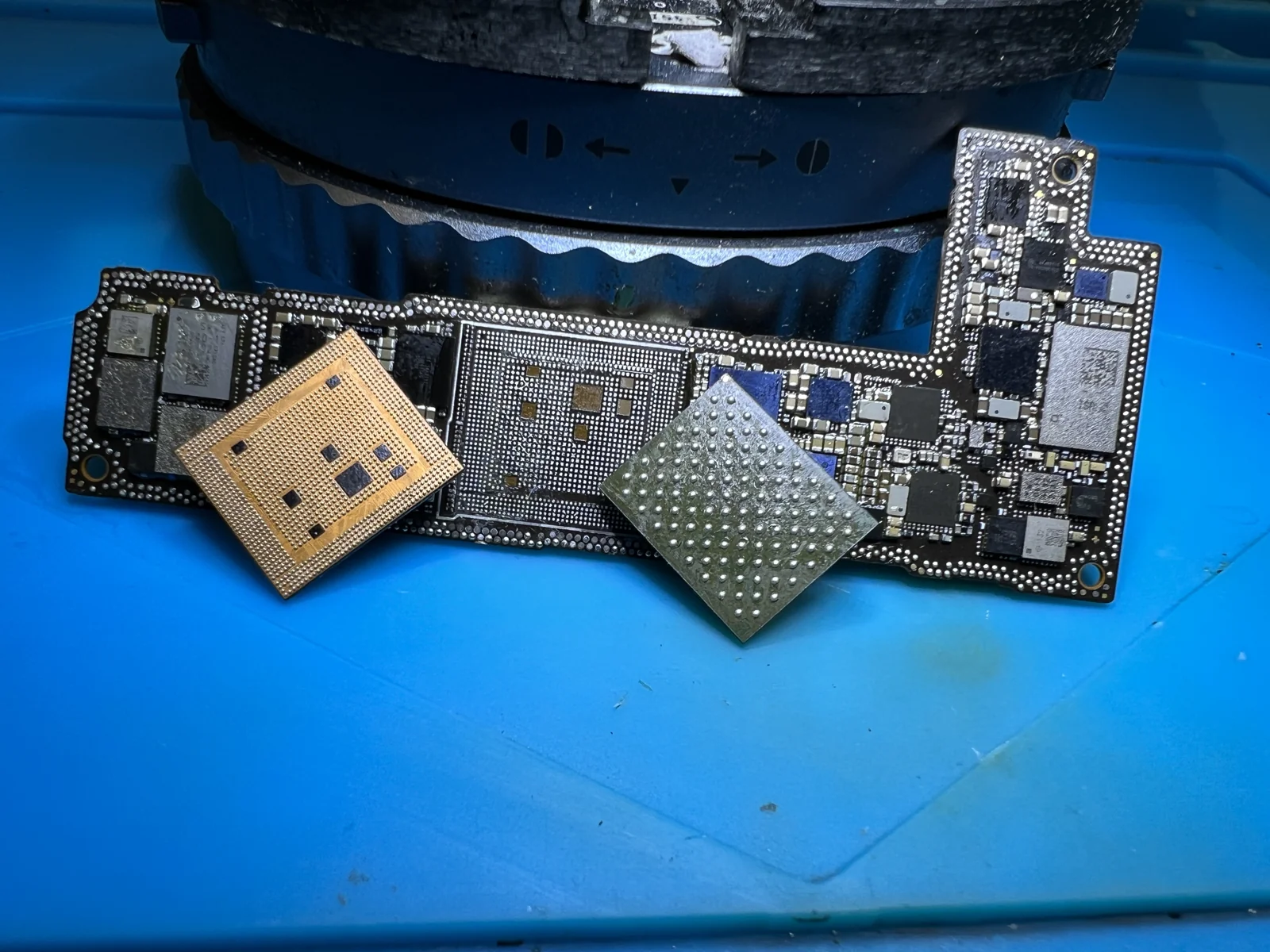 Original phone logic board and components on the MDrepairs workbench.
But here's what matters: your personal data (photos, messages, contacts, apps) is stored separately from the operating system on the NAND chip. The iOS update process doesn't touch your user data partition until the very final stages. So if error 4013 interrupted the process early or mid-way, your data partition is likely intact.
When Data IS at Risk
There are scenarios where error 4013 does put your data in danger:
- Repeated restore attempts. Every time you try to restore the phone, iTunes writes data to the NAND chip. If the NAND is failing, each write attempt can corrupt more sectors, potentially overwriting areas where your personal data is stored.
- DFU restore completing partially. If a DFU restore gets far enough to start wiping the user data partition before error 4013 kills it, some of your data may be overwritten.
- Choosing "Restore" instead of "Update." When iTunes detects a phone in recovery mode, it offers two options: Update and Restore. Update tries to reinstall iOS without erasing data. Restore wipes everything. If you hit Restore on a phone with failing NAND, you're telling the phone to erase your data and then write new data to a chip that can't handle it. That's the worst-case scenario.
Basic Fixes That Sometimes Work
Before you go the professional route, these are worth trying. They do not resolve every cause of error 4013. If your phone hasn't been dropped or water damaged, start here.
1 Use a Different Cable
Grab an Apple-branded Lightning or USB-C cable. Not a gas station cable. Not a fraying cable you've had for three years. If you don't have an Apple cable, at least use an MFi-certified one. Connect it directly to the computer. No hubs, no extensions, no adapters.
2 Try a Different USB Port
Use a port directly on the computer. If you're on a desktop, use a rear USB port (those connect directly to the motherboard). Front ports run through internal extension cables that add signal noise. On a MacBook, try each port. Some users report that one port works while another doesn't.
3 Update Your Computer
On a Mac, make sure macOS is fully updated. Apple pushes restore protocol changes through OS updates. On Windows, update iTunes to the latest version from Apple's website (not the Microsoft Store version, which updates less frequently). Also run Windows Update to get the latest USB drivers.
4 Force Restart Your iPhone
Sometimes the phone is stuck in a bad state that a force restart can clear.
- iPhone 8 and later (including all models with Face ID): Press and quickly release Volume Up. Press and quickly release Volume Down. Then press and hold the Side button until you see the Apple logo. Keep holding even if the "slide to power off" screen appears.
- iPhone 7/7 Plus: Hold both Volume Down and the Sleep/Wake button for at least 10 seconds, until the Apple logo appears.
- iPhone 6s and earlier: Hold both the Home button and the Sleep/Wake button for at least 10 seconds.
5 Try a Different Computer
If you've been using a Windows PC, try a Mac, or vice versa. This eliminates your computer's USB drivers, security software, and hardware as variables.
6 Choose "Update" Instead of "Restore"
When iTunes detects your phone in recovery mode, always try the Update option first. This reinstalls iOS without erasing your data. If Update fails with error 4013, do NOT immediately jump to Restore. Restore erases everything. If the Update option doesn't appear, try putting your phone into recovery mode manually:
- Connect the phone to your computer.
- Force restart it (using the steps above), but keep holding the button(s) past the Apple logo until you see the recovery mode screen.
- iTunes should detect it and offer Update and Restore.
DFU Mode (Last Resort Before Professional Help)
DFU (Device Firmware Update) mode gives the computer the deepest possible access to the phone's software. It bypasses the normal boot process entirely. This is the nuclear option for software fixes.
To enter DFU mode on an iPhone 8 or later: connect to your computer, open iTunes/Finder, then quickly press and release Volume Up, quickly press and release Volume Down, hold Side for 10 seconds, then while still holding Side also hold Volume Down for 5 seconds, then release Side but keep holding Volume Down for 10 more seconds. The screen should stay completely black. If you see the Apple logo, you entered recovery mode instead. Start over.
When the Basic Fixes Don't Work
You've tried three cables. Two computers. Both recovery mode and DFU mode. Error 4013 every single time. Now what?
A physical failure can prevent the phone from completing the restore process. No amount of cable-swapping or software-updating will fix a cracked solder joint on the CPU or a failing NAND chip.
What Apple Will Tell You
If you take the phone to an Apple Store or contact Apple Support, they'll walk you through the exact same steps you've already tried. Different cable. Different computer. Force restart. DFU restore. When none of that works, their answer is simple: replace the phone.
Apple does not perform board-level repairs. Their repair program replaces entire units or entire logic boards. They don't have the equipment or the workflow to reball a CPU or replace a NAND chip. So when they say "replace it," they genuinely believe that's the only option. For fixing the phone, they might be right. For recovering your data, they're absolutely wrong.
What About Third-Party Repair Shops?
General phone repair shops handle screen and battery swaps. Error 4013 recovery requires board-level diagnostic equipment, microsoldering under a microscope, NAND reading tools, knowledge of iPhone schematics, and BGA reballing experience. Most repair shops don't have all of this. Before sending your phone anywhere, ask about their specific experience with error 4013 and NAND-level recovery. If they can't explain their process, look elsewhere.
Professional iPhone Data Recovery for Error 4013
When a phone with error 4013 reaches our lab, here's what the process looks like. This isn't theoretical.
Step 1: Diagnostic
Before touching anything, we examine the phone. External damage? Water indicators tripped? Any history of prior repairs? We ask what happened before the error appeared and how many restore attempts were made. Then we connect the phone to our diagnostic tools to assess what's communicating and what isn't.
We check whether the phone enters DFU mode properly (tells us if the CPU works), whether iTunes detects the phone, whether the NAND chip responds to diagnostic queries, and we use thermal imaging to find components running hot or dead.
Step 2: Identify the Root Cause
Based on the diagnostic, we determine which component is causing the failure. Common findings:
| Root Cause | How We Find It | Repair Approach |
|---|---|---|
| Failing NAND chip | NAND diagnostic errors, bad block count | Requires a viable original reading/encryption path; chip-off is not a general fallback |
| CPU solder joint failure | Thermal imaging, no DFU communication | CPU reball or re-flow under microscope |
| Tristar/Hydra IC failure | USB diagnostic, no charge IC response | IC replacement via microsoldering |
| Logic board trace damage | Microscope inspection, continuity testing | Jumper wire repair on broken traces |
| Power management IC failure | Multimeter power rail testing | PMIC replacement |
Step 3: Board-Level Repair or NAND Extraction
Depending on the root cause, we take one of two approaches:
Approach A: Repair the board to make the phone bootable. If the issue is a failed IC or broken trace, we repair the logic board enough for iOS to boot. Once it boots, your data is accessible. This is the ideal outcome.
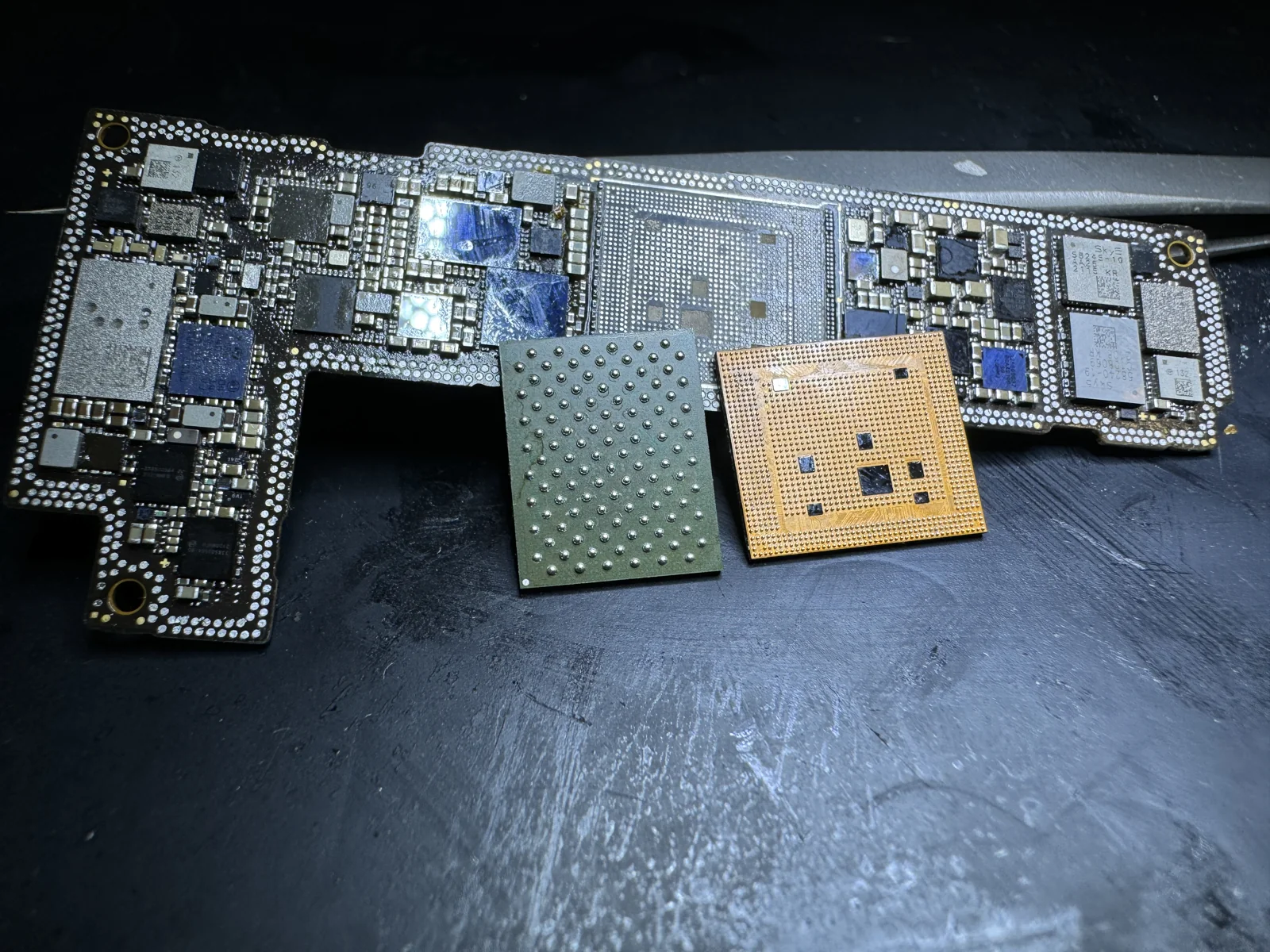 Original phone logic board and components on the MDrepairs workbench.
Some older devices with unencrypted, supported storage permit independent chip or ISP reads. Age alone does not establish that: model, software version, actual security configuration, and storage health matter. Modern encrypted devices require their original hardware/security path and appropriate unlock credentials; chip-off does not bypass those requirements.
Step 4: Data Verification
Once we have the data, we verify everything is intact. We check that photos open, that message databases are uncorrupted, that contact lists are complete. We don't just hand you a folder full of files and hope for the best. We make sure what we recovered is actually usable.
For more on how iPhone data recovery works across different scenarios, check out our data recovery services overview.
How Much Does iPhone Error 4013 Recovery Cost?
We'll give you real numbers. iPhone data recovery pricing varies based on what's actually wrong with the phone and what's needed to get your data back.
| Scenario | Typical Cost | What's Involved |
|---|---|---|
| Software-level fix (IC replacement, Tristar/Hydra) | $1,000 - $2,000 | Microsoldering to replace failed communication IC |
| CPU reball or re-flow | $1,000 - $2,000 | Removing CPU, refreshing solder balls, reinstalling |
| Original-hardware recovery assessment | $3,500 | Requires a viable original reading/encryption path; chip-off is not a general fallback |
| Complex board repair + recovery | $1,000 - $2,000 | Multiple component repairs to make phone bootable |
A few factors affect the price:
- iPhone model. Newer iPhones have denser logic boards and stronger encryption. An iPhone 15 Pro recovery is more complex than an iPhone 8.
- Prior repair attempts. If someone already tried to fix the phone and caused damage (lifted pads, torn traces), our job gets harder.
- NAND condition. A chip with a few bad blocks is easier to read than one with thousands.
- For modern encrypted phones and computers, recovery normally depends on restoring the original hardware sufficiently to unlock and extract the data. Removing storage does not bypass hardware-bound encryption. Supported older unencrypted devices are a separate case, and must be identified individually.
The $100 diagnostic is credited toward a successful recovery and is non-refundable once diagnostics start. Donor drives or replacement parts you approve are non-refundable once ordered, even if recovery fails. You approve the estimate before recovery work starts. For a full breakdown, see our data recovery pricing page.
How to Prevent Error 4013
You can't prevent every hardware failure. Components wear out. Phones get dropped. But you can reduce the risk and protect yourself if error 4013 does strike.
Back Up Regularly
This is the single most important thing you can do. If you have a current backup, error 4013 is annoying but not devastating. You replace the phone and restore from backup. Done.
Use iCloud Backup (Settings > [your name] > iCloud > iCloud Backup) and make sure it runs automatically. Check your backup date occasionally.
Use Quality Cables and Accessories
Cheap cables cause more problems than people realize. A cable that works fine for charging might not maintain the data integrity needed for a software update. Use Apple-branded or MFi-certified cables, and replace them when they start fraying or showing wear.
Don't Interrupt Updates
When your iPhone is updating, leave it alone. Updates take 20 to 30 minutes, and the progress bar sometimes sits still while the phone does background work. Disconnecting mid-update is one of the fastest ways to trigger error 4013.
Keep Your iPhone's Storage Healthy
Running your iPhone at 95%+ storage capacity stresses the NAND chip. There's less room for wear leveling, which distributes writes evenly across cells to prolong lifespan. Keep at least 10-15% free.
Protect Your Phone Physically
Use a quality case. Drops cause the micro-fractures and solder joint failures that lead to error 4013. A $30 case can prevent a $1,000 data recovery bill.
Avoid Extreme Temperatures
iPhones work best between 32 and 95 degrees Fahrenheit. Extreme heat and cold cause the logic board's metal and solder to expand and contract, weakening solder joints over time. The CPU's BGA connections are particularly vulnerable to this thermal cycling.
Frequently Asked Questions
What's the difference between iPhone error 4013 and error 4014?
Almost nothing. Both errors indicate that the iPhone disconnected from the computer during an update or restore. Apple's troubleshooting steps are identical for both. The specific error code relates to the exact point in the communication protocol where the disconnect occurred, but the causes, fixes, and data recovery approaches are the same. If you're seeing 4014, everything in this guide applies to you too.
Can I fix iPhone error 4013 without losing data?
Sometimes. If the error is caused by a cable, port, or software issue, using the "Update" option in iTunes (instead of "Restore") reinstalls iOS without erasing your personal data. If the error is hardware-related and Update doesn't work, a professional repair that makes the phone bootable again preserves your data. The only scenario where data loss is inevitable is a DFU restore, which erases everything by design.
Does error 4013 mean my iPhone is broken?
Not necessarily. The error can come from a bad cable, USB port issue, outdated software on the computer, or phone hardware. A hardware fault needs diagnosis before deciding on a repair.
Will Apple replace my iPhone if I get error 4013?
If your phone is under warranty or covered by AppleCare+, Apple may replace it. But a replacement phone comes blank. Apple will not recover data from your old phone. If you don't have a backup, you lose everything. This is the same situation people face when their iPhone becomes unavailable after too many passcode attempts. If your phone is out of warranty, Apple will offer to sell you a replacement at full price, but they still won't recover data. For more on how much iPhone data recovery costs compared to Apple's replacement options, check our detailed breakdown.
Can water damage cause error 4013?
Absolutely. Water (or any liquid) on the logic board causes corrosion on the solder joints and traces. This corrosion can disrupt communication between the CPU, NAND, and other components. Even phones with good water resistance ratings can suffer internal corrosion from humidity, steam (bathroom use), or minor splashes that find their way inside. If your phone was exposed to moisture before error 4013 appeared, that's likely the cause.
Is iPhone error 4013 related to the phone's storage being full?
Indirectly, yes. A nearly full iPhone puts heavy write stress on the NAND chip. Less room for wear leveling means cells degrade faster. A phone running at 95%+ capacity for years has more worn NAND cells, and those cells can start failing during updates. Full storage doesn't directly cause error 4013, but it accelerates the NAND wear that does.
Should I try a third-party tool like ReiBoot, iMazing, or 3uTools to fix error 4013?
These tools can be worth trying before going professional. They work like iTunes recovery mode but sometimes offer extra repair options. However, if the error is hardware-related, no software tool will solve it. Be cautious with tools claiming to fix 4013 without data loss. Some perform the same restore iTunes does, just with a friendlier interface. For hardware failures, iPhone data recovery always requires physical access to the logic board.
How MDrepairs can help
Real cases like this come through our New Jersey lab every week. If you are dealing with one now, start here.
- Cell Phone Data Recovery Board-level recovery from dead, water-damaged and locked phones. Learn more
- iPhone Repair Screen, battery and board iPhone repair, Middletown NJ. Learn more
- Hard Drive Data Recovery Mechanical, firmware and logical HDD recovery on every brand. Learn more
- Mail-In Data Recovery Free insured shipping both ways (contiguous US), anywhere in the US. Learn more