Hard Drive Reads First Files Then Stops: Bad Sector Pattern Diagnosis
Our founder and lead technician, Joseph Montanti, handles cases personally.
If your hard drive copies some files and then hangs or fails, you have what we call an asymmetric head failure. One or more of the drive's read/write heads is degrading. The heads that still work read the files in their portion of the platter just fine. The heads that are dying produce read errors. The result: you see a partially readable drive that gives the illusion of being mostly fine. It isn't. Every time you retry the failed copy, the failing head wears further. The window for clean recovery shrinks with every attempt. The smart move is to stop now and image the drive properly before any more reads.
The single most important rule: do not run chkdsk, Disk Utility First Aid, fsck, or any "drive repair" tool on a partially readable drive. These tools assume the drive is healthy and write metadata changes to "fix" the file system. On a failing drive, writes accelerate the failure. Stop. Call (732) 933-7717 before the next button click.
On this page
The Symptom: Partial Reads, Then Hang
You connect the drive. It mounts normally. You can see all your files in File Explorer or Finder. You start copying. The first few files come off fast. Maybe the first dozen folders. Then progress slows to a crawl. Maybe it hangs at "40% complete" for ten minutes. Maybe Windows pops up "Error 0x80070079: The semaphore timeout period has expired." Maybe macOS shows "The operation can't be completed because an unexpected error occurred (error code -36)." Maybe the progress bar just sits there forever.
Sometimes the drive itself starts making sounds during the hang. A soft repetitive clicking. A subtle chatter. A pattern of brief silence followed by the head moving and retrying. These sounds mean the drive is reading the same sector over and over because the read keeps failing.
If you cancel the transfer and try again, sometimes new files copy off in the spots that were succeeding before. Sometimes the same files that worked now fail. The pattern is unpredictable because the failing head is degrading further with each read attempt.
Why Heads Fail Asymmetrically
A modern hard drive has multiple read/write heads. A 1TB consumer drive often has 2 heads (one per platter side). A 4TB drive often has 4 heads. Enterprise drives with 12 to 18TB capacity can have 18 or more heads stacked in the head assembly. Each head is responsible for reading and writing one specific surface of one specific platter.
The heads are not built identically. Manufacturing tolerances mean some heads have slightly different fly heights, slightly different magnetic resistance, slightly different alignment over the platter. In a healthy drive, these differences are within acceptable bounds and the drive works fine. As the drive ages, the most marginal head starts to fail first.
Common asymmetric failure causes:
- Single-head impact damage. A drop or impact can bend one head out of alignment while leaving the others fine. The bent head still moves but can't read its platter surface accurately.
- Single-head wear. One head has slightly more contact-prone alignment than the others, wears the magnetic coating on its specific surface, and eventually loses the ability to read that surface.
- Manufacturing variance over time. Heads naturally drift in their characteristics over thousands of hours of operation. Some drift faster than others.
- Head preamp failure. The preamp chip inside the drive amplifies signals from each head individually. A partial failure in the preamp can affect one or two specific head channels while leaving others working.
The user only sees the aggregate behavior: some files read, some don't. From the user's perspective, the drive seems half-working. From a lab perspective, the drive has lost one or more heads and only some of the platter surfaces are accessible.
How Multi-Head Drives Are Built
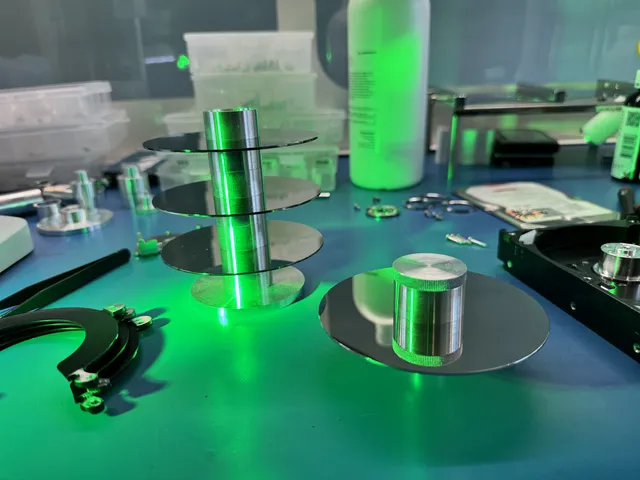
Each platter in a hard drive stores data on both surfaces (top and bottom). A single platter requires two heads, one for each surface. The heads are stacked in a vertical assembly that all move together as a unit, swinging across the radius of the platters together. At any given moment, only one head is actively reading or writing, but the head selector in the drive's firmware switches between heads very quickly.
Your data is not stored in one contiguous chunk. Modern drives use a zoning scheme where different parts of files end up on different heads/platters. Photos taken in 2020 might be on head 0, photos from 2021 on head 2, your video collection split across heads 1 and 3. The OS file system doesn't know about heads. It just asks for sectors. The drive's firmware translates sector numbers into head/cylinder/sector triples internally.
This is why asymmetric failure looks weird from the user side. There's no logical pattern to which files work and which don't. Old files might work while new files fail. Or vice versa. Or one folder works and another doesn't. The pattern depends on which physical surfaces of which platters the files happen to live on, which is opaque to the OS.
Bad Sectors: Logical vs Physical
"Bad sector" is a term thrown around carelessly. There are actually two kinds and the distinction matters.
Logical Bad Sectors
The data on a sector got corrupted (wrong ECC, mismatched checksum) but the physical surface is fine. The drive just can't read what's there because the bits are scrambled. A write to the same sector would fix the problem. Logical bad sectors are usually caused by interrupted writes, power loss during write, or file system corruption.
Physical Bad Sectors
The platter surface itself has a defect. Could be a manufacturing flaw, a scratch from a head crash, an oxidation spot from moisture intrusion, or simple wear. The sector cannot be read because the magnetic medium doesn't hold a stable signal anymore. Writing won't fix it. The drive's firmware tries to remap the sector to a spare, but spare sectors are finite and run out.
The physical bad sectors cluster around the failing head (because that head is the one degrading the surface). The logical bad sectors result from interrupted operations as the drive struggles.
Why Windows and macOS Make It Worse
The way modern operating systems handle drive errors is optimized for healthy drives. When a read fails, the OS automatically retries. If it still fails, the OS may flag the file as bad, attempt to repair the file system, prompt the user to "check the drive," or trigger an automatic chkdsk on next boot. All of these actions involve writes to the drive.
On a healthy drive that hit a transient glitch, this is the right behavior. The retry succeeds, the write fixes any metadata, life goes on. On a failing drive, every retry stresses the failing head further. Every write commits to a drive that may not be physically able to write correctly. Every prompt-driven "repair" operation is rolling the dice with your data.
Windows specifically has several behaviors that hurt on a failing drive:
- Automatic chkdsk on boot if the disk dirty bit is set
- Automatic file system repair prompts when reads fail
- Volume Shadow Copy snapshots that run periodic writes
- Background indexing for Windows Search that scans every file
- SuperFetch / SysMain reading frequently-used files into RAM, hitting the drive constantly
macOS has similar behaviors:
- Spotlight indexing that touches every file
- Time Machine snapshot writes on connected drives
- fsck on mount if the journal is in an unclean state
- Disk Utility's "First Aid" which writes metadata to attempt repairs
Linux is somewhat less aggressive but still has automount, file system checks on mount, and journaling that writes to the drive even when nothing else is reading.
The Retry Storm Problem
When a read fails, the drive itself retries before reporting the failure to the host. The number of retries varies but is typically dozens for consumer drives. Each retry takes time. On a marginal head, each retry generates heat and mechanical wear. The drive may retry the same sector 50 times before giving up.
Now consider what happens in software. Windows asks for a sector. The drive retries internally for 30 seconds before reporting failure. Windows logs the error and retries the read. The drive does another 50 retries. Windows retries again. The drive does another 50. After three minutes of this, Windows finally gives up on that file and moves to the next.
Now multiply this by a folder of a hundred files. If the failing head's portion contains 30 of those files, you're looking at 90 minutes of retry storms on a single folder before the operation completes or fails. The head wears out faster. More bad sectors appear. The next time you try, fewer files succeed.
This is the exponential decay pattern of failing drives. The damage isn't linear. It accelerates. A drive that copied 80% of files in attempt one might copy 50% in attempt two, 20% in attempt three. By attempt five it might not enumerate at all. This is why we tell customers: stop now, no matter how partially successful you're being. The marginal benefit of getting a few more files yourself is wildly outweighed by the damage you're causing.
What to Do Right Now
If your drive is showing the "reads then stops" pattern, here's the right sequence.
Cancel any file copy in progress. Close any drive repair dialogs. Do not click "Yes" if Windows prompts to scan and repair the drive.
If you can eject the drive without forcing it, do so. If the OS is hung on the drive, unplug it directly. A hard unplug is better than continued use.
Resist the urge to "see if it works now." Every connection invites more OS interaction. Every interaction wears the failing head further. Set the drive aside.
Write down which files or folders are the priority. Photos from a specific year, work projects, financial documents, whatever. This helps the lab know what to focus on if a complete recovery isn't possible.
A qualified lab will tell you over the phone roughly what to expect based on your description. They'll quote a price range. (732) 933-7717.
What Not to Do
- Run chkdsk, Disk Utility First Aid, fsck, or any other "drive repair" tool. These tools write to the drive to attempt file system fixes. On a failing drive, the writes cause more bad sectors. The "repair" can finish off the drive permanently.
- Run TestDisk, R-Studio, or any consumer recovery software directly against the failing drive. These tools were designed for stable drives. They will trigger retry storms and accelerate the failure. Image first with proper lab tools, then run software against the image.
- Restart your computer with the drive connected. Restart triggers boot-time disk checks. If your OS thinks the drive needs repair, it will try, and the writes will hurt.
- Format the drive when prompted. "You need to format this drive before using it" dialogs sometimes appear when the file system is partially corrupted. Click Cancel. Formatting destroys the file system structure that recovery depends on.
- Defragment or optimize the drive. Defragmentation involves heavy reads and writes across the entire drive. On a failing drive this is one of the fastest ways to lose everything.
- Run a virus scan. Virus scans read every file on the drive. Each read on a failing drive risks more retry storms.
- Plug it in to "just check if it still works." Every connection is another stress on the failing head. Stop checking. Send it in.
Inside the Lab: Imaging Around Bad Sectors
When a "reads then stops" drive lands at MDrepairs, the process is built around minimizing further stress on the failing head while extracting as much data as possible.
Initial Triage
The drive is connected to a current-monitored test setup. We read SMART data and look at the failure profile: which heads are showing errors, how many reallocated sectors exist, how many pending sectors, and the read error rate per head. This tells us which head is the primary failure.
Configuration for Safe Imaging
The drive is configured to skip aggressive retries. Normally a drive retries internally for tens of seconds per failed sector. We configure the drive (or use our imaging tools to force) a short retry timeout, often 1 to 2 seconds. We disable certain firmware features that could trigger writes. We also configure the imaging order to read healthy heads first, then attempt failing heads later.
Head-by-Head Imaging
The drive is imaged one head at a time, with careful sequencing. First pass: read the entire drive with very short retries, capturing all sectors that read cleanly on first try. Bad sectors are marked but skipped. Second pass: revisit the unread sectors with slightly longer retries. Third pass: revisit again with different timing parameters. Each pass captures more of the recoverable data without thrashing the failing head.
Head Disable for Stability
If one head is so degraded that it threatens to crash and damage the others, we may disable that head entirely and image only the remaining heads. This means accepting partial data loss on the surfaces served by the failing head, but it protects the data on the rest. We make this call based on the failure profile, the customer's priority list, and the risk of further damage.
Head Swap When Necessary
When the failing head needs replacement to read the requested data, we fit a donor head in our laminar-flow work area. The new head reads the same platter surface that the old one couldn't. This is more invasive but recovers data that would otherwise be lost.
DeepSpar and PC-3000 Approach
The two industry-standard tools for this work are DeepSpar Disk Imager and PC-3000 from ACE Lab. Both handle the specific challenge of reading from a fragile drive while minimizing further damage.
DeepSpar Disk Imager runs sector-by-sector reads with configurable timeouts, multiple-pass strategies, and selective head reading. It can detect when a drive is in distress and back off automatically. It saves the image to a target drive and tracks which sectors succeeded and which didn't. It supports the SATA reset protocol, which means it can recover from individual sector failures by resetting just the head/sector interaction rather than the entire drive.
PC-3000 is a more comprehensive tool that includes both imaging and lower-level firmware access. It can read manufacturer-specific commands, configure drive parameters at the firmware level, and bypass parts of the drive's normal error-handling logic. For complex cases with bad firmware areas in addition to bad sectors, PC-3000 is often required.
Both tools support what's called "head map" imaging, where each head is identified and its data is captured separately. This lets us prioritize known-good heads (capture those completely first) over known-bad heads (capture partial data when stable). The result is a sector image that preserves as much user data as the physical drive can produce.
Cost Breakdown
| Damage Profile | Typical Range | Why |
|---|---|---|
| Single head with light degradation, no swap needed | $1,000 to $1,500 | Multi-pass imaging, file system reconstruction |
| Single head failed, head swap from donor | $1,500 to $3,000+ | Head replacement, donor sourcing |
| Multiple heads degraded, partial recovery accepted | $1,000 to $3,000+ | Image healthy heads first, accept loss on failed |
| Heavy degradation plus physical platter damage | $2,250 to $3,500+ | Head swap plus careful imaging of damaged surface |
| DIY damage on top of original failure (chkdsk, etc.) | $1,500 to $3,500+ | Significant additional work to recover from write damage |
The biggest cost driver is whether a head swap is needed, which depends on how aggressive the failure is. Drives caught early (after one or two failed copies, not weeks of repeated attempts) recover for less. The $100 diagnostic is credited toward a successful recovery and is non-refundable once diagnostics start. Donor drives or replacement parts you approve are non-refundable once ordered, even if recovery fails. You approve the estimate before recovery work starts. More on recovery pricing and the full price list.
What to Expect From Recovery
For a "reads then stops" drive, the realistic expectation is partial-to-complete recovery depending on how early you stopped. Let's be honest about it.
Best Case: Caught Early
If you stopped after the first or second failed copy attempt, the failing head is still mostly readable. Lab imaging aims to extract the readable data; the result requires verification. File systems are usually intact and the recovered data is in normal folder structures.
Typical Case: Some Use After First Failure
The drive has degraded but the data is still mostly recoverable. We assess which files remain readable. The missing files are usually concentrated on the failing head's surfaces. Customers can usually live with this loss because the lost files tend to be in a contiguous time period rather than scattered randomly.
Worst Case: Extensive DIY Attempts
If you ran chkdsk, used recovery software, or kept the drive connected for days while it kept failing, the drive may have entered a much worse state. Heads may have crashed. Platter surfaces may have scratches. Recovery is still usually possible but more expensive and the result depends on the surviving data.
What Cannot Be Recovered
Files on physically damaged platter areas (scratches, oxidation spots) cannot be read because the magnetic medium is destroyed. Files that were being written when a power loss occurred may have corrupt content even if the file system entry exists. Files on a head that has lost so much capability that imaging fails entirely (rare but possible) are lost.
Preventing This From Happening Again
Monitor SMART Data Quarterly
SMART data is the early warning. Reallocated Sector Count, Pending Sector Count, and Reported Uncorrectable Errors all climb before a head fails. CrystalDiskInfo on Windows or DriveDx on Mac can read these. Watch for any non-zero pending sectors or any climb in reallocated count. A drive showing these signs needs to be backed up immediately and replaced.
Don't Use Drives Past 5 Years for Critical Data
Consumer hard drives have manufacturer-stated MTBF (mean time between failure) numbers in the hundreds of thousands of hours, but real-world failure rates accelerate significantly after about 5 years of continuous use. If a drive has been spinning 24/7 for 5+ years, treat any data on it as borrowed time.
Keep at Least Two Copies of Important Data
The 3-2-1 backup rule: three copies of important data, on two media types, with one copy offsite. The "reads then stops" pattern only causes data loss when the failing drive is the only copy. If you have a second copy, you can replace the drive and move on.
Avoid Heat and Vibration
Hard drives age faster in heat. Avoid stacking drives, keep airflow around them, don't put them in closed cabinets without ventilation. Also avoid running drives on surfaces that vibrate (subwoofers, washing machines, etc.).
Handle Drives Gently
Drops and impacts damage heads. Even modest impacts can bend one head out of alignment, which is the start of asymmetric failure. Bent heads can also lead to platter scratches down the line.
Use Drive Manufacturer Warranty Tools
WD Drive Utilities, SeaTools, and similar tools can run extended self-tests that catch drive issues early. Run a long self-test once a year on any drive that holds important data. If it fails, replace the drive.
FAQ
Why does my drive read most files but hang on certain folders?
One or more of the drive's read/write heads is failing. The heads that still work read their portion of the platters fine. The heads that are failing produce errors on their portion. Files end up on different physical heads through the drive's internal sector mapping, so which folders work and which don't is essentially random from the user's perspective.
If some files copy fine, can I just copy what I can and replace the drive?
You can try, but the drive is degrading with every retry. The files that work today may not work tomorrow. If you have time, do a fast partial copy with the most important files first, then send the drive in for a complete lab recovery before more damage accumulates.
Does chkdsk really make a failing drive worse?
Yes, definitively. Chkdsk performs writes to fix file system metadata. On a failing drive, writes generate more bad sectors and stress the heads further. Often the chkdsk itself doesn't complete, but it does enough damage that lab recovery becomes harder.
Will recovery software like Recuva or EaseUS help me?
Generally no for this failure pattern. Recovery software is designed for stable drives where files were deleted or partitions were lost. On a physically failing drive, the software triggers retry storms that accelerate damage. The software may also be unable to image around bad sectors the way professional tools can.
Can I image the drive myself with ddrescue?
Possibly. ddrescue is a free Linux tool that does fault-tolerant disk imaging similar in principle to DeepSpar. If you have the technical skills and the drive isn't too far gone, ddrescue can produce a usable image. But ddrescue can't configure drive firmware, can't disable individual heads, and can't perform the lower-level operations that PC-3000 can. For valuable data, professional imaging is safer.
How long does this kind of recovery take?
Our standard recovery estimate is 4–6 weeks; timing may vary by case. The imaging itself can take several days because we read carefully rather than aggressively. More on recovery timelines.
Does it matter what brand my drive is?
Somewhat. Western Digital, Seagate, Toshiba, and Hitachi all have different internal designs and head architectures. Donor sourcing is harder for some brands than others. But all major brands are recoverable when the failure is asymmetric head degradation. Browse our HDD recovery service.
What happens if I already ran chkdsk before sending it in?
The drive may be in worse shape than before. Lab recovery is still usually possible but cost and time both increase. Tell us upfront if chkdsk ran, and roughly how long it ran for. This helps us plan the recovery approach.
Will I get back the exact folder structure I had?
Usually yes, when the file system is intact. We deliver recovered files in the same folder hierarchy they had on the original drive. If parts of the file system metadata were damaged, some folders may be reconstructed from file headers and not have their original names, but the file content is preserved.
Do you ship to people outside New Jersey?
Yes. We accept hard drive cases by mail-in from across the US. You generate a free prepaid UPS label on the mail-in form (contiguous US) with insurance and signed delivery confirmation. How to ship safely.
MDrepairs is an independent data recovery lab serving customers nationwide via mail-in service. We use PC-3000 imaging tools, perform head and platter work in a laminar-flow work area, and keep a parts inventory for head swaps on common drive models. See all our recovery services.
Get help with data recovery
Bring your device to our Lincroft lab during opening hours, or mail it in.
How to mail your deviceThe $100 diagnostic is non-refundable once diagnostics start, and donor drives or replacement parts you approve are non-refundable once ordered, even if recovery fails.
Published by MDrepairs
MDrepairs is a data recovery and electronics repair lab in Lincroft, New Jersey. Our founder and lead technician Joseph Montanti films real cases for our YouTube channel, showing tools, repair steps and recovery outcomes.
Keep reading
- BitLocker Recovery Key Not Working? Check the Key ID Before Resetting
- exFAT Drive Corrupted? Cross-Platform Rescue Guide
- External Drive Painfully Slow? It May Be Dying