Hard Drive Making Noise? What Each Sound Means for Your Data
Our founder and lead technician, Joseph Montanti, handles cases personally.
A hard drive normally hums as its platters spin and makes soft seek sounds while reading or writing. New repetitive clicking, beeping or grinding, especially with freezes or missing files, points to trouble with startup, head movement or the recording surfaces. A drive making grinding noise needs to be powered off immediately because continued contact can damage the surface holding the data.
A sound that has changed along with the drive's behavior deserves more attention than volume alone.
Stop at a new mechanical failure sound. After grinding, beeping, repeated hard clicks, a fall or liquid damage, leave the HDD disconnected; during a transfer, a frozen copy, lost connection or change from familiar seeks to hard clicks is a reason to cut power. Do not reconnect it to try another cable, shake or freeze it, open its sealed mechanism, or run repairs and scans against the only copy of needed files.
On this page
Match the sound to the drive's behavior
A low steady hum comes from rotation. Soft, irregular tapping can come from heads moving between tracks. A hard clunk repeated while the computer waits for files is a different pattern. Seagate's sound guidance distinguishes soft operating clicks from pronounced hard clicking associated with physical failure.
| Sound and behavior | What it usually means | What to do |
|---|---|---|
| Steady hum and familiar soft seeks; files open normally | Motor rotation and normal head movement. | Keep a current copy of the files elsewhere. |
| Repeated hard clicks with freezes or failed detection | The drive is retrying head positioning or reads; damaged heads are one cause. | Power off and arrange assessment if files are needed. |
| Beep or strained tone at startup; no normal spin | The motor cannot get the platters turning, from power trouble or mechanical obstruction. | Leave it off for examination. |
| Grinding or scraping from the mechanism | Physical contact inside the drive, potentially at a recording surface. | Disconnect power immediately. |
| Buzzing while the drive reads normally | Vibration amplified by the enclosure or mounting; a new vibration can also reflect a fault. | Copy needed files before investigating the mounting with power off. |
| New whining or spin-up sound that rises and stops | The drive is failing to reach or maintain normal rotation. | Have its power and mechanism examined. |
| Sudden silence and no detection after a failed start | The drive has lost power or stopped rotating; electronics or the mechanism may be involved. | Keep it disconnected and use a backup or recovery assessment. |
The exact internal fault needs inspection. The sound and whether the drive can read files tell you which problem needs attention first.
Clicking, ticking and repeated attempts to read
A drive positions its heads over the tracks it needs to read. When that work fails, it can seek again, recalibrate or return the heads toward their resting position. Repeating that movement produces the familiar click, pause, click pattern. The computer may freeze while it waits for the drive to finish trying.
Damaged heads can cause this behavior because they cannot read the information needed to position themselves and access data. Problems in the recording surface or the drive's own operating information can also interfere. A fall adds a direct mechanical cause: the heads can be displaced or damaged while the platters are spinning.
In Joe's Hitachi recovery, the drive was undetected and clicked during attempts to read its internal modules. Inspection found mangled heads, which he replaced with donor heads. He then obtained sector access and recovered the files using Data Extractor.
A quiet tick is not automatically the early stage of that failure. Normal seeks, internal maintenance and head parking can all be audible. Trouble is more apparent when a new repetitive sound accompanies very slow reads, errors or a drive repeatedly disappearing. The separate clicking-drive explanation covers that failure pattern in more detail.
A desktop that freezes during file access while its HDD makes unusual hard clicks needs a reliable replacement and a restore from its latest usable backup. An antivirus scan or defragmentation would add work for the failing disk without repairing its heads. If the backup is missing recent files, recovery of those files comes before putting the old drive through more tests.
Beeping, whining and a drive that cannot spin up
The beep from a struggling hard drive can be the motor trying to turn a mechanism that is not moving freely. Heads stuck against a platter, called stiction, can hold it in place. A seized spindle can also prevent rotation. The motor strains instead of reaching its normal running speed.
A portable USB drive can make a similar sound when it receives insufficient power. Seagate identifies inadequate electrical power as a cause of external-drive beeping. This explains why the history matters: a drive that failed after a fall and one that struggled on an unpowered hub may need different repairs.
In a recorded beeping-drive recovery, Joe found heads stuck at the platter edges and debris from scraping inside the drive. He freed the heads, cleaned the platters, installed replacement heads and restored access through the drive's service information. He then imaged and saved the files.
That work is more than making the motor turn again. A damaged head can scratch the surface when rotation resumes, and debris can interfere with the replacement heads. Freeing a stuck mechanism without examining its condition leaves those problems in place.
A smooth whine that has always accompanied rotation can be part of a drive's normal pitch. Faster rotation can produce a higher sound. A new strained whine, particularly one that rises and falls with unsuccessful startup attempts, belongs with spin-up trouble. Power delivery, the drive electronics and the mechanism all take part in getting the platters to speed.
Whirring followed by silence means the startup attempt has stopped. If that keeps cycling, the drive is repeatedly trying to reach a usable state. Tilting it while running to feel a gyroscopic effect adds movement to a mechanism that may already be damaged; it supplies no useful file-preservation benefit.
Grinding and the surface that holds the files
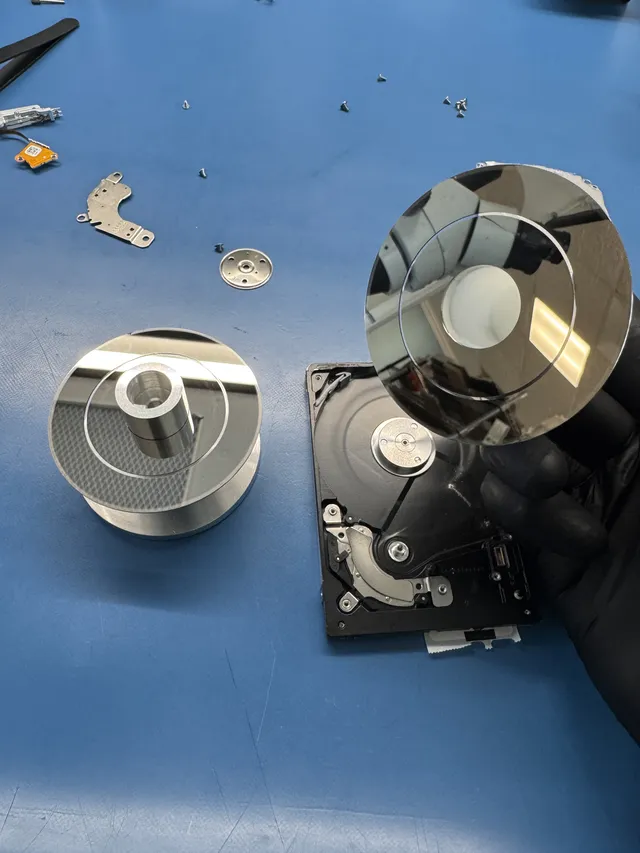
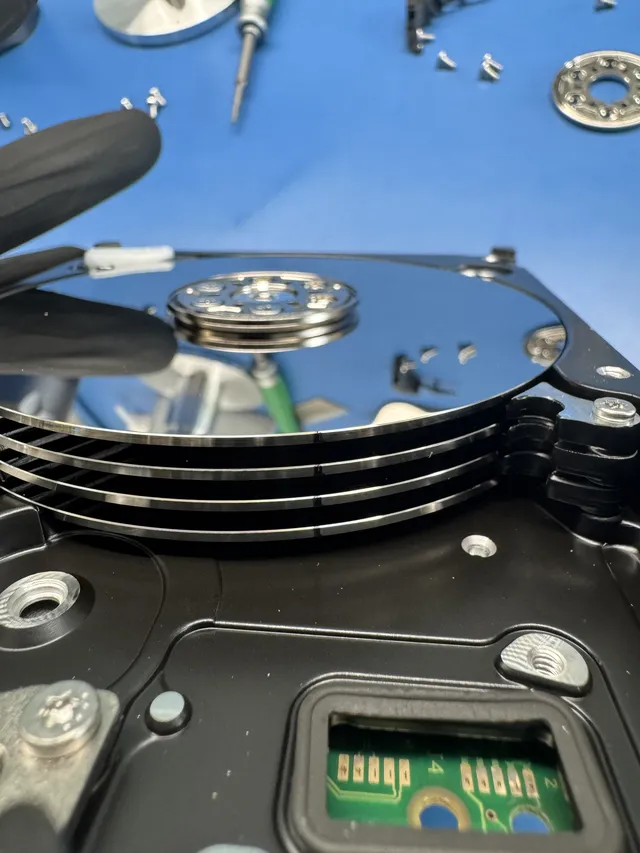
Grinding or sustained scraping from the drive mechanism suggests unwanted physical contact. The heads normally operate with a tiny clearance above the recording surfaces. Contact can damage a head and score the coating that stores magnetic information.
Scratches also produce debris. A replacement head still has to pass over that damaged surface, so head replacement and a normal file copy are not interchangeable. Reading must account for the areas that remain accessible and those that threaten further damage.
Data stored in a portion of coating that has been physically removed is lost from that portion. Other areas may remain readable. A file spread across damaged and intact regions may open only partly or fail to open even when its name is recovered. The layout of the damage and the location of the file's contents determine what can be assembled.
Duration matters because continued contact can extend the damage, but there is no seconds-to-recovery formula. Inspection of the heads and surfaces supplies the missing detail. The scratched-platter guide explains the relationship between surface damage and incomplete files.
A harsh sound elsewhere in a desktop can come from a fan or another moving part. Seagate specifically notes that power-supply fan noise is sometimes mistaken for drive noise. If the sound started with inaccessible files, keep the affected disk out of powered troubleshooting while the source is identified.
What recovery work involves
A mechanical repair aims to make the stored data readable long enough to copy it. It does not turn a failed drive into one to keep using for everyday storage. When a backup already contains everything needed, replacing the drive and restoring that backup avoids recovery work on the original.
At MDrepairs, head and platter work takes place in a laminar-flow work area.
| Fault associated with the sound | Price | Work involved |
|---|---|---|
| Ticking with unreadable sectors | $1,000 - $1,500 | Imaging around read errors. |
| Buzzing with bearing or motor trouble | $1,500 - $3,500+ | Mechanical examination and work to restore readable access. |
| Clicking with failed heads | $1,500 - $3,000+ | Donor-head work followed by imaging. |
| Beeping with stuck heads or a seized motor | $1,500 - $3,500+ | Work on the stalled mechanism before copying data. |
| Whirring and stopping with a spin-up fault | $1,500 - $3,500+ | Diagnosis of power, electronics and mechanical startup. |
| Grinding with platter damage | $2,250 - $3,500+ | Head work and reading of surviving areas. |
The $100 diagnostic is credited toward a successful recovery, and recovery work starts after you approve the estimate. The pricing page explains the published terms.
Donor compatibility and surface condition affect the work. A head replacement has to work with the particular drive, and a damaged surface can make reading more involved than the capacity suggests. Neither the sound's volume nor the number of minutes it lasted supplies a fixed completion time.
Recovery software needs the drive to deliver readable data. It cannot release stuck heads or repair a motor. Likewise, CHKDSK and Disk Utility work on file system structures; they do not repair the mechanism producing a grinding sound.
Buzzing, vibration and noise while idle
A hard drive making buzzing noise may be transmitting normal vibration into a desk or computer case. The larger surface can make that vibration much more noticeable. Western Digital lists mounting as a cause of vibration noise and explains that sounds can stand out more when the drive is idle or in a metal enclosure.
For a drive that still reads normally and has only familiar vibration, preserve the files before changing its mounting. With the system off, check that its intended supports and screws are secure. A suitable vibration pad beneath an external enclosure can reduce resonance, provided it leaves the ventilation openings clear. Western Digital's noise guidance covers mounting and ventilation.
Pressing on or rocking a running drive is unnecessary. A buzz that changes with the enclosure can explain amplification, while persistent read errors still need investigation. Mechanical wear can also create vibration, so a previously quiet drive becoming rough and unreliable belongs in the failure assessment.
An HDD making noise when idle can still be doing work. Seagate describes offline scans that produce seek sounds without an active file transfer. WD also documents audible maintenance activity, and its My Cloud devices may continue indexing files and creating thumbnails after a transfer finishes.
Soft ticking that has always occurred in an otherwise working drive can fit that behavior. A new repeated hard clunk with stalled access is a different condition. Disabling backups or monitoring just to quiet normal activity removes useful work without addressing a mechanical fault.
When a noisy drive suddenly goes silent
A drive that goes quiet because the computer put it to sleep has stopped rotating intentionally. A drive that makes a failed startup attempt, becomes silent and disappears from the computer has stopped being usable. Power loss, damaged electronics or a stalled mechanism can interrupt the rotation it needs to operate.
A lit enclosure lamp only shows that some part of the enclosure has power. The drive inside still needs its own working electronics and motor supply. Silence after a failed start therefore belongs with loss of access, even though it sounds less dramatic than grinding.
If the HDD resumes opening folders without abnormal sounds, use that access to save your documents and photos on separate storage. It is not a reason to resume using it as the only copy. A separate verified copy lets you replace the failed storage without depending on another successful start.
Get help with data recovery
Bring your device to our Lincroft lab during opening hours, or mail it in.
How to mail your deviceThe $100 diagnostic is non-refundable once diagnostics start, and donor drives or replacement parts you approve are non-refundable once ordered, even if recovery fails.
Published by MDrepairs
MDrepairs is a data recovery and electronics repair lab in Lincroft, New Jersey. Our founder and lead technician Joseph Montanti films real cases for our YouTube channel, showing tools, repair steps and recovery outcomes.
Keep reading
- External Drive Says “The Parameter Is Incorrect”: Data-Safe Checks
- External Hard Drive Freezes File Explorer or the Computer: Safe Next Steps

- “The Semaphore Timeout Period Has Expired” During a Drive Copy