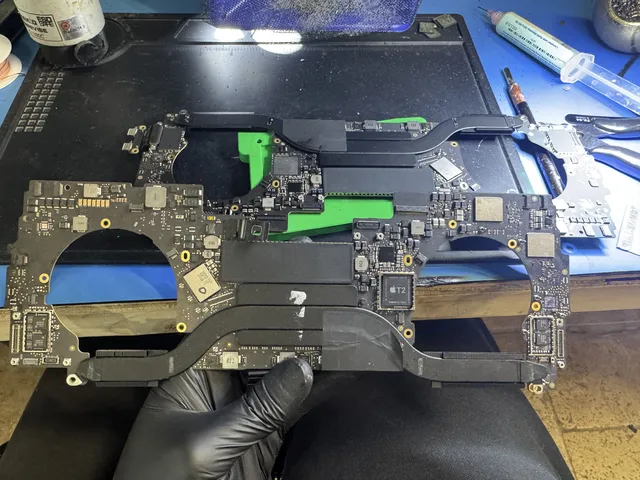
FileVault Mac Won't Boot: Encrypted Drive Recovery
Our founder and lead technician, Joseph Montanti, handles cases personally.
You can recover data from a dead FileVault Mac only if you have the login password or the 24-character recovery key. With either one, a lab can revive the logic board or image the drive and unlock the volume. Without both, AES-XTS 256-bit encryption is mathematically unbreakable, so no lab can help.
- Confirm you have your macOS password or recovery key (check iCloud, a printout, your password manager, or IT/MDM).
- Keep the dead Mac intact; on Apple Silicon and T2, the key is bound to the original logic board.
- Don't trigger Find My erase or "Erase All Content," which destroy the keys.
- With your credentials in hand, use professional MacBook data recovery.
Before anything else: do you have your FileVault login password or your recovery key? One of those two unlocks an encrypted Mac. With either in hand, recovery from a failed Mac is realistic. Without both, the data on the drive is mathematically protected by AES-XTS 256-bit encryption. No lab can crack that. Apple did not build a backdoor, and we don't pretend to have one.
That's the hard truth and we lead with it because everyone else won't. Apple won't tell you straight, because Apple isn't in the data recovery business and their answer to every encrypted Mac is "restore from Time Machine or iCloud." We're a real lab, we've recovered hundreds of failed Macs, and we'll discuss on the phone whether your case is worth pursuing or whether you need to walk away.
On this page
First check: password or recovery key?
FileVault has two unlock methods built in. The first is your normal macOS login password, the one you type at the login screen every day. The second is a recovery key, which is either a 24-character alphanumeric string (modern Macs) or a longer XSAN-style string on older systems. Apple generated this key when FileVault first turned on, and it asked you what to do with it: save it to iCloud, print it out, or write it down. If you've used a Mac for any amount of time you've probably seen this prompt and clicked through quickly.
If you remember your login password, you don't need the recovery key. The Mac will unlock from the standard login screen and FileVault is invisible. The recovery key only comes into play when the standard login fails: someone forgot the password, the password got changed, or the Mac has to be unlocked from a recovery context outside the normal boot path. That's the scenario data recovery labs face when a customer ships in a failed Mac.
So with one of these two pieces of information, your encrypted Mac is recoverable in most cases. Without both, the data is mathematically locked. FileVault uses AES-XTS with a 256-bit key, the same encryption class used by banks and governments. There's no shortcut. Apple's own engineers can't decrypt it without your credentials. We can't either.
Why FileVault is already on your Mac
If you bought a Mac in the last five years, FileVault is probably already on. Apple turns it on by default during initial setup on Apple Silicon Macs (M1, M2, M3, M4 chips) and aggressively recommends it on Intel Macs. The setup assistant asks "Turn on FileVault" with a big "Continue" button and a tiny "Set Up Later" link, and most users click through. On modern Apple Silicon Macs, the encryption is essentially always on at the hardware level, because the Secure Enclave handles the storage encryption keys even when FileVault appears "off."
Here's the rough breakdown:
- Apple Silicon Macs (M1 through M4): Storage is always encrypted at the hardware level because the SSD is integrated with the Secure Enclave on the SoC. FileVault "off" just means the encryption key isn't tied to your password. With FileVault "on," your password is required to unlock the key.
- Intel Macs with T2 security chip (2018 to 2020 models): Hardware encryption similar to Apple Silicon, but the T2 is a separate chip rather than integrated into the main SoC.
- Older Intel Macs (pre-T2): Software FileVault. The drive itself is removable and not hardware-bound. Easier to recover physically.
- Macs deployed by IT or schools: FileVault is almost always enforced. Recovery keys go to the MDM (mobile device management) server.
Most customers who call us in a panic don't know exactly which generation of FileVault they're dealing with. That's fine. Give us the Mac model and year on the phone and we'll discuss the encryption architecture. Apple's FileVault documentation covers the customer-facing setup if you want the basics.
Intel Mac vs Apple Silicon: huge difference
This distinction is critical and most data recovery articles gloss over it. Whether your Mac uses an Intel processor or an Apple Silicon processor (M1, M2, M3, or M4) changes the entire recovery game. The difference goes far beyond performance.
Intel Macs without T2 (2008 to 2017 roughly)
These Macs use software FileVault. The encryption is done by macOS at the file system level, but the SSD itself is a standard drive that can be removed and connected to another Mac via an enclosure. If you have your password or recovery key, the recovery is straightforward. We image the failed drive, mount the image on another Mac, type the password or recovery key, and the encrypted volume opens. The drive itself isn't hardware-bound to the logic board. This is the easiest FileVault scenario.
Intel Macs with T2 chip (2018 to 2020)
Macs with the T2 security chip changed the game. The T2 acts as a hardware encryption controller sitting between the CPU and the SSD. The encryption key lives in the T2. If you remove the SSD from a T2 Mac and connect it to another machine, the data is mathematically inaccessible because the key didn't come with the drive. The drive is hardware-bound to that specific logic board. For data recovery, this means we need either the original logic board to be working enough to boot, or we need to be able to read the SSD chip directly and brute-force the hardware key, which Apple specifically designed against.
With the password or recovery key, T2 Macs are still recoverable if the logic board can be revived. Without the original logic board working, even the right password doesn't help. The hardware key in the T2 is the missing piece.
Apple Silicon Macs (M1, M2, M3, M4 from 2020 onward)
These Macs took the T2 architecture and integrated everything into the SoC. The SSD chips are soldered to the logic board, the encryption controller is in the SoC, and the Secure Enclave holds the hardware keys. There's no removable SSD. If the logic board fails badly enough, the path to recovery gets very narrow.
What we can do on Apple Silicon: if the SSD chips themselves are healthy and we can revive enough of the logic board to boot the Mac (even just to a target disk mode), we can pull data with your password. If the logic board is destroyed beyond revival, the data is essentially trapped. Some labs (us included) can sometimes transplant NAND chips to a donor board, but this works only if you preserve the original board, because the Secure Enclave key has to travel with the original silicon. You can't just move the NAND to a totally different Mac.
| Mac Type | Encryption architecture | Recovery difficulty |
|---|---|---|
| Intel pre-T2 (2008 to 2017) | Software FileVault, removable SSD | Easiest, password unlocks the volume on any Mac |
| Intel with T2 (2018 to 2020) | T2-bound hardware encryption | Hard, needs original logic board working |
| Apple Silicon M1 (2020 to 2022) | SoC-integrated, soldered NAND | Harder, NAND tied to original silicon |
| Apple Silicon M2/M3 (2022 to 2024) | SoC-integrated, soldered NAND | Same as M1, slightly newer silicon |
| Apple Silicon M4 (2024+) | SoC-integrated, soldered NAND | Newest, same architecture as M1 |
The four FileVault recovery scenarios
Every Mac case we see falls into one of four buckets. Find yours and read on.
Scenario 1: Mac won't boot but the drive is intact
The Mac doesn't turn on, but the storage is probably fine. Logic board damage, dead power management, fried Thunderbolt controller, bad RAM, anything that kills the boot without damaging the SSD. With your password or recovery key, we can usually revive the board enough to boot the Mac in Target Disk Mode (Intel) or DFU recovery mode (Apple Silicon) and pull data through Thunderbolt or USB-C. Cost typically runs $1,500 to $3,500+ depending on how much board work is needed.
Scenario 2: Drive physically failed (Intel without T2)
The SSD itself is dying or dead on an older Intel Mac without the T2 chip. These cases are like any other failed SSD recovery: we image the drive at the hardware level, mount the image on a healthy Mac, and unlock with your password. Cost usually runs $1,000 to $1,500.
Scenario 3: Drive physically failed (T2 or Apple Silicon)
For modern encrypted phones and computers, recovery normally depends on restoring the original hardware sufficiently to unlock and extract the data. Removing storage does not bypass hardware-bound encryption. Supported older unencrypted devices are a separate case, and must be identified individually. On T2 and Apple silicon internal storage, preserving the original hardware encryption path is essential even when FileVault was not enabled.
Scenario 4: Lost both password and recovery key
The Mac may even be working, but you've forgotten the password and never saved the recovery key. AES-XTS 256-bit encryption doesn't have a backdoor. Apple Engineering can't brute-force it. We can't. No lab anywhere can. If the Mac is otherwise healthy and Apple sold it within the last ten years, there's nothing we can do without your credentials. Don't pay anyone who claims otherwise.
Where to find your recovery key
Most customers who think they've lost the recovery key actually have it somewhere. Walk through these in order.
1. iCloud
This is the most common place. When you turned on FileVault, Apple offered to save the recovery key to your iCloud account. Most people accepted. On any working Mac, iPhone, or iPad signed in with your Apple Account, go to System Settings > Privacy & Security > FileVault. You may see options related to your recovery key. Alternatively, contact Apple Support and they can verify your identity and walk you through retrieving the iCloud-stored recovery key. They cannot decrypt your data, but they can give you back the key you saved with them.
2. A printed copy
FileVault setup offered to let you print the recovery key. Check old paperwork, the original Mac box, the drawer where you keep important documents. The printed key is a 24-character alphanumeric string with dashes.
3. A password manager
If you're the type who uses 1Password, Bitwarden, LastPass, or Apple Passwords, check there. A surprising number of people saved their FileVault recovery key to their password manager and forgot.
4. MDM (work or school Macs)
If this is a managed device (Jamf, Mosyle, Microsoft Intune, Apple Business Manager), your IT department has the recovery key. Contact them, give them the Mac's serial number, and they'll provide the key in minutes.
5. Your old Mac in another room
Some customers have saved a recovery key to a notes app or a desktop file on a different Mac. Worth a look if your home has multiple Macs.
What we actually do in the lab
Here's the rough sequence on a typical FileVault Mac recovery, so you know what you're paying for.
Intel Macs without T2
The SSD or hard drive comes out. We connect it to specialized hardware (PC-3000 for SATA SSDs, NVMe-specific tools for NVMe drives) and image the drive sector by sector. Once we have an image, we mount it on a healthy Mac using diskutil and fdesetup, type the password or paste the recovery key, and the volume opens. Copy data to the customer drive, done.
Intel Macs with T2
The logic board has to be alive enough to communicate with the SSD. We assess what's broken: power management, charging IC, Thunderbolt controller, audio codec, anything between the wall outlet and the storage. We replace the failed components, boot the Mac into recovery, and use the password or recovery key to extract data over Thunderbolt. If the T2 itself is dead, the recovery path is very limited because the encryption key was inside it.
Apple Silicon Macs
Same as T2 in spirit, but harder. The SoC contains the Secure Enclave that holds your encryption key. If the SoC is alive but the rest of the board has problems, we can usually fix it. If the SoC itself is damaged, the keys are unreachable. On the cases we can salvage, we use Apple's Configurator 2 in DFU mode to talk to the Mac over USB-C, then we extract data through a working host Mac. Apple Silicon Mac recovery is closer in spirit to iPhone recovery than to traditional hard drive recovery.
Our mail-in recovery process
Most of our Mac work happens by mail. Customers ship Macs in from every state. The process is straightforward and you only pay if we deliver your data.
Step 1: Phone consult
Call (732) 933-7717 or fill out a quote form. We ask about the Mac model and year (so we know the encryption architecture), what failed, whether you have the password or recovery key, and what's on it. We give you a price range and an honest take on whether recovery is realistic. If it isn't, we say so right there.
Step 2: Pack and ship
Ship the whole Mac. On Apple Silicon and T2 Macs we need the logic board, not just the storage, because the encryption is logic-board-bound. Same shipping rules apply to Macs as to drives: bubble wrap, an inch of cushion on every side, a sturdy box. Do not include the password or recovery key inside the box. Send those separately by email or text after we receive the device.
Step 3: Diagnosis
The Mac enters the diagnostic queue after it arrives. We test board power, storage health, NAND condition, charging, display, and any obvious damage. You get a call with the failure mode and a firm quote. No upselling, no surprises.
Step 4: Recovery work
If you approve, we start the actual work: board-level repair, chip-level work, or specialized imaging depending on what failed. Our standard recovery estimate is 4–6 weeks; timing may vary by case.
Step 5: Unlock with your credentials
Once we have a working data path, we use your password or recovery key to unlock the FileVault volume. You see files: Desktop, Documents, Photos library, music, videos, application data, everything that was on your Mac.
Step 6: Data returned, payment
We ship your data back on an external SSD that plugs into any Mac (or Windows PC, in a pinch). You confirm everything is there. Then you pay. If recovery wasn't possible, you pay nothing. The "no data, no charge" promise applies to every Mac case.
Honest pricing
Mac data recovery costs more than commodity drive recovery because the work is harder. Modern Macs are tightly integrated, soldered, and intentionally hostile to repair. Here's what to expect.
| Mac type and failure | Typical range | Notes |
|---|---|---|
| Intel Mac, drive failed, password in hand | $1,000 to $1,500 | Removable SSD or hard drive, easiest case |
| Intel T2 Mac, board failed, password in hand | $1,500 | Logic board work to access T2-bound storage |
| Apple Silicon Mac, board failed, password in hand | $1,500 | Most complex, soldered NAND, integrated SoC |
| Apple Silicon Mac, board destroyed, password in hand | $3,500+ | Chip transplant, success rate is much lower |
| Any Mac, working drive, password in hand | $0 (DIY) | Boot into recovery, copy files yourself |
| Any Mac, no password, no recovery key | Not possible | AES encryption is mathematically unbreakable |
The price is what you pay for the actual recovery, not a deposit. If we can't get your data back, you owe nothing. The range exists because we don't know the exact damage until we open the Mac. We won't quote $1,500 over the phone and then add $800 in fees once your Mac is on the bench. Our full pricing page covers other devices and failure modes.
When FileVault recovery isn't possible
Here's the list of cases where no lab anywhere can help. Don't waste money calling around hoping for a different answer.
- Lost password and recovery key, modern Mac. AES-XTS 256-bit doesn't have a backdoor. Apple cannot bypass it. No lab can. The data is mathematically encrypted and stays that way forever.
- An independent storage read is not an encryption bypass. The original processor/security hardware, required storage information, and valid unlock credentials may all be necessary. A compatible-board transfer preserving those dependencies is different from reading a removed chip by itself.
- T2 chip destroyed on a 2018 to 2020 Mac. Same principle as Apple Silicon. The T2 holds the encryption key. If the T2 is dead and the board can't be revived enough to use the T2, the data is locked.
- Wrong recovery key. Each FileVault volume has its own key. A key from your old Mac won't unlock your new Mac. Match the recovery key to the specific Mac it came from.
- Erased by Find My or remote wipe. If someone triggered an Erase Mac through Find My before you reached us, the data is gone the same way Apple would erase a returned device.
- "Erase All Content and Settings" used. Apple's instant erase function destroys the encryption keys immediately. We can sometimes recover up to the erase point, but anything after that is unreachable.
If you're not sure which bucket you fall into, call us. A phone consult helps us assess whether your case is worth pursuing or whether you should stop spending money.
What Mac recovery work looks like
Self-encrypting drives and FileVault Macs share some fundamentals. Here's a video on hardware encryption to give you a sense of what's happening under the hood.
FAQ
Can you recover data from a FileVault-encrypted Mac without the password?
Only with the recovery key. FileVault has two unlock methods built in: the user password and the recovery key. Either one works. Without both, no lab anywhere can decrypt the data. FileVault uses AES-XTS 256-bit encryption, which has no known mathematical weakness. Don't pay anyone who claims they can bypass FileVault without credentials.
Where do I find my FileVault recovery key?
Check iCloud first (Apple stored it there if you accepted the iCloud option during setup). Check printed copies of important documents. Check your password manager (1Password, Bitwarden, Apple Passwords). If it's a work or school Mac, contact your IT department. Apple Support can verify your identity and help retrieve an iCloud-stored recovery key, but they cannot generate a new one.
My MacBook won't turn on. Is my data gone?
Probably not. If you have your password or recovery key, a Mac that won't power on can usually have its data recovered. The failure is almost always on the logic board (power management, charging circuit, Thunderbolt controller) not the storage itself. We diagnose the failure, repair the board enough to access the storage, and pull the data with your credentials. Cost is usually $1,500.
How much does FileVault data recovery cost?
$1,500 for most cases with credentials in hand. Older Intel Macs run lower, $1,000 to $1,500. Apple Silicon Macs with severe board damage run higher, $3,500+ for chip-transplant work. Without password or recovery key, no amount of money buys recovery on a modern Mac.
My M1 MacBook's logic board fried. Can you move the storage to a new Mac?
Not to a different Mac. The encryption keys on Apple Silicon are bound to the original Secure Enclave on the original SoC. If you move the NAND chips alone, the new Mac sees encrypted noise. The recovery path is to revive the original logic board, or to do a chip-transplant that keeps the relationship to the original silicon intact. Don't throw away the dead logic board, even if it looks unsalvageable.
Is Apple Silicon harder to recover from than Intel?
Yes. Apple Silicon Macs (M1, M2, M3, M4) have soldered NAND chips and a tightly integrated SoC that holds the encryption keys. There's no removable drive. Recovery requires either reviving the original logic board or doing chip-level work that preserves the link to the original silicon. Older Intel Macs without T2 have removable drives and are much easier.
Apple told me my data is gone. Should I believe them?
Apple isn't lying, they're just not in the data recovery business. The Genius Bar tools can't recover data from a Mac that won't boot. Their playbook stops at "restore from Time Machine, restore from iCloud, or replace the device." That doesn't mean nobody can do it. With your password or recovery key, a real lab can often get the data back even when Apple has declared the device dead. Without credentials, Apple is right and so are we: the data is unrecoverable.
My Mac was wiped by Find My before I could ship it. Anything recoverable?
Sadly no. Find My triggers an instant cryptographic erase that destroys the encryption keys. The data on the drive is still physically there as encrypted bytes, but the math to decode it is gone. This is the same mechanism Apple uses for "Erase All Content and Settings." Don't trigger remote wipe on a Mac you want to recover from.
How long does FileVault recovery take?
Our standard recovery estimate is 4–6 weeks; timing may vary by case. Queue, parts, device condition, imaging and delivery affect the schedule. Rush advances only the diagnostic start at additional cost. Confirm availability with the lab; rush does not set a recovery completion date.
My Mac has FileVault on but I never set it up. How is that possible?
Apple Silicon Macs encrypt storage at the hardware level by default, whether FileVault is "officially" on or off. If FileVault appears off in System Settings, the encryption is still there but isn't tied to your password. If FileVault is on, your password is required to unlock the keys. Either way, modern Macs are encrypted from the factory. Apple does not ship an unencrypted Mac in 2026.
Where is your lab? Can I drop off the Mac in person?
Our lab is at 644 Newman Springs Road, Suite A, Lincroft, NJ 07738. Walk-ins are welcome during business hours. Most customers ship in from across the country, but if you're in central or north Jersey, dropping off saves a day or two on the timeline.
Get help with data recovery
Bring your device to our Lincroft lab during opening hours, or mail it in.
How to mail your deviceThe $100 diagnostic is non-refundable once diagnostics start, and donor drives or replacement parts you approve are non-refundable once ordered, even if recovery fails.
Published by MDrepairs
MDrepairs is a data recovery and electronics repair lab in Lincroft, New Jersey. Our founder and lead technician Joseph Montanti films real cases for our YouTube channel, showing tools, repair steps and recovery outcomes.
Keep reading
- Soldered Laptop SSD? Your Recovery Options Explained
- iMac Fusion Drive Failing? Recovery Is Trickier
- Apple Silicon Data Recovery: What M-Series Changed