What Does "Reallocated Sector Count" Mean?
In this article
Reallocated sector count (S.M.A.R.T. attribute 05) is the number of bad sectors your hard drive has found and permanently swapped for spare sectors. A raw value above zero means the drive has used a spare. If you haven't seen the count rise and the drive is quiet and copying normally, back up your most important files first. If it clicks repeatedly, stalls, or disconnects, power it off.
- 0 means no sectors have been reported as reallocated. Keep your backup current.
- Above zero and stable means the drive has used spares. Keep a backup and monitor the count weekly.
- Rising count means more sectors have been retired. Stop relying on the drive. If it struggles to read files you haven't backed up or holds the only copy of files you can't replace, power it off for professional hard drive data recovery.
When a hard drive detects a sector it can no longer read or write reliably, it can assign a spare sector and mark the original as unusable. If the drive couldn't read the old data, the spare won't bring it back. You may see a small number of reallocated sectors on an older drive. But when that count starts climbing, your drive is telling you something important. It's finding more bad sectors. If this is your first reading and your files still open normally, your first priority should be backing them up.
What Is S.M.A.R.T. and Why Does It Matter?
S.M.A.R.T. stands for Self-Monitoring, Analysis, and Reporting Technology. It's a monitoring system built into virtually every modern hard drive and SSD. Think of it as your drive's internal health dashboard. It tracks different metrics, from temperature to read error rates to spin-up time on a hard drive. The drive keeps those readings as it runs.
Your operating system doesn't show you the full S.M.A.R.T. table by default. You may see a general health warning. A tool that supports your drive can show you the individual readings the drive keeps in the background.
Not all S.M.A.R.T. attributes are created equal. Some, like power-on hours, just tell you how long the drive has been running. Others are critical failure indicators. Reallocated sector count falls squarely in that second category. Along with current pending sector count and uncorrectable sector count, it's one of the S.M.A.R.T. values worth watching. None of them can tell you when your drive will fail.
When you first see a reallocated sector, make sure you have a backup you can open. At Google, drives that had used even one spare failed more often over the next 60 days than drives that hadn't.
Reallocated Sectors Count Explained
A sector is the smallest unit of storage your computer can address on a hard drive. Each sector holds a fixed amount of data, typically 512 bytes on older drives or 4,096 bytes (4K) on modern Advanced Format drives. A single 1TB hard drive contains roughly two billion 512-byte sectors.
Over time, some of those sectors can develop problems. The magnetic coating on the platter might degrade. A microscopic piece of debris might scratch the surface. A power surge might corrupt the data stored in a particular location. When the drive's firmware detects that a sector can't be read or written to reliably, it can perform a reallocation.
The S.M.A.R.T. attribute for reallocated sector count is typically listed as Attribute ID 05 (sometimes written as 0x05). On drives that report individual sectors, the raw number tells you how many have been remapped to the drive's spare sector pool.
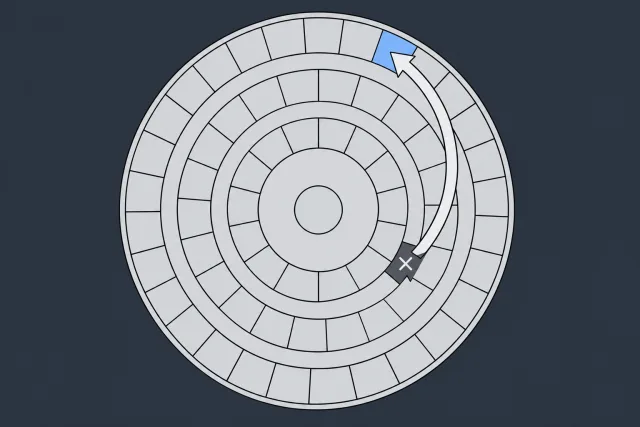
Modern hard drives ship from the factory with a reserve pool of spare sectors. The manufacturer knows that some sectors may go bad over the drive's lifetime, so they set aside extras. When a bad sector is detected, the drive's firmware remaps the logical address of that sector to point to one of the spares. From the operating system's perspective, the address hasn't changed. If the old data was readable, it now sits on the spare.
 Illustration
Reallocated Sector Count vs. Reallocated Sectors Count: Same Attribute
Different tools label S.M.A.R.T. attribute 05 differently, and the naming trips people up. CrystalDiskInfo displays it as Reallocated Sectors Count (plural). smartctl prints it as Reallocated_Sector_Ct. Some manufacturer utilities and BIOS health screens shorten it to Reallocated Sector Count. Every one of these is the same counter: attribute ID 05, the number of sectors your drive has retired and remapped to spares.
So if you searched for "reallocated sectors count" because that is exactly what CrystalDiskInfo showed you, you are in the right place. Read the value the same way no matter how your tool spells it:
- Raw value is the number of remapped sectors on drives that count them individually. This is the number that matters, and the number this guide uses throughout.
- Current (normalized) value is a manufacturer-scaled score, often starting at 100 or 200. The attribute fails when the score falls to or below the manufacturer's threshold. Back up before then.
One more naming quirk: attribute 05 counts reallocated sectors, while attribute 197 counts pending sectors, ones the drive suspects but has not remapped yet. If both are climbing, treat the drive as failing no matter which label your software uses. Our CrystalDiskInfo guide shows where each number lives in the interface.
How Sector Reallocation Actually Works
The reallocation process happens at the firmware level. Here's how it can happen inside your drive.
The drive attempts to read or write a sector. The operation fails or returns inconsistent data after multiple retries. The firmware flags that sector as suspect.
The firmware can try the flagged sector again. If it still can't use that sector reliably, it can mark it for replacement.
If the data in the bad sector is still partially readable, the firmware tries to recover it. This doesn't always succeed. Bytes it can't read won't be copied to the spare.
The firmware assigns a spare sector from the reserve pool. If the data was recoverable, it's written to the new sector. The bad sector's address is remapped in the drive's translation table.
The reallocated sector count goes up. The firmware keeps a record of the swap so it can find the spare the next time.
There's one important detail that most people miss. If the drive detects a bad sector during a read, it often doesn't reallocate it right away. Instead, it may add it to the "current pending sector count" (Attribute 197). The sector may get reallocated later, when the operating system writes to that location again. Don't write to it on purpose if it might hold a file you need.
That's why you might see your current pending sector count go up before your reallocated sector count follows. A pending sector can also clear if the drive reads it successfully later.
What Your Reallocated Sector Count Numbers Mean
On a hard drive, S.M.A.R.T. tools can show both a "raw value" and a "normalized value." This causes a lot of confusion. Let's clear it up.
On a drive that counts individual sectors, the raw value is the actual count. If it says 5, your drive has reallocated 5 sectors. A Current value of 100 on that same line is the score.
The normalized value is a score set by the manufacturer. Higher is better for this attribute. The score can stay the same after the raw count goes up. When it falls to or below the threshold value, the drive reports that the attribute has failed.
For practical purposes, focus on the raw value. Here's what to do when you first see it or notice it changing.
| Raw Value | Status | What to Do |
|---|---|---|
| 0 | No remaps reported | Keep a current backup. A drive can fail with a count of zero. |
| First reading above 0 | Early Warning | Start backing up if the drive copies normally. Write down the raw value and the date. |
| Above 0 and unchanged | Stable count | Keep your backup current. Monitor weekly and plan to replace the drive. |
| Rising between readings | More sectors retired | Stop using the drive for everyday storage. If you have a complete backup, replace the drive. If it holds the only copy of files you can't replace, turn it off and send it to us. Only try copying files yourself if the drive reads normally and you can risk losing them. |
| Any value | Clicking repeatedly, stalling, or disconnecting | Power the drive off. If you still need files from it, leave it off for recovery. |
How to Check Your Reallocated Sector Count
Once your files are safe, you can look at the drive's S.M.A.R.T. readings. If your computer starts from the problem drive, shut it down and connect that drive to another computer as a second drive. Install the tool on a healthy drive, then select the problem drive in the tool to read its count. We've put together a detailed guide on how to check your hard drive health, and our S.M.A.R.T. data guide explains how to read the attributes. But here's the quick version for checking reallocated sectors specifically.
Windows: CrystalDiskInfo
CrystalDiskInfo is free and lightweight. Download it, run it, and choose the drive by its model or drive letter at the top. Look for Attribute 05 in the list. The raw value column shows your reallocated sector count.
To read the raw value in decimal, open Function, then Advanced Feature, then Raw Values, and choose 10 [DEC]. For example, 00000000000A in hex is 10 in decimal.
CrystalDiskInfo color-codes the overall health status. Blue means good. Yellow means caution. On a hard drive, that can mean the raw count for reallocated, pending, or uncorrectable sectors has triggered an alert. Red means bad. If your drive shows yellow or red, take it seriously.
Mac: DriveDx or smartmontools
DriveDx is a paid app that provides a clean interface for S.M.A.R.T. data on macOS. Select your drive, open its health indicators, and read the raw value for ID 5. For a free option, if you already use Homebrew, open a terminal and install smartmontools with the first command below. The second lists the drives. In the last command, replace /dev/diskN with the name shown for yours.
brew install smartmontoolssudo smartctl --scansudo smartctl -a /dev/diskN
Make sure the model and capacity at the top match your drive. Look for the line that says "Reallocated_Sector_Ct" in the output. The RAW_VALUE column is your number.
Linux: smartctl
Linux users can use smartctl from the smartmontools package. Install it through your package manager (sudo apt install smartmontools on Debian/Ubuntu). Run the first command below to list the drives. In the second, replace /dev/sdX with the name shown for yours.
sudo smartctl --scansudo smartctl -i -A /dev/sdX
Match the model and capacity to your drive. The -A flag shows the attribute table. Find ID 5 and read across to RAW_VALUE for your reallocated sector count.
What Causes Sectors to Go Bad
Several things can cause sectors to go bad. The count alone can't tell you which one affected your drive.
Age and Wear
Hard drives have a finite lifespan. The magnetic coating on the platters can weaken over years of use. The read/write heads fly nanometers above the platter surface as the platters spin at thousands of RPM. Eventually, things wear out.
Heat Damage
Hard drives don't like heat. The safe operating temperature depends on your drive model. Drives in poorly ventilated enclosures, laptops with blocked vents, or external drives sitting on soft surfaces that trap heat can get too hot.
Physical Shock
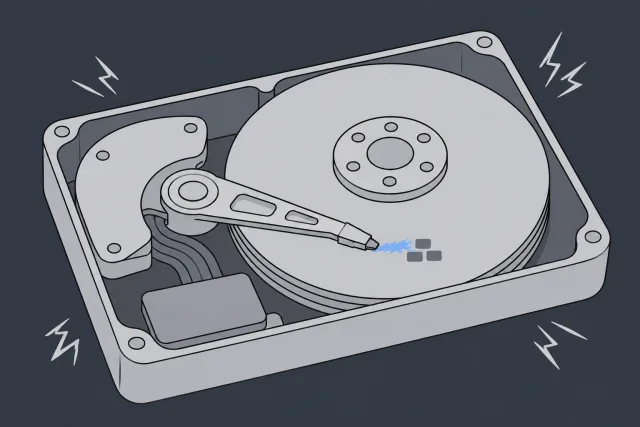
Dropping a hard drive, bumping it while it's running, or even placing it on a surface with too much vibration can cause the read/write head to contact the platter surface. That's called a head crash. Even a microscopic contact can damage the platter coating in that area, creating bad sectors. Laptops are especially vulnerable because people move them around while the drive is spinning.
 Illustration
Power Issues
When a drive loses power mid-write, the data being written to a sector can be corrupted or incomplete. The sector itself might not be physically damaged. The drive may be able to use it again, or it may need a spare.
Manufacturing Defects
Some drives leave the factory with marginal sectors that pass initial quality testing but fail under real-world conditions. If you see reallocated sectors appearing on a brand new drive within the first few weeks, save your files before you arrange a replacement.
What to Do When Reallocated Sectors Appear
If the Count Is Low (1 to 10) and Stable
A count between 1 and 10 is small. There's no fixed cutoff, so look at whether the count has gone up since you last checked. Even a single reallocated sector is a reason to make sure your backup is current. If the drive is quiet and your files still copy normally, here are the steps to take.
1. Back up everything. If you don't have a backup, make one now. Not tomorrow. Now. Copy your important files to another drive or cloud storage. This isn't optional.
Start with the photos and documents you can't replace, then open a few of those files from the backup to make sure they're readable.
2. Monitor the count. Check CrystalDiskInfo (or your preferred tool) once a week. Write down the raw value. If it's the same number week after week, keep that backup up to date. If it's creeping up, move to the next section.
3. Plan your replacement. Even if the drive seems fine today, it's telling you its best days are behind it. Start shopping for a replacement. Consider an SSD for the upgrade. You can check our data recovery pricing page to understand the costs involved if things do go sideways.
If the Count Is Rising
This is the scenario that requires urgency. A count that's actively increasing means the drive is retiring more sectors. If it clicks repeatedly, stalls, or disconnects, power it off. If it holds your only copy of photos or other files you can't replace, turn it off and send it to us, even if the files still open. Only try the copying steps below if the drive is quiet, reads normally, and you can risk losing the files you haven't backed up.
1. Stop writing to the drive. Stop saving new files to it. If it's your startup drive, shut down and connect it to another computer as a second drive. On Windows or a Mac, cancel any prompt to repair, initialize, or format it. If your files don't appear, power it off. On Linux, if any volumes on the problem drive opened automatically, close their folders and choose Unmount for each one in the file manager. Leave the drive connected.
2. Make a copy. On Windows or a Mac, select a few files at a time on the problem drive and choose Copy. Open a folder on a separate healthy drive and choose Paste. If copying slows to a crawl, stalls, or gives a read error, stop and power off the problem drive. When your files have copied, go straight to step 3.
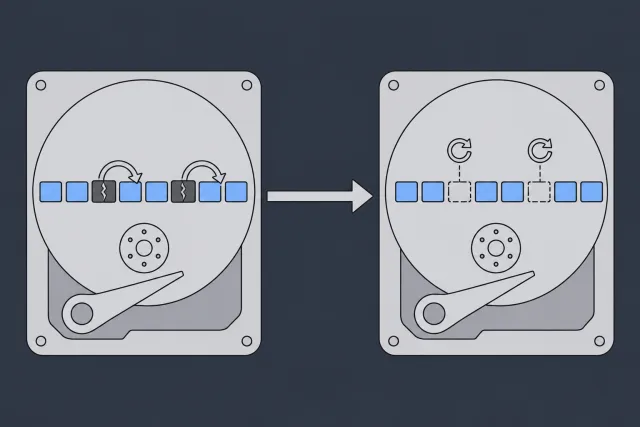
On Linux, if the drive is quiet and still reads normally, you can clone the entire drive sector by sector with ddrescue or HDDSuperClone. A regular file copy can stall when it hits a bad sector. A cloning tool can skip a bad spot and come back to it after copying the readable parts.
 Illustration
Run sudo hddsuperclone. Choose File, then New Project, and save it on a healthy drive with room for one file the size of the entire problem drive. Under Drives, choose the problem drive as the source. Match its model and serial number. Under Choose Destination, select Image file and give it a new name ending in .img on the healthy drive. Click Connect, then Start. If the drive starts clicking repeatedly or drops out, stop and power it off.
3. Replace the drive immediately. Once the copy finishes, shut down and disconnect the original. If you copied individual files, open a few from the healthy drive. For a Linux clone, right-click the .img file in the file manager. If it offers to mount the disk image, open it read-only, then copy your files from the volume that appears. If it won't open, keep the image and project file. Don't wait for the spare sector pool to run out before retiring the drive.
If the Drive Is Making Unusual Noises
Reallocated sectors combined with repeated hard clicking, grinding, or beeping are a serious warning. Those sounds can have different causes. Grinding can mean a head is scraping the platter. Power down the drive and don't turn it back on. Every spin-up attempt risks further platter damage if the head is touching the surface. If you need the data, we can diagnose the drive through our data recovery service.
When You Need Professional Data Recovery
Not every drive with reallocated sectors needs professional recovery. If your count is low and stable, and you can still access all your files, just back up and replace the drive. Problem solved.
But there are situations where you should stop and let us diagnose the drive.
The drive won't mount or is extremely slow. If Windows shows it as RAW/unformatted, leave it as it is. Cancel any prompt to initialize or format it. If the drive keeps you waiting just to open a folder or drops out while you copy, power it off. We can image the drive with professional equipment that controls which areas we read and how often we retry them.
You hear repeated hard clicking or grinding. An occasional soft click can be normal. Repeated hard clicks can mean the drive is struggling to read. Leave the drive closed and send it to us. If the heads need work, we open the drive in filtered air to keep dust off the platters. The heads may need to be replaced with compatible donor parts. You can learn more about the warning signs in our guide on signs your hard drive is failing.
You've already tried recovery software and it failed. Consumer recovery software works by scanning the file system and looking for recoverable data. But if the drive has physical damage, it may drop the connection before the scan finishes. Professional recovery uses specialized hardware to copy the areas of the drive that still read without forcing the heads back over a damaged spot.
The data is irreplaceable. Family photos. Business records. Research data. If losing the files would cause real harm, don't gamble with DIY methods. Repeated attempts can make physical damage worse. The safest path is to power down and bring the drive to us or mail it in.
Our lab in Lincroft, New Jersey, uses a laminar-flow work area for head and platter work. The $100 diagnostic is credited toward a successful recovery. Recovery work starts once you approve the estimate. You can see our full hard drive data recovery process and what's involved.
Even if the drive still opens, getting all your photos back depends on whether we can read the parts of the drive where they're stored. Before you pay for recovery, you can look through your recovery report to see which files came back and which may be damaged.
The standard wait is 4 to 6 weeks before we reach your device in line and start the diagnostic. If you need us sooner, we start the diagnostic within 5 to 7 days with Priority, within 1 to 2 days with Urgent, or the same day with Emergency. Recovery takes additional time depending on what we find.
Preventing Data Loss from Failing Drives
The best time to deal with reallocated sectors is before they cause data loss. Here are practical steps that actually make a difference.
Monitor S.M.A.R.T. Proactively
Don't wait for your computer to throw a warning. In CrystalDiskInfo (Windows), open Function and turn on Resident and Startup so the app can keep watching your drive. DriveDx (Mac) can alert you in the background when a reading gets worse. Keep your backup current even if you never see an alert.
Follow the 3-2-1 Backup Rule
Three copies of your data, saved in three different places. This isn't just advice for businesses. If you have photos, documents, or anything you'd be devastated to lose, you need at least two backup locations.
Keep Drives Cool
Make sure your drives have adequate airflow. External drives should sit on hard, flat surfaces with ventilation space around them. Keep your laptop's vents clear, too.
Use a UPS
An uninterruptible power supply protects your drives from sudden power loss and voltage spikes. Plug your desktop and any separately powered external drive into the battery-backed outlets so you have time to save your work and shut down.
Replace Drives Before They Fail
Hard drives can fail at any age. If your drive is showing more reallocated sectors, replace it once your files are safe.
Reallocated Sector Count vs. Other S.M.A.R.T. Attributes
People often confuse reallocated sector count with a few other S.M.A.R.T. attributes. Here's how they differ:
| Attribute | ID | What It Means |
|---|---|---|
| Reallocated Sector Count | 05 | Sectors the drive has already replaced with spares. Permanent record of confirmed bad sectors. |
| Current Pending Sector | 197 (C5) | Sectors flagged as suspect but not yet reallocated. A later read may succeed, or the drive may use a spare. |
| Uncorrectable Sector Count | 198 (C6) | Sectors the drive couldn't read during one of its own scans. A file that uses one of those sectors may be incomplete. |
| Reported Uncorrectable Errors | 187 (BB) | Read errors that the drive's internal error correction could not fix. Often correlates with bad sectors. |
These counts can overlap. A sector can first show up as a "current pending sector" (197). If the drive remaps it, the reallocated count (05) can rise. If a later read succeeds, the pending count can fall without a remap. A drive can also flag an unreadable sector during its own scan (198).
Watch whichever of these four readings your drive shows. A drive with zero reallocated sectors can still have sectors it can't read. An unreadable sector might hold part of a file, or it might be in unused space.
Does Reallocated Sector Count Apply to SSDs?
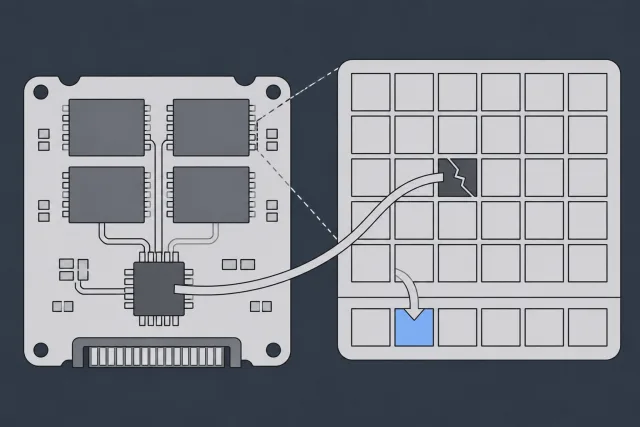
Sort of. SSDs don't have spinning platters or magnetic sectors, but they do have a similar concept. SSDs use NAND flash memory cells, and those cells wear out after a certain number of write cycles. When a block of memory cells wears out, the SSD's controller switches to a spare block.
 Illustration
Some SATA SSDs report this as "Reallocated Sector Count" in S.M.A.R.T. data, even when they count whole blocks. Others use different attribute names like "Retired Block Count." The concept is the same: storage units going bad and being replaced by spares.
For an NVMe SSD, look for "Available Spare" and "Percentage Used" in the health report. Available Spare tells you how much spare capacity is left. Percentage Used estimates how much of the drive's rated write life you've used. On a SATA SSD, the "Media Wearout Indicator" can count down as the drive wears. If you see reallocated blocks climbing on an SSD, back up while the drive still reads normally.
Frequently Asked Questions
Can reallocated sectors be repaired or reversed?
No. Once a sector is reallocated, it's permanently marked as bad. The drive will never use that original sector again. There is no software tool, format, or utility that can "fix" a reallocated sector. Some tools that claim to repair bad sectors do it by overwriting a pending sector. Don't try that if you still need what's on the drive.
Will formatting my hard drive fix reallocated sectors?
No. Formatting changes the file system and data stored on the drive. A full format might cause some pending sectors to get reallocated as it writes over them, but it won't reduce your count. Cancel any format prompt if the drive still holds files you need. No amount of software can fix a physical problem.
How many reallocated sectors is too many?
There's no universal magic number. The trend matters more than the absolute count. A drive that's stayed at 3 for two years hasn't recorded any new remaps in that time. A drive that went from 0 to 20 in a month has. If it holds your only copy of irreplaceable files, power it off for recovery. Once your files are safe, replace the drive.
Is it safe to keep using a drive with reallocated sectors?
It depends on the context. If the count is low and stable, the drive copies normally, and you have a complete backup of everything on the drive, then yes, you can continue using it for non-critical purposes. But never use a drive with reallocated sectors as your only copy of important data. Treat it as a drive with an expiration date. It might last another year. It might fail next Tuesday. If you can't afford to lose what's on it, copy that data to a healthy drive.
Does a high reallocated sector count mean my data is already lost?
Not necessarily. Reallocated sectors mean the drive assigned a spare to each bad sector it retired. If it could still read the old data, those bytes are intact in their new location. If it couldn't, a photo that used that sector may be damaged. The concern is what happens next. If the drive still reads normally, copy the files you need and open them from the backup.
Why did my reallocated sector count jump suddenly?
A sudden spike means the drive retired more sectors between readings. It may have found several bad spots together when it tried to read or write an area you hadn't used in a while. The count alone can't tell you whether the drive was bumped or the damage happened earlier. If your irreplaceable files are already safe and the drive still copies normally, back up anything else you need and stop using it for anything important.
Can I check reallocated sector count on an external hard drive?
Yes, but it depends on the enclosure. S.M.A.R.T. data passes through the USB or Thunderbolt bridge chip in the external enclosure, and not all bridge chips support S.M.A.R.T. passthrough. If CrystalDiskInfo or your monitoring tool doesn't show S.M.A.R.T. data for your external drive, leave it in its enclosure. On some models, a chip in the case automatically encrypts your files as you save them. Your computer needs that chip to read them back. If the drive still copies normally, back up through its usual connection.
When Reallocated Sectors Mean Stop DIY
If the reallocated sector count is rising, the drive is no longer just aging. It is actively replacing bad areas, and the next bad sector may hold part of a file you need. DIY is reasonable only if the drive is quiet, files copy normally, and you can risk losing the files you haven't backed up. Once transfers slow down, folders vanish, the drive disconnects, or new pending sectors appear, stop scanning and stop writing to it.
Do not run CHKDSK, defrag, full format, or repeated recovery software scans on a drive that is getting worse. Those tools can turn a recoverable surface problem into a more severe failure. Power the drive off and let our lab image it with controlled reads. MDRepairs offers US mail-in service from our New Jersey lab. Start a mail-in data recovery case for a $100 diagnostic, credited toward a successful recovery. After you submit the form, print the packing slip for the box. Shipping to us is free from the mainland of the lower 48 states. You can print your UPS 2nd Day Air label from the same form.
Sources
- Help Topic: "Bad Sector Found"
- How do I interpret SMART diagnostic utilities results?
- Failure Trends in a Large Disk Drive Population
- What to Do When CrystalDiskInfo Shows “Caution” or “Bad”
- Product Manual: Ultrastar DC HC550 (SATA)
- smartctl(8)
- smartd.conf(5)
- Check if a Mac disk is about to fail
- Health Status
- Advanced Features
- Main Menu
- DriveDx Online Help
- What is the normal operating temperature for Seagate disk drives?
- Identifying Hard Drive Sounds and Determining What They Mean
- GNU ddrescue Manual
- HDDSuperClone - Manual
- Open files with other applications
- chkdsk
- Troubleshoot Disk Management
- How does a UPS system work?
- Understanding SSD Over-provisioning (OP)
- Seagate® Nytro® XF1230 SATA SSD
- Intel® Solid-State Drive 320 Series Product Specification
- SMART Attribute Details
- WD External Drive Hardware Encryption Compatibility Matrix