SMART Error 301 on HP: Boot Warning Decoded
In this article
If you're staring at a black screen that says "SMART Hard Disk Error" with error code 301 and a scary line about backing up your data, this guide explains exactly what's happening inside your HP, what your realistic options are, and the order to do things in so you don't lose your files.
What SMART Error 301 actually means
Every modern hard drive constantly monitors its own health using a system called SMART (Self-Monitoring, Analysis and Reporting Technology). The drive tracks things like how many sectors have gone bad, how often reads need to be retried, and how long it takes to spin up. When those numbers cross the manufacturer's failure thresholds, the drive flags itself.
HP's BIOS checks that flag every time you power on. Error 301 is HP's specific code for "the primary hard drive failed its SMART check." Different HP models word it slightly differently, but the meaning is the same: the drive itself is reporting that it is failing. Not Windows. Not a driver. The physical drive.
That distinction matters because it tells you what won't help. Reinstalling Windows won't fix it. System restore won't fix it. Updating the BIOS won't fix it. The hardware underneath all of that software is wearing out, and the direction only goes one way.
Can you still boot past the error?
Usually, yes, for a while. Most HP machines let you press Enter or F1 to continue booting into Windows. Some will boot normally three times and then hang on the fourth. The behavior gets less predictable as the drive deteriorates.
Here's the part people get wrong: the ability to boot makes them relax. They click past the warning for weeks. Then one morning the laptop hangs at the HP logo forever, and now the easy window is closed. We covered what your options look like at that stage in our guide to recovering data from a laptop that won't turn on, and trust us, you'd rather act before that point.
If the machine still boots, you have one job, and it isn't diagnosing anything.
Copy your data off first. Everything else can wait
A failing drive has a limited number of successful reads left in it. Spend them on your files, not on scans and repair tools.
If Windows won't boot anymore
When the drive is too far gone to load Windows but the laptop still powers on, you have a couple of paths, in order of increasing seriousness:
- A bootable USB environment. A Linux live USB or a Windows recovery drive can sometimes see the failing drive and let you copy files to an external. This works when the drive's problem is moderate. If the drive is badly degraded, the whole environment will crawl or freeze as it hits bad sectors.
- Pulling the drive. The drive can be removed from the laptop and connected to another computer with a USB adapter. Same caveat: this only helps if the drive is still readable. It also voids your warranty on some models, so weigh that if the machine is new.
- A professional lab. When the drive clicks, hangs the computer it's plugged into, or shows up but throws read errors on the files you actually care about, stop. At that point the drive needs imaging on specialized hardware that can read around damaged areas, which is what a laptop data recovery lab does.
Replacing the drive vs. recovering the data
These are two separate problems, and mixing them up costs people their files. Replacing the drive gets your laptop working again. It does nothing for the data on the old drive. Here's how the two paths compare:
| Goal | What it involves |
|---|---|
| Working laptop again | New SSD installed, Windows reinstalled. Any competent repair shop can do this same-day. Your HP will likely run faster than it ever did on the old spinning drive. |
| Your files back | Depends entirely on the old drive's condition. If you copied everything off while it still booted, you're done. If not, the old drive needs recovery work before it degrades further. |
| Both | Recover first, or at minimum keep the old drive safe and untouched. Never let a shop wipe or discard the original drive until you've confirmed your files are safe somewhere else. |
Cost-wise, a replacement SSD is cheap. Recovery ranges from simple to serious depending on how far the drive degraded, and we break down real numbers in our data recovery cost guide. The single biggest factor in that price is how much physical damage the drive accumulated before someone stopped using it. Acting early is literally cheaper.
Why this error is so common on HP laptops
It's not that HP drives are worse. It's that HP is one of the few manufacturers whose BIOS checks SMART status loudly at every boot and blocks the startup screen with it. Dell does something similar with its own error codes. Most other machines fail silently: the drive degrades, Windows gets slow and glitchy, and the user never sees a warning until it's dead.
In that sense, Error 301 is a gift. Your laptop is telling you, in plain text, that the drive is dying while there's still time to do something about it. The drives we feel worst about in the lab are the ones that never warned anyone.
If you want to see what the drive is reporting in detail, SMART data is readable with free tools and worth a look before you decide anything. Our guide on how to read SMART data walks through which attributes matter, like reallocated sectors and pending sectors, and what the raw numbers mean.
What a recovery lab does with a 301 drive
When a drive that threw a 301 lands on our bench, the process looks like this. First we evaluate it on hardware that talks to the drive at a lower level than a computer's USB port, so a weak drive doesn't get overwhelmed. Then we image it: a sector-by-sector copy onto a healthy drive, reading the good areas first and coming back for the difficult ones with adjusted timing and, when needed, per-head control. All the actual file work happens on the copy, never on your original.
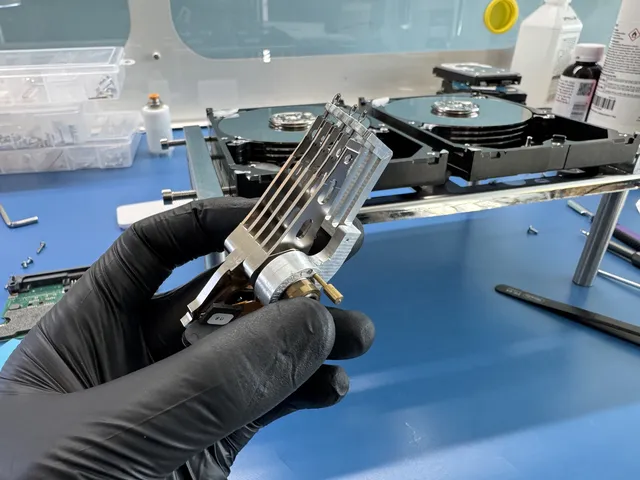
If heads fail or platters are damaged, the drive needs assessment for physical work. At MDrepairs, head and platter work uses a laminar-flow work area.
Success rates on early-stage SMART failures are high because the failure is usually still partial: a growing patch of bad sectors, a weakening head, a drive that's slow but alive. The data is there. It just needs to be read carefully, once, by equipment built for exactly that.
Frequently Asked Questions
Can I fix SMART Hard Disk Error 301?
No, and that's the honest answer anyone should give you. The error reports physical deterioration inside the drive, and there's no software that reverses physical wear. You can sometimes silence the warning in BIOS settings, but that just hides the smoke alarm while the fire keeps going. The fix is copying your data off and replacing the drive.
How long will my drive last after showing Error 301?
There's no reliable number. Some drives limp along for months, others die within days, and the failure curve tends to accelerate because bad sectors beget more bad sectors as the heads work harder. Plan as if you have days, and treat anything longer as luck.
Will reinstalling Windows or resetting my HP clear the error?
No. The error comes from the drive's own firmware, below the operating system. A reinstall actually makes things worse twice over: it writes heavily to a failing drive, and it can overwrite the very files you'd want recovered later.
Can I just replace the hard drive myself?
On most HP laptops, yes, it's a reasonable DIY job, and swapping in an SSD is a big upgrade. Just keep the original drive intact and unformatted until every file you care about is confirmed safe on the new setup. The old drive is your only source if something's missing.
What if I ignored the error and now the laptop won't start?
The data is very often still recoverable, it just moved from a DIY situation to a lab one. Stop powering the machine on, since every failed boot attempt works the damaged areas harder. A lab can image the drive directly and pull your files from the copy. You can mail the drive or the whole laptop in from anywhere.
How MDrepairs can help
Real cases like this come through our New Jersey lab every week. If you are dealing with one now, start here.