Current Pending Sector Count Warning: Is Your Drive Dying?
In this article
Current pending sector count (S.M.A.R.T. attribute 197) is the number of unstable sectors your drive can't read reliably and is waiting to retry. Don't run chkdsk or accept a prompt to format the drive. If the drive still reads normally, copy your important files to another drive now. If it freezes, clicks repeatedly or gives a read error, stop and power it off.
- 1-4, back up now, then re-check weekly if the drive still reads normally
- 5-20, back up immediately and plan a replacement
- Growing count or read trouble, power off the drive and, if you still need files, consider professional hard drive data recovery
A current pending sector count above zero means your hard drive (HDD) has found sectors it can't read properly, and it's waiting to figure out what to do with them. One of those spots might hold part of a photo, or it might be in unused space. They're sectors the drive flagged during a read operation because something went wrong. The drive is holding them in a queue. A sector can come off the list if the drive manages to read it later. A successful rewrite can clear it too. If the write fails, the drive may mark that spot as bad and remap it to a spare sector. Either way, a non-zero current pending sector count is your drive telling you something is wrong. Maybe something small. Maybe something catastrophic. You need to pay attention.
The number alone doesn't tell the whole story. The trend matters, and so does what happens when you open a file.
If your drive is throwing this warning right now and files still open normally, the smartest thing you can do is back up everything immediately. Don't run defrag. Don't run chkdsk. Just copy your important files to another drive, starting with the photos and documents you can't replace. If a copy stalls or gives a read error, cancel it, power off the drive and ask our lab for a recovery quote.
What Is Current Pending Sector Count?
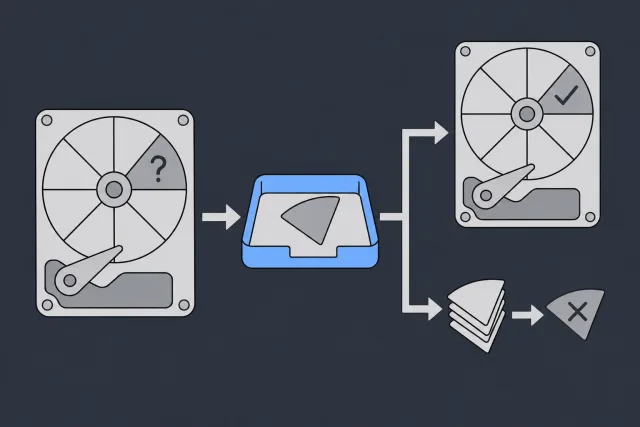
Current pending sector count is a S.M.A.R.T. attribute (ID 197, or C5 in hex) that tracks how many sectors on your hard drive are currently unstable. The drive tried to read these sectors and got errors. Instead of immediately declaring them dead, the drive puts them in a pending state. It's a waiting room for suspicious sectors.
 Illustration
Here's what happens behind the scenes. Your drive's firmware reads data from a sector. The data comes back, but the error correction code (ECC) can't fully verify it. Or the read fails entirely after multiple retries. When a new sector goes on the list, the firmware logs its address and increments the current pending sector count by one. If the sector is still pending when new data is written there, here's what can happen.
- A successful write: Software or the OS writes new data to that sector. If the drive accepts the new data there, the sector can come off the pending list. That write replaces the old contents.
- A failed write: The drive tries to write to the sector and the write fails. It may mark that spot as bad and map it to a spare sector from the reserve pool. When it does, reallocated sector count (ID 5) goes up.
The key word in "current pending sector count" is current. This number can go up and down. It represents the sectors that are in limbo right now. That's actually useful information, because a pending count that keeps climbing tells a very different story than one that spikes and then drops back to zero. On some models, the count can stay up even after a sector is remapped.
Why "Pending" Doesn't Mean "Dead"
A pending sector might recover. Seriously. Sometimes a sector fails to read because of a transient error. The drive may be able to read that same spot later, and the pending count can drop by one.
This is why some people check their S.M.A.R.T. data, see a pending count of 4, panic, buy a new drive, and then three days later the old drive shows 0 pending sectors. That could have been a transient error, but a cleared count doesn't prove the drive is healthy.
But here's the thing you can't ignore. The drive had trouble reading that spot, and a cleared count can't tell you why. It might hold up for another five years. It might fail again next Tuesday. You genuinely don't know.
Understanding S.M.A.R.T. and Where This Fits
S.M.A.R.T. stands for Self-Monitoring, Analysis, and Reporting Technology. It's a monitoring system built into many modern hard drives and SSDs. What the drive tracks depends on the model. You can read these values with the right software. Our full guide on how to read S.M.A.R.T. data covers the common attributes in more detail.
Not all S.M.A.R.T. attributes matter equally. Some are basically trivia. "Power cycle count" tells you how many times the drive has been turned on and off. Interesting, but not urgent. Other attributes are critical health indicators. Current pending sector count is one of the critical ones.
The Critical S.M.A.R.T. Attributes You Need to Know
| Attribute | ID | What It Means |
|---|---|---|
| Reallocated Sector Count | 5 (05) | Sectors permanently marked bad and swapped to spares |
| Spin Retry Count | 10 (0A) | Extra attempts to spin up to speed |
| Reallocation Event Count | 196 (C4) | Attempts to remap bad sectors to spares |
| Current Pending Sector Count | 197 (C5) | Sectors the drive couldn't read and is waiting to retry |
| Offline Uncorrectable | 198 (C6) | Sectors the drive couldn't read during an offline scan |
| UDMA CRC Error Count | 199 (C7) | Interface communication errors (often a cable issue) |
When we diagnose a drive in our lab, we look at all of these together. A drive with 20 pending sectors but zero reallocated sectors tells one story. A drive with 20 pending sectors AND 500 reallocated sectors tells a completely different one. The second drive has already used spares. Neither count tells us how many are left.
What Causes Pending Sectors
Sectors don't just randomly decide to stop working. Well, sometimes they do. But usually there's a cause. Understanding what creates pending sectors helps you figure out whether your drive is experiencing a minor issue or a major failure in progress.
Normal Wear and Age
Every hard drive has a finite lifespan. The magnetic coating on a platter can deteriorate. Read/write heads can wear down. The drive's firmware can swap bad sectors for spares without you noticing. A new pending sector still deserves attention at any age.
A current pending sector count of 1 to 4 on a drive that's four years old? The number alone can't tell you the cause. Keep an eye on it. Back up your data if it reads normally. But don't panic.
Physical Shock or Vibration
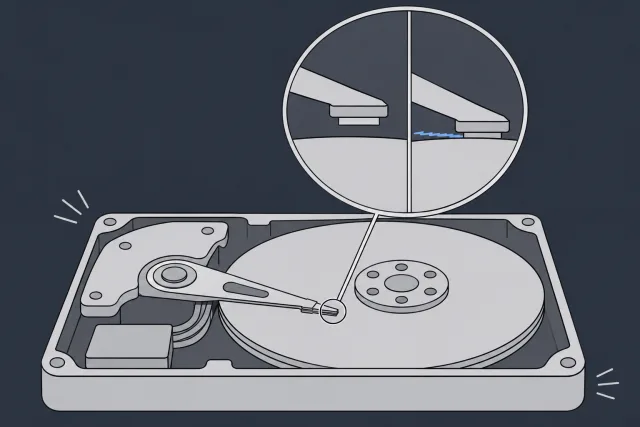
Drop a laptop while the drive is spinning and you can damage the platter surface. The read/write heads float just above the platters. The gap is thinner than a human hair. A bump at the wrong moment can cause the heads to contact the platter surface. That's called a head crash. A scratch there can leave a whole stretch of sectors hard to read.
 Illustration
Power Issues
Sudden power loss during a write operation can leave sectors in a corrupted state. If the power cuts out before the drive finishes writing a sector, the data there can fail its error check. Next time the drive tries to read that sector, it may add it to the pending list.
A write to that sector may clear the warning, but it also overwrites what was there. If you're in an area with unreliable power, get a UPS. That's a battery backup that gives you time to shut down cleanly.
Manufacturing Defects
Some drives ship with marginal sectors that pass factory testing but fail early in real-world use. Even on a new drive, back up your files first while it still reads normally. Replace it before it gets worse.
Heat Damage
Excessive heat can shorten a hard drive's life. Think of laptops sitting on beds and pillows, drives crammed into poorly ventilated NAS enclosures, or external drives with no airflow.
Check your drive temperature in CrystalDiskInfo or a similar tool. Compare it with the operating temperature range for your drive model. If it's running hotter than that, check the vents and fans.
How to Check Your Current Pending Sector Count
Windows can show health warnings for NVMe SSDs. To see your hard drive's current pending sector count, use one of the free tools below. If this is the drive Windows starts from, save your files before installing anything on it.
1 CrystalDiskInfo (Windows)
This is the go-to tool for most people. Download it from the official CrystalDiskInfo site (we also have a full CrystalDiskInfo walkthrough). Install it. Open it. Select the drive by its model and drive letter at the top. Look for row C5 or "Current Pending Sector Count." Read the Raw Values column. The column labeled Current is a health score. For a decimal count, choose Function > Advanced Feature > Raw Values > 10 [DEC]. If the raw value is 0, no sectors are pending, but that doesn't rule out other faults. If C5 is missing, the drive or its USB connection may not report it.
CrystalDiskInfo also color-codes the overall drive health. Blue means good. Yellow means caution. Red means bad. On a hard drive, a yellow warning can come from C5, reallocated sectors or uncorrectable sectors. Look for the highlighted row.
2 smartmontools / smartctl (Windows, Mac, Linux)
If you prefer command-line tools, install smartmontools. Open a terminal (as administrator on Windows) and run smartctl --scan to list the drives. Use the device name it shows for yours in the example below, along with any -d option it lists for that drive.
sudo smartctl -i -A /dev/sda (Linux), sudo smartctl -i -A /dev/disk0 (Mac) or smartctl -i -A /dev/pd0 (Windows). Confirm the model in the output.
Look for attribute 197 in the output. The RAW_VALUE column is your current pending sector count. This tool also works over SSH, which is handy if you're checking drives in a remote server or NAS.
3 GSmartControl (Windows, Mac, Linux)
This is basically a graphical front-end for smartmontools. Same data, friendlier interface. Download it from the GSmartControl downloads page. Double-click your drive, open Attributes and look for 197 in the ID column. You can read the raw value there without starting a self-test.
4 Disk Utility (Mac)
On macOS, open Disk Utility and choose View > Show All Devices. Select the physical drive above its volumes, click Info and look for S.M.A.R.T. status. Disk Utility doesn't give you the individual attributes, and some USB connections don't report a status at all. If you already use Homebrew, run brew install smartmontools in Terminal and use the Mac command above.
Interpreting the Numbers: When to Worry
So you checked your S.M.A.R.T. data and the current pending sector count isn't zero. Now what? The answer depends on the actual number, how fast it's growing, and what the other attributes look like. These ranges are examples. If files won't copy normally, stop at any count.
1 to 4 Pending Sectors
Low count. Still a warning. This could be normal wear on an older drive, or a transient error from a power glitch. Back up your data if it reads normally (you should be doing this anyway). Monitor the count weekly. A stable count doesn't prove the drive is healthy. If it starts climbing, stop using it.
5 to 20 Pending Sectors
Moderate count. The count alone can't tell you whether the problem is the media, the heads, or a transient error. You need a backup right now if you don't have one and the drive reads normally. Start shopping for a replacement drive. Don't wait for this to "get better."
20 to 100 Pending Sectors
High count. Take it seriously, but the number alone can't tell you whether the media or heads are damaged. Stop using it for anything non-essential. With a stable count and normal reads, copy your critical files to another drive immediately. If the count is rising or files are unreadable, power it off and call our lab if you still need files.
100+ Pending Sectors
Critical warning. The count alone can't tell you what's damaged or how long the drive will last. Don't run chkdsk. Don't run defrag. Don't run any "repair" tools before your data is saved elsewhere. If the count is stable and files read normally, copy them to another drive. If the count is rising or reads are unreliable, stop using it and call our lab if you still need files.
chkdsk /r option reads every sector on the selected volume, including the ones it's already struggling with. On a degrading drive, this can push a recoverable situation into an unrecoverable one. If you need file system repair, work on a clone. If the original is already freezing or giving read errors, power it off.
The Growth Rate Matters More Than the Number
A stable count and a growing count tell different stories, even when the current number is the same. The trend gives you another warning sign. Once your files are backed up, check your count once a week and write it down if the drive still reads normally. If you see it climbing steadily, stop using the drive even if the current number is small.
Pending Sectors vs. Reallocated Sectors
These two attributes are closely related but mean different things. Confusing them can lead to bad decisions, so let's be clear about what each one tracks.
Current pending sector count (ID 197) is the queue. Sectors are waiting here for a retry. They might recover. They might not. The number fluctuates.
Reallocated sector count (ID 5) is the permanent record. It counts sectors the drive has retired. The drive swapped them out for spare sectors from the reserve pool. The raw count normally only goes up.
Think of it like a hospital triage. Pending sectors are in the waiting room. Some will be treated and sent home healthy. Others will be admitted permanently. Reallocated sectors are the ones admitted permanently. They'll never leave.
What Happens When the Spare Sectors Run Out?
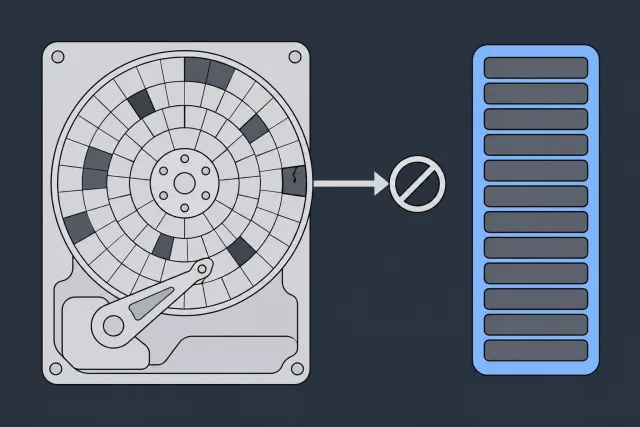
A hard drive ships with a reserve pool of spare sectors. The exact number varies by manufacturer and model, and the pending count doesn't tell you what it is. When a sector gets reallocated, the drive uses space from this pool. When the pool is empty, the drive can't remap any more bad sectors. New bad sectors just stay bad. If part of a file sits in a spot the drive can't read, that part can be missing from a copy.
 Illustration
You can't tell how many spare sectors remain from the reallocated sector count alone. It tells you how many sectors the drive has already replaced. It doesn't tell you how many spares it started with.
The Dangerous Combo
High numbers in both columns are a warning. A drive with 50 pending sectors and 500 reallocated sectors is giving you two warnings. The 500 reallocated sectors mean the drive has already swapped out bad spots. The 50 pending sectors mean it still has spots it couldn't read. You can't tell from one reading how long that's been going on.
If the drive still reads normally and the count is stable, back up immediately and replace the drive. If files won't copy, power it off.
Can You Fix Pending Sectors?
Sort of. You can sometimes clear the pending sector count. But "clearing the count" and "fixing the drive" are two very different things. Let's be honest about what each method actually does.
Method 1: Write Zeros to the Drive (Full Format)
A full format (not quick format) in modern Windows writes zeros across the formatted volume. When the drive writes to a pending sector, a successful write may clear it; a failed write may trigger reallocation. The count can stay above zero if remapping fails or the drive finds more unreadable sectors.
The catch? This wipes all the data on the volume you format. And it doesn't fix the underlying problem. If the sectors failed because the platter coating is degrading, new bad sectors can appear. Even if the count falls, you haven't repaired the drive.
When this makes sense: You've already backed up all your data and opened the copies you need. You want to repurpose the drive for non-critical storage (downloads, temp files), and you're okay with it dying eventually.
When this is a terrible idea: You haven't backed up your data. A full format erases everything on that volume.
Method 2: Run a S.M.A.R.T. Self-Test
Many hard drives support short and extended self-tests. If your backup is complete, the count is stable and the drive reads normally, you can start the extended test with smartctl. The Linux example below uses /dev/sda. Use the device name you identified earlier.
sudo smartctl -t long /dev/sda
The extended test checks the drive's electrical, mechanical, and read performance and reports errors in the self-test log. It can't repair sectors. When it finishes, read the log with sudo smartctl -l selftest /dev/sda, using your drive's device name. The test can take several hours on large drives.
When this makes sense: You have a backup, the count is stable, the drive reads normally, and you want to check for read errors.
When this is risky: The drive is already struggling. An extended test keeps it trying to read spots it may already be struggling with. If the drive is clicking, slow, or throwing read errors on normal file access, don't run this test. You could push it over the edge.
Method 3: Use hdparm to Write to Specific Sectors (Linux)
Advanced users on Linux can use hdparm --write-sector to write zeros to one sector. It overwrites whatever was there, even if you pick the wrong spot. If the write succeeds, the sector may clear from the pending list. If it fails, the drive may try to reallocate it.
This requires knowing the exact sector address. The self-test log can show the first read error, and that may be only one of the pending sectors. One wrong command can destroy data. Only do this if you know what you're doing and your data is already backed up.
What to Do When You See This Warning
You just checked CrystalDiskInfo and your current pending sector count isn't zero. Here's exactly what to do, in order.
1 Don't Panic, But Don't Ignore It
A low pending count can't tell you how urgent the problem is. But it is a warning. Treat it like the check engine light on your car. Maybe it's a loose gas cap. Maybe your transmission is about to drop out. You won't know until you investigate, but you shouldn't keep driving cross-country without checking.
2 Back Up Everything Right Now
This is step one, two, and three. If the drive still reads normally, copy your important files to another drive. An external USB drive, a NAS, cloud storage. Whatever you have. Do it now, not later tonight, not this weekend. Now. If the copy freezes, the drive disconnects, or you hear repeated hard clicks, stop and power it off.
Use Copy and Paste, then open a few photos and documents on the other drive to make sure the copies work.
3 Check the Other S.M.A.R.T. Attributes
Look at reallocated sector count (ID 5), offline uncorrectable (ID 198), and reallocation event count (ID 196). If all of these are at zero, the pending sectors still matter. Several warnings together deserve attention, but they can't tell you how long the drive has left.
4 Monitor Weekly
With your files backed up, check the pending count once a week while it's stable and reads are normal. Write it down in a spreadsheet or note. You're looking for the trend. If it's growing, stop using the drive even if the number is small. Call our lab if you still need files.
5 Buy a Replacement Drive
Don't wait for the drive to die. Drives with pending sectors are living on borrowed time. The count can't tell you how much time you have. Keep the backup when you copy your files to the replacement.
6 Clone the Drive
If the count is stable and the drive reads normally, a clone can migrate your OS, applications, and settings after you back up your files. If all you wanted were photos and documents, you can stop once the copies open. For an Intel or AMD PC that starts in UEFI mode, download the stable Clonezilla Live ZIP (choose amd64 and zip). Extract its contents to the top level of an empty FAT32 USB stick with at least 1 GB free. Start the PC from that stick using its boot menu. Choose device-device, Beginner, then disk_to_local_disk. Select the old drive as the source. For the target, select an empty new drive at least as large as the old one. Everything on the target will be overwritten, so confirm both drives by model and serial number before you start. If the old drive gives a read error, stop.
When It's Too Late for DIY
There's a point where consumer tools and DIY troubleshooting stop being helpful and start being dangerous. Here's how you know you've crossed that line.
The Drive Is Making Noises
Repeated hard clicking, grinding, or beeping when the drive won't spin up can signal a physical problem. Check our guide on hard drive failure warning signs for the full list. Pending sectors are the least of your worries now. The heads may be scraping the platters. If they are, running the drive can make the damage worse. Power it off. Don't plug it back in. Talk to our lab about professional hard drive data recovery before trying to read the drive again.
Files Are Disappearing or Corrupted
If files that were there yesterday are gone today, or if documents open as garbled nonsense, an unreadable sector may hold part of a file or the directory that tells your computer where to find it. Stop trying to open the damaged files and look for a backup on another device.
The Drive Isn't Recognized by Your Computer
A drive missing from Finder may still show up in Disk Utility. Choose View > Show All Devices and look for the drive itself. On Windows, right-click Start and open Disk Management. If you're asked to initialize, erase or format a drive that holds your files, cancel. If the computer can't see the physical drive at all, even in BIOS for an internal drive, software can't read files from it. Power it off if you still need the data.
Windows Is Blue Screening
Repeated blue screens with stop codes like KERNEL_DATA_INPAGE_ERROR or UNMOUNTABLE_BOOT_VOLUME can mean Windows couldn't read the data it needed or couldn't open the drive it starts from. Neither code tells you by itself that a sector is bad. Stop rebooting. Each reboot asks the drive to read what Windows needs all over again.
Preventing Drive Failure Before It Happens
You can't prevent every drive failure. Drives are mechanical devices (or electronic devices, in the case of SSDs) with limited lifespans. But you can protect your files by following a few basic practices.
Monitor S.M.A.R.T. Data Regularly
Install CrystalDiskInfo or a similar monitoring tool and leave it running. It can alert you when the drive's health status changes. Some drives fail without a S.M.A.R.T. warning, so keep a backup even when the status says Good.
Keep Drives Cool
Keep your drive within the operating temperature range for its model. Ensure good airflow in your case. Don't stack drives on top of each other in external enclosures. If you're running a NAS with multiple drives, make sure the fans are working and the vents aren't blocked.
Use a UPS
A basic uninterruptible power supply gives you battery power during an outage. Sudden power loss during a write operation can leave a sector unreadable. Plug the computer and any separately powered external drive into the battery-backed outlets so you can shut down cleanly.
Replace Drives Proactively
Hard drives can fail at any age. If your drive is starting to show S.M.A.R.T. warnings, don't wait for it to fail. Replace it on your terms, when you have time to migrate your data carefully. Replacing it on the drive's terms means scrambling to recover data at 11pm on a Sunday.
Follow the 3-2-1 Backup Rule
Three copies of your data. Keep them in three different places. If your primary drive dies and your backup dies (it happens), you still have the third copy.
Don't Defrag SSDs
Defragmentation helps a mechanical hard drive read scattered pieces of a file. Manually running defrag on an SSD just to clear a warning adds unnecessary writes. Windows 10 and 11 handle SSD optimization automatically with TRIM. Leave it alone.
Frequently Asked Questions
Is a current pending sector count of 1 bad?
It's a warning. A single pending sector can be a transient error that clears itself on the next write. Check it again in a week if your files are backed up and reads are normal. If it's still 1 or went back to 0, that doesn't prove the drive is healthy. If the count is rising, stop using the drive and call our lab if you need the data. The trend matters more than any single reading. Either way, make sure you have a current backup. Even a single pending sector deserves attention.
Can current pending sectors fix themselves?
Yes, sometimes. A later read can succeed and clear a pending sector. When the operating system or an application writes new data to a pending sector, a successful write can also clear it. That write replaces the old data. If the underlying cause is physical degradation of the platter surface or a weakening read/write head, new pending sectors can appear elsewhere. The fix is superficial in that case.
Should I run chkdsk if I have pending sectors?
Save your files first. If you need file system repair, run chkdsk on a working copy. chkdsk /r reads every sector on the selected volume and attempts to recover readable data from bad sectors. On a drive that's actively degrading, those extra reads can make things worse. If the count is rising or reads are unreliable, power off the original and call our lab if you still need files.
What's the difference between current pending sector count and reallocated sector count?
Current pending sector count (S.M.A.R.T. ID 197) tracks sectors that had read errors and are waiting for a retry. The number goes up and down. Reallocated sector count (S.M.A.R.T. ID 5) tracks sectors that permanently failed and were swapped with spare sectors from the drive's reserve pool. This raw count normally only goes up. Pending sectors are in a temporary holding pattern. Reallocated sectors are permanently flagged. A failed write may trigger reallocation. A successful read or write may clear the pending sector instead. Take either warning seriously, especially if the count grows or files won't open.
Does current pending sector count apply to SSDs?
On some SSDs, yes. If your SSD reports current pending sector count, its meaning depends on that model. SSDs also have their own health metrics like percentage of life remaining and total bytes written. On an NVMe SSD, look for "Available Spare" and "Media and Data Integrity Errors" in the health report. It doesn't have a C5 row. If you see a warning, back up your data if the drive still reads normally. If it's dropping out or files won't copy, stop.
How many pending sectors is too many?
There's no universal magic number. Context matters. The count alone can't tell you whether the drive has physical damage. With a stable count and normal reads, copy your important files and plan a replacement. If the count is rising or reads are unreliable, stop using the drive and call our lab if you need the data. A stable or cleared count doesn't prove the drive is healthy.
Will a full format fix pending sectors?
A full format may lower the pending sector count, but it won't fix physical damage. In modern Windows, the format writes zeros across the formatted volume. Pending sectors that accept the write may clear from the list. Sectors that fail may be reallocated, but remapping can fail too. After the format, the count may still be above 0. Any underlying physical damage is still there, and new pending sectors can appear. A full format also erases all the data on the volume you format. If you need the data, a full format is not the answer. If the drive is going to be used for non-critical, temporary storage after you've already saved everything important, a lower count still doesn't prove it's healthy. But don't trust that drive with anything you can't afford to lose.
When DIY stops being safe
Pending sectors are not just a number to clear. They are places the drive could not read confidently, and every full scan, clone attempt, or file copy can push weak heads and damaged media harder. If the count is rising, the drive freezes during access, or a file copy keeps stalling, stop and power off the drive. A full format may make the warning disappear, but it also writes across the entire volume you format and destroys the file system you may need for recovery.
With the drive still off, you can use our dead hard drive recovery tool to decide whether DIY is still reasonable. MDRepairs provides hard drive data recovery in Lincroft, New Jersey. The diagnostic costs $100 when your drive arrives. Once the diagnostic starts, that fee is nonrefundable. It's credited toward a successful recovery. You approve the estimate before recovery work starts. If you can't drop off your drive, you can start a mail-in data recovery request. The form gives you a packing slip for the box and, if you're shipping from the contiguous US mainland, a free UPS 2nd Day Air label (contiguous US).
Sources
- Help Topic: "Bad Sector Found"
- smartd.conf(5)
- What to Do When CrystalDiskInfo Shows “Caution” or “Bad”
- Identifying Hard Drive Sounds and Determining What They Mean
- What SMART Stats Tell Us About Hard Drives
- smartctl(8)
- SMART Attribute Details
- What to do about a critical warning for a storage device
- NVME_HEALTH_INFO_LOG structure (nvme.h)
- Understanding hard drive media defects white paper - Servers
- Z5K500 OEM Specification
- Boosting Hard Drive Lifespan
- What is the normal operating temperature for Seagate disk drives?
- UPS buying guide: Choose the right backup
- Advanced Features
- Screenshots
- Get detailed information about a disk in Disk Utility on Mac
- chkdsk
- Change in the behavior of the format command in Windows Vista and later versions
- hdparm(8)
- Clonezilla Live on USB
- Disk to disk clone
- Troubleshoot Disk Management
- Bug check 0x7A: KERNEL_DATA_INPAGE_ERROR
- Bug Check 0xED: UNMOUNTABLE_BOOT_VOLUME
- Defragment / optimize your data drives in Windows