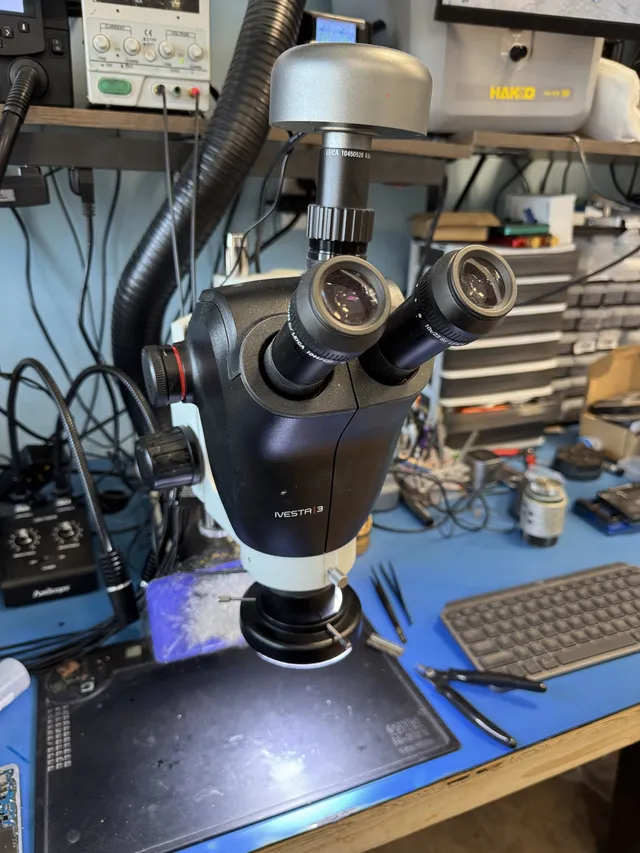
How to fix a USB drive no longer recognized
Our founder and lead technician, Joseph Montanti, handles cases personally.
To recover data from a USB flash drive that is not recognized, first check whether the computer detects its storage in Disk Management or Disk Utility. A missing drive letter or unreadable file system can leave the files accessible through another route; a stick showing No Media, zero capacity or a failed USB identification needs its connection or hardware fault resolved first. Otherwise, try two direct USB ports and one other computer if the drive is physically intact, then follow the result below.
Leave a damaged stick disconnected. A bent connector, cracked board, liquid damage, unusual heat or repeated disconnects needs repair attention before further power. Cancel format and initialization prompts, and leave firmware tools and repair commands until the needed files have been saved or a complete image has been made.
On this page
You plugged in the flash drive and nothing happened
A USB drive has several jobs to complete before a folder opens. It must connect electrically, identify itself to the computer, present readable storage and provide a file system the operating system understands. A failure at any of those stages can look like “nothing happened” from File Explorer.
Start with the computer's connection. Remove an unnecessary hub, extension or adapter and use a direct port. A working spare USB device can help check that port. If other devices fail there too, work on the computer's USB connection before blaming the flash drive.
For an external drive with a separate cable, try a known working data cable as part of the connection check. A one-piece thumb drive has no cable to replace. If the second computer opens the thumb drive's folders, save their contents on that computer before changing the stick; abandon the transfer if progress stops, a read error appears or the stick drops out.
Copy files rather than moving them, so the original remains in place while you check the destination. Open the copied documents, photographs or videos from the other drive. A working connection today is the opportunity to get a separate copy, even if the stick failed to appear yesterday.
Find the right fix for a USB drive Windows cannot open
- Open File Explorer and look under This PC. If the drive opens and behaves normally, copy its contents before continuing troubleshooting.
- Right-click Start and open Disk Management. Find the device by capacity and check whether it has a volume, a file-system name and a drive letter.
- If no corresponding disk appears, open Device Manager. Look under Disk drives and Universal Serial Bus controllers for the device or an Unknown USB Device entry.
If the drive has a healthy volume with a recognized file system but no letter, right-click the volume in Disk Management and choose Change Drive Letter and Paths > Add. Microsoft's drive-letter instructions cover this. Adding a letter makes an existing volume available in Explorer; it does not rebuild damaged folders.
Disk Management can show storage that Explorer cannot open. RAW means Windows has not recognized a usable file system. Unallocated means it has no recognized partition in that space. Both states can appear after damage to the records that describe the volume, but an unsupported format is another possibility. Microsoft's disk troubleshooting page distinguishes recovering old files from formatting empty storage.
| What the computer shows | What is happening | What to do |
|---|---|---|
| Healthy volume without a letter | Windows has a volume but no Explorer path for it. | Assign a letter and copy the files. |
| RAW or unallocated, expected capacity | Storage is presented, but its file organization is unavailable. | Check the original operating system, then image a stable device for recovery. |
| Unknown USB Device, descriptor failure | Basic USB identification failed. | Use the limited port/computer comparison below. |
| No Media or zero total capacity | The USB interface answers without supplying usable storage. | Rule out an empty reader; persistent failure needs device repair. |
Expected capacity is the total size of the disk. “Zero bytes free” can simply describe a full, readable volume. A 128GB stick reporting only 8MB or zero total capacity is a different problem: the controller is not presenting the expected memory space.
On a Mac, look beyond Finder
Open Finder > Settings and enable external disks in General and Sidebar. Apple's Finder instructions show these display settings. A mounted volume can be hidden from the desktop or sidebar even while the Mac can read it.
Open Disk Utility > View > Show All Devices. The physical USB device and its volumes appear at different levels. If an intact drive has a recognized, unmounted volume, select it and use Mount, following Apple's mounting instructions. Once it opens, save its files to another device.
If the drive is absent, look in System Information under USB to see whether the Mac identifies the USB device. An entry there without a disk in Disk Utility places the failure earlier than opening folders. On a Mac laptop with Apple silicon, unlock the Mac and approve a new accessory connection if prompted; Apple documents that permission.
A flash drive used on a Mac may have APFS or HFS+ formatting, which Windows does not read natively. Use the original Mac to copy those files. A drive that fails on Windows but opens on that Mac has a different problem from one that supplies no storage to either computer.
Unknown USB Device (Device Descriptor Request Failed), Code 43
This message means the stick failed an early identification exchange, before Windows could read its files. A USB device descriptor supplies basic information such as the vendor and product identifiers. If Windows cannot obtain a valid response, it may stop setting up the device and mark it with Code 43.
Microsoft's unknown-device case study shows this failure during USB enumeration, the process of identifying and configuring a connected device. Its USB error-description guide explains the wording used in Device Manager.
For a physically intact stick, two direct ports and one other computer are enough for the home connection check. A device that works elsewhere points you back to the original computer. If the same descriptor failure follows the stick, recovery needs a working USB connection or another supported route to its memory.
Reinstalling a storage driver cannot repair a broken connector or a controller that cannot identify itself. A format utility works further along the access chain, after storage is available. Neither supplies the missing device response. If several USB products fail only on one computer, use that computer maker's updates and Microsoft's driver guidance for the affected device rather than uninstalling every USB controller.
“Please insert a disk into USB Drive” and “No Media”
A flash drive can answer as a USB device while its controller fails to make the memory available. Windows may then ask you to insert a disk, or show No Media and 0 bytes in Disk Management. For a one-piece USB stick, there is no separate disk to insert: the controller is responding, but the normal path to its internal memory is unavailable.
First make sure the letter belongs to the flash drive. An empty slot in a multi-card reader can produce the same message because there is no card in that slot. With a card-and-reader combination, check the card's seating and use a compatible reader. Microsoft's system error definitions identify No Media as error 1112, distinct from a general input/output error.
Once the actual stick still shows No Media after the port and computer comparison, ordinary recovery software has no sectors to scan. A program can display the device name without being able to read a single file-bearing block. Scanning longer or selecting a deeper scan does not change that missing access.
Factory or “mass production” utilities are designed to configure flash devices for use. They can change the controller's configuration and storage layout instead of preserving the previous files. DiskPart clean removes partition information, and clean all overwrites every sector it can address, as Microsoft documents. Those operations belong outside a recovery attempt on the only copy.
Recover files from a RAW stick that won't read
When the stick presents its expected capacity and reads reliably, an image preserves its addressable contents before recovery software interprets them. File-system damage can leave names and folders missing while file contents remain elsewhere in that image. The results depend on which records and data blocks survived.
- Install the recovery program on your computer, with a different healthy drive available for the image and recovered files.
- Use a device-to-image copy function. Select the USB stick as the source and an image file on the healthy drive as the destination.
- Open the image in recovery software. Search for the old volume and copy found files out to a separate destination.
- Check the recovered files before formatting or attempting a file-system repair on the original stick.
DMDE documents sector copying to an image file. TestDisk and PhotoRec can work on images: TestDisk can find lost partitions, while PhotoRec searches for recognizable file contents when the directory records are unusable. Signature recovery can lose the original filenames and folder structure.
Keep the image even after you find some files. A recovered filename is only part of the result: a document must open, a photograph must display fully, and a video must play through the parts you need. If a file was stored in several separate pieces and its directory records are lost, a signature scan may find its beginning without reconstructing the whole file. That is one reason to check the recovered contents before deciding the job is finished.
For the Windows format prompt, the format-error recovery guide explains the next choices.
What the controller and memory do
The NAND memory holds the stored data. The controller handles the USB conversation, corrects supported read errors and translates the computer's requested addresses into locations in flash. The flash layout can include spare blocks, error-correction information and scrambled data, so a direct memory read still needs reconstruction before it becomes folders and files.
Firmware is the controller's operating code. It handles the device's internal work, including how requests from the computer reach the flash. The file system is a separate layer containing the folders and file records that Windows or macOS opens. Repairing a directory or creating a new partition cannot restore a controller's missing access to memory. Conversely, a damaged directory on a readable stick does not call for replacing its firmware.
That explains the difference between a broken USB connection and a failed memory path. Repairing a connection can let the original controller read its memory normally again. If the original path is unavailable, some designs permit direct access to separate NAND packages; compact monolithic designs may need connections to exposed pads or traces. The device's layout, readable memory and encryption determine which approach is available.
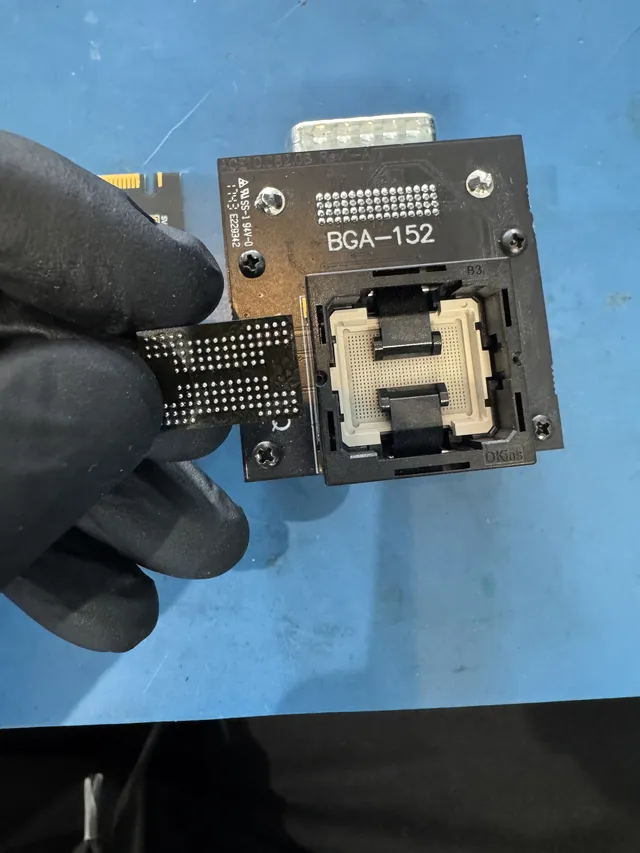
ACE Lab's flash-recovery technical overview describes error correction and reconstruction for supported NAND designs. “Chip-off” describes access to the memory; reconstructing its contents comes afterward. Encrypted data still needs its keys, and unreadable portions of a memory chip leave gaps in the contents.
Repairing the connection to reach the files
Our USB flash drive recovery service examines the device fault before choosing the recovery method. A snapped connector, failed component and inaccessible memory require different work, even if Windows displays the same error.
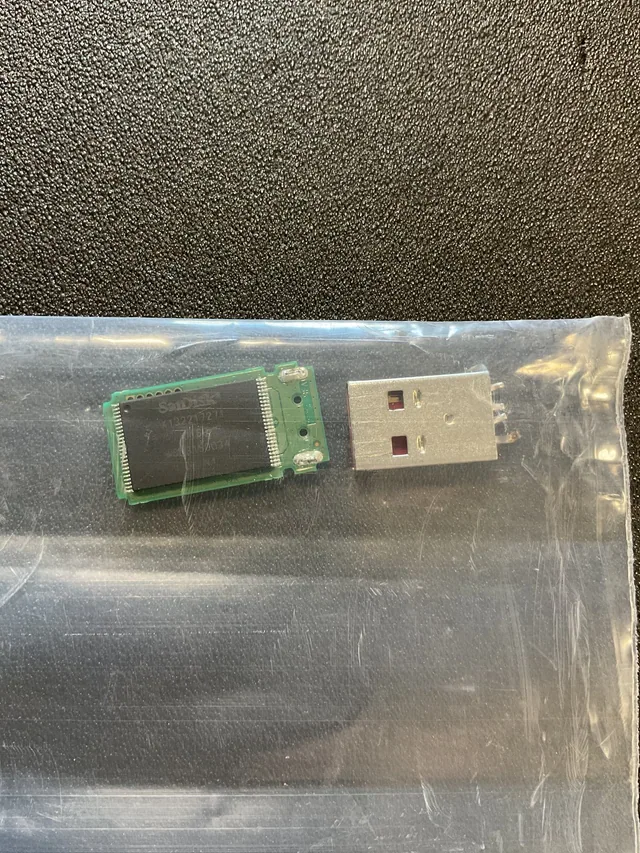
In this recorded recovery of a broken flash drive containing a mixtape, Joe soldered wires between the broken USB connector and four board traces. The drive initially failed to initialize on PC-3000 Portable; controlled cooling with freeze spray then let it report its capacity. He imaged the drive and recovered the mixtape.
Get help with data recovery
Bring your device to our Lincroft lab during opening hours, or mail it in.
How to mail your deviceThe $100 diagnostic is non-refundable once diagnostics start, and donor drives or replacement parts you approve are non-refundable once ordered, even if recovery fails.
Published by MDrepairs
MDrepairs is a data recovery and electronics repair lab in Lincroft, New Jersey. Our founder and lead technician Joseph Montanti films real cases for our YouTube channel, showing tools, repair steps and recovery outcomes.
Keep reading
- USB “Device Descriptor Request Failed”: What It Means for a Flash Drive
- USB Says “Please Insert a Disk” or “No Media”: Can You Recover the Files?
- SD Card Write Protected? Fixes Beyond the Switch