How to Fix "You Need to Format the Disk Before You Can Use It"
Our founder and lead technician, Joseph Montanti, handles cases personally.
When Windows says “You need to format the disk in drive before you can use it,” click Cancel if you need files from that drive. Windows has detected storage but cannot open a usable file system on it. The cause can be damaged file-system records, an unsupported format, a connection problem or a failing drive; formatting creates new records instead of recovering the old files.
Save the files before changing the disk. Keep a dropped or wet disk off, along with any hard drive that clicks, beeps or grinds; stop reading if the device drops offline, stops responding or returns read errors.
On this page
What “format disk” means
Formatting prepares a volume to hold files by creating a file system. That includes the records Windows uses to find folders and file contents. The format prompt appears because Windows cannot use the records it has found, so it offers to create an empty file system in their place.
Damaged directory records can leave file contents present but inaccessible through Explorer. Damage to the storage itself can affect both the records and the contents.
A power loss or disconnection during a write can leave the file system inconsistent. On NTFS, the Master File Table holds records about files; FAT-based formats use allocation tables to track which storage areas belong to a file. Unreadable sectors in these structures can prevent Windows from opening an otherwise recognizable volume. The error can also appear when the drive was formatted for a different operating system.
RAW is the label Windows uses when it cannot recognize a usable file system. It is not a separate format that you should convert before recovery. An HDD asking to format may contain a damaged NTFS volume, while a Mac disk may contain a perfectly usable APFS volume that Windows cannot open natively.
Check the connection and Disk Management
If the drive has no physical-damage symptoms, check its connection before installing software.
- Connect directly to the computer, bypassing a USB hub. Try another port and, if the drive uses a removable cable, a known working data cable.
- Try another computer. For a disk previously used on a Mac, try a compatible Mac first. If it opens, copy the files there. If the format prompt returns later, investigate the recurring fault even after a successful copy.
- Press Windows + X > Disk Management. Find the drive by its model and capacity, then look at the status of its volume.
- If the volume has a recognized file system and is Healthy but lacks a drive letter, right-click it and choose Change Drive Letter and Paths > Add.
The letter in the message, such as D: or E:, identifies the volume Windows tried to open. Changing it does not repair unreadable file-system records. Microsoft's drive-letter instructions apply to a usable existing volume that needs a letter.
| Disk Management shows | Meaning | Next step |
|---|---|---|
| Recognized file system, Healthy, no letter | The volume exists without an Explorer drive letter. | Assign an unused letter, then copy the files. |
| RAW, expected disk capacity | Windows cannot open the file system. | Check compatibility; otherwise image the stable drive for recovery. |
| Unallocated on a previously used disk | Windows has no recognized partition covering that space. | Search an image for the old partition and files. |
| Zero capacity, absent device or repeated disconnects | Access to the underlying storage is failing. | Have the connection or device fault diagnosed. |
Microsoft's disk troubleshooting guidance distinguishes these states. Unallocated space on a new disk is normal; on a disk you used yesterday, creating a new volume would replace information recovery may need.
If Device Manager reports an error for the drive or USB device, follow Microsoft's update or reinstall procedure. Open Device Manager, find the affected device and update its driver. If reinstalling is needed, uninstall that device and restart Windows. A driver change addresses the computer's connection to the drive; an unchanged RAW volume still needs file recovery.
A Mac-formatted disk on Windows
If the drive opens on the Mac where it was last used, copy its files there. APFS and HFS+ are Mac file systems. Windows needs additional software to read them, so the format prompt can be a compatibility issue even when the disk is healthy.
Paragon APFS for Windows supports access to compatible APFS volumes in Windows. For HFS+, the free HFSExplorer opens the disk in its own window and extracts files to another drive. Check the software's supported volume types, especially for an encrypted disk, and use the original Mac when available.
After the files are saved, exFAT is an option for a drive you need to use on both Windows and macOS. It supports individual files larger than FAT32's roughly 4GB limit. Choosing a compatible format resolves a compatibility problem; it does not repair a faulty cable or failing storage.
Recover files without formatting
A stable drive with the expected capacity can be copied sector by sector into an image file on another disk. Unlike copying visible folders, imaging includes the storage occupied by missing partitions and damaged file-system records. Recovery software can then search that image without repeatedly reading the original.
- Install recovery software on a different physical drive from the source.
- Create a full image with the damaged drive as the source and a file on a healthy drive as the destination. The destination needs enough space for the source's full capacity.
- Open the image in recovery software and scan it for the expected file system or missing files.
- Preview several results, then recover the files to another healthy drive. A second partition on the source disk is not a separate destination.
- Open documents, view photographs and play videos from the recovered copy before reusing the original disk.
DMDE's Copy Sectors documentation explains device-to-file imaging. An image can only contain what was successfully read. If the drive produces errors or drops offline during imaging, a software scan of that same device is not the next step.
Which recovery tool fits the damage?
TestDisk searches for lost partitions. On the image, select the disk, choose Analyse and run Quick Search. If it finds the expected partition, use its file-list view to check the contents and copy needed files out. Its Write option changes a partition table, so leave that until you have a complete preserved copy and have verified the proposed layout.
PhotoRec searches for recognizable file contents when the directory structure is badly damaged. It handles more than photographs, but recovered files may have generic names and no original folders. It can work on an image, as the developer's image instructions explain.
R-Studio is a paid option at $79.99 for the standard Windows license. It can use surviving file-system records to retain names and folders, and search for known file types where those records are missing. Its recovery manual covers images, scans and previews. No scan can rebuild file content that has been overwritten.
When the format error needs a lab
Recovery software needs readable storage. A drive showing zero bytes, disappearing during reads or making abnormal mechanical sounds needs the hardware problem addressed before a useful image can be made. A long scan on failing storage can keep retrying the same unreadable areas instead of preserving the data that remains accessible.
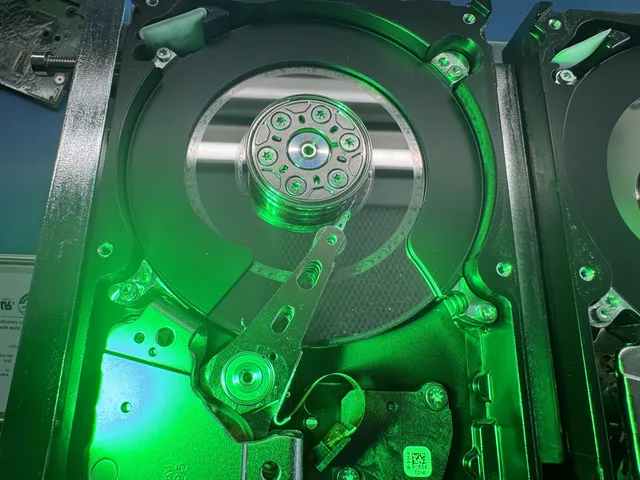
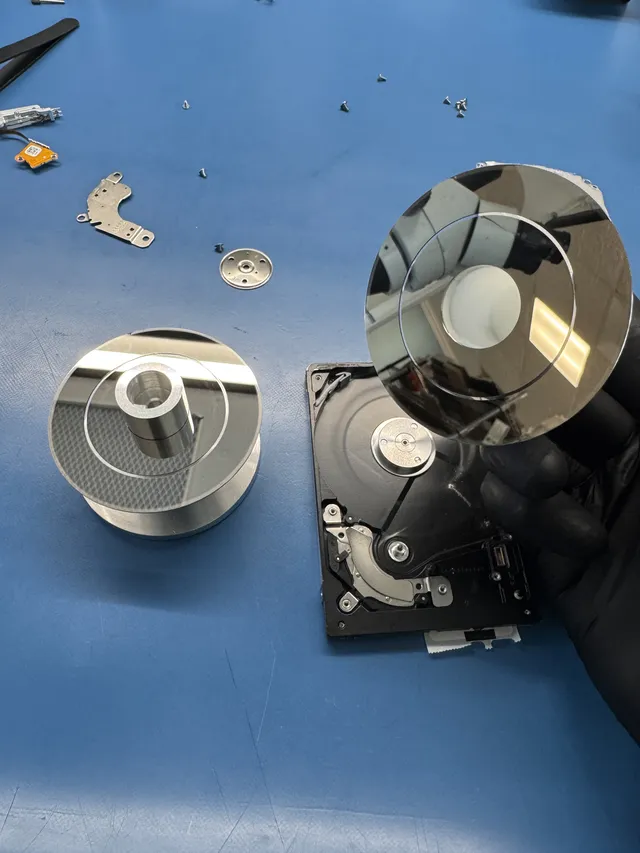
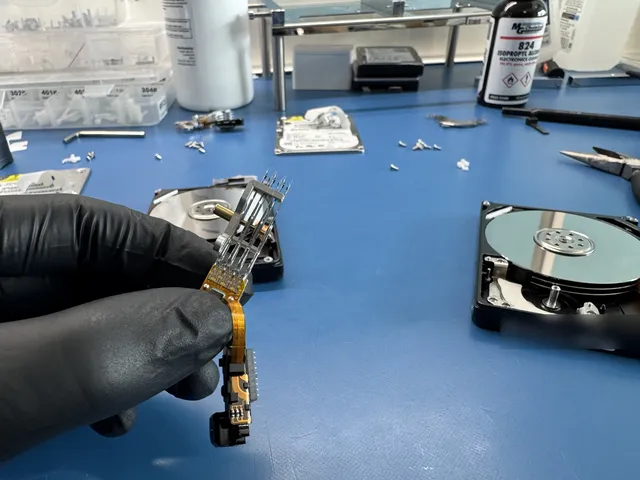
Our hard drive recovery service begins by determining whether the obstruction is the connection, electronics, firmware, recording surface or file system. Head and platter work takes place in a laminar-flow work area. The physical fault has to be understood before deciding how to reach the files.
| Fault | Recovery cost |
|---|---|
| Logical corruption without physical damage | $300 to $600 |
| Physical damage, such as a drive that clicks or will not spin | $500 to $1,500 |
A $100 diagnostic is credited toward successful recovery, and recovery work starts after you approve the estimate. The pricing page has the service terms.
Using CHKDSK after saving the files
CHKDSK can repair a recognized Windows file system. It changes the volume when used with repair options, so use it after recovering and checking the files or on an expendable clone. It is not the way to make a RAW disk readable for recovery.
The command chkdsk E: /f /r /x combines three operations: /f repairs file-system errors, /r searches for bad sectors and attempts to retrieve readable information, and /x dismounts the volume first. Microsoft's command reference describes these switches. The extra sector reading from /r can take a long time on a large disk.
For a preserved, stable volume you choose to repair, open Command Prompt as administrator and substitute its verified letter for E:. Close programs using that volume first, then allow the operation to finish. If Windows reports that CHKDSK is unavailable for RAW drives, return to the recovered copy or image instead of trying to force a different file-system label.
An internal data volume can produce the same format message. If Windows itself will not start, preserve its files from another boot environment or through recovery service before Startup Repair or file-system repair. Drive letters in a recovery environment can differ from the ones shown in your usual Windows session.
If you already clicked Format
A quick format replaces file-system records without performing a full overwrite of the volume. On a hard drive, file contents may remain in areas the new format and subsequent use have not overwritten. On supported SSD connections, formatting can also send TRIM, telling the drive that old blocks are no longer needed. Microsoft documents the format command's delete notification in its format reference.
The kind of device and the operation matter more than how quickly the dialog disappeared. Flash drives and SD cards have different controller behavior; they should not all be assigned the same recovery chance. Keep a mistakenly formatted device unused while deciding whether imaging or lab work is appropriate.
A completed Windows full format writes zeros across the formatted volume in Windows Vista and later, including Windows 10 and 11, as Microsoft documents. The overwritten contents are lost. An interrupted full format may leave areas it did not reach untouched. Our formatted-drive recovery guide explains these differences.
Get help with data recovery
Bring your device to our Lincroft lab during opening hours, or mail it in.
How to mail your deviceThe $100 diagnostic is non-refundable once diagnostics start, and donor drives or replacement parts you approve are non-refundable once ordered, even if recovery fails.
Published by MDrepairs
MDrepairs is a data recovery and electronics repair lab in Lincroft, New Jersey. Our founder and lead technician Joseph Montanti films real cases for our YouTube channel, showing tools, repair steps and recovery outcomes.
Keep reading
- External Drive Says “The Parameter Is Incorrect”: Data-Safe Checks
- External Hard Drive Freezes File Explorer or the Computer: Safe Next Steps

- “The Semaphore Timeout Period Has Expired” During a Drive Copy