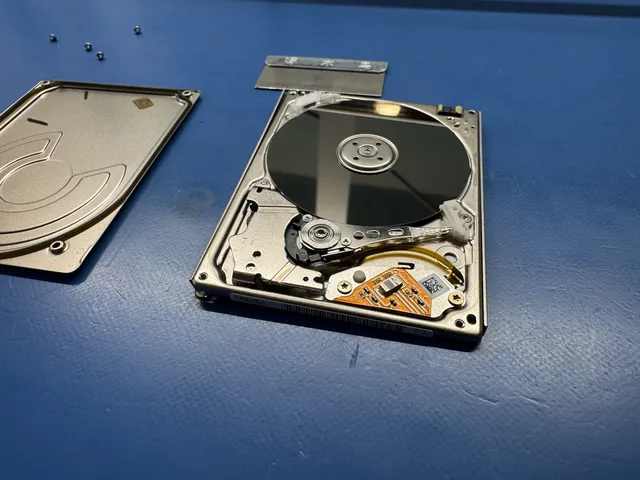
How to Read S.M.A.R.T. Data: What Each Attribute Means
In this article
To read S.M.A.R.T. data, open CrystalDiskInfo (Windows) or run smartctl -A /dev/sda with your drive's path. On a SATA hard drive, focus on the RAW values of the three attributes below. On an NVMe SSD, look for a nonzero Critical Warning. A drive can be dying long before it reports "failed." If yours is grinding, clicking repeatedly, or keeps disappearing, power it down before trying these steps.
- 05 Reallocated Sectors: should be 0; any non-zero and climbing means the surface is degrading
- C5 Pending Sectors should be 0. These are spots the drive had trouble reading and hasn't cleared or replaced yet.
- C6 Uncorrectable should be 0. The drive couldn't read these sectors during a scan. The count can't tell you whether any of your files used those spots.
- If any of these counts are above 0 and the drive still reads normally, copy your most important files to another drive now. If copying stalls or the drive drops out, stop and consider professional hard drive data recovery.
Learning how to read S.M.A.R.T. data is one of the most practical things you can do to protect your files. Modern hard drives and SSDs quietly track internal health metrics. These metrics, collectively called S.M.A.R.T. (Self-Monitoring, Analysis, and Reporting Technology), can warn you when your drive is starting to fail. The problem? Most people either don't know S.M.A.R.T. exists, or they pull up the data and have no idea what they're looking at. Attribute 05, attribute C5, "normalized" values, "raw" values, thresholds... it's a lot of jargon for something that should be straightforward.
We're MDRepairs, a professional hard drive data recovery lab in Lincroft, New Jersey. We look at S.M.A.R.T. data as part of our diagnostic. It's one of the first things we read when a client sends us a failing drive that still responds. And after years of reading these reports, we've gotten pretty good at translating what the numbers actually mean in plain English. That's what this guide is for.
We'll walk you through the tools to pull S.M.A.R.T. data, explain the critical attributes below, break down the difference between raw and normalized values, cover SSD-specific attributes, and most importantly, tell you exactly when you should be worried.
What Is S.M.A.R.T. Data?
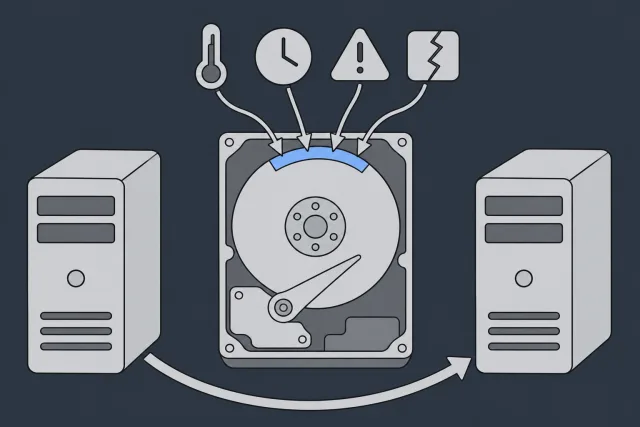
S.M.A.R.T. stands for Self-Monitoring, Analysis, and Reporting Technology. It's a monitoring system built into virtually every hard drive and SSD manufactured in the last 20+ years. The drive's firmware tracks internal metrics (things like read errors, temperature, how many hours it's been powered on, how many sectors have gone bad) and stores that history on the drive itself.
 Illustration
Think of it as your drive's medical chart. Just like a doctor tracks your blood pressure, cholesterol, and heart rate over time, S.M.A.R.T. tracks your drive's vital signs. Some readings are no big deal. Others are screaming red flags.
The system was first introduced in the mid-1990s through a collaboration between computer and drive makers. The idea was simple: give users and system administrators early warning before a drive fails completely. It's not perfect (we'll get into the limitations later), but it's genuinely useful when you know how to read it.
What S.M.A.R.T. Data Looks Like
When you pull up a SATA hard drive's S.M.A.R.T. report, you'll see a table with columns like this:
| ID | Attribute Name | Current | Worst | Threshold | Raw Value |
|---|---|---|---|---|---|
| 05 | Reallocated Sectors Count | 100 | 100 | 36 | 0 |
| 09 | Power-On Hours | 98 | 98 | 0 | 14832 |
| C5 | Current Pending Sector Count | 100 | 100 | 0 | 0 |
That table shows no reallocated or pending sectors. In the C5 row, 100 is the score. The 0 under Raw Value is the number of pending sectors. But don't worry if those columns look confusing right now. We're going to break down exactly what each one means.
Tools to Read S.M.A.R.T. Data
Before we dive into what the attributes mean, you need a way to actually see them. Here are the best tools, sorted by operating system.
Windows: CrystalDiskInfo (Free)
This is the go-to tool for most people, and for good reason. CrystalDiskInfo is free, lightweight, and shows you everything you need in a clean interface. It color-codes drive health as Good (blue), Caution (yellow), or Bad (red), which makes it easy to spot problems at a glance. We have a dedicated step-by-step CrystalDiskInfo guide that goes into more detail.
How to Use CrystalDiskInfo
- Download the CrystalDiskInfo Standard Edition installer to a working drive.
- Install and run it. Pick the drive you want at the top of the window and match its model and capacity. Some USB drives won't show up.
- The main screen shows overall health status and temperature.
- The bottom section shows the full S.M.A.R.T. attribute table.
- To read counts in ordinary numbers, open Function, choose Advanced Feature, then Raw Values, and select 10 [DEC]. A raw count shown as 10 in hex is 16 in decimal.
Pro tip: Set CrystalDiskInfo to run at startup and sit in your system tray by turning on Resident and Startup in the Function menu. It can alert you if the health status changes or the drive reaches the temperature alert setting.
Windows/Mac/Linux: smartmontools (Free, Command Line)
smartmontools is an open-source, cross-platform tool that gives you a detailed S.M.A.R.T. report. The tradeoff? It's command-line only, so it's not as beginner-friendly.
Basic smartmontools Commands
On Windows, open the smartmontools downloads. Under Assets, download the file ending in win32-setup.exe. Run it with the default options and open Command Prompt as Administrator. On Linux, install smartmontools from your software manager. On Linux or macOS, open a terminal and put sudo before each command.
Start with smartctl --scan. Use the device path it shows in place of /dev/sda below. If the scan lists -d and a type after the path, include those too. Use smartctl -i followed by that path and type to confirm the model and capacity.
Show all S.M.A.R.T. attributes:
smartctl -A /dev/sda
Show drive info + health assessment:
smartctl -i -H /dev/sda
Show the standard S.M.A.R.T. report:
smartctl -a /dev/sda
On Windows, replace /dev/sda with the drive path:
smartctl -a /dev/pd0 (for the first physical disk)
On macOS:
smartctl -a /dev/disk0
macOS: DriveDx (Paid) or smartmontools
For a basic S.M.A.R.T. status on Mac, open Disk Utility. Choose View, then Show All Devices. Select the drive itself at the top of its group, click Info, and look for S.M.A.R.T. status. DriveDx is a paid option that gives you a CrystalDiskInfo-style interface on Mac. If you want smartmontools, open the Mac .dmg from the downloads above and run the installer. With Homebrew, you can use brew install smartmontools.
Linux: GSmartControl (Free, GUI) or smartmontools
GSmartControl puts a graphical interface on top of smartmontools. It's available in most Linux package managers. If you're comfortable with the command line, just use smartmontools directly.
BIOS/UEFI
Some BIOS/UEFI menus include a basic S.M.A.R.T. health check. It'll typically just show you pass/fail, which is better than nothing but won't give you the full attribute breakdown. The key for built-in diagnostics varies by model. On a Dell, tap F12 at the Dell logo and look for Diagnostics. Back up first if you plan to run a test.
Normalized vs. Raw Values (This Is Where People Get Confused)
This is the single biggest source of confusion when people try to read S.M.A.R.T. data. On a SATA hard drive, each attribute has a normalized value and a raw value. They tell you very different things.
Raw Values
The raw value is the count or measurement the drive records. The units depend on the model. Here are examples from a drive that reports hours, sectors, and degrees Celsius in decimal.
- Attribute 09 (Power-On Hours) with a raw value of 14832 means the drive has been running for 14,832 hours.
- Attribute 05 (Reallocated Sectors) with a raw value of 8 means 8 sectors have been reallocated.
- Attribute C2 (Temperature) with a raw value of 38 means the drive is running at 38 degrees Celsius.
Raw values are straightforward for a simple count like pending sectors. Some drives pack several readings into one field, so the big raw number you see might not be a count at all.
Normalized Values (Current/Worst)
The normalized value is a manufacturer-calculated score on a scale that can run from 1 to 253. Higher is generally better. It's the drive manufacturer's way of saying "here's how good this attribute looks on a scale." A drive might start at 100 or 200. A score of 100 on its own doesn't tell you how much life is left.
The "Current" column shows the normalized value right now. The "Worst" column normally shows the lowest score the drive has recorded for that attribute.
Here's the problem: normalized values aren't standardized across manufacturers. Seagate, Western Digital, Toshiba, Samsung... they all calculate normalized values differently. A normalized value of 100 on a Seagate drive might not mean the same thing as 100 on a WD drive. That's why, in our hard drive recovery lab, we look at the raw counts for reallocated, pending, and uncorrectable sectors.
The Threshold Column
The threshold is a value set by the manufacturer. If the normalized value drops to or below the threshold, the drive's firmware flags that attribute as "failing." A single critical attribute reaching its threshold can be enough for the drive to report an overall S.M.A.R.T. status of "FAILED," which should be treated as an urgent warning.
A drive can still say "PASSED" while it's having trouble reading your files. CrystalDiskInfo can show a yellow Caution for a pending sector even when the drive reports a pass. You shouldn't wait for a threshold failure. Any non-zero raw value on attributes like Reallocated Sectors or Current Pending Sectors is worth paying attention to.
The Critical S.M.A.R.T. Attributes You Need to Watch
Not all S.M.A.R.T. attributes are created equal. Some are purely informational (like power-on hours). Others are genuine warning signs of impending failure. Here are the ones that matter most.
Attribute 05 (hex) / ID 5: Reallocated Sectors Count
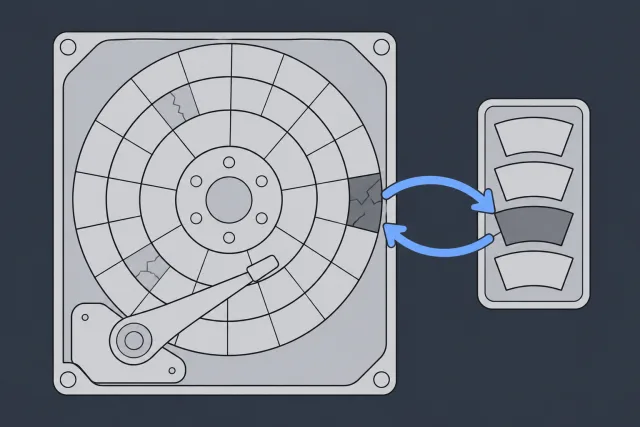
This is one of the first S.M.A.R.T. attributes to look at on a hard drive. When a hard drive encounters a bad sector (a spot on the platter that can't be reliably read or written), it can "reallocate" that sector by swapping it with a spare sector from a reserve pool. The raw value tells you how many sectors have been reallocated.
 Illustration
| Raw Value | What It Means | Action |
|---|---|---|
| 0 | No sectors have been reallocated. | Keep your regular backup. |
| Above 0, first reading | The drive has already replaced at least one sector. | Back up your data. Keep the count for comparison. |
| Rising across readings | More sectors have needed replacement. | Back up immediately. Plan to replace the drive. |
| Any count, with freezing or read errors | The drive is having trouble getting to your files. | If you need files that won't copy, power down. Consider professional recovery before trying again. |
That's why we recommend running CrystalDiskInfo at startup on a working Windows drive. Catching this early can be the difference between a calm backup and an emergency data recovery.
Attribute C5 (hex) / ID 197: Current Pending Sector Count
This tracks the number of "unstable" sectors that the drive hasn't been able to read successfully. These are sectors that the drive knows are problematic but hasn't reallocated yet. The drive is basically saying: "I tried to read these spots and had trouble, so I'm flagging them for now."
If the drive successfully reads one of these sectors on a retry, it can come off the pending list. The drive can also reallocate a sector when it's next written to. Don't write to it to clear C5 while you still need the files.
Any non-zero value here is a concern. Pending sectors can turn into reallocated sectors, and a rising reallocated sector count is a sign of physical degradation. If you see pending sectors appearing, the drive is actively struggling.
Attribute C6 (hex) / ID 198: Uncorrectable Sector Count (Offline)
This counts sectors that the drive tried to read during an offline scan but couldn't read correctly. An unreadable sector might hold part of a photo, or it might be in empty space. This count can't tell you which.
If this number is climbing, the drive is finding more sectors it can't read. Files stored there may be inaccessible. This is one of the attributes that, when we see it in our lab, tells us the client made the right call bringing the drive in.
Attribute 09 (hex) / ID 9: Power-On Hours
This is purely informational but extremely useful for context. It tells you how many hours the drive has been powered on in total. There's no hour count at which all consumer or enterprise drives wear out.
| Power-On Hours | Approximate Age (24/7 use) | Notes |
|---|---|---|
| 0 - 10,000 | Up to about 1.1 years | Even a young drive can fail. |
| 10,000 - 25,000 | 1 - 3 years | Time powered off doesn't count. |
| 25,000 - 45,000 | 3 - 5 years | Watch the sector counts for changes. |
| 45,000+ | 5+ years | Hours alone don't tell you when to replace it. |
A high power-on hours count by itself isn't a problem. But combined with rising reallocated sectors or pending sectors? Back up your files while you can still read them, whatever the hour count.
Attribute 0A (hex) / ID 10: Spin Retry Count
This counts how many times the drive tried to spin up the platters and failed on the first attempt. If the motor has to retry, it could be a mechanical issue or a power supply problem.
Any non-zero value here is a yellow flag. If this number is growing, the drive may soon fail to spin up at all, and if you still need files from it, you may need professional hard drive recovery.
Attribute C2 (hex) / ID 194: Temperature
Self-explanatory. This is the drive's current operating temperature in Celsius. What's a healthy range? It depends on the model. For example, Seagate gives its 4TB BarraCuda ST4000DM004 a maximum case temperature of 60 C.
- Note the temperature during normal use so you have a reading to compare.
- If it's close to the upper limit, make sure air can reach the drive and the vents are clear.
- If it's above the limit, shut the drive down and let it cool. Improve airflow before using it again.
Google's 2007 study on drive failures found little connection between temperature and failure across much of the range it observed. If your drive is running hot, adding a fan or improving your case airflow can bring the temperature down.
Attribute 01 (hex) / ID 1: Raw Read Error Rate
This one confuses people constantly, especially on Seagate drives. The raw value on Seagate drives is often a huge number (millions or even billions), which looks terrifying. But it's not what you think.
Some Seagate drives pack multiple data points into this raw value. So a raw value of "73952366" on one of those drives doesn't mean 73 million errors. The actual error count might be zero. Look at the normalized value and its threshold for that drive.
On Western Digital and other drives, the raw value also depends on the model. A non-zero number here isn't enough by itself to diagnose a read problem.
Other Attributes Worth Knowing
These attributes aren't as critical as the ones above, but they provide useful context about your drive's overall condition. If your files won't copy, our data recovery cost guide shows how the price depends on the drive and what's wrong with it.
Attribute 03 (hex) / ID 3: Spin-Up Time
How long it takes for the platters to reach full rotational speed. Some drives report this in milliseconds. If it starts taking much longer than before, look at Spin Retry Count too.
Attribute 04 (hex) / ID 4: Start/Stop Count
How many times the drive has been started and stopped. The count includes times the platters stop spinning while the computer stays on.
Attribute 07 (hex) / ID 7: Seek Error Rate
How often the read/write heads fail to move to the correct position on the first try. Like Attribute 01, Seagate encodes this differently than other manufacturers (packed format), so don't panic if the raw value looks huge on a Seagate drive. The number alone can't tell you whether a head is out of alignment.
Attribute 0C (hex) / ID 12: Power Cycle Count
How many times the drive has been powered on and off. Similar to Start/Stop Count but specifically tracks full power cycles. High counts aren't necessarily bad, but they add mechanical wear over time.
Attribute BB (hex) / ID 187: Reported Uncorrectable Errors
The number of errors that the drive couldn't correct and reported back to the computer. C6 records what the drive found during its own scan. A reported error can explain why a read failed, but it doesn't name the file.
Attribute BC (hex) / ID 188: Command Timeout
Counts how many times a command sent to the drive timed out without completing. This can indicate firmware issues, interface problems, or a drive that's struggling to process requests. Rising values here, especially combined with other degrading attributes, suggest the drive is on its way out.
Attribute BE (hex) / ID 190: Airflow Temperature
Similar to Attribute C2 but the sensor location depends on the model. A drive can report the temperature at its circuit board here. Not all manufacturers report this one.
Attribute C4 (hex) / ID 196: Reallocation Event Count
This counts the total number of reallocation operations (not sectors). One reallocation event might reallocate multiple sectors at once. A rising count means the drive is trying to remap more bad areas. Look at 05 for the number of sectors actually replaced.
SSD-Specific S.M.A.R.T. Attributes
SSDs track many of the same general attributes (temperature, power-on hours, etc.), but they also have unique attributes related to flash memory wear. If you're monitoring an SSD, these are the ones that matter.
Wear Leveling Count / Media Wearout Indicator (Various IDs)
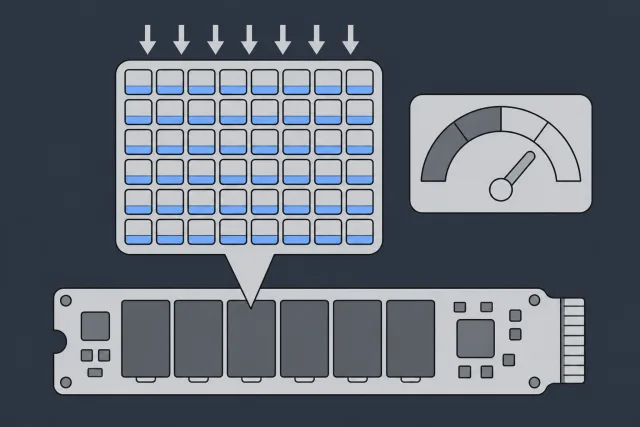
SSDs have a finite number of write cycles. Each NAND flash cell can only be written to and erased so many times before it becomes unreliable. Wear leveling spreads those writes across the drive. On some SATA SSDs, the raw Wear Leveling Count shows how many times the blocks have been erased on average. Some SATA drives have a Media Wearout Indicator that counts down from 100 to 1, as in the examples below.
 Illustration
- Normalized value of 100: At the top of this scale, even if the drive has already had some use
- Normalized value of 50: About halfway through the drive's rated write endurance
- Normalized value of 1: The drive has used essentially all of its rated write endurance
Consumer SSDs are rated in TBW (terabytes written). The rating depends on the model and capacity. It doesn't tell you how many years the drive will last.
Percentage Used / SSD Life Left
Many modern SSDs (especially NVMe drives) report this as a simple percentage. Percentage Used starts at 0% and goes up. At 100%, the drive estimates it has used its rated endurance. It can keep working past 100%. A field labeled SSD Life Left counts down instead.
smartctl -a /dev/nvme0 shows that report for the first NVMe controller. If Critical Warning is nonzero or Media and Data Integrity Errors is climbing, back up while the drive is still readable.
Available Spare / Available Spare Threshold (NVMe)
NVMe drives maintain a pool of spare NAND blocks. Available Spare shows what percentage of the spare pool is still available (100% = full reserve, 0% = no reserves left). Available Spare Threshold is the manufacturer's recommended minimum. When Available Spare drops below the threshold, the drive is flagging that it's running low on replacement blocks.
Total LBAs Written / Total Bytes Written
The total amount of data your computer has written to the SSD over its lifetime. If the report shows a total in TB next to a raw block count, use the TB figure to compare with the manufacturer's TBW rating. For example, if your SSD is rated for 300 TBW and the Total Bytes Written shows 45 TB, you've written about 15% of the rated total.
Reallocated NAND Block Count
The SSD equivalent of Attribute 05. When a NAND flash block becomes unreliable, the SSD's controller maps it out and replaces it with a spare block from the over-provisioned pool. A small number of reallocations can be normal over the life of an SSD. A rapidly growing count suggests the flash is wearing out.
Program Fail Count / Erase Fail Count
These count how many times the SSD's controller failed to write to a flash page (program) or failed to erase a NAND flash block. If you're seeing these climb, make sure you have a current backup.
Understanding Thresholds and When to Worry
Let's put it all together. Here's a practical decision framework for evaluating your S.M.A.R.T. data.
The "Back Up Now" Attributes
If any of these have a non-zero raw value and the drive still reads normally, back up your data immediately. If the counts are increasing over time, plan to replace the drive.
- 05 - Reallocated Sectors Count (any non-zero, especially if it's growing)
- C5 - Current Pending Sector Count (any non-zero)
- C6 - Uncorrectable Sector Count (any non-zero)
- 0A - Spin Retry Count (any non-zero)
The "Keep an Eye On It" Attributes
Once your files are backed up, watch these for changes:
- C4 - Reallocation Event Count (compare with your last reading and Attribute 05)
- BB - Reported Uncorrectable Errors (any non-zero is a concern)
- BC - Command Timeout (occasional timeouts can be normal; consistent growth is not)
- 09 - Power-On Hours (time powered on, for context)
- C2 - Temperature (compare with the operating limit for your model)
The "Don't Panic" Attributes
These commonly cause false alarms:
- 01 - Raw Read Error Rate (on Seagate drives, the packed raw value looks scary even when the error count is low)
- 07 - Seek Error Rate (same packed format issue on Seagate)
- 04 - Start/Stop Count (high numbers are normal for drives that have been in use for years)
- 0C - Power Cycle Count (same as above)
Quick Health Check Cheat Sheet
- For a SATA hard drive, select your drive in CrystalDiskInfo (or run
smartctl -A /dev/sdausing your drive's path). - Check Attribute 05 raw value. Is it 0? Good. Non-zero? Concern.
- Check Attribute C5 raw value. Is it 0? Good. Non-zero? Concern.
- Check Attribute C6 raw value. Is it 0? Good. Non-zero? Problem.
- Check Attribute 09. How many hours has the drive actually been powered on?
- Check Attribute C2. Is the temperature within the operating range for your model?
- If 05, C5, or C6 is non-zero, back up what you can read now. Compare the counts later, once your files are safe.
Real-World Examples from Our Lab
Let's look at some real scenarios we've seen at our hard drive recovery lab. These are the kinds of S.M.A.R.T. reports that walk through our door.
Example 1: The Slow Death
A client brought in a 4TB Western Digital drive that had been "acting weird" for about three months. Occasional freezes, some files wouldn't open. They assumed it was a Windows problem. Here's what the S.M.A.R.T. data showed:
| Attribute | Raw Value | Assessment |
|---|---|---|
| 05 Reallocated Sectors | 847 | 847 sectors already replaced. |
| C5 Pending Sectors | 312 | 312 sectors the drive had trouble reading. |
| C6 Uncorrectable | 56 | 56 sectors unreadable during an offline scan. |
| 09 Power-On Hours | 38,441 | About 4.4 years of runtime. |
| C2 Temperature | 48 | 48 C at the time of the reading. |
This drive was dying a slow death. We were able to image the drive using our specialized hardware (which can work around bad sectors that consumer tools can't handle). Those freezes were reason enough to stop, even without an earlier S.M.A.R.T. report.
Example 2: The False Alarm
A client brought in a Seagate Barracuda convinced it was failing because CrystalDiskInfo showed "Caution" status. Here's what we saw:
| Attribute | Raw Value | Assessment |
|---|---|---|
| 01 Raw Read Error Rate | 80,691,024 | Looks scary. It's not. Packed format. |
| 05 Reallocated Sectors | 0 | No sectors reallocated. |
| C5 Pending Sectors | 0 | No sectors pending. |
| C6 Uncorrectable | 0 | No offline uncorrectable sectors reported. |
| C2 Temperature | 52 | 52 C. Temperature has its own alert. |
Those readings don't explain the reported "Caution." On a hard drive, CrystalDiskInfo looks at 05, C5, and C6 for that warning. Temperature has a separate alert. The huge Raw Read Error Rate value was just Seagate's packed format. We told the client to improve their case airflow (or add a fan). Saved them the cost of an unnecessary drive replacement.
Example 3: The Ticking Time Bomb
This was a drive with zero symptoms that a tech-savvy client checked "just because":
| Attribute | Raw Value | Assessment |
|---|---|---|
| 05 Reallocated Sectors | 16 | Moderate concern. |
| C5 Pending Sectors | 4 | Four sectors the drive couldn't read reliably. |
| C6 Uncorrectable | 0 | No offline uncorrectable sectors reported. |
| 09 Power-On Hours | 22,105 | About 2.5 years of runtime. |
No symptoms at all. The drive seemed fine in daily use. But 16 reallocated sectors and 4 pending sectors told a different story. This drive was quietly developing bad sectors. We advised an immediate backup and proactive drive replacement. The client backed up that weekend and swapped in a new drive.
This is exactly why we recommend periodic S.M.A.R.T. checks. Problems don't always announce themselves with clicks and freezes. Sometimes the only warning is in the data.
What to Do When S.M.A.R.T. Shows Problems
So you've checked your S.M.A.R.T. data and something doesn't look right. Here's the step-by-step action plan.
1 Don't Panic, But Don't Ignore It
A few reallocated sectors don't mean your drive is going to die in the next five minutes. They do mean it has had to replace bad spots. If your only copy is on that drive, back it up while the files still open.
2 Back Up Your Data Immediately
If the drive still reads normally, copy your important files to another physical drive. Start with the photos and documents you can't replace, then open a few files from the copy to make sure they work. Don't run defragmentation, don't run chkdsk, don't try to "fix" the drive. If copying hangs or the drive keeps disconnecting, stop and power it down.
3 Recheck in 48-72 Hours
If you're still using the drive after backing up and it's reading normally, run the S.M.A.R.T. check again after a couple of days. Compare the numbers. Are the reallocated sectors, pending sectors, or uncorrectable errors growing? If they're stable, keep your backup current. If they're climbing, the drive is actively degrading and needs to be replaced soon.
4 Replace the Drive Proactively
If a drive keeps showing more reallocated sectors, it's getting less reliable. Replace it while you still have a working backup. Restore your files from that backup to the new drive and retire the old drive.
5 If You Can't Access Your Data, Call a Lab
If the drive has progressed past the "warning" stage and you can't access your data (files won't open, drive not recognized, repeated clicking sounds), stop using the drive and contact our lab. If Windows asks you to initialize or format a disk with files on it, cancel. Running recovery software on a physically degrading drive can make things worse. We have specialized hardware that can read around bad sectors and copy the areas that still respond.
S.M.A.R.T. Limitations (What It Can't Tell You)
S.M.A.R.T. is useful, but it's not a crystal ball. Here's what it can't do:
It Can't Predict Sudden Failures
A Google study analyzing over 100,000 drives found that over a third of the failed drives showed none of the S.M.A.R.T. error signals the researchers studied. Many drive failures (especially head crashes, motor seizures, and firmware corruption) happen suddenly with no S.M.A.R.T. precursor. The drive is fine one second and dead the next.
This is why S.M.A.R.T. monitoring should complement a backup strategy, not replace one. Backups are your real safety net. S.M.A.R.T. is an early warning system that catches some failures early, but not all of them.
It Doesn't Catch Firmware Bugs
Drive firmware is complex software, and it can have bugs. We've seen drives in our lab that stopped responding because of a firmware problem without first showing a S.M.A.R.T. warning. Some Seagate 7200.11 drives from 2008-2009 had a firmware fault that could make the drive inaccessible.
Attributes Aren't Standardized
We mentioned this earlier, but it's worth repeating. On SATA drives, manufacturers choose how to calculate normalized values, what attribute IDs to use for what metrics, and what counts as a "critical" attribute. Manufacturer A might use ID 173 for wear leveling while Manufacturer B uses ID 177. This makes cross-brand comparisons tricky.
It Doesn't Diagnose the PCB or Interface
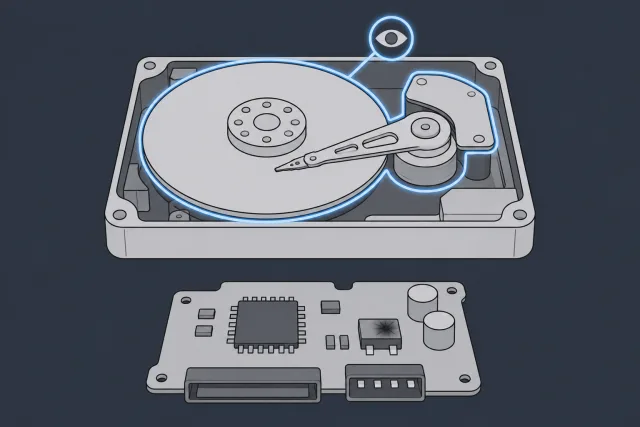
S.M.A.R.T. monitors the mechanical and magnetic components (heads, platters, motor) and the flash cells (on SSDs). Some drives also count errors on the connection to your computer. A burned part on your drive's circuit board won't show up by name in a S.M.A.R.T. report.
 Illustration
External Drive Enclosures Can Block S.M.A.R.T.
If your drive is inside a USB enclosure, you might not be able to read S.M.A.R.T. data at all. Many USB-to-SATA bridge chips don't pass S.M.A.R.T. commands through. If the drive still opens, leave it in its enclosure and copy your files to another drive. A missing report alone doesn't tell you the drive has failed.
Frequently Asked Questions
Can I reset or clear S.M.A.R.T. data?
Not through normal means. The drive itself keeps its lifetime counters, so formatting it or reinstalling the operating system won't clear them. If you're buying a used drive, always check the Power-On Hours. If a drive looks brand new according to S.M.A.R.T. but the seller says it's "used," be cautious.
How often should I check S.M.A.R.T. data?
For most people, the best approach is to install CrystalDiskInfo and have it run at startup in your system tray. It'll read the drive at intervals and can alert you if the health status changes. If you prefer manual checks, once a month is a reasonable reminder for a drive that reads normally. If files stop opening, don't wait for your next check.
My drive says "SMART status: PASSED" but has reallocated sectors. Is it really okay?
"PASSED" means the drive hasn't reported an overall S.M.A.R.T. failure. An individual raw count can rise before the normalized value reaches the manufacturer's threshold. A drive can have dozens of reallocated sectors and still report "PASSED" because the normalized value hasn't dropped low enough. Don't rely on the overall status. Look at the raw values of the critical attributes (05, C5, C6) yourself.
Does S.M.A.R.T. work on NVMe SSDs?
NVMe drives use a different health reporting system defined in the NVMe specification, but smartmontools supports it and CrystalDiskInfo can read NVMe health data too. The attributes are named differently (Percentage Used, Available Spare, Critical Warning, etc.), but the concept is the same. The NVMe health reporting is actually more standardized than traditional SATA S.M.A.R.T. because it's defined in the NVMe spec rather than left to individual manufacturers.
What does "Current Worst" mean in the S.M.A.R.T. table?
"Current" is the normalized value right now. "Worst" is generally the lowest score the drive has recorded for that attribute. If Current and Worst are the same, today's score is also the worst one shown. Both could have started higher. If Worst is lower than Current, the attribute had a lower score at some point in the past but has since recovered to a better reading. The key thing to watch is whether "Current" is dropping over time.
Can S.M.A.R.T. data tell me if my drive was dropped?
Sometimes. Attribute C8 (ID 200) on some drives is labeled "Write Error Rate" or "Multi-Zone Error Rate" and can't tell you why a write failed. Some laptop drives also report a "Free Fall Protection" or "Shock Sensor" attribute that records a detected fall or jolt. But many desktop drives don't track shock events at all, so a clean S.M.A.R.T. report doesn't necessarily mean the drive was never dropped.
Is it worth monitoring S.M.A.R.T. on SSDs?
Absolutely. While SSDs don't have mechanical parts to wear out, their NAND flash cells have a limited number of write/erase cycles. Monitoring the Wear Leveling Count, Percentage Used, and Available Spare attributes tells you how much of the estimated write endurance and spare space your SSD has left. It's good to keep an eye on these readings, especially on drives that handle heavy write workloads like database servers or video editing scratch disks.
Sources
- What to Do When CrystalDiskInfo Shows “Caution” or “Bad”
- Health Status – Crystal Dew World
- Advanced Features – Crystal Dew World
- Main Menu – Crystal Dew World
- General Information – Crystal Dew World
- CrystalDiskInfo – Crystal Dew World
- smartctl(8) — smartmontools
- smartmontools Installation Instructions
- Check if a Mac disk is about to fail
- View all devices or only volumes in Disk Utility on Mac
- DriveDx Store · BinaryFruit
- smartmontools — Homebrew Formulae
- How to Run Dell Preboot Diagnostics and Hardware Tests on Your Dell Computer
- Drive Health and SMART
- smartd.conf(5) — smartmontools
- Technical Reference Manual — HGST Travelstar™ Z5K500.B
- Failure Trends in a Large Disk Drive Population
- BarraCuda Compute 3.5 HDD Data Sheet
- Identifying Hard Drive Sounds and Determining What They Mean
- SMART IV Technology on HP Business Desktop Hard Drives
- S.M.A.R.T. — Self-Monitoring, Analysis and Reporting Technology
- How Much Has My Solidigm Solid State Drive Degraded?
- NVM Express® Base Specification, Revision 2.0a
- Samsung SSD 870 EVO Data Sheet
- Initialize new disks
- Frequently Asked Questions (FAQ) Seagate OEM hard drive issue - IBM BladeCenter and System x