SSD Failure Symptoms: How to Tell If Your SSD Is Failing
In this article
Signs your SSD is failing include files that suddenly won't open, the drive flipping to read-only mode, frequent freezes or crashes, sharply slower read/write speeds, the disk vanishing from BIOS or your file manager, or SMART warnings at boot. Unlike a hard drive, a dying SSD has no moving parts to click or grind.
The main SSD failure symptoms to watch for:
- Read-only mode: you may be able to copy readable files off but can't write or delete (a classic end-of-life sign)
- Disappearing & reappearing in Disk Management or BIOS
- Bad blocks: files corrupt, apps crash, or the OS won't boot
- Slowdowns & freezes during ordinary transfers
- SMART alerts or rising counts of reallocated sectors or uncorrectable read errors
If your files still open, back them up now to a different drive and stop writing to the SSD. If a copy freezes, gives a read error, or the SSD disappears, stop and power it down. If it has already failed, our SSD data recovery lab can diagnose it.
SSDs fail differently than hard drives, and that's what makes them dangerous. A failing hard drive can give you plenty of warning. Loud, repeated clicking. Grinding noises. Progressively slower performance over days or weeks. You can hear it dying and you know something's wrong. SSDs can give you almost nothing. One day it's working fine. The next day your computer doesn't boot and the drive isn't detected at all.
But "almost nothing" isn't nothing. There are warning signs, if you know what to look for. And catching an SSD in the early stages of failure can mean the difference between backing up your data calmly and paying for professional SSD data recovery.
We're MDRepairs, a professional data recovery lab in Lincroft, New Jersey.
How SSDs Fail (It's Different)
Hard drives have moving parts: spinning platters, swinging read/write heads, a spindle motor. When those parts wear out or break, you may hear warning sounds (clicking, grinding) or notice progressively slower performance. A hard drive can also stop working suddenly.
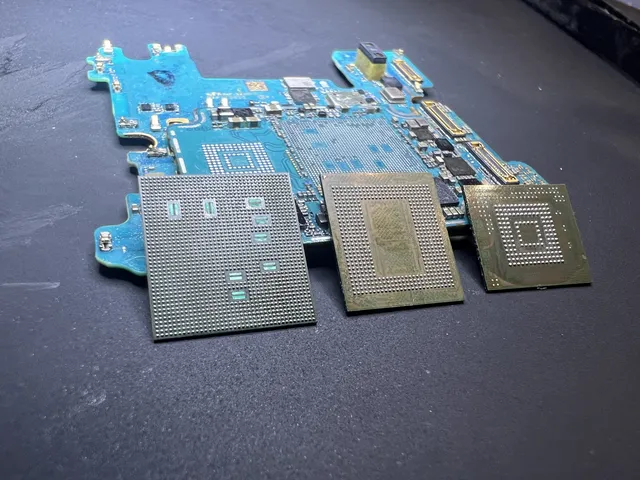
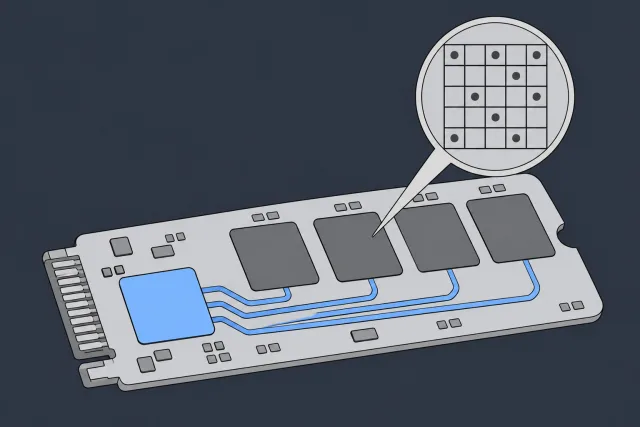
SSDs have no moving parts. They store data in flash memory cells, which are essentially tiny transistors that trap electrical charges to represent ones and zeros. The SSD controller (a specialized processor on the drive) manages where data goes, handles wear leveling, and runs error correction. Several things can go wrong inside the drive.
 Illustration
- NAND flash cells wear out. Every flash cell can only be written to a finite number of times (typically 1,000 to 100,000 write cycles depending on the type). After that, the cell can't reliably hold a charge and starts producing errors.
- The controller fails. The controller chip can overheat or simply die. When the controller fails, the drive can become inaccessible even if the NAND chips with your data are physically fine.
- Firmware corruption. The drive's internal firmware (the software that manages the controller and NAND) can become corrupted, causing the drive to hang, become read-only, or disappear from the system entirely.
- Power loss damage. Sudden power loss during a write operation can corrupt the drive's internal mapping table (the FTL, or Flash Translation Layer), which is the index that tells the controller where every piece of data is stored in the NAND chips.
Some of these failure modes happen suddenly. There may be no gradual degradation you can see or hear. The drive can work perfectly one moment and stop responding the next.
The 10 SSD Failure Symptoms and Warning Signs
1. Random Freezing or Hanging
Your computer freezes for a few seconds, then comes back to life. This happens randomly. You might be browsing the web, typing a document, or just sitting at the desktop. Everything locks up, the cursor won't move, and then after 5-30 seconds it's fine again. This can happen when the SSD controller encounters bad blocks and needs extra time to process read/write requests using error correction.
2. Slow Read/Write Speeds
An SSD that used to be blazing fast is now taking noticeably longer to open files, boot the computer, or load applications. If your boot time went from 10 seconds to 60 seconds, or file transfers that used to be instant now take minutes, the SSD might be struggling with bad blocks. If that's the cause, the controller is spending more time doing error correction and fewer cycles actually moving data.
3. Files Becoming Corrupted
You save a document, close it, open it again, and it's corrupted. Or photos that used to display fine now show garbled or partially corrupted images. When NAND cells start failing, they can flip bits in stored data. The error correction algorithms can fix small numbers of bit flips, but if there are too many, the drive can report a read error when you open the file.
4. Frequent Blue Screens (BSODs)
Blue screens with errors like KERNEL_DATA_INPAGE_ERROR, CRITICAL_PROCESS_DIED, PAGE_FAULT_IN_NONPAGED_AREA, or IRQL_NOT_LESS_OR_EQUAL don't identify the SSD as the cause on their own. The first means Windows couldn't read data it needed. Faulty memory, a driver, or a loose drive connection can also cause a crash.
5. Drive Disappearing and Reappearing
The SSD drops out of the system (disappears from File Explorer, Finder, or BIOS) and then reappears after a reboot. If your drive has already stopped showing up entirely, check our guide on what to do when your SSD is not showing up. This disappearing act can be a sign of controller or firmware instability. A bad cable or USB port can look the same. If an external SSD is missing the first time you plug it in, try one cable you know works in a port on the computer itself.
6. Read-Only Mode
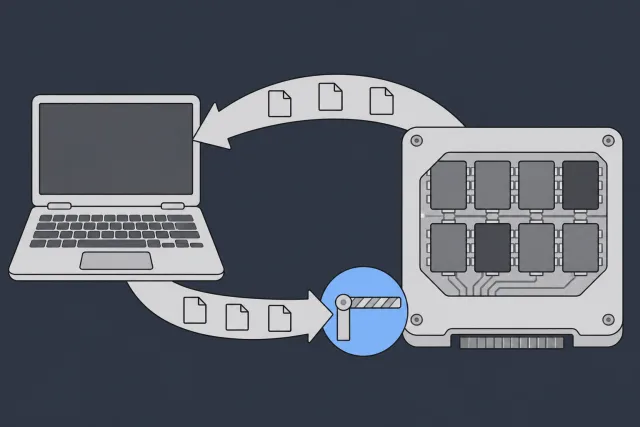
Some SSDs have a failsafe feature: when they detect too many bad blocks or NAND errors, they switch to read-only mode. You may still be able to read some files, but you can't write anything new, save changes, or delete files. An "access denied" error on one folder can be a permissions problem. If the whole SSD suddenly gives you "write-protected" errors, it may be in read-only mode. This blocks further writes, but it can't fix files already lost to unreadable cells.
 Illustration
7. Bad Block Warnings
Windows or macOS might show you error messages about bad blocks or sectors. On Windows, you might see "Windows detected a hard disk problem" (this generic message applies to SSDs too). On Mac, Disk Utility might report errors during a First Aid scan. First Aid checks the file system, so its errors aren't the same as SMART health warnings. Back up before you run First Aid, since it can change the file system as it repairs it.
8. Excessive Heat
SSDs run warm, especially NVMe drives. Some models have an upper operating limit of 70C (158F). Check SSD temperature using CrystalDiskInfo (Windows) or DriveDx (Mac) and compare it with the limit for your model. Most SSDs throttle performance at high temps to protect themselves, so overheating can also explain sudden slowdowns.
9. Increasing Error Counts in SMART Data
Your SSD's SMART data tracks errors internally. Rising counts in attributes like "Reallocated Sector Count," "Uncorrectable Error Count," or "Media and Data Integrity Errors" are warning signs, especially if you're also having trouble opening files. They don't tell you exactly which part is failing. More on how to read SMART data in the next section.
10. Boot Failures
The computer fails to boot, showing "No boot device found," "Boot device not detected," or dropping you into BIOS. Then you restart and it boots normally. Intermittent boot failures can be a sign that the SSD is becoming unreliable. If BIOS still lists the SSD, the boot order or damaged startup files can also explain the message.
SMART Data: Your SSD's Health Report
SMART (Self-Monitoring, Analysis, and Reporting Technology) is a monitoring system built into many SSDs. It tracks health information internally and can warn you about problems before they become catastrophic. Here are the SMART attributes that matter most for SSD health:
| SMART Attribute | What It Means | Warning Level |
|---|---|---|
| Media Wearout Indicator / Wear Leveling Count | Some drives show how much rated life remains. On an NVMe SSD, "Percentage Used" goes up as the flash wears. | Near the rated wear limit = verify your backup and plan a replacement |
| Reallocated Sector Count | Number of bad blocks the SSD has retired and replaced with spares. | A rising count = verify your backup and monitor closely |
| Uncorrectable Error Count | Errors that the SSD's ECC (error correction) couldn't fix. | New errors or a rising raw count = back up now |
| Total Bytes Written / Total Host Writes | How much data has been written to the drive over its lifetime. | Compare to manufacturer's TBW rating |
| Temperature | Current operating temperature in Celsius. | Compare with your model's operating temperature limit |
| Power-On Hours | Hours the drive has counted as powered on. | Context metric, not a warning by itself |
| Available Spare | Percentage of spare NAND blocks remaining. | Below the drive's Available Spare Threshold = low reserves |
How to Check Your SSD Health Right Now
If the SSD stays connected and your files are backed up, here's how to read its health report. If a copy is freezing or failing, power it down.
Windows: CrystalDiskInfo
1 Download CrystalDiskInfo
It's free. On a healthy drive, download the standard edition of CrystalDiskInfo as a ZIP, extract it there, and open the app.
On Windows 11, you can skip the download for a supported NVMe SSD. Open Settings, choose System > Storage > Advanced storage settings > Disks & volumes, then select Properties for the SSD.
2 Read the Health Status
CrystalDiskInfo shows a color-coded health status for each supported drive: Good (blue), Caution (yellow), Bad (red), or Unknown (gray). If you see Caution or Bad, make sure your backup is current. A Good reading can't rule out a fault if the drive keeps dropping out. Look at the individual SMART attributes listed below the health status for specific details.
macOS: DriveDx or smartmontools
DriveDx ($20)
Download DriveDx, open it, and select your SSD in the sidebar. It reads SMART data, provides plain-English health assessments, and can send you alerts when a drive starts failing.
For a quick look without a download, open Disk Utility, choose View > Show All Devices, select the SSD itself, then click Info and look for S.M.A.R.T. status. Some USB enclosures don't pass that reading through.
smartmontools (Free)
If you use Homebrew, open Terminal and enter brew install smartmontools. Then run smartctl -a /dev/disk0 (replace disk0 with the device identifier shown for your SSD in Disk Utility). This gives you raw SMART data in the terminal. Less pretty than DriveDx but completely free.
Manufacturer Tools
SSD manufacturers offer free drive management tools that include health monitoring for supported models:
- Samsung Magician for Samsung SSDs
- Crucial Storage Executive for supported Crucial SSDs
- Kingston SSD Manager for Kingston SSDs
These tools give you health readings for their specific drives because they understand the proprietary SMART attributes their drives report.
How Long Do SSDs Actually Last?
The honest answer: it depends on the type of NAND, how much you write to the drive, and plain old luck.
| NAND Type | Write Endurance | Typical Use |
|---|---|---|
| SLC (Single-Level Cell) | ~100,000 write cycles | Enterprise/industrial. Extremely durable but expensive. |
| MLC (Multi-Level Cell) | ~10,000 write cycles | Older consumer/prosumer SSDs. Good endurance. |
| TLC (Triple-Level Cell) | ~3,000-5,000 write cycles | Most modern consumer SSDs. Good balance of cost and durability. |
| QLC (Quad-Level Cell) | ~1,000 write cycles | Budget SSDs. Lower endurance but cheaper per GB. |
In practical terms, look for your SSD's rating in TBW (terabytes written). Even within one model, it varies by capacity. Samsung rates the 250GB 870 EVO for 150 TBW and the 1TB version for 600 TBW. Compare the rating for yours with Total Host Writes in its health report.
That said, SSDs can and do fail before reaching their rated endurance. Controller failures, firmware bugs, power surges, and manufacturing defects don't care about write endurance ratings. These can kill a brand-new SSD as well as a 5-year-old one.
Types of SSD Failure
Controller Failure
The SSD controller is a specialized processor that manages all read/write operations, wear leveling, error correction, and the Flash Translation Layer (FTL). When the controller fails, the drive can look completely dead. It may not show up in BIOS even when it's getting power. The data may still be on the NAND chips, but without the controller to translate the physical locations, the computer can't piece the files together.
We can try to repair the board on an encrypted SSD so its controller can unlock your files with the drive's key. Some models let us use firmware tools or build our own map of where the files are stored. Reading the NAND chips separately (chip-off) gives us only scrambled data. If we can't get the original controller working, your files may be lost.
Firmware Corruption
The SSD's firmware is the software that runs on the controller. If it becomes corrupted (from a power loss, a failed firmware update, or a bug), the drive might show up in BIOS but not in the operating system, or it might show up with the wrong capacity (like an SSD reporting as 8MB). The model matters, as our SATAFIRM S11 and the Samsung confusion guide explains. These symptoms can also come from damaged NAND, so they don't tell you whether the files are intact.
Recovery approach: Our firmware tools can sometimes get your SSD's own controller reading your files again. We start with your model number because those tools only work with certain drives and certain firmware problems.
NAND Wear-Out
When NAND cells wear out, they can't reliably hold charges anymore. Data stored in worn-out cells can corrupt or disappear. The SSD's error correction can compensate for some bad cells, but eventually there are too many. The drive may slow down, report read errors, or go into read-only mode.
Recovery approach: At the lab, we image the readable parts of the drive to a separate disk. Read-only mode may let you copy files that still read, but damaged NAND can leave some files unreadable.
Flash Translation Layer (FTL) Corruption
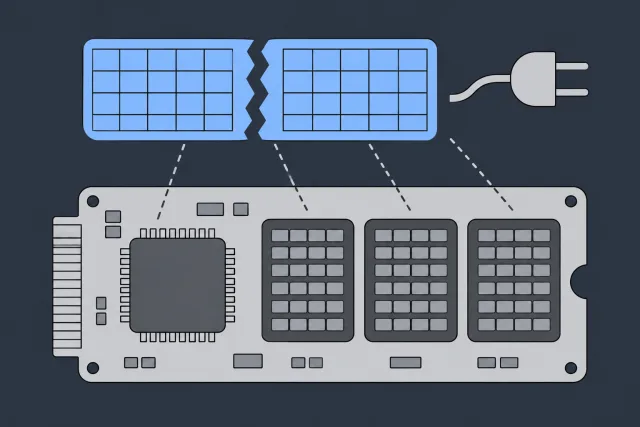
The FTL is the mapping table that tells the controller where each piece of data is physically stored in the NAND chips. Think of it as the drive's internal GPS. If the FTL gets corrupted when the power goes out during a write, the controller can lose track of files that are still on the chips. The drive might show up as empty, show the wrong capacity, or not mount at all.
 Illustration
Recovery approach: We can sometimes rebuild the map your SSD uses to find your files. That map is called the FTL, and we piece it together from the data on the NAND memory chips. Our tools have to support your exact model. If the drive is encrypted, we also need its key or the original electronics that use it.
What to Do If You See Warning Signs
If you've identified any of the warning signs above, here's your action plan in order of priority:
1 Back Up Immediately
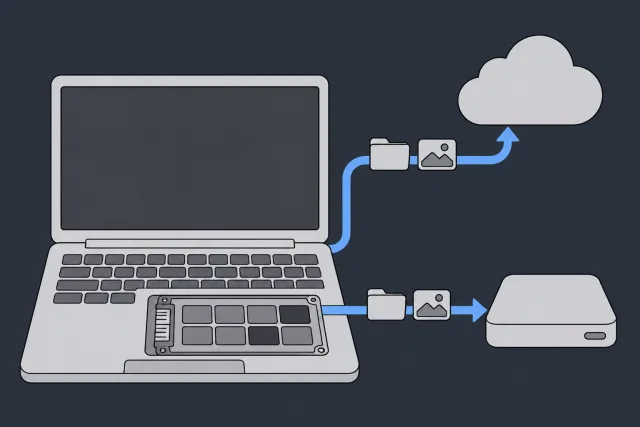
Don't run diagnostics first. Don't update drivers first. Don't try to fix anything first. Back up your data. Copy everything important to an external drive or cloud storage. If the SSD is still working, even slowly, start with the photos and documents you can't replace. For an external backup, select the files, choose Copy, open the other drive, and choose Paste. Open a few copies from that drive to make sure they work. If a copy freezes or gives a read error, stop and power down the SSD.
If the computer asks to initialize, format, or erase an SSD that holds files you want, dismiss the prompt.
 Illustration
2 Check SMART Data
Once your data is safe, check the SMART data using CrystalDiskInfo, DriveDx, or your manufacturer's tool. Look at the health status and the specific attributes listed above. This can help you judge how serious the problem is.
3 Stop Using the SSD for Important Data
If SMART shows Caution or Bad, don't trust the drive with any data you can't afford to lose. Order a replacement and restore your backup to the new drive.
4 Replace the SSD
Choose a replacement your computer supports, such as a SATA or NVMe SSD. Replace the drive proactively while you still have the option to migrate everything calmly.
SSD vs. HDD Failure: Key Differences
| Characteristic | HDD Failure | SSD Failure |
|---|---|---|
| Warning sounds | Clicking, grinding, beeping | None (no moving parts) |
| Failure speed | Can be gradual (days/weeks) or sudden | Can stop without warning |
| Data after failure | Depends on damage to the platter surfaces | Files can remain on the chips even if the controller can't find them |
| Recovery complexity | Depends on the diagnosed fault | Depends on the controller, the memory chips, and any encryption keys |
| Read-only failsafe | No NAND wear-out mode | Some SSDs, yes |
SSD Data Recovery Options
If your SSD has already failed, here's what your options look like:
DIY Software Recovery (Limited)
If missing files are the only problem and the SSD shows the right size and reads reliably, make an image first. In your recovery software, select the SSD as the source and save a full disk image to a different drive with room for the whole SSD. Scan that image and save any files you recover to the other drive. If reads fail or the SSD drops out, stop and power it down. If the drive isn't detected at all, software can't help because there's nothing for the software to read from.
Professional Recovery
A professional data recovery lab like MDRepairs can work on faults that software can't fix:
- Firmware repair: We have manufacturer-specific tools to work with corrupted SSD firmware on supported models. That can give us access to the NAND data without needing to remove chips.
- We start with your SSD's own controller and try to get it working long enough to copy your files. On some older, unencrypted drives, we can read the NAND chips separately and piece the files back together. If your SSD is encrypted, even a board from the same model can't unlock your files.
How to Prevent SSD Failure
Keep Your SSD Cool
Heat is the enemy of NAND flash. Make sure your computer has adequate ventilation. When installing an NVMe SSD in a laptop, make sure the thermal pad (if there is one) is properly seated. For desktop NVMe drives, consider an aftermarket heatsink if the motherboard doesn't include one. Keep your SSD within its rated operating range under load.
Use a UPS (Uninterruptible Power Supply)
Sudden power loss during a write can damage your data or the drive's internal map. A UPS provides battery backup so your computer can shut down properly during a power outage.
Enable TRIM
Keep TRIM enabled on a healthy SSD. TRIM helps the SSD manage its flash cells more efficiently, reducing unnecessary writes and extending the drive's lifespan. On Windows, open Command Prompt as admin and run fsutil behavior query DisableDeleteNotify. A 0 for your file system means Windows is allowed to send TRIM commands.
Don't Fill the Drive Past 80%
SSDs can slow down and wear faster when they're nearly full. The controller needs free space for wear leveling, garbage collection, and the write cache. Try to keep at least 20% of the drive free. If you're consistently above 80% capacity, you might want a bigger drive.
Update Firmware (Carefully)
SSD manufacturers release firmware updates that fix bugs, improve performance, and address reliability issues. Check for updates using your manufacturer's tool. Don't try an update as a fix for a drive that keeps disappearing. Firmware updates carry a small risk of bricking the drive if the update is interrupted. For a working drive, read the release notes for your model, back up before updating, and keep the power on until it finishes.
Monitor Health Monthly
Set a monthly reminder to open CrystalDiskInfo or your manufacturer's tool and check your SSD's health. Make it a habit. Catching a "Caution" status early can give you time to plan a replacement instead of dealing with an emergency.
Frequently Asked Questions
Can a failing SSD be fixed?
We may be able to repair a faulty board long enough to copy your files to another drive. We can't fix the memory cells in the NAND chips once they wear out. Please keep every part of your original SSD.
How do I know if my SSD is the cause of my computer's slow performance?
If slowness is the only symptom and your files are backed up elsewhere, you can run CrystalDiskMark (free, from the same developers as CrystalDiskInfo) to compare your SSD's speed with its rated performance. The benchmark writes test data, and a slow result alone doesn't identify the cause. Also check CrystalDiskInfo for the health status.
Do SSDs fail without warning?
They can. Controller failures and power surge damage can kill an SSD instantly with zero prior symptoms. That's why backups are essential for SSD users. You may notice subtle warning signs (freezing, slow speeds, file corruption) before total failure. Monitoring SMART data can catch some signs you won't notice yourself.
Is SSD data recovery possible after total failure?
Yes, sometimes. A hardware failure does not always mean your files are gone, even if your SSD seems completely dead. Depending on the model and what failed, we may be able to repair the board or use firmware tools to get the drive's own controller reading data again. If your SSD is encrypted, reading the NAND chips alone won't unlock your files.
Should I replace my SSD proactively before it fails?
If SMART data shows declining health (a critical warning or rising read error counts), yes. A planned replacement is always better than an emergency. You can clone a healthy old SSD to the new one by choosing the old drive as the source and the empty replacement as the destination in your cloning tool. If reads are failing, use your backup instead. Much easier than recovering from a dead drive.
Will an SSD last longer if I don't use it?
Not exactly. NAND flash cells can actually lose their charge over extended periods of unpowered storage. An SSD sitting in a drawer for years might have data errors when you plug it back in. At the end of rated write life, the standard test calls for 1 year of unpowered data retention at 30C for consumer SSDs and 3 months at 40C for enterprise SSDs. If you're using an SSD for archival storage, keep separate verified copies and move the data to healthy storage as drives age. Reading a file doesn't necessarily refresh the cells.
When to stop using a failing SSD
If your SSD has gone read-only or shows critical SMART warnings but still reads steadily, use it only to copy important files. If it disappears from BIOS, freezes during copies, gives read errors, or reports the wrong size, stop using it immediately. SSD failures can accelerate quickly because the controller, firmware, and NAND all depend on each other. A full diagnostic scan can keep a struggling drive busy reading damaged areas. A firmware update, reinstall, or format can change what we can read later.
The best next step is to power the system down and avoid more boot attempts from that drive. MDRepairs handles SSD data recovery for SATA, NVMe, M.2, and external SSDs in our New Jersey lab. Use our mail-in recovery service to arrange the diagnostic. We charge $100 for the diagnostic when your SSD arrives. We credit it toward a successful recovery, and it's non-refundable once the diagnostic starts. You approve the estimate before recovery work starts.
Sources
- What to do about a critical warning for a storage device
- Move your files to a new Windows PC using an external storage device
- The drive is making 'clicking' sounds
- How Micron SSDs Handle Unexpected Power Loss
- Enterprise versus Client SSD
- Bug check 0x7A: KERNEL_DATA_INPAGE_ERROR
- Troubleshooting Windows unexpected restarts and stop code errors
- USB External Troubleshooter
- SMART: Estimated Life Remaining Is Lower Than 100%
- If your Mac can't save files to an external drive
- How to repair a Mac storage device with Disk Utility
- SSD cooling: Do M.2 NVMe SSDs need a heatsink?
- Computer Cannot Boot into Windows
- NVME_HEALTH_INFO_LOG structure (nvme.h)
- Health Status
- Check if a Mac disk is about to fail
- DriveDx Online Help
- smartctl(8)
- Storage Executive User Guide
- Western Digital Dashboard End of Support
- Announcement: End-of-Life (EOL) for the Intel® Memory and Storage Tool (Intel® MAS) Application
- 2D vs 3D NAND: Differences Between SLC, MLC, TLC and QLC Flash Storage
- Samsung SSD 870 EVO Data Sheet
- Endurance of NVMe®, SAS, and SATA SSDs
- Troubleshoot Disk Management
- Create a disk image using Disk Utility on Mac
- Internal SSD Product Information
- fsutil behavior
- Magician Software
- How to free up disk space on your PC or Mac
How MDrepairs can help
- NVMe SSD Data Recovery Recovery from M.2 NVMe drives not detected in BIOS. Learn more
- Samsung SSD Data Recovery Recovery from Samsung 860/870 EVO and SATAFIRM S11 faults. Learn more
- Hard Drive Data Recovery Mechanical, firmware and logical HDD recovery on every brand. Learn more
- Data Recovery Cost What recovery really costs - flat tiers. Learn more