How to Fix an I/O Device Error on an External Hard Drive
Our founder and lead technician, Joseph Montanti, handles cases personally.
An I/O device error means the computer could not complete a read or write to your external hard drive. A faulty USB cable, unstable power, an enclosure problem, or an unreadable area on the disk can interrupt that operation. Start by separating a connection problem from a drive that is failing to read, and save the files before running a repair.
On this page
- Applies to
- External hard drives with a Windows I/O error or an unreadable-disk message on a Mac
- What you need
- Another working drive if the I/O error appeared while backing up your computer
What “The request could not be performed because of an I/O device error” means
I/O stands for input/output. Windows uses this message when a device operation fails; Microsoft lists it as ERROR_IO_DEVICE, error 1117. It can appear while opening a folder, copying a file, making a backup, or using Disk Management.
The computer reaches an external disk through several parts: its USB controller, the cable, the enclosure electronics, and the drive. An interruption anywhere along that route can prevent a read or write. A file-system problem can also make folders inaccessible even while the physical disk remains visible.
Unreadable sectors produce a different pattern from a loose connection. A particular file may stall each time the drive reaches the same damaged area. A connection fault may disconnect the entire device. Both can interrupt a copy, and a deteriorating drive can show more than one symptom.
Physical damage changes the next step. Leave a drive powered off if it clicks, beeps, grinds, was dropped, got wet, or smells burned; do not reconnect it to listen or test another port. If an otherwise quiet drive repeatedly freezes, disappears, or fails to read, end the home checks and preserve it for recovery.
Was the error reading the original or writing a backup?
A copy has a source and a destination. If you were copying photos from the external drive onto your laptop, the external drive held the source files. If you were backing up the laptop to that external drive, it was the destination. Keep the usable originals until the new copy has been checked.
Risk to your files. When the failure happened while reading the external disk, give priority to the files that are still accessible. The faulty disk has to keep reading for the entire transfer. If folders open normally and transfers remain steady, copy the needed files to a healthy device, starting with the ones missing from other backups. End the copy if it hangs, reports another read error, or loses the drive. A partial destination file is not a verified backup.
If the failure occurred while writing a backup, leave the original files on the computer and use another healthy destination. Formatting the failed destination does nothing to preserve files already stored there. First check whether that disk also contains older photos, archives, or other files that exist nowhere else.
This distinction also helps when an error appears halfway through a large transfer. The file named by the copy dialog may be the file Windows was handling when communication failed. It is not automatically the only affected file, and repeatedly retrying it can keep the disk occupied with the same unreadable area. We replaced the heads on a helium drive that disconnected during a photo transfer and recovered the photos and videos.
Limited USB connection checks
For an undamaged drive without the warning signs above, a brief connection check can restore access without changing the files. Seagate's external-drive troubleshooting includes a different cable, port, and computer. Change one part at a time so the result means something.
Checking the cable, power and computer connection leaves the external disk's files in place.
- Use a known-working cable of the correct type. A connector that is loose or physically broken needs repair; do not keep bending it until the drive appears.
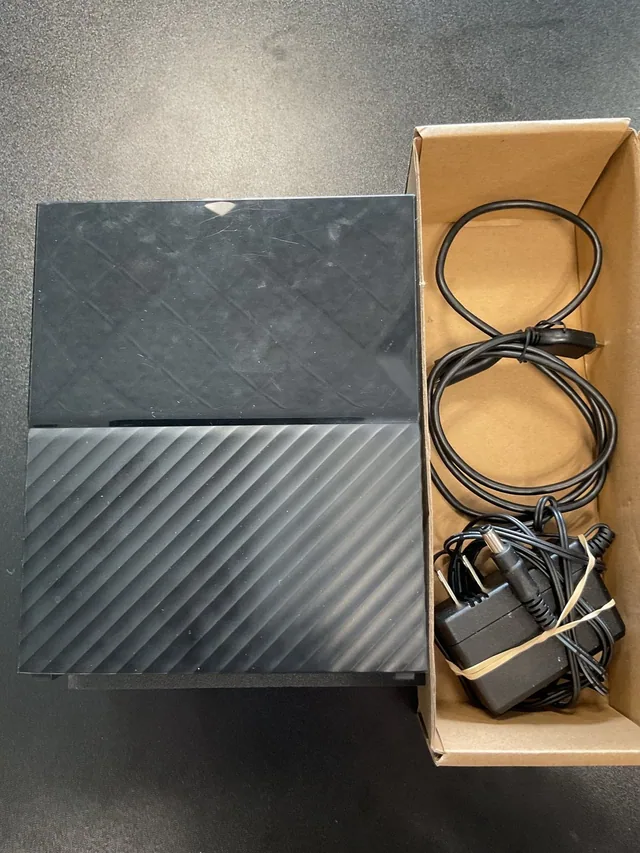
- Connect directly to the computer instead of through a hub or a chain of adapters. For a desktop external drive, use its correct power adapter. A plug that fits is not proof that another adapter supplies the right power.
- If access still fails and the drive remains stable, try one other computer.
If a connection change restores access, follow the copying instructions above before troubleshooting the original computer. Stop if the transfer hangs, a read error returns or the drive disconnects. If the same failure follows the drive, more combinations of cables and computers add little. The remaining problem is along the drive or enclosure path and needs closer examination.
| Observed behavior | Possible cause | Useful next action |
|---|---|---|
| Connection drops when the cable moves | Cable or connector damage | Replace a faulty cable; have a damaged socket repaired |
| Drive works directly but fails through a hub | Hub, adapter, or available power | Save the files through the working direct connection |
| Recognized volume has no drive letter | Windows has no letter assigned for Explorer access | Use the existing-volume steps below |
| Correct disk size but RAW volume or missing partition | Unreadable or unrecognized file-system information | Preserve the files or image before any repair |
| Some files read; others repeatedly stall | Unreadable sectors or a failing reading path | Controlled recovery may be needed |
| Clicking or grinding with failed reads | Mechanical trouble inside a hard drive | Leave the disk off for hardware recovery |
What Disk Management and Diskpart can tell you
Leaves your files alone. Open Disk Management from the Start menu and find the external disk by its capacity. Look at both the physical disk and its volume. “Healthy” is a Windows volume status, so it should not be treated as a full mechanical test of the drive. RAW means Windows is not recognizing a usable file system on that volume.
If an existing data volume is recognized and stable but has no letter, Microsoft's drive-letter procedure applies. It is a way to make that volume accessible in File Explorer. It does not repair missing partitions or turn an unreadable disk into a readable one.
- Risk to your files. Windows opens a volume when you assign its letter and can then write to it. Right-click the existing volume and choose Change Drive Letter and Paths.
- Choose Add if no letter is assigned, or Change if its current letter conflicts with the path you need.
- Select an unused letter and confirm. Avoid changing the letter of a volume that holds Windows or installed applications.
If the disk instead shows Unknown, Not Initialized, or Unallocated, cancel prompts to initialize or create a new volume while you need its old contents. A new-disk setup procedure writes information for a newly usable disk. It is not a procedure for locating the files that were already there.
Diskpart may report “The request could not be performed because of an I/O device error” and direct you to the System event log. That is a failed storage request through a command-line tool. Repeating initialization or running clean will not repair a damaged cable or unreadable platter, and clean removes partition information.
Leaves your files alone. Event Viewer can show Windows Logs > System entries from the time of the failure without another test of the drive. An error attached to a particular disk or controller helps distinguish the storage path involved. Use existing entries rather than generating more failures with repeated format or repair attempts.
When the drive reads correctly on another PC, finish saving its contents there before changing drivers on the original PC.
Leaves your files alone. Windows Update is Microsoft's normal source of driver updates. For a device-specific problem, Device Manager can update or reinstall its driver. Expand Disk drives, select the affected device, and use Update driver; follow the maker's directions for any USB controller fault.
“The request failed due to a fatal device hardware error” (0x800701E3)
This related message reports Windows error 483, ERROR_DEVICE_HARDWARE_ERROR. Microsoft's Windows SDK definition identifies the failed device request. The word “fatal” is serious, but it is not a declaration that all recorded files have disappeared.
Use the reading-versus-writing steps above to protect the device holding your originals.
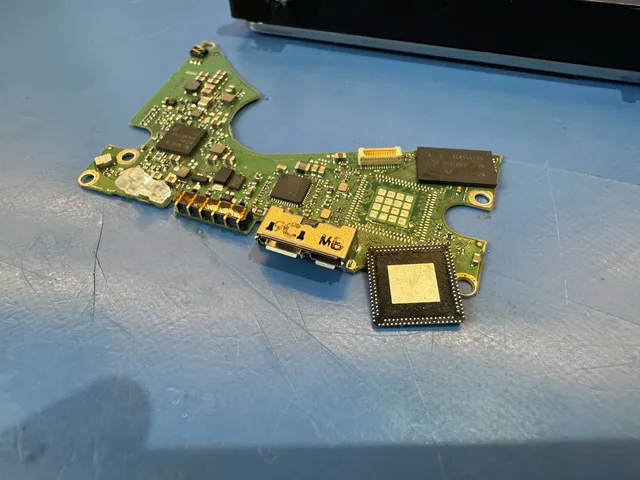
A fault in either the enclosure or the drive itself can keep the computer from accessing the files. Replacing a USB enclosure requires checking the exact model: some disks rely on their original electronics for encryption or translation, and some portable drives have USB built into the drive board. Keep the original enclosure and boards with the drive.
Checking an external disk on a Mac
A Mac may show an unreadable-disk message or omit the volume from Finder. Open Disk Utility and choose View > Show All Devices. A top-level disk with no usable volume means the Mac can see the storage device, but has not mounted the expected file system.
System Information offers another view of the connection. Hold Option while opening the Apple menu, choose System Information, and select USB under Hardware. A device listed there has been detected on the USB bus. Disk Utility then shows whether usable storage and volumes are available through that connection.
These views answer different questions. A USB bridge can appear even when the disk behind it is not reading. Conversely, a disk may be visible in Disk Utility but use a file system that macOS cannot mount. Seeing the physical device is a reason to investigate the volume, rather than to erase it so Finder will show a new one.
CHKDSK and First Aid come after the copy
Risk to your files. Making a full image keeps the external disk reading through every sector. Only image it at home while it reads steadily. Stop if it stalls, reports a read error or disconnects.
Risk to your files. CHKDSK in repair mode and First Aid write to the records that describe files and folders. Save a full image or the recovered files on healthy storage first. Run repairs only on a healthy working copy and keep any original image untouched. File-system repair can fix a damaged index on readable storage, but it cannot replace a failed head or restore a dropped USB connection.
Microsoft documents /f as the CHKDSK repair option. On the healthy working copy, open an administrator terminal and run chkdsk X: /f, replacing X: with that copy's drive letter. Confirm the letter before starting so the damaged source is not selected.
The /r option searches for bad sectors and attempts to recover readable information; it includes /f. It requires additional reading and is not a preliminary test for an unstable source. A quiet drive can still have unreadable sectors, so sound is not the test for whether repair should precede recovery.
For a Mac working copy, Apple's First Aid instructions proceed through volumes, then containers, then the storage device. Select the relevant item, choose First Aid, and run it. Apple calls for a current backup before repair. If the damaged original cannot be copied reliably, its recovery problem comes first.
Fixes to avoid while the original disk gives I/O errors
- Repairing the original disk. The repair writes changes to file-system records and can lose data on a FAT volume.
- Repeating the failed transfer. Trying to copy the same unreadable area again puts more strain on the disk.
- Formatting the disk. A quick format deletes its file table. A full format also writes over the data.
When reading needs lab equipment
A normal file copy may get stuck asking for one bad area repeatedly. Imaging separates that reading problem from the later work of reconstructing folders and extracting files. Depending on the fault, mechanical or electronic work may be needed before the disk can supply a useful image. We list prices for firmware repair, logical recovery and head replacement in the hard drive section.
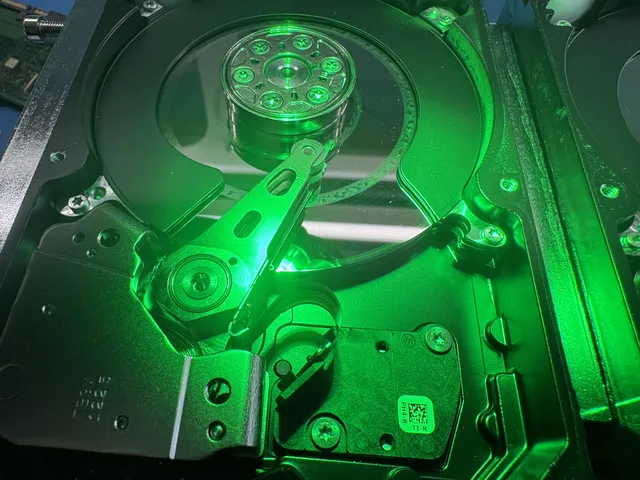
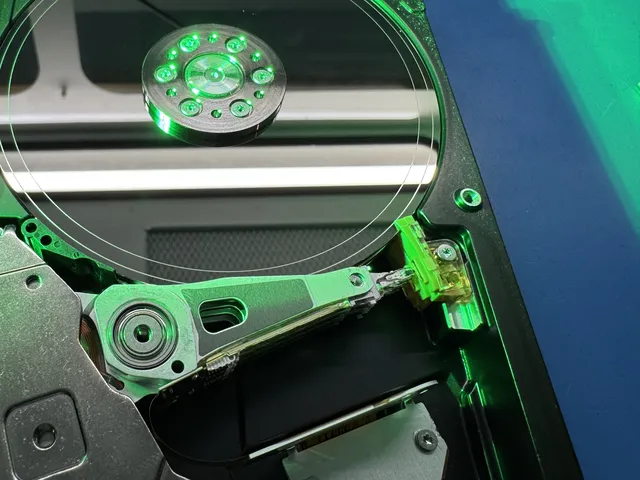
After the heads failed on a Western Digital drive holding game project files, its data map became corrupt during recovery, and we saved all but a small part of its data. In the lab's separate WD external-drive recovery, a byte-to-byte backup stalled on unreadable blocks, and Joe found that one head was barely reading. He copied the areas served by the working heads, installed donor heads in the laminar-flow work area, and finished imaging. The pictures and videos were saved.
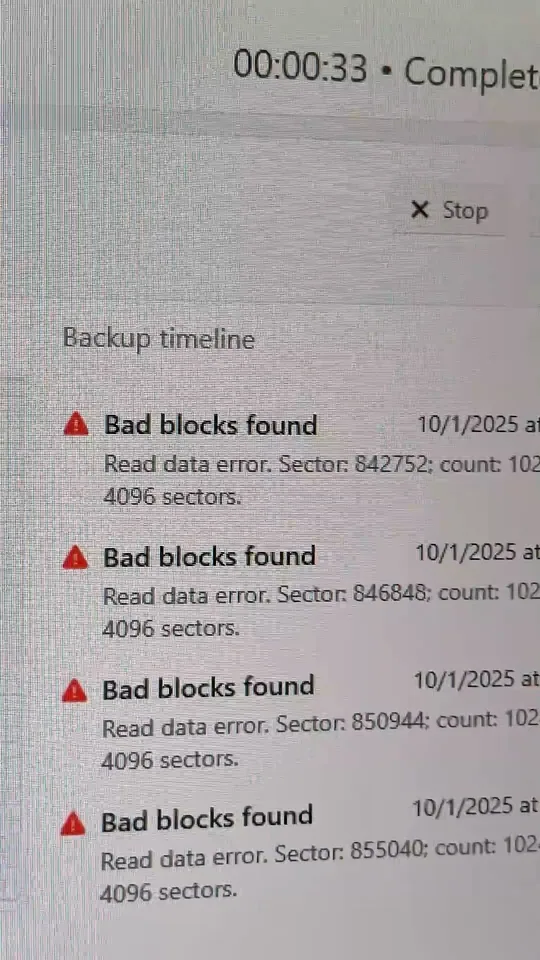
That explains why a drive can pass an initial check yet fail partway through a backup. Files occupy different regions of the disk, and the drive must reach all the regions needed for each file. A large video touches more storage than a small document, so one may fail while the other copies successfully; cable and power problems can also interrupt sustained transfers.
Persistent I/O errors, stalled copies, or loss of detection after the limited connection checks are reasons to use external hard drive recovery. The pricing page lists recovery categories. Keep the drive's original enclosure and power equipment together so the whole reading path is available for the work.
Frequently Asked Questions
What would it cost to recover older backups that exist only on my external drive after an I/O error?
If the drive is readable and damaged file records are hiding your older backups, we use the price range for logical recovery. We credit the $100 diagnostic toward the cost of a successful recovery from that disk.
Get help with data recovery
Bring your device to our Lincroft lab during opening hours, or mail it in.
How to mail your deviceThe $100 diagnostic is non-refundable once diagnostics start, and donor drives or replacement parts you approve are non-refundable once ordered, even if recovery fails.
Published by MDrepairs
MDrepairs is a data recovery and electronics repair lab in Lincroft, New Jersey. Our founder and lead technician Joseph Montanti films real cases for our YouTube channel, showing tools, repair steps and recovery outcomes.
Keep reading
- BitLocker Recovery Key Not Working? Check the Key ID Before Resetting
- exFAT Drive Corrupted? Cross-Platform Rescue Guide
- External Drive Painfully Slow? It May Be Dying