How to Use CrystalDiskInfo to Check Your Drive Health
In this article
To use CrystalDiskInfo, download it from the official site, run it as administrator, and read the colored Health Status badge. It reads your drive's S.M.A.R.T. data and rates it Good (blue/green), Caution (yellow), or Bad (red). Gray means Unknown. The health readings it can show are listed below.
- Good: the reported status does not rule out failure; keep regular backups
- Caution: a S.M.A.R.T. attribute triggered a warning. If files still open normally, copy the files you can't replace to another drive first
- Bad: the drive is reporting a serious problem. Stop using it, don't run chkdsk, and consider professional hard drive data recovery
CrystalDiskInfo is a free Windows tool that reads your drive's S.M.A.R.T. data and shows you the warning signs your drive reports. S.M.A.R.T. stands for Self-Monitoring, Analysis, and Reporting Technology. Modern hard drives and SSDs track their own health metrics internally. CrystalDiskInfo simply pulls that data and presents it in a clean interface with color-coded health ratings. Blue means good. Green means good. Yellow means caution. Red means bad. That's the short version. But a drive can still stop working while the badge says Good.
We use CrystalDiskInfo in our data recovery lab to read the health report when a drive can still provide one. It's not a deep diagnostic tool. It won't tell you everything. But it gives you the key vitals and can show you when your drive needs attention right now.
If your drive is already showing warning signs and you're worried about data loss, get a recovery quote from our lab. If it keeps clicking, disappears from Windows, or freezes while you copy files, power it down.
What Is CrystalDiskInfo?
CrystalDiskInfo is a free, open-source disk health monitoring utility developed by Hiyohiyo (Crystal Dew World). It's been around since 2008. The software reads S.M.A.R.T. data directly from your hard drive or SSD and displays it in a straightforward interface.
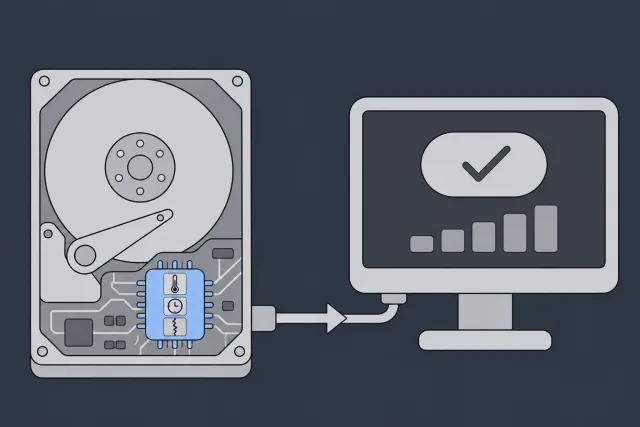
Hard drives and SSDs can keep a S.M.A.R.T. log in their firmware. The drive constantly monitors itself. Temperature, read error rates, reallocated sectors, power-on hours, spin-up retries. What gets logged depends on the drive. CrystalDiskInfo grabs that log and shows it to you. If you want to understand what all those attributes actually mean, our S.M.A.R.T. data guide breaks down the key values.
 Illustration
Here's what makes it useful. Without a tool like this, your drive could be quietly accumulating bad sectors for months. You might have no idea until the day Windows won't boot or a critical file won't open. CrystalDiskInfo can catch those problems early. A quick glance at the health status can tell you when a backup can't wait.
It works with SATA hard drives, SATA SSDs, NVMe SSDs, and some USB external drives (though USB enclosures sometimes block S.M.A.R.T. passthrough). Some RAID controllers let it see individual drives. It can't read a remote drive's health through a shared folder on your network.
How to Download and Install CrystalDiskInfo
Getting CrystalDiskInfo up and running takes just a few steps. There's a standard installer and a portable version that runs without installation.
1 Go to the Official Download Page
Visit the official CrystalDiskInfo download page on crystalmark.info. Choose CrystalDiskInfo. CrystalDiskMark on the same page is a speed test. Don't download CrystalDiskInfo from random third-party sites. Some of them bundle adware or modified versions. If Windows runs from the drive you're worried about, copy the files you need to another drive before downloading anything.
2 Choose Your Version
You'll see several download options:
- Standard Edition (Installer) installs like any normal Windows program. Best for most people.
- Standard Edition (Zip/Portable) runs directly from the folder you extract it to. No installation needed. Great if you want to run it from a USB stick on different computers.
- Shizuku Edition / Kurei Kei Edition are the same software with anime themes. They show the same health readings.
Pick the Standard Edition installer unless you specifically want the portable version.
If you choose the Standard Edition ZIP, right-click it and select Extract All. On a 64-bit Intel or AMD PC, open the extracted folder and double-click DiskInfo64.exe.
3 Run the Installer
Double-click the downloaded .exe file. Accept the license agreement (MIT license, it's open source). Choose your install folder. Read each screen, then click Install.
4 Launch CrystalDiskInfo
Open the program. It looks for supported drives and shows their health data. No setup required. If you have more than one drive, select yours at the top and confirm the drive letter before you read the badge.
If Windows asks to format or initialize a drive that already holds your files, click Cancel.
Reading the CrystalDiskInfo Interface
When CrystalDiskInfo opens, you're looking at a lot of information. Don't let it overwhelm you. Here's what everything means.
The Top Bar: Drive Selector
If you have multiple drives, you'll see tabs across the top. Each tab represents one drive. Click a tab to view that drive's data. Look for the drive letter on the tab. The model name and capacity appear below when you select it.
The Health Status Badge
This is the single most important element on the screen. It's a large colored badge in the upper left that says "Good," "Caution," "Bad," or "Unknown." This is CrystalDiskInfo's overall assessment based on the health readings it uses for that drive.
Start here. If it says "Good" with a blue or green background, the drive hasn't triggered a warning. If it says anything else, keep reading this guide to see what the badge means.
Drive Information Panel
Beside the health badge, you'll see key details about the drive:
- Firmware: The drive's internal firmware version.
- Serial Number: Unique identifier for your specific drive.
- Interface: SATA, NVMe, USB, etc.
- Transfer Mode: Shows the current and maximum link speed (e.g., SATA/600 means SATA III at 6 Gb/s).
- Drive Letter: Which Windows drive letter(s) this physical drive maps to.
- Standard: Which standard the drive uses, such as ATA or NVMe.
- Features: S.M.A.R.T., APM (Advanced Power Management), AAM (Automatic Acoustic Management), NCQ (Native Command Queuing), TRIM (for SSDs).
Temperature
Displayed prominently, usually with its own colored indicator. Compare the temperature with the operating range for your drive model. An NVMe drive that gets too hot can slow itself down to cool off.
The S.M.A.R.T. Attribute Table
This is the big table that fills most of the window. Each row is a different health metric the drive monitors. On a SATA drive, the columns are:
| Column | What It Means |
|---|---|
| ID | The hex ID number for the attribute (e.g., 05, C5, C6) |
| Attribute Name | Human-readable name (e.g., "Reallocated Sectors Count") |
| Current | The normalized current value (higher is better, usually starts at 100 or 200) |
| Worst | The worst normalized value the drive has recorded for this attribute |
| Threshold | The minimum acceptable value set by the manufacturer. If Current drops below this, CrystalDiskInfo can flag that attribute as "Bad" |
| Raw Value | The number as the drive reports it. Some are simple counts. Others need the maker's explanation. |
The raw values can tell you how many sectors a hard drive has replaced. A "Reallocated Sectors Count" with a current value of 100 and a raw value of 0 means none are reported. For a simple count in familiar numbers, open Function > Advanced Feature > Raw Values and choose 10 [DEC]. A raw value of 48 then means 48 sectors on a drive that counts them individually.
CrystalDiskInfo Color Codes Explained
CrystalDiskInfo uses four colors to indicate drive health. Gray means CrystalDiskInfo can't give the drive a rating. The colored markers in the table help you find the attribute behind a warning. The default color scheme uses blue for good. You can change this to green in the settings. Both mean the same thing.
Blue (Good)
No monitored attribute has triggered a warning. From the readings CrystalDiskInfo can see, the drive is functioning as expected. If files won't open, take that seriously even when the badge is blue.
What to do: Nothing urgent if your files open normally. Keep regular backups (you should always have backups regardless of drive health). Check CrystalDiskInfo again in a month or two, or set it to run at startup and minimize to the system tray so it monitors in the background.
Green (Good)
Same as blue. Some users switch the default color from blue to green in CrystalDiskInfo's settings (Theme > Green Mode). Green "Good" and blue "Good" are identical. No difference in meaning.
Yellow (Caution)
Yellow means at least one S.M.A.R.T. attribute has crossed a warning threshold. The drive isn't dead yet. It might work fine for another year. Or it might fail next week. There's no way to predict the exact timeline.
Common triggers for a yellow caution status:
- Reallocated Sectors Count above zero. The drive has found bad sectors and started using spare sectors in their place.
- Current Pending Sector Count above zero. The drive found sectors it can't read but hasn't reallocated yet.
- Uncorrectable Sector Count above zero. The drive couldn't read those sectors even after trying to correct the errors.
- SSD Remaining Life reaching 10% or less on drives that use that warning level.
Yellow is your early warning system. The drive is telling you it's developing problems. How fast those problems escalate is anyone's guess.
What to do: Immediately back up your most important data if the files still open normally. Copy photos and documents before you spend time copying programs you can reinstall. If the copy stalls or the drive disappears, stop and power it down. If the raw values for reallocated or pending sectors keep climbing, replace the drive. Don't wait.
Red (Bad)
Red means a critical health reading has crossed a failure threshold, or an NVMe drive is reporting a critical warning. An NVMe SSD can, for example, switch to read-only even when its wear percentage still looks good.
A red status doesn't always mean the drive is completely unusable right this second. Sometimes you can still read data from it. Continued use is risky.
What to do: Stop using the drive for anything other than getting your data off it. Don't install new software. Don't save new files to it. Don't run chkdsk or any repair utilities. If files still open normally, copy your most important files first, then work your way down the priority list. If the drive won't mount or a copy stalls, power it down and contact our lab about a recovery quote. Repeated attempts can put more strain on a failing drive.
CrystalDiskInfo Health Status Meaning: Good, Caution, Bad
The Health Status box is the first thing everyone looks at, so here is exactly what each CrystalDiskInfo health status means and how seriously to take it. Is CrystalDiskInfo safe to use when it shows Caution or Bad? Opening the health report just reads information the drive already keeps.
- Good (blue or green): no monitored attribute has tripped a warning. The drive is behaving normally as far as S.M.A.R.T. can see. Keep backups current anyway. S.M.A.R.T. can catch gradual degradation and still miss a failure.
- Caution (yellow): a health reading has triggered a warning. On a hard drive, CrystalDiskInfo's default is to flag Caution when reallocated sectors (05), current pending sectors (C5), or uncorrectable sectors (C6) appear. Treat Caution as your backup deadline: copy the irreplaceable files off first, then decide about replacement.
- Bad (red): an attribute has crossed the manufacturer's failure threshold or the drive itself is reporting a critical warning. Stop trusting the drive. If everything on it is backed up, replace it. If it holds the only copy of something that matters, stop writing to it. If it keeps disconnecting or won't read your files, power it down. Our hard drive recovery lab can diagnose it.
- Unknown (gray): CrystalDiskInfo didn't get enough information to rate the drive. That can happen through a USB enclosure, RAID controller, or virtual machine. Unknown does not mean healthy. If you can still open your files, copy them to another drive before changing anything.
Two details worth knowing. First, the yellow thresholds are adjustable (Function, Advanced Feature, Health Status Setting), so two computers can disagree about the same drive. Second, NVMe SSDs can also show a percentage. If the drive reports 2% used, CrystalDiskInfo shows 98% remaining. That's an estimate of how much of its rated write life is left. Available Spare and Critical Warning are separate readings. The what to do for each health status section below gives the step-by-step response.
Key S.M.A.R.T. Attributes to Watch
CrystalDiskInfo displays dozens of S.M.A.R.T. attributes. Most of them are informational and don't tell you much about imminent failure. Here are the ones that actually matter. They're a good place to start when the drive still responds.
Reallocated Sectors Count (ID: 05)
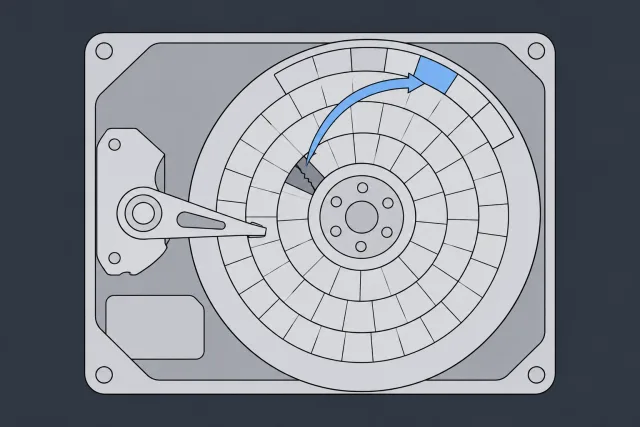
This is an important attribute for mechanical hard drives. When the drive can still read a bad sector, it can move the data to a spare sector on the platters. On drives that count sectors individually, the raw value tells you how many have been reallocated.
 Illustration
Healthy value: 0. The drive hasn't reported any reallocated sectors.
Concerning value: Anything above 0. The drive has already had to use a spare. Start planning a replacement and make sure your backups are current.
Dangerous value: A count that keeps rising. The spare sector pool is limited, and the drive is having to use more of it.
One important thing. A single reallocated sector doesn't mean the drive is dying. A drive can develop an isolated bad sector and never report another one. The key is the trend. If the count was 2 last month and it's 15 now, the drive has had to replace more sectors. We go deeper into what these numbers mean in our reallocated sector count guide.
Current Pending Sector Count (ID: C5)
These are sectors the drive couldn't read on the last attempt. The drive hasn't given up on them yet. It's flagged them as "pending" while it waits to see whether they can be read or need replacing. If the sector can be read on a subsequent attempt, it can come off the pending list. Don't write to the sector to try to clear it while you still need the files.
Healthy value: 0.
Any value above 0: The drive has areas it's struggling to read. A pending sector can become a reallocated one, but the two counts don't always rise together. Our pending sector count guide explains exactly how to interpret these numbers.
Uncorrectable Sector Count (ID: C6)
These are sectors the drive couldn't read even after trying to correct the errors. If those sectors contained part of a file, that file may not open or copy completely.
Healthy value: 0.
Any value above 0: The affected area might be empty. It might hold an unimportant temp file or part of a wedding photo. There's no way to know from this number alone.
Spin Retry Count (ID: 0A)
Only relevant for mechanical hard drives. This counts how many times the drive needed more than one attempt to spin up the platters to operating speed.
Healthy value: 0.
Above 0: Could indicate a weakening spindle motor, bearing issues, or power supply problems. If this count is climbing and you're also hearing unusual sounds at startup, power the drive down if you need the files.
Power-On Hours (ID: 09)
Total hours the drive has been powered on throughout its entire life. This isn't a health indicator by itself. It's context. A drive with 50,000 power-on hours and zero bad sectors may still be working fine. A drive with 5,000 hours and 30 reallocated sectors has problems.
There's no set number of power-on hours when you have to replace a drive. SSDs don't have moving parts. For an SSD, total data written tells you more about wear than its hours alone.
Reallocated Event Count (ID: C4)
Similar to Reallocated Sectors Count, but this tracks the number of remap operations rather than the number of sectors remapped. One reallocation event might remap multiple sectors at once. If this is climbing, the drive is making more attempts to remap sectors.
Temperature (ID: C2 or 194)
Current drive temperature in Celsius if that's the unit you've selected. The operating range depends on your model. If your drive is consistently running hot, check your case airflow.
| Attribute | Expected Reading | What a Different Reading Can Mean |
|---|---|---|
| Reallocated Sectors (05) | 0 | Bad sectors have been replaced. A rising count means more sectors needed replacing. |
| Pending Sectors (C5) | 0 | Drive can't read certain areas. Early warning sign. |
| Uncorrectable Sectors (C6) | 0 | The drive couldn't read some sectors. Files using those areas may be affected. |
| Spin Retry Count (0A) | 0 | The drive had trouble spinning up. Power or motor trouble is possible. |
| Reallocated Events (C4) | 0 | The drive has tried to remap sectors. Watch for a rising count. |
| Temperature (C2) | Within the operating range for your drive model | The drive may be overheating. Some SSDs slow down to cool off. |
CrystalDiskInfo for HDDs vs SSDs
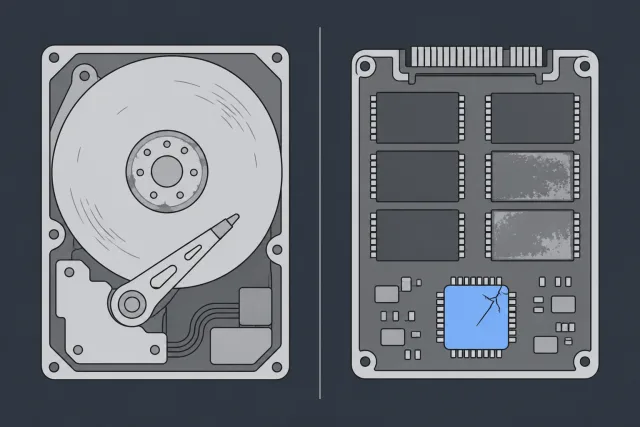
CrystalDiskInfo works on both hard drives and solid-state drives, but the attributes it shows are different for each. That's because HDDs and SSDs fail in fundamentally different ways.
 Illustration
Hard Drive (HDD) Specific Attributes
Mechanical hard drives have spinning platters, moving read/write heads, a spindle motor, and bearings. All of these wear out over time. The S.M.A.R.T. attributes for HDDs reflect this mechanical reality.
- Spin Up Time (03): How long it takes the platters to reach full speed. Increasing spin-up times can indicate bearing wear.
- Start/Stop Count (04): How many times the drive has spun up and down. More relevant for drives that get powered on and off frequently.
- Seek Error Rate (07): How often the heads have trouble finding the right track. A big raw number can be normal on some models. The maker decides how this value is recorded.
- Spin Retry Count (0A): Failed spin-up attempts. Possible motor or power problems.
- Head Flying Hours: Some drives report how many hours the heads have been actively flying over the platters.
- G-Sense Error Rate (BF): Shock/vibration events detected by the drive's accelerometer. The count alone can't tell you whether the laptop was dropped.
An HDD can fail through a head crash (the read/write heads physically damage the platter surface), motor seizure (the spindle motor stops spinning), or firmware corruption. Rising error counts can warn you something's wrong, but it can't predict a sudden head crash with no prior warning. That does happen.
SSD Specific Attributes
SSDs don't have moving parts. They store data in NAND flash memory cells. Those cells wear out with each write cycle. The S.M.A.R.T. attributes for SSDs focus on flash wear and controller health.
- Wear Leveling Count / Media Wearout Indicator: Shows how much write endurance the SSD has consumed. Some drives display a percentage remaining. When it hits 0%, the drive estimates it's used its rated endurance. It can still work beyond that point.
- Total Host Writes / NAND Writes: Host writes count the data your computer sent to the SSD. NAND writes include the extra copying the SSD does internally. Compare host writes with the drive's TBW (Terabytes Written) rating to see how much of its rated endurance you've used.
- Available Spare / Spare Blocks: How much spare flash remains, shown as a percentage on NVMe drives. SSDs set aside extra blocks to replace worn-out ones, similar to how HDDs have spare sectors. When this runs low, the SSD is running out of replacement capacity.
- Unsafe Shutdown Count: How many times the SSD lost power without a proper shutdown. The count alone doesn't tell you whether any files were damaged.
- CRC Error Count: Communication errors on a SATA connection. A loose or damaged cable is one possible cause.
Key Difference: How Failure Looks
HDDs can give gradual warnings. Reallocated sectors can creep up over weeks or months. The drive may get slower. If you hear repeated hard clicks or grinding, power it down. You don't need to wait for the badge to change.
SSDs can fail suddenly. The NAND wears down gradually, yes, and CrystalDiskInfo tracks that. But SSD controller failures or firmware bugs can kill an SSD instantly with zero S.M.A.R.T. warning. One moment your files open, the next the drive doesn't show up. That's not a CrystalDiskInfo limitation. It's a limitation of S.M.A.R.T. itself. The monitoring system can't predict a failure mode it isn't designed to detect.
Bottom line: CrystalDiskInfo gives you an accurate reading of what your drive reports, so it can flag bad sectors on a hard drive but may give no warning before a sudden SSD failure. CrystalDiskInfo is more reliable as a warning system for HDDs than SSDs. For SSDs, it's still useful for tracking wear level and total writes, but don't assume a "Good" status means the SSD is invincible.
What to Do for Each Health Status
Here's a practical action plan based on what CrystalDiskInfo tells you.
Status: Good (Blue/Green)
Action items:
- Open Function and turn on Keep Running in System Tray. Open Function again and turn on Startup. CrystalDiskInfo can then alert you to health warnings while Windows is running.
- Check it manually once a month if you don't want it running constantly.
- Maintain a backup strategy. A healthy drive today can still fail tomorrow. Hard drives and SSDs can both fail without a S.M.A.R.T. warning.
- Note your current power-on hours and temperature. Knowing the baseline makes it easier to spot changes later.
Status: Caution (Yellow)
Action items:
- Back up your most important files immediately. Use an external drive, cloud storage, or both. Prioritize files you can't replace: photos, documents, financial records, project files. If they open normally, select them in Windows, press Ctrl+C, open your external drive, then press Ctrl+V. Open a few of the copies there. If the transfer freezes or the drive drops out, stop and power it down.
- Identify which attribute triggered the warning. Look at the S.M.A.R.T. table. Look for a yellow icon next to the affected attribute. Is it reallocated sectors? Pending sectors? Wear level? This tells you what kind of degradation is happening. Our guide on hard drive failure warning signs covers what each symptom means beyond the S.M.A.R.T. numbers.
- Monitor the trend. Once your files are safe, write down the raw values for the concerning attributes. If they're climbing, replacement is urgent. A steady count can't tell you how long the drive has left.
- Buy a replacement drive. Don't put this off. Once the backup is safe, use the replacement for your files.
- Don't try to clone the drive if files won't copy. A full clone makes the drive read those problem areas again. Power it down if it still holds files you need.
Status: Bad (Red)
Action items:
- Do NOT continue using this drive normally. Keep it powered down if it makes unusual noises or won't stay connected.
- Do NOT run chkdsk, scandisk, or any repair tool. A scan can repeatedly read a weak area, and a repair can write changes to the drive.
- Do NOT defragment the drive. On a hard drive, defrag moves data across the platters. That means extra reads and writes while your files are still on the drive.
- Try to copy your most critical files first. If it stays connected and files open normally, prioritize. Family photos first. Then documents. Then everything else. Don't try to copy the entire drive at once, because if it fails mid-copy, you'll lose the chance to grab the important stuff.
- If the drive won't mount or files won't copy, stop trying. Power down the computer. Contact our lab for a recovery quote. Repeated retries can make a failing drive harder to read.
Status: Unknown
Sometimes CrystalDiskInfo can't determine the health status. This usually means:
- The drive is behind a USB enclosure that doesn't pass through S.M.A.R.T. data. If your files open normally, copy them through that enclosure first.
- The drive uses a proprietary S.M.A.R.T. implementation that CrystalDiskInfo doesn't recognize. Even if some values are visible, there may not be enough information for a rating.
- The drive controller has issues communicating S.M.A.R.T. data, which itself could be a sign of problems.
Limitations of CrystalDiskInfo
CrystalDiskInfo is a great tool. But it's not perfect, and it's important to understand what it can't do.
It Can't Predict Sudden Failures
S.M.A.R.T. monitoring tracks gradual degradation. A drive that develops bad sectors slowly over time can show up as yellow. Some failure modes are instant. A head crash, a power surge, a controller chip failure. These can kill a drive in a fraction of a second with zero prior warning. CrystalDiskInfo can't predict what it can't see coming.
A Google study from 2007 found that over 36% of the hard drives that failed had shown none of the S.M.A.R.T. signals the researchers counted when they left temperature out. S.M.A.R.T. is a health indicator, not a crystal ball.
USB Enclosures Block S.M.A.R.T.
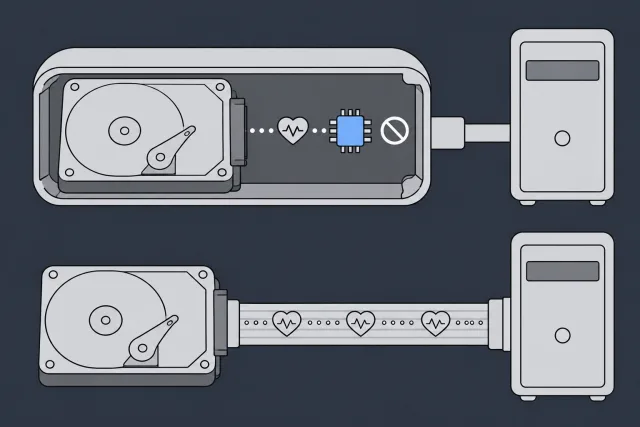
Many USB-to-SATA bridge chips don't pass S.M.A.R.T. data through. If you connect an external hard drive via USB and CrystalDiskInfo can't read it, the enclosure may be hiding the report. Some JMicron and ASMedia bridge chips do support S.M.A.R.T. passthrough.
If it's a SATA drive you put in a USB case yourself and the case doesn't use encryption, back up your files first. With the computer off, connect that drive to a SATA port on the motherboard and a SATA power cable, then turn the computer on to read the health report. Leave a factory-built external drive in its original case. Some models need the electronics in that case to read your files.
 Illustration
It Doesn't Fix Anything
CrystalDiskInfo is a diagnostic tool. Its health screen reads S.M.A.R.T. data and displays it. It doesn't repair bad sectors. It doesn't recover data. It doesn't optimize the drive. If CrystalDiskInfo tells you there's a problem, protect your files before trying to fix anything.
Manufacturer-Specific Attributes
Different drive manufacturers use different S.M.A.R.T. attributes, and sometimes they use the same attribute IDs for different things. CrystalDiskInfo handles the common attributes well, but some manufacturer-specific ones may display with generic names or raw values that are hard to interpret. For a raw value that looks strange, look up the attribute in the specifications for your exact drive model.
RAID Arrays
CrystalDiskInfo generally can't see through hardware RAID controllers. If the individual drives don't appear, open the RAID controller's management software and look at the health of each drive. Software RAID (like Windows Storage Spaces) may still allow CrystalDiskInfo to see individual drives.
CrystalDiskInfo Advanced Tips
Once you're comfortable with the basics, these features will help you get more out of the tool.
Set Up Health Alerts
Go to Function > Advanced Feature > Health Status Setting. You can customize the thresholds that trigger a yellow Caution status. By default, CrystalDiskInfo flags a hard drive with even one reported reallocated sector as "Caution." Some people find this too sensitive (a single reallocated sector isn't necessarily alarming). Raising the threshold only changes when you see the warning.
Our recommendation: leave the defaults. Yes, a single reallocated sector might be harmless. But it might also be the first domino. Better to know about it.
Enable Auto-Refresh
By default, CrystalDiskInfo refreshes S.M.A.R.T. data every 10 minutes when running. You can change this interval under Function > Auto Refresh. For background monitoring, 10 minutes is fine. If a warning has appeared, copy your important files before spending time watching the numbers.
System Tray Resident Mode
Under Function, turn on Keep Running in System Tray and Startup. In older versions the tray option is called Resident. The tray icon can show the current drive temperature. With alerts enabled, CrystalDiskInfo can notify you when the health status changes.
Export Data
Edit > Copy lets you copy the drive report as text. Useful if you want to share your drive health info in a forum, send it to a technician, or log it for comparison over time. You can also use File > Save (text) to save the report to a different drive.
AAM/APM Control
On drives that support them, CrystalDiskInfo can adjust the Automatic Acoustic Management (AAM) and Advanced Power Management (APM) settings. AAM lets you trade noise for performance. APM controls how aggressively the drive spins down when idle. These are niche features. Most people don't need to touch them. On a working hard drive, lowering the AAM setting can quiet normal seek noise at the cost of some seek performance.
CrystalDiskInfo vs Other Tools
CrystalDiskInfo isn't the only S.M.A.R.T. monitoring tool. Here's how it compares to the alternatives.
| Tool | Pros | Cons |
|---|---|---|
| CrystalDiskInfo | Free, simple, supports HDD/SSD/NVMe, background monitoring | Windows only, no data recovery, limited RAID support |
| HD Tune | Includes surface scan and benchmark tests | Free version is limited, Pro is paid |
| Hard Disk Sentinel | Detailed health and performance reports, multi-OS | Paid Windows edition, can be overwhelming for beginners |
| Manufacturer tools | Integration with that brand's drives | Features depend on the brand and model |
| smartmontools (CLI) | Cross-platform, scriptable, extremely detailed | Command-line only, steep learning curve |
For most people, CrystalDiskInfo hits the sweet spot. Free, easy to use, and it shows the key readings your drive reports. CrystalDiskMark measures speed and HD Tune can scan the surface. Skip both tests if you're trying to get files off a troubled drive.
What We See in the Lab
The "I ignored yellow for six months" drive. A customer brought us a laptop. It got slower and slower, then stopped booting. CrystalDiskInfo showed 847 reallocated sectors and 92 pending sectors.
The healthy-looking drive that died anyway. External drive fell off a desk. CrystalDiskInfo never had a chance to warn anyone because the failure was physical, not gradual. The heads crashed into the platters on impact. This is why we always say: CrystalDiskInfo is a complement to backups, not a replacement for them.
The SSD with 98% life remaining and zero warnings. Controller chip failed. All data inaccessible. CrystalDiskInfo showed "Good" the day before. The wear reading didn't warn us the controller would fail.
"My drive has 60,000 power-on hours and zero bad sectors." This server drive came to us after running 24/7 for nearly seven years without a S.M.A.R.T. warning. Even a drive like this needs a current backup. Bearings wear out. It's mechanical. Eventually, physics wins.
Frequently Asked Questions
Is CrystalDiskInfo safe to use?
Yes. Reading the health report doesn't write to your files. The optional AAM/APM controls can change drive settings, so you can leave those alone. If a hard drive is grinding or keeps dropping out, power it down. CrystalDiskInfo is open source (MIT license), so the code is publicly auditable.
Does CrystalDiskInfo work on Mac or Linux?
No. CrystalDiskInfo is Windows-only. On a Mac, open Disk Utility in Applications > Utilities. Choose View > Show All Devices, select the physical drive in the sidebar, then click Info and look for S.M.A.R.T. status. Some drives don't report it. On Linux, install smartmontools with your distribution's package manager. Run sudo smartctl --scan to list your drives, then sudo smartctl -a /dev/sda, replacing /dev/sda with your drive from the list.
My CrystalDiskInfo shows "Good" but my drive is slow. What gives?
S.M.A.R.T. data tracks hardware health, not performance. If the drive keeps freezing or disappearing, power it down even if the badge is Good. If your files still open normally, back them up before troubleshooting. A drive can be slow for other reasons. Fragmentation on an HDD. The drive is nearly full. Background processes are hammering the drive (press Ctrl+Shift+Esc, open Processes in Task Manager, and click Disk). Malware is consuming I/O. A failing SATA cable can cause CRC errors (check the "Ultra DMA CRC Error Count" attribute in CrystalDiskInfo). Or the drive is just old and was never fast to begin with.
How often should I check CrystalDiskInfo?
Set it to run at startup and monitor from the system tray. That way it checks automatically every 10 minutes and can alert you to health warnings. If you don't want it running all the time, check manually once a month. For drives in critical use (work computers, servers), you may prefer to look weekly.
Can CrystalDiskInfo recover my data?
No. CrystalDiskInfo is purely a monitoring and diagnostic tool. It shows the health information your drive reports, but it can't recover lost files, repair bad sectors, or fix a failing drive. If files were deleted, stop saving anything to that drive. If the drive is physically failing, our hard drive data recovery service can help.
What does "Caution" mean for my SSD's remaining life?
When CrystalDiskInfo shows "Caution" on an SSD with the wear leveling or remaining life attribute flagged, it means the SSD has consumed most of its write endurance. The NAND flash cells have been written and erased so many times that they're approaching the manufacturer's rated limit. It doesn't mean the SSD will die immediately. Back up your files while they're accessible, then replace the drive.
Why does CrystalDiskInfo show different temperatures than my BIOS?
If your BIOS shows a drive temperature, it reads it at boot time. CrystalDiskInfo reads it while the OS is running. Your drive generates heat during use, so the two readings can differ. Compare readings for the same drive against its operating range.
When DIY Drive Checks Fail
CrystalDiskInfo can tell you when a drive is unhealthy, but it cannot make a failing drive safer to use. If the status is Caution or Bad, files are freezing, the drive disappears, or Windows keeps asking to repair it, stop running tests. More scans, retries, and repair tools can force a weak drive to keep reading damaged areas.
If you already tried to copy files and the transfer stalled, power the drive down. You can bring the drive to our lab in Lincroft, New Jersey, or mail it to us from anywhere in the US. Start a mail-in data recovery case and we will diagnose the drive before recovery work begins. We charge $100 for the diagnostic when your drive arrives. It's credited toward a successful recovery and is nonrefundable once the diagnostic starts. You approve an estimate before recovery work starts.
Sources
- What to Do When CrystalDiskInfo Shows “Caution” or “Bad”
- CrystalDiskInfo – Crystal Dew World
- Download
- Gridinsoft guide to bundled software in CrystalDiskInfo downloads
- Microsoft Security report on fake CrystalDiskInfo download sites
- Health Status
- Main Menu
- General Information
- CrystalDiskInfo
- How do I interpret SMART diagnostic utilities results?
- Help Topic: "Bad Sector Found"
- Hard Disk Sentinel Help - S.M.A.R.T. attribute list (ATA)
- What is the normal operating temperature for Seagate disk drives?
- Internal SSD Product Information
- Kingston® NVMe SSD SMART Attribute Details
- Flash Memory Guide
- WD External Drive Hardware Encryption Compatibility Matrix
- Failure Trends in a Large Disk Drive Population
- chkdsk
- Check if a Mac disk is about to fail
- smartctl(8) — smartmontools — Debian unstable — Debian Manpages
- HD Tune website
- Hard Disk Sentinel (standard): HDD health and temperature monitoring
How MDrepairs can help
- Data Recovery Services Every device and failure type, recovered in our New Jersey lab. Learn more
- SSD Data Recovery Controller, NAND and firmware recovery for SATA, M.2 and NVMe SSDs. Learn more
- RAID Data Recovery Array reconstruction for RAID 0/1/5/6/10, NAS and servers. Learn more
- Data Recovery Cost What recovery really costs - flat tiers. Learn more