What Does "Hard Drive Short DST Check Failed" Mean?
In this article
"Short DST check failed" means your hard drive failed its built-in Drive Self-Test: a firmware-level check of the electronics, motor, heads, and a sample of sectors. It signals a real physical problem (bad sectors, weak heads, or motor trouble). Your data is usually still readable right now, but the drive is failing.
- Stop using the drive immediately: don't run CHKDSK or the long DST.
- If you have a verified backup, copy your files now, then replace the drive.
- If the data matters and there's no backup, get professional hard drive data recovery.
A "hard drive short DST check failed" message means your hard drive did not pass a basic self-test that checks for physical and mechanical problems. DST stands for Drive Self-Test. It's a built-in diagnostic that every modern hard drive can run on itself. When the short version fails, the drive is telling you something is physically wrong with it. Bad sectors, degraded read/write heads, a struggling spindle motor, firmware issues. Any of these can trigger the failure. Your data might still be accessible right now, but this error is a warning that the drive is heading toward total failure. The smart move is to stop using it for anything important and get your data off immediately.
A failed DST check is your drive waving a red flag. Pay attention to it.
If your drive just failed a short DST check and you have data you can't afford to lose, contact our data recovery team before the situation gets worse.
What Is a Drive Self-Test (DST)?
Every modern hard drive has built-in diagnostic firmware that can test its own health. This isn't some third-party software scanning the drive from the outside. The DST runs at the firmware level, inside the drive itself. Think of it like a car's onboard diagnostic system. The drive checks its own components and reports back whether everything is working correctly.
The DST was designed by hard drive manufacturers as part of the SMART (Self-Monitoring, Analysis and Reporting Technology) specification. Every major drive manufacturer, including Seagate, Western Digital, Toshiba, and Samsung, implements some version of it. When you run a DST, the drive's own controller chip executes a series of checks without needing any help from your operating system.
What the Short DST Actually Tests
The short DST typically runs for about two minutes. In that time, the drive performs several checks.
- Electrical test. Checks the PCB (circuit board) and internal electronics to make sure power delivery and signal paths are functioning.
- Mechanical test. Verifies the spindle motor is spinning at the correct RPM and the actuator arm can move the heads properly.
- Read/write head test. The heads attempt to read data from specific test zones on the platters to confirm they can actually read magnetic data.
- Servo test. Checks the servo tracks that guide head positioning. If the servo data is corrupted, the heads can't find the right data tracks.
- Small surface scan. Reads a limited sample of sectors from the beginning, middle, and end of the platter surfaces to check for read errors.
If any of these checks fail, the result comes back as "Short DST Check Failed" or "Short Self-Test Failed" depending on which tool you used to run it.
Short DST vs. Long DST: What's the Difference?
The short DST is a quick health check. Two minutes, hits the critical areas, gives you a pass or fail. It's useful as a first screening tool. If the short test fails, you already know the drive has a problem. No need to run the long test.
The long DST (sometimes called the "extended" test) reads every single sector on the drive surface. On a 1TB drive, this can take 2 to 4 hours. On a 4TB drive, you might be waiting 8 to 12 hours. The long test will find problems that the short test misses because it doesn't skip any areas.
| Test Type | Duration | Coverage |
|---|---|---|
| Short DST | ~2 minutes | Electronics, mechanics, sample of sectors |
| Long DST | 2-12 hours | Full surface scan of every sector |
| Conveyance DST | ~5 minutes | Checks for shipping/transit damage |
Here's the thing most people miss. If your short DST failed, your drive has a serious problem. The short test only checks a tiny fraction of the drive surface. For the drive to fail even that limited scan, the damage has to be significant. Drives that fail the short DST almost always fail the long DST too, except now you've made the drive work for hours with damaged components. That's not helping anything.
Why Your Hard Drive Short DST Check Failed
A failed short DST tells you something is wrong, but it doesn't always tell you exactly what. The test reports pass or fail, sometimes with an error code.
Bad Sectors (Reallocated or Pending)
Bad sectors are areas on the platter surface where the magnetic coating has degraded and can no longer reliably store data. Every hard drive develops some bad sectors over time. The drive's firmware automatically remaps these bad sectors to spare areas on the platter (called "reallocated sectors"). As long as the drive has spare sectors available, this process is invisible to you.
But when the number of bad sectors grows faster than the drive can reallocate them, the short DST starts failing. The test encounters sectors it can't read, and that's a fail.
A handful of bad sectors is normal wear. Hundreds or thousands of them means the drive is deteriorating and will eventually stop working entirely.
Degraded or Failing Read/Write Heads
The read/write heads are the most fragile components inside a hard drive. They float nanometers above spinning platters at thousands of RPM. Over time, the heads can weaken, lose sensitivity, or develop physical damage from micro-contact with the platter surface.
A drive with one weak head out of four might still function for basic tasks. But the DST checks all heads, and if any single head can't read its test zones properly, the entire test fails. This is actually one of the more dangerous scenarios because the drive might seem "mostly fine" in daily use while one head is actively degrading the platter surface every time it reads.
Firmware Corruption
The drive's firmware lives on a reserved area of the platters. If this firmware data becomes corrupted (from bad sectors in the firmware zone, sudden power loss during a write operation, or just age-related degradation), the drive can't operate correctly. The DST relies on firmware to execute, so corrupted firmware can cause the test itself to malfunction and report failure even if the physical components are fine.
Spindle Motor Problems
If the spindle motor is struggling to maintain the correct rotation speed, the heads can't maintain their proper flying height above the platters. Speed fluctuations cause read errors, which cause the DST to fail. Motor problems often start as intermittent issues. The drive works fine when it's cold, then fails after warming up. Or it works on some days and not others.
PCB or Electronics Failure
A partially failed circuit board can cause all kinds of strange behavior. Components that are "half-dead" might let the drive spin up and appear to work but produce read errors under load. The DST's electrical check can catch these issues before they become complete failures.
Physical Shock or Drop Damage
Dropped your laptop? Knocked your external drive off the desk? Even a moderate impact can misalign the heads, scratch a platter, or damage the actuator arm. The drive might still spin up and even mount in your operating system, but the DST will catch the resulting read errors and fail. For suspected drop damage on an HDD, read about our hard drive data recovery service.
How to Run a Short DST Check Yourself
There are several ways to run a short DST, and some are better than others. The test itself is the same regardless of which tool triggers it. The tool just sends the command to the drive's firmware and waits for the result.
Windows: Using BIOS/UEFI Diagnostics
1 Access your BIOS/UEFI
Restart your computer and press the key shown on the boot screen (usually F2, F10, F12, or Delete). On HP computers, press F2 for System Diagnostics. On Dell, press F12 and choose Diagnostics.
2 Find the Hard Drive Test
Look for "Diagnostics," "Hard Drive Test," or "Storage" in the menu. Most manufacturer BIOS utilities have a built-in short DST option.
3 Run the Short Test
Select the short test (not the extended/long test). It should complete in about two minutes. The result will show as Pass or Fail, sometimes with an error code.
The BIOS-level test is the cleanest way to run DST because your operating system isn't running. No background processes competing for drive access. No file system operations interfering with the test.
Windows: Using CrystalDiskInfo or HD Tune
CrystalDiskInfo is a free tool that reads SMART data and can show you if a DST has been run recently and what the result was. It doesn't run the DST itself, but it shows the stored results. For actually running the test from within Windows, HD Tune or the manufacturer's own utility (SeaTools for Seagate, Western Digital Dashboard for WD) can trigger a short DST.
macOS: Using Disk Utility and Terminal
On a Mac, open Terminal and use the smartctl command from the smartmontools package (install via Homebrew: brew install smartmontools).
sudo smartctl -t short /dev/disk0
This triggers the short DST. Wait two minutes, then check the result:
sudo smartctl -l selftest /dev/disk0
Linux: Using smartctl
Linux has the best command-line tools for drive diagnostics. Install smartmontools from your package manager, then use the same commands as macOS. Replace /dev/disk0 with your drive identifier (usually /dev/sda).
What to Do When the Short DST Check Fails
Your short DST failed. Now what? The answer depends on how important the data on that drive is to you.
If the Data Matters
Stop using the drive immediately. Don't run more tests. Don't try to copy files manually. Don't run CHKDSK or Disk Utility's First Aid. Every operation you run on a failing drive stresses the components that are already struggling. You could turn a $400 recovery into an $1,800 recovery by trying to "just copy a few files real quick."
A DST failure caused by degrading heads is especially dangerous. The heads are still functional enough to pass some reads, which is why the drive seems to "work." But each read cycle wears them down further. At some point, they'll fail completely. You won't get a second warning.
If the Data Doesn't Matter
If there's nothing on the drive you need, just replace it. A DST failure means the drive is dying. You might get another week out of it, or another month, but it's going to fail. Hard drives cost $40 to $80 for a replacement. Don't gamble your time and frustration on a drive that's already told you it's done.
If You Have a Backup
Verify your backup actually works before you do anything else. Seriously. Open a few files from the backup. Make sure they're not corrupted. We've had customers tell us "I have a backup" and then discover their backup drive was also failing, or the backup was three years old and missing everything important. Once you've confirmed the backup is solid, replace the failing drive and restore from backup.
The Recovery Priority List
- Stop using the drive. Shut it down. Unplug it if it's external.
- Don't run more diagnostics. You already know it failed. More tests don't help and can hurt.
- Assess the data value. Is this data worth $300 to $1,000 to recover professionally?
- Contact a data recovery lab. Not a computer repair shop. A lab with a clean, filtered work area for head and platter work. Our lab evaluates drives.
- Document what happened. Note when the failure started, any drops or power events, and which error codes appeared. This helps the recovery technician.
Is Your Data Still Safe After a DST Failure?
Usually, yes. At least for now.
A failed short DST doesn't mean your data has been erased or corrupted. It means the drive has physical problems that prevent it from reading certain areas reliably. Your files are almost certainly still magnetically written on the platters. The drive just can't access them properly with its current hardware.
For a hard drive, head and platter work needs a clean, filtered work area.
That said, the longer you run a drive after a DST failure, the less safe your data becomes. Bad sectors spread. Weak heads degrade further. Platter surfaces accumulate damage from struggling heads. The window between "easy recovery" and "difficult or impossible recovery" can be surprisingly narrow.
Understanding SMART Data Alongside DST Results
The DST result gives you a simple pass/fail. SMART data gives you the details. If your drive failed the short DST, checking the SMART attributes tells you why. You can read SMART data using CrystalDiskInfo on Windows, smartctl on macOS/Linux, or the manufacturer's diagnostic utility.
Here are the SMART attributes that matter most when a DST fails. For a deeper walkthrough of reading SMART data, check out our guide on how to check hard drive health, or our full breakdown of what each S.M.A.R.T. attribute means.
| SMART ID | Attribute Name | What It Means |
|---|---|---|
| 5 | Reallocated Sector Count | Number of bad sectors remapped to spare areas. High = platter surface degradation. |
| 10 | Spin Retry Count | How many times the motor needed extra attempts to spin up. High = motor problems. |
| 187 | Reported Uncorrectable Errors | Read errors the drive couldn't fix internally. Any value above zero is concerning. |
| 197 | Current Pending Sector Count | Sectors the drive suspects are bad but hasn't reallocated yet. These are actively failing. |
| 198 | Offline Uncorrectable Sector Count | Sectors that failed during offline testing. Similar to attribute 197 but confirmed bad. |
| 199 | UltraDMA CRC Error Count | Communication errors between the drive and the computer. High = cable or connection issue. |
Reading the Numbers
Reallocated Sector Count (ID 5). This is the big one. A raw value of 0 is perfect. Under 50 is concerning but the drive is still functioning. Over 100 and the drive is in serious decline. Over 500 and you're living on borrowed time. Some tools show this as "Current" and "Worst" values instead of raw counts, so make sure you're reading the right column.
Current Pending Sector Count (ID 197). These are sectors the drive flagged as suspicious during normal operation but hasn't confirmed as bad yet. A rising pending sector count means the drive is actively developing new bad sectors. That's a trend, not a one-time event, and it usually accelerates.
Spin Retry Count (ID 10). If this is anything other than zero, the spindle motor is struggling. Motors don't get better. They get worse. A non-zero spin retry count combined with a DST failure strongly suggests the drive needs to be replaced immediately.
The "Normalized" vs. "Raw" Value Trap
SMART tools display two numbers for each attribute: a normalized value and a raw value. The normalized value is a score from 0 to 100 (or sometimes 200) where higher is better. The raw value is the actual count. Here's where it gets confusing. A normalized value of 100 for Reallocated Sector Count might look great. But if the raw value underneath it says 847, you have a serious problem.
Always look at the raw values. The normalized scores can be misleading because different manufacturers scale them differently.
When You Need Professional Data Recovery
Not every DST failure requires professional intervention. But most do, especially if the data matters. Here's how to decide.
You Probably DON'T Need Professional Recovery If:
- You have a complete, verified backup of everything on the drive
- The drive still works and you can access all your files (but replace it anyway)
- The data on the drive isn't important to you
- The DST failure was caused by a cable issue (check SMART attribute 199, try a different cable/port first)
You Definitely NEED Professional Recovery If:
- The drive is clicking, buzzing, or making unusual noises (learn more about hard drive failure signs)
- The drive won't mount or appear in your operating system
- You tried to copy files and some of them were corrupted or inaccessible
- SMART data shows high reallocated sector count plus rising pending sectors
- The drive was dropped, got wet, or experienced a power surge
- You have critical data with no backup (business files, family photos, legal documents)
What Recovery Looks Like for DST-Failed Drives
When a DST-failed drive arrives at our lab, the first thing we do is pull the SMART data and listen to the drive briefly. The following sections cover logical, firmware, and mechanical issues.
Logical/firmware issues. The drive's physical components work, but firmware corruption or a high bad sector count is causing the DST to fail. These recoveries typically involve using specialized tools to image the drive sector by sector, working around bad areas. The imaging tool reads each sector multiple times with different parameters, pulling data from areas that your operating system would give up on. These recoveries usually cost $300 to $600.
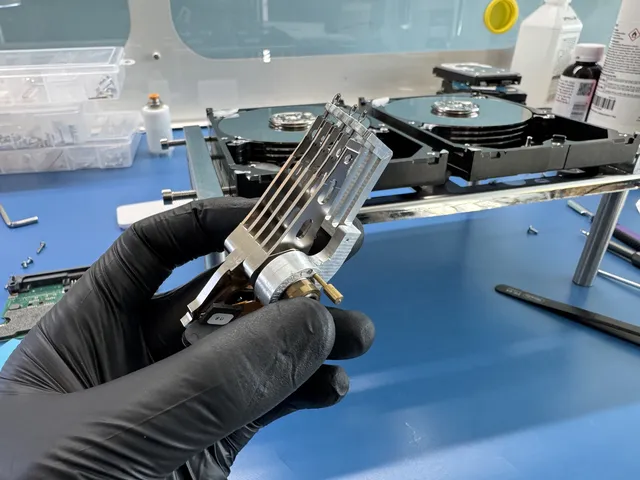
Mechanical issues. The heads, motor, or platters have physical damage. This head and platter work needs a clean, filtered work area. Head swaps, platter transplants, or both. At MDrepairs, head and platter work takes place in a laminar-flow work area. These recoveries typically cost $500 to $1,200.
The $100 diagnostic is credited to the cost of a successful recovery and is non-refundable once diagnostics start. Any donor drives or replacement parts you approve are non-refundable once ordered, even if recovery fails. The estimate needs your approval before recovery work starts. Check our data recovery pricing page for detailed cost breakdowns.
What About Data Recovery Software?
If the drive still mounts and the DST failure is from a moderate number of bad sectors (not mechanical noise, not head failure), you can try software tools like R-Studio or DMDE to image the drive yourself. But understand the risk. Every minute the drive runs, the bad sectors spread. Software recovery tools also can't handle the advanced read techniques that professional hardware imagers use.
If you're going the software route, clone the drive first using ddrescue on Linux. This creates a copy of the drive while skipping bad sectors on the first pass, then goes back for retry passes. It's the least destructive software approach. But if the drive is making any physical noise, stop. Software can't fix hardware.
How to Prevent DST Failures
You can't prevent hard drives from eventually dying. They're mechanical devices with moving parts, and moving parts wear out. But you can catch problems early and protect your data.
Monitor SMART Data Regularly
Install CrystalDiskInfo on Windows or use smartctl on macOS/Linux and check your drive health monthly. Pay attention to the trend, not just the current numbers. A reallocated sector count that went from 2 to 15 to 89 over three months is a drive in rapid decline, even though 89 sectors doesn't sound like a lot.
Keep Drives Cool
Heat is the enemy of hard drives. High temperatures accelerate platter surface degradation and cause the heads to expand slightly, changing their flying height. Keep your computer in a well-ventilated area. Clean dust out of desktop cases regularly. If you're using external drives, don't stack them or put them in enclosed spaces without airflow.
Use a UPS (Uninterruptible Power Supply)
Sudden power loss during a write operation can corrupt firmware and damage the file system. A cheap UPS ($50 to $100) protects your drives from both power outages and voltage spikes. It's one of the most cost-effective things you can do to extend drive life.
Replace Drives Proactively
Hard drives have a typical lifespan of 3 to 5 years for consumer models. If your drive is older than that and holds important data, replace it before it fails. Copy everything to the new drive, verify the copy, then retire the old one. A $60 replacement drive is a lot cheaper than a $600 data recovery.
Back Up Your Data
This is the real answer. No amount of monitoring or careful handling eliminates drive failure. It only delays it. The 3-2-1 backup strategy is the standard: three copies of your data, on two different types of media, with one copy stored offsite (cloud storage counts). If you had a solid backup, a DST failure would be a minor inconvenience instead of a crisis.
Frequently Asked Questions
What does "hard drive short DST check failed" mean?
It means your hard drive ran its built-in diagnostic test (Drive Self-Test) and found a problem. The short DST checks the drive's electronics, mechanics, and a sample of the platter surface. A failure indicates physical issues like bad sectors, degraded read/write heads, motor problems, or firmware corruption. The drive is telling you it's not healthy, and you should treat this as a serious warning that the drive may fail completely soon.
Can I still use my hard drive after a short DST failure?
Technically, yes. The drive might still boot and let you access files. But you're taking a real gamble. The DST failed because the drive found internal problems. Those problems will get worse, not better. Every hour you use the drive, you risk a complete failure that makes data recovery harder and more expensive. If you must access the drive, copy your most important files to another drive as fast as possible, then stop using it.
Is a short DST failure the same as a hard drive failure?
Not exactly. A DST failure is a warning that failure is approaching. The drive still functions enough to run the test and report the result. A full hard drive failure means the drive can't be accessed at all. Think of a DST failure as the "check engine" light on your car. The car still runs, but something is wrong and it will eventually break down if you ignore it.
How much does it cost to recover data from a DST-failed drive?
It depends on what caused the failure. Drives with bad sector issues (no mechanical damage) typically cost $300 to $600 to recover. Drives with mechanical problems like failing heads or motor issues usually cost $500 to $1,200; head and platter work uses a laminar-flow work area. At MDrepairs, the paid diagnostic leads to a quote you approve before recovery work starts.
Can a short DST failure be a false positive?
Rarely, but it can happen. A loose or damaged SATA cable can cause communication errors that make the DST fail even though the drive itself is fine. Try a different cable and a different SATA port before panicking. If the drive still fails the DST with a new cable, the drive has a real problem. Also, running the DST while the drive is overheated can sometimes trigger a failure that wouldn't occur at normal temperatures.
Should I run the long DST after the short DST fails?
No. If the short DST already failed, the long test will almost certainly fail too. The long DST reads every sector on the drive, which takes hours and puts significantly more stress on components that are already struggling. You're not going to get new information. You're just going to wear out a dying drive faster. Save whatever remaining life the drive has for a professional to image it.
What's the difference between DST failure and SMART failure?
SMART is the overall monitoring system that tracks dozens of drive health attributes continuously in the background. DST is one specific test within the SMART framework. A SMART "failure" or "warning" means one or more monitored attributes crossed a threshold set by the manufacturer. A DST failure means the active self-test found a problem during its checks. Both are serious, and a DST failure will usually coincide with degraded SMART attributes.
Hard Drive Short DST Check Failed: What It Means
A hard drive short DST check failed message means the drive did not pass its built-in short self-test. DST usually means Drive Self Test. The short version is designed to check basic electronics, mechanics, and readable areas quickly. When it fails, the computer is warning you that the storage device has reported a fault. This is not just a Windows error, and it is not something to ignore because the computer still boots.
The failure can come from bad sectors, weak heads, firmware problems, motor issues, SSD NAND degradation, or communication errors between the drive and system. On HP, Dell, Lenovo, and other systems, the message may appear during startup diagnostics, support tools, or BIOS testing. A warning result means the drive may still respond, but it is no longer trustworthy. It can decline quickly, especially if the computer continues to run updates, repairs, scans, or normal workload.
If you need the data, treat the DST failure as a recovery warning before a repair issue. Do not run repeated self-tests to see if the result changes. Do not run CHKDSK, reset the PC, reinstall Windows, or clone with basic software if the drive is slow, clicking, disconnecting, or showing read errors. Those steps can push a marginal drive harder than normal use. If the machine still boots, copy the most important files first to a separate drive, starting with irreplaceable folders. Avoid copying large system folders before personal or business data.
If copying fails, the drive disappears, or the system becomes unstable, stop and use a lab process. Professional recovery starts with controlled imaging, not file browsing. The image is built around bad areas, then file system repair is performed on the copy. MDrepairs can help with failed DST cases from laptops, desktops, external drives, and SSDs. For local New Jersey and mail-in options, see our data recovery services.
Can I keep using a drive after a short DST check failed?
You should not rely on it. A failed short DST means the drive has reported a fault during its own self-test. It may work for a while, but it can also fail completely without much warning. Back up or recover important files immediately, then replace the drive after the data is safe.
Will replacing the hard drive fix a short DST failure?
Replacing the drive can fix the computer, but it does not recover the files from the failed drive. If you already have a complete backup, replacement is usually the next step. If you need files from the failing drive, recover or image the data first, then install a new drive and operating system.
How MDrepairs can help
Real cases like this come through our New Jersey lab every week. If you are dealing with one now, start here.