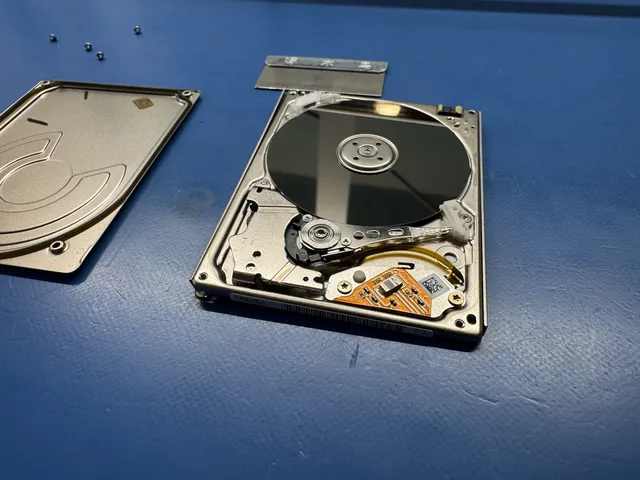
G-Drive Mobile USB-C Won't Mount on Mac: Video Pro Recovery
In this article
If your G-Drive Mobile USB-C, G-Drive Mobile Pro SSD, or G-Drive Pro shows up in macOS Disk Utility but refuses to mount, a possible cause is filesystem corruption from an unsafe disconnect or a power blip while a video edit was writing. The drive hardware is usually fine. The HFS+ or APFS structure that tells the Mac where your files live is what got damaged. That's recoverable in most cases. Other possible causes include a dying SATA-to-USB-C bridge, a failed encryption chip (on newer WD-era G-Drives), or a mechanical failure of the platters inside.
Do not click "Erase" in Disk Utility. Do not let First Aid run repeatedly hoping it'll fix the volume. Do not unplug and replug 30 times. Each of those reduces the recovery odds. If the data on the drive matters (and on G-Drives, it usually does because video pros, photographers, and podcasters use these as their working drives), the smart move is to stop touching it and call a recovery lab. The fix isn't to repair the volume in place. It's to image the drive cleanly to a working destination first, then rebuild the filesystem from the image.
What "Won't Mount" Actually Means
When you plug a healthy drive into a Mac, three things happen in sequence. The drive enumerates over USB. macOS reads the partition map. The filesystem driver (HFS+ for older G-Drives, APFS for newer ones, sometimes ExFAT for cross-platform use) mounts the volume and you see it on the desktop. If any of those three steps fails, the drive doesn't mount.
"Won't mount" specifically means the first two worked but the third didn't. The Mac sees the drive. It can read the partition map. But when it tries to mount the volume, the filesystem inside is too damaged for the OS to make sense of. Disk Utility will show the drive but the volume will appear grayed out, or show as "Not Mounted."
This is different from "Not Recognized." Not Recognized means the USB-to-SATA bridge or the drive's PCB failed. That's a hardware problem. Not Mounted means the hardware is responding but the data layout on the drive is broken. That's almost always a software-side fix, just one that needs the right tools.
Why G-Drives Fail (the Pattern for Pros)
G-Drives are popular with video editors, photographers, and podcasters because they're fast, reliable for the price, and Mac-formatted out of the box.
1. Unsafe Disconnect During a Long Write
You're transferring 200GB of footage. Your MacBook battery dies, the cable gets bumped, or the drive falls off the desk. The filesystem was in the middle of writing metadata when the power cut. Now the on-disk structures point to files that are half-written, and the journal that would let macOS roll back is also half-written. The volume won't mount because the OS can't make sense of the inconsistent state.
2. APFS Container Corruption
Newer G-Drives ship formatted as APFS. APFS is more efficient than HFS+ but also more brittle when corruption happens. A bad block in a file-system structure can prevent the container from mounting. APFS recovery is its own discipline and requires specific tools.
3. WD's Hardware Encryption (on newer G-Drive ArmorATD and rebrands)
After WD acquired G-Technology, some new G-Drive models and the SanDisk Professional rebrands picked up WD's hardware encryption chip. This chip sits between the drive and the USB bridge. It encrypts everything written and decrypts everything read. If the encryption chip dies, the data on the drive is mathematically locked. The drive itself is fine. The data inside it is permanently inaccessible without the chip's keys.
4. Bridge Chip Failure (USB-to-SATA or USB-to-NVMe)
The bridge translates between USB-C and the drive's native interface. Bridge failures cause "Not Recognized" symptoms more than "Not Mounted."
5. The Drive Itself Has Failed
The drive inside is a real hard disk (on G-Drive Mobile) or an M.2 NVMe SSD (on G-Drive Mobile Pro SSD). It can fail like any drive. Mechanical issues on the HDD models. NAND wear on the SSD models. Both are recoverable but require lab work.
6. MAS-DRD Format Confusion
Some older G-Drive models shipped formatted with a specific MAS-DRD variant of FAT that's unusual. macOS handles it fine when the drive is healthy. When corruption happens, third-party recovery tools sometimes mis-identify the format and try to "fix" it as standard FAT, which makes things worse. This is one reason DIY recovery on a G-Drive often ends in unrecoverable damage.
7. Power Issues from a Bus-Powered Setup
G-Drives are bus-powered (no separate power brick). They draw all their power from the USB-C port. A Mac with multiple high-power USB-C devices (a hub, an external display, fast charging) can drop voltage to the drive enough to cause writes to fail silently. The result is filesystem corruption that only becomes visible when you next try to mount the drive.
The WD Acquisition and What Changed Under the Hood
Western Digital acquired G-Technology in 2012 (via the HGST deal). For years, G-Drives kept their distinct identity and engineering, just with WD's manufacturing behind them. Around 2020, WD started rebranding the G-Technology professional line as SanDisk Professional. The hardware changes that came with the rebrand matter for recovery.
- Older G-Drive Mobile (USB-C, 2017 to 2019): Standard SATA drive inside, basic USB-to-SATA bridge, no hardware encryption. Recovery is straightforward. Transplant to a known enclosure or connect directly via SATA usually works.
- G-Drive Mobile Pro SSD (2019 onward): M.2 NVMe SSD inside with a USB-to-NVMe bridge. Some units have hardware encryption tied to the bridge. Recovery depends on which generation.
- G-Drive ArmorATD (rugged): Standard SATA drive inside. Easier recovery similar to old G-Drive Mobile.
- G-Drive USB-C / G-Drive Pro (newer SanDisk Professional rebrand): WD's encryption chip on some units. If the chip dies, data is locked even though the drive inside is fine. Recovery requires the encryption keys.
The honest read: if your G-Drive predates 2020, recovery is usually straightforward. If it's a 2021 or later SanDisk Professional unit, the recovery depends on which exact model and whether it shipped with hardware encryption. Our lab keeps reference notes on which models have which configurations. When you call us, give us the model number from the bottom of the drive and we can tell you what we're dealing with before you ship it.
Is Your Footage Still Recoverable?
In most cases, yes. Here's the breakdown by failure mode:
| Failure Mode | Recovery Odds | Why |
|---|---|---|
| Filesystem corruption (won't mount) | Very High (90%+) | Data intact, just structure damaged |
| APFS container damage | High (80%+) | Specialized APFS recovery tools needed |
| HFS+ corruption | Very High (90%+) | Mature recovery techniques available |
| Bridge failure only | Very High (95%+) | Transplant drive to another enclosure |
| Drive mechanical failure (HDD model) | Medium to High | Laminar-flow work area, donor parts |
| NVMe controller failure (SSD model) | Medium | Requires a viable original reading/encryption path; chip-off is not a general fallback |
| Hardware encryption chip failure | Low to Medium | Mathematically locked without keys, depends on chip generation |
| Severe head crash with platter scoring | Low | Partial recovery only, depends on scratch location |
What NOT to Do
G-Drives fail more often than the brand reputation would suggest, partly because video pros work them hard. The wrong moves can turn a routine recovery into a difficult one.
- Click "Erase" in Disk Utility. This wipes the volume map and writes a fresh one. Once you erase, the original directory structure is gone. Files might still be recoverable via raw scanning but filenames, folder hierarchy, and metadata are lost.
- Click "First Aid" repeatedly. First Aid does a read-write repair attempt. On a damaged volume, the writes can make the corruption worse. One attempt is usually fine. Three or more attempts is dangerous.
- Run third-party "drive repair" tools. Tools like DiskWarrior, TechTool Pro, or Drive Genius are good at fixing minor issues. On a seriously corrupted drive, they can scramble what was recoverable.
- Force-unmount with diskutil unmount force. Forcing an unmount while writes are in progress (or appearing to be in progress) can finish breaking the volume.
- Reformat to "see if that fixes it." It doesn't fix anything. It guarantees you can't recover the original files easily.
- Run fsck repeatedly from terminal. fsck makes write attempts to fix the journal. Multiple fsck runs on a damaged volume add corruption.
- Open the drive yourself. Head and platter work requires a clean, filtered work area. Even on the SSD models, opening voids any chance of warranty recovery.
- Try to migrate Final Cut or Premiere projects from a non-mounting drive. If the drive won't mount, the app can't read the project files anyway. Trying to force it can sometimes cause crashes that further corrupt the cache.
Safe Things to Try Before You Call Anyone
These won't make things worse. They take about 10 minutes.
USB-C cables vary wildly in quality. A cable that works for charging a phone may not deliver enough data signal integrity or power for a drive. Use a known-good Thunderbolt 3/4 cable or a high-quality USB-C 3.1 Gen 2 cable. Skip cables you got with random electronics.
If your Mac has multiple Thunderbolt or USB-C ports, try them all. Some Mac models have ports on different controllers, and one controller might be drifting in voltage. Plug the G-Drive directly into the Mac (no dock, no hub) for testing.
Borrow a friend's or colleague's Mac and try the drive there. If it mounts on the other Mac, the issue is something on your Mac (cache, driver, hub). If it doesn't mount anywhere, the drive itself is the problem.
Restart your Mac with the Shift key held down (Intel) or by following the M1/M2/M3/M4 Safe Mode steps for Apple Silicon. Safe Mode loads only Apple's own drivers. If the drive mounts in Safe Mode but not normal mode, a third-party kext or app is interfering.
Open Disk Utility. View > Show All Devices. Look for your G-Drive. Note exactly what you see: Is there a "physical" drive entry and a "volume" entry? Does the volume name show? Is it grayed out? Is the size correct? Take a screenshot. This information helps a recovery lab diagnose remotely.
Hold the drive near your ear in a quiet room when you plug it in. Healthy G-Drive Mobile drives whir quietly during spin-up. Clicking, beeping, or grinding sounds mean mechanical failure. More on what those sounds mean.
If none of these mount the drive, stop. The next step is a recovery lab. Don't click Erase. Don't run First Aid more than once. Don't reformat.
How to Tell What's Wrong
What Disk Utility shows tells us a lot. Here's the decode chart.
| What You See | Most Likely Cause | Recovery Approach |
|---|---|---|
| Drive shows in System Info but not Disk Utility | Bridge partly failed, no partition table read | Lab bridge bypass and direct drive imaging |
| Drive shows in Disk Utility as "Uninitialized" | Partition table corrupted or wiped | Partition recovery from raw scan |
| Drive shows correctly, volume grayed out | Filesystem corruption | Filesystem repair via imaging and rebuild |
| Drive shows, volume mounts then disappears | Intermittent bridge or marginal sectors | Lab imaging with retry logic |
| Drive shows but capacity is wrong (e.g. 0 bytes) | Severe firmware or NVMe controller damage | Requires a viable original reading/encryption path; chip-off is not a general fallback |
| Drive doesn't appear at all | Bridge fully dead or drive completely failed | Lab inspection required |
| First Aid says "Couldn't unmount disk" | System is busy with the drive or filesystem confused | Often resolves with reboot; otherwise filesystem damage |
Inside the Lab: How We Recover G-Drives
The recovery workflow depends on whether it's an HDD-based G-Drive or an SSD-based one, and whether hardware encryption is in play.
Step 1: Identify the Exact Model and Generation
Model number from the bottom of the drive tells us what's inside. Older G-Drive Mobile USB-C (2017 to 2019) has a SATA drive. G-Drive Mobile Pro SSD has an M.2 NVMe. G-Drive ArmorATD has a SATA drive with shock protection. The newer SanDisk Professional G-Drive Pro can have hardware encryption. Different paths from here.
Step 2: Image the Drive (without writing)
We attach the drive to a hardware imager that reads only. The imager makes a sector-by-sector copy of every readable area to a known-good destination drive. Bad sectors are logged and retried with different parameters. This step protects the original from any further wear during the rest of the recovery.
Step 3: Filesystem Analysis on the Image
Working from the image, we examine the filesystem structures. For HFS+, this means checking the volume header, catalog file, and extents overflow file. For APFS, this means analyzing the container superblocks, checkpoint maps, and object maps. We can spot which structures are damaged and what needs to be reconstructed.
Step 4: Filesystem Repair or Reconstruction
If the damage is light, we can repair the structures in place on the image and remount it. If the damage is severe (the catalog file is missing, the APFS object map is gone), we use raw scanning to find file signatures throughout the image and rebuild a directory structure from them. The rebuilt structure won't have original folder names, but the files themselves are recovered.
Step 5: Bridge Bypass (if needed)
If the drive itself is healthy but the USB bridge is failing, we transplant the drive into a known-good enclosure or connect it directly via SATA (for HDD models) or via M.2 adapter (for SSD models). For drives with hardware encryption, the bridge contains the encryption keys and we have to keep the original bridge alive long enough to extract them before bypassing.
Step 6: Mechanical Recovery (HDD models only)
Head and platter work on G-Drive Mobile HDD models takes place in our laminar-flow work area. We inspect heads, platters, and spindle. Failed components get repaired or transplanted from matched donor drives.
Step 7: Chip-Off Recovery (SSD models, severe cases)
For an SSD with a failed controller, the first question is whether the original reading path can be restored. A same-model donor does not automatically decrypt the original NAND. Some legacy unencrypted designs support raw-NAND reconstruction, but that is not a general fallback for modern SATA or NVMe SSDs.
Step 8: Final File Delivery
Recovered files get delivered on a known-good external drive (we usually use a fresh G-Drive or LaCie depending on what the client prefers). We test the file integrity (especially for video files, where partial recovery can leave files that "open" but have corrupted frames) before shipping back.
How Much Does G-Drive Recovery Cost?
G-Drive recovery pricing follows the same logic as other externals. Filesystem-only issues are mid-range. Mechanical or controller failures are higher.
| Failure Type | Typical Range | Why |
|---|---|---|
| Filesystem corruption, drive healthy | $1,000 to $1,500 | Imaging plus filesystem rebuild work |
| APFS container damage | $1,000 to $1,500 | Specialized APFS tools and analysis |
| Bridge failure, drive healthy | $1,000 to $1,500 | Bridge transplant or direct SATA/NVMe connection |
| HDD mechanical failure | $1,500 to $3,000+ | Laminar-flow work area, donor parts |
| SSD NVMe controller failure | $1,000 to $2,000+ | Requires a viable original reading/encryption path; chip-off is not a general fallback |
| Hardware encryption chip failure | $1,500 to $4,000 (sometimes unrecoverable) | Depends on chip generation and whether keys can be extracted |
MDrepairs diagnoses every case. The $100 diagnostic is credited toward a successful recovery. The $100 diagnostic is non-refundable once diagnostics start, and donor drives or replacement parts you approve are non-refundable once ordered, even if recovery fails. You approve the estimate before recovery work starts. Full pricing details here.
G-Drive Models We Recover
The G-Drive product line is wide and has been rebranded under SanDisk Professional. We recover all of it.
| Model | What's Inside | Recovery Notes |
|---|---|---|
| G-Drive Mobile USB-C (2017-2019) | 2.5-inch SATA HDD | Easiest recovery, no encryption |
| G-Drive Mobile USB 3.0 (older) | 2.5-inch SATA HDD | Similar to USB-C variant |
| G-Drive Mobile Pro SSD | M.2 NVMe SSD | Some have encryption, varies by year |
| G-Drive ArmorATD (rugged) | 2.5-inch SATA HDD with shock protection | Standard SATA recovery, easier than non-rugged |
| G-Drive USB-C Desktop | 3.5-inch SATA HDD, external power | Common in editing bays, mechanical recovery similar to desktop drives |
| G-Drive Mobile SSD R-Series | SATA SSD | Older SATA SSD, no encryption on most units |
| G-Drive Pro (SanDisk Professional) | 2.5-inch HDD or M.2 SSD | May have WD encryption chip, check model |
| G-Speed Studio / G-RAID | 2-bay or 4-bay RAID enclosure with SATA HDDs | RAID recovery, all drives must be imaged together. RAID recovery details |
If you're not sure which model you have, the bottom of the drive has a label with the exact name and model number.
Backup Strategy for Video Pros
The honest truth: G-Drives are good but not invincible. Here's how to set up so a drive failure doesn't ruin a wedding edit or a documentary.
Follow the 3-2-1 Rule with Real Discipline
Three copies of every project. On two different types of storage. With one copy offsite. For a wedding shoot, this means: the working copy on your edit drive, a sync to a backup external (different brand, different make), and a cloud upload to Backblaze, Dropbox Business, or LucidLink. If any one fails, you still have two. More on the 3-2-1 rule.
Don't Edit Off Your Only Copy
Always edit off a working drive that has another backup. Never edit off the original capture media or the only copy.
Use Cloud Backup for Working Projects
Services like Backblaze, iDrive, Carbonite, and Arq run in the background and back up everything on your computer (or on connected externals). $7 a month for unlimited Backblaze backups. That's the cheapest insurance policy a video pro can buy.
Use RAID for Active Project Storage
A single drive is a single point of failure. RAID 1 (mirroring) means two drives, both having the same data. One fails, you swap it, no data loss. RAID 5 or 6 gives capacity benefits. G-RAID and Promise Pegasus enclosures handle this. Our RAID maintenance guide walks through best practices.
Test Your Backups Monthly
A backup you never restored from isn't a backup. Once a month, restore a random file from your backup to confirm it works. This catches silent backup failures (a process that's running but writing nothing usable) months before you actually need the backup.
Don't Buy Cheap USB-C Cables
USB-C cable quality matters more than most pros realize. A cheap cable can deliver enough power for a drive to spin up but not enough for reliable writes. The corruption that results doesn't appear until later. Use cables that came with your G-Drive or buy from reputable brands (Anker, Belkin, Apple).
Eject Properly Every Time
Removing a drive during a write can cause file-system corruption. macOS has caches that need to flush before the drive is safe to remove. Click eject, wait for the icon to disappear, then unplug. Every time.
If you want manufacturer-side support for warranty questions or firmware downloads on newer SanDisk Professional rebrands, WD Support is the official channel. They won't recover data but they can confirm whether your unit is under warranty replacement.
FAQ
My G-Drive used to mount and now doesn't. Did it die?
Probably not. Most "won't mount" cases are filesystem corruption from an unsafe disconnect or a power blip. The drive hardware is usually fine. The volume just needs to be repaired or rebuilt from a clean image. Recovery odds are high.
Should I try DiskWarrior or Drive Genius first?
If your data isn't critical, sure. They're decent tools for minor issues. If your data is critical (paid work, family videos, irreplaceable), the risk is that the tool's write attempts make things worse. The safer path is to image the drive first to a destination drive, then let the tool work on the image (not the original).
Does Disk Utility's First Aid ever make things worse?
Yes, on a damaged drive. First Aid does a read-write repair attempt. On a drive with serious filesystem damage, the write attempts can destroy structures that a recovery tool could have used. One attempt is usually fine. Multiple attempts is risky.
My G-Drive shows up but the volume is "Not Mounted" with a grayed icon. What does that mean?
The OS sees the drive and read the partition map but couldn't mount the volume. The filesystem inside is corrupted enough that macOS gave up. This is recoverable in most cases but needs the right tools, not Erase.
Can I just take the drive out of the G-Drive enclosure and read it directly?
For older G-Drive Mobile USB-C with a standard SATA drive inside, yes. You can put it in a generic USB-to-SATA enclosure and try to read it. For newer models with hardware encryption or M.2 NVMe drives, the bridge contains keys or proprietary protocols that make this not work cleanly.
I have a G-Speed Studio or G-RAID with two drives that won't mount. What do I do?
Stop using it immediately. Don't initialize, don't rebuild, don't "swap" any drives. RAID recovery is its own discipline and the worst thing you can do is touch the drives one at a time. Both drives need to be imaged together as a set, then the RAID structure rebuilt from those images. More on RAID recovery.
How long does G-Drive recovery take?
Chip-off is a possible method for certain supported, unencrypted flash devices, not a universal last resort. Raw NAND needs compatible error correction, descrambling, and controller-layout reconstruction. Modern encrypted SSDs and phones require their original or specifically supported reading/security path; memory removal does not bypass encryption.
Do you handle Final Cut Pro and Premiere project recovery specifically?
Yes. Project files are just files. We recover the .fcpbundle (Final Cut), .prproj (Premiere), .ae (After Effects), and .blend (Blender) files alongside the footage. We test-open them when possible to confirm they're readable. We can't fix corruption inside an individual project file, but if the file is recovered intact, the app can usually open it.
What if my drive was used on both Mac and Windows?
Most G-Drives ship HFS+ or APFS for Mac. Some are reformatted ExFAT for cross-platform use. We recover from any of these. ExFAT corruption recovery is similar to filesystem recovery on other platforms.
Do you ship to people outside New Jersey?
Yes. You generate a free prepaid UPS label on the mail-in form (contiguous US), with signed-for delivery. Mail-in is our default service. How to ship safely walks through the process.
MDrepairs is an independent data recovery lab serving customers nationwide via mail-in service. We're not affiliated with G-Technology, Western Digital, or SanDisk. Our specialty is getting data off devices that have failed, when that's the only thing you actually care about.
How MDrepairs can help
Real cases like this come through our New Jersey lab every week. If you are dealing with one now, start here.
- Undetected Hard Drive Recovery Recovery when a drive is not detected or shows no capacity. Learn more
- Hard Drive Data Recovery Mechanical, firmware and logical HDD recovery on every brand. Learn more
- Data Recovery Services Every device and failure type, recovered in our New Jersey lab. Learn more
- Mail-In Data Recovery Free insured shipping both ways (contiguous US), anywhere in the US. Learn more