Raw File Recovery SD Card: A Professional Guide to RAW Errors
Our founder and lead technician, Joseph Montanti, handles cases personally.
A RAW SD card error almost never means your files are gone: it means the card's file system (its index of where each file lives) is corrupted, while the photos themselves are still on the memory chips. The fix is to recover the files, not to format the card.
- When Windows says "You need to format the disk," click Cancel: formatting overwrites the index recovery relies on.
- Stop using the card and physically remove it; background writes can overwrite lost files.
- Don't run CHKDSK or Disk Utility: they modify the card and can scramble the data.
- The safe method is a sector-by-sector image, then recovery from that clone.
For irreplaceable RAW photos (.CR3, .NEF, .ARW), get a diagnostic from our SD card data recovery lab before trying anything else.
It's a heart-stopping moment for any photographer or videographer: you connect your SD card, and instead of your files, you receive an error message stating the card is "RAW" and must be formatted. The immediate fear is that everything is gone.
As a professional data recovery lab that handles these cases daily, we can offer some assurance: a RAW error rarely means your data has vanished. It means the card's file system - the digital table of contents that tells your device where each file begins and ends - has become corrupted or unreadable.
Think of it like a library where the card catalog has been destroyed. All the books (your .CR2, .NEF, or .ARW files) are still on the shelves, but the system has lost the instructions for finding them. The data is physically present on the card's memory chips; it's the access path that is broken.
How Did This Happen? Common Causes of SD Card Corruption
Understanding why a card goes RAW can help prevent future data loss. In our lab, we see a consistent set of causes behind these logical failures. These aren't theoretical possibilities; they are the real-world reasons for countless recovery cases.
The most common issues we diagnose are:
- Improper Ejection: Abruptly removing a card from a camera or reader while it's still writing data is the primary culprit. This interrupts the file system's update process, leaving it in an inconsistent, scrambled state.
- Sudden Power Loss: A camera battery dying mid-shoot or during a file transfer can have the same effect. The card's controller didn't have a chance to finalize the write operations, leading to corruption.
- File System Degradation: Over time, the complex exFAT or FAT32 file systems on SD cards can develop small logical errors. Eventually, these tiny inconsistencies can cascade into a catastrophic failure where the card becomes unreadable.
- Malware Infections: While less common, a virus can target a drive's partition table or file system, effectively locking you out of your own data by rendering the card's structure as RAW.
Whatever you do, never follow the prompt to "format the disk." Formatting does not fix the problem; it erases the old, damaged file index and writes a new, blank one over it. This makes any subsequent software-based recovery significantly more difficult and, in some cases, can render a full recovery impossible. Always click "Cancel."
Reading the Signs: How to Diagnose Your Card
The specific error message you encounter can offer clues about the nature of the failure and the appropriate recovery path. This problem is far from rare; SD card issues are a significant portion of all data recovery cases. Of those, a large percentage are due to logical file corruption like a RAW error. You can see the scale of the industry in global market data for data recovery services.
The table below breaks down common symptoms and what they mean from a professional recovery perspective.
Common SD Card Symptoms and Their Recovery Implications
This table helps you identify your SD card's issue and understand the likely recovery path and potential for success.
| Symptom | What It Means | Software Recovery Potential | Professional Lab Recommended? |
|---|---|---|---|
| "You need to format the disk..." on Windows. | This is the classic RAW file system error. The operating system can't read the file directory, but the card is detected. | High | Recommended if the data is irreplaceable or software attempts fail to recover complete files. |
| Card shows 0 bytes used/free space. | The partition table or file system is completely unreadable, making the OS think the card is empty. | Good | Yes, especially if a basic software scan doesn't find the files or recovers only previews. |
| Card is not detected at all by the computer or camera. | This often points to a physical problem, such as a damaged controller chip, firmware failure, or broken electrical contacts. | Very Low | Absolutely. This is almost always a hardware-level failure requiring specialized lab equipment. |
| Files are visible but corrupt or unopenable. | This could be file system corruption, bad sectors on the memory chip, or an issue with the camera's write process. | Moderate | Yes. A lab can often reconstruct files that software can't piece together correctly. |
Ultimately, any of these errors mean the card is in a fragile state. The best immediate action is to stop using it completely. Do not take more pictures, do not attempt to "fix" it with system utilities, and do not even leave it plugged into your computer. Every moment it’s powered on carries a small risk of the operating system writing data to the card and overwriting your lost files.
For professionals or anyone with critical photos on the line, the safest path is always to consult a professional lab like MDRepairs. A professional evaluation ensures no further damage occurs, providing the highest probability of a complete and successful recovery.
On this page
Your First Moves to Protect Your Data
The sinking feeling when an SD card displays an error is a critical moment. Your actions in the next few minutes can determine the success or failure of a recovery attempt. The absolute first and most important rule is simple: stop using the card immediately.
This means physically removing it from your camera, laptop, or card reader. Do not just leave it plugged in. An operating system can perform background tasks or write small bits of data without your knowledge, and those actions could be silently overwriting the very files you need to save.
What to Avoid at All Costs
You will almost certainly see a pop-up from your computer stating, "You need to format the disk." It’s tempting to click "Format" or try one of the system’s repair tools. Resist this temptation. It is the worst possible action to take.
- Don't Format the Card: Formatting doesn't repair anything; it obliterates the card's "table of contents" and prepares it as a new, empty disk. This makes it incredibly difficult for recovery software to reassemble your files - especially complex RAW images.
- Don't Run CHKDSK or Disk Utility: These tools are designed to "fix" file system errors, but they do so by actively modifying data on the card. When a card is in a RAW state, this "fix" can permanently scramble the underlying data structures that a professional recovery process relies on.
When a card shows a RAW error, consider it to be in a fragile, critical state. Any attempt to write new data or "repair" it with standard utilities is like performing surgery with a hammer. It almost always turns a recoverable situation into permanent data loss. Preservation is paramount.
This flowchart illustrates what is happening. An error has corrupted the file system - the card’s organization - but the photo files themselves are often still intact, awaiting proper recovery.
The key takeaway here is that the problem isn't usually with your actual photo data, but with the directory that tells the computer where to find it. That's why running invasive "fixes" is so dangerous - it can destroy the map needed for recovery.
The Professional Standard: Sector-by-Sector Imaging
Instead of interacting with the failing card directly, the only safe method is to create a sector-by-sector image of it. This is a perfect, bit-for-bit clone of the entire SD card, saved as a single large file on a healthy drive, such as an external SSD or hard drive.
Creating a disk image accomplishes two critical things:
- It preserves the original media. Once the image is created, the original SD card can be safely stored, protected from any further stress or potential damage.
- It provides a stable working copy. All recovery attempts are performed on the image file, not the fragile source card. This allows for different techniques to be tried without ever risking the original data.
For anyone trying to recover irreplaceable photos, creating an image isn't just a good idea - it is the mandatory first step in any professional data recovery workflow. If you are unsure how to perform this safely, the smartest move is to stop and seek professional assistance. At MDRepairs, we provide nationwide mail-in diagnostics to determine the exact nature of the failure and outline the safest path to recovering your files.
A Realistic Look at DIY Recovery Software
That sinking feeling when your SD card suddenly shows up as 'RAW' is all too common. The first instinct for many photographers is to download a data recovery program and hope for a quick fix. It’s a completely understandable reaction - these tools are cheap, accessible, and promise to bring your photos back.
However, while software tools have their place for simple cases like accidental deletion from a healthy card, they are often insufficient and even risky when dealing with a card whose filesystem has become corrupted and is showing as RAW.
Why Software Often Fails With Modern RAW Files
From a technical standpoint, most consumer-grade software attempts to find files by scanning for known file signatures, a process called file carving. It's like sifting through a giant pile of disorganized data, looking for patterns that resemble a JPEG, a document, or in this case, a camera RAW file.
This approach worked reasonably well years ago. But modern RAW files are no longer simple, contiguous data blocks.
A modern Canon .CR3, Nikon .NEF, or Sony .ARW file is a complex container. It holds a full-resolution JPEG preview, camera metadata, and the actual raw sensor data, often in different, non-contiguous chunks scattered across the card. This fragmented structure is a significant challenge for most off-the-shelf recovery tools.
We see the results of this in our lab constantly. Here’s what typically happens when someone runs a standard file carver on a RAW SD card:
- You get the preview, not the real file. This is the most common and frustrating outcome. The software finds the easily identifiable, embedded JPEG preview and recovers it. You think you've saved your photos, but you are left with a folder of 5MB JPEGs instead of your 50MB RAW files. The most valuable data was missed entirely.
- The files are fragmented and corrupt. The software might find the beginning of a RAW file but cannot correctly reassemble the scattered pieces. The result is a file that is unopenable in any photo editor.
- The scan comes up completely empty. If the camera uses a newer file structure the software doesn't recognize, it may find nothing at all. This can lead you to believe the data is gone for good when, in reality, it is still on the card.
The hard truth is that many of these DIY programs were designed for simpler times and simpler files. They’re great at finding JPEGs and Word docs but are often years behind on the proprietary, ever-changing formats camera manufacturers use.
The Hidden Danger of Running a Scan
Beyond just failing to recover your files, running recovery software directly on a failing SD card is one of the riskiest things you can do.
An intensive scan reads every single sector on the card, a process that can take hours and puts significant strain on the card's controller chip and memory cells. If the RAW error is a symptom of an underlying physical failure - like a weak controller or degrading memory - this stress can be the final straw that causes a complete hardware failure.
Direct NAND recovery can help on a supported flash device when its normal interface cannot be restored. It requires readable memory and reconstruction of the original controller's page layout, ECC, scrambling, and logical mapping. Encryption or an unsupported error-correction scheme can prevent recovery even after a successful dump.
This is precisely why in a professional lab, we never work on the original media. The first step is always to create a sector-by-sector clone, or "image," of the card using specialized hardware that can safely handle failing devices. All recovery attempts are then performed on this stable clone, leaving the fragile original card untouched.
Setting Realistic Expectations
So, when is it acceptable to try software yourself? We would only recommend it for low-stakes situations. If you accidentally deleted a few non-critical photos from a card that is otherwise working perfectly, a reputable program is a reasonable first step.
However, for a card that has turned RAW and contains irreplaceable images - a client's wedding photos, a once-in-a-lifetime trip - the risk of permanent data loss from a failed DIY attempt is simply too great.
A professional lab like MDRepairs uses hardware and software designed to communicate with failing memory in a safe, low-power mode. Our engineers can manually analyze the raw data and reconstruct the complex file structures that consumer software cannot. If your photos are important, a professional evaluation is the safest decision. The $100 diagnostic is credited toward a successful recovery. The $100 diagnostic is non-refundable once diagnostics start, and donor drives or replacement parts you approve are non-refundable once ordered, even if recovery fails. You approve the estimate before recovery work starts.
When to Stop and Call a Professional Recovery Lab
DIY recovery software has its place, but knowing when to use it - and more importantly, when not to - is critical. We have seen too many clients accidentally turn a recoverable situation into permanent data loss by pushing a failing card too far. The line between a logical and physical failure can be thin, and certain symptoms are clear indicators to stop immediately.
If the files on that card are irreplaceable - wedding photos, a client's final project, or unique travel shots - the risk of a software-based fix is too high. Every time you power on a failing card, you could be worsening the damage.
Hard Stops: Signs That Software Can't Help
When an SD card begins to fail, it is trying to communicate that something is seriously wrong. It is vital to pay attention. Recovery software is only a solution for logical problems on healthy hardware. If the card itself is physically failing, software is completely powerless.
Here are the clear indicators that you need to unplug the card and seek professional help:
- The Card Is Not Detected: You've tried it in your camera, your laptop, and a different card reader, but it’s completely invisible. It doesn't show up in Disk Management or Disk Utility. This almost always points to an electrical or firmware failure, like a dead controller chip or damaged internal connections.
- Your Computer Freezes on Connection: Plugging in the SD card causes your entire system to lag, become unresponsive, or freeze. This is a classic symptom of a failing controller chip. The card is creating a communication bottleneck, and forcing it to respond can cause total electronic failure.
- Obvious Physical Damage: This is straightforward. If you see cracks in the casing, bent or snapped contacts, or any other visible damage, the internal electronics are compromised. Plugging it in is a significant risk that could cause a short circuit and destroy the data permanently.
In these situations, no software program will work. Software cannot scan a device that the operating system cannot even see. This is where a professional data recovery lab is your only viable option.
What Happens Inside a Data Recovery Lab
When we receive a physically failed SD card at our lab, MDRepairs, our process is a world away from running a simple software scan. We use highly specialized, hardware-level techniques to bypass the faulty components and go straight to the data source.
A card or USB drive must be identified before choosing chip-off. Separate NAND packages can sometimes be read externally; monolithic devices may require access to technological pads or traces. Neither method guarantees files: the dump still needs supported error correction, descrambling, and translation, and encryption remains a separate limit.
- First, we carefully open the card's plastic casing to expose the internal circuit board.
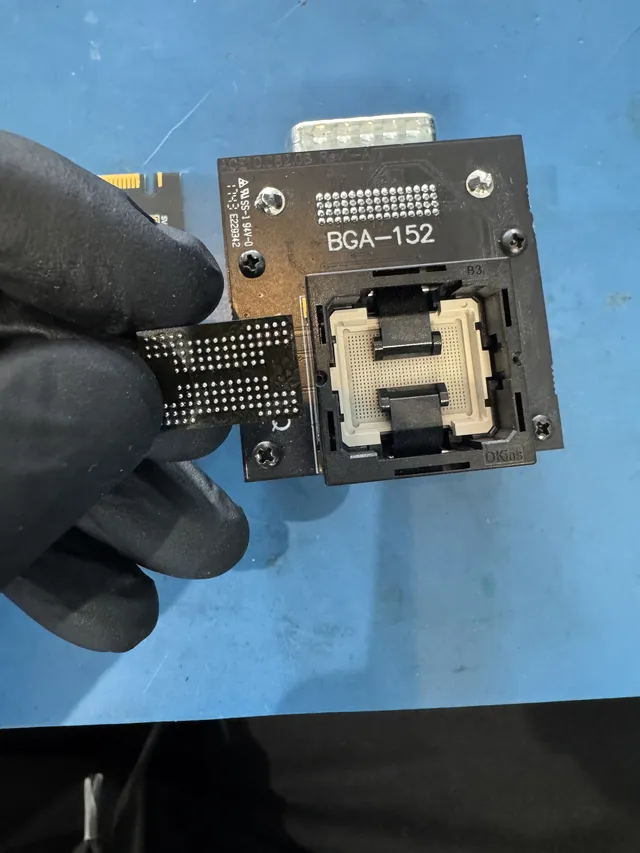
- Using precision tools and controlled heat, we physically de-solder and lift the NAND memory chip - the small black square that holds all your files - off the board.
- We then place this chip into a specialized reader that communicates with it directly, completely bypassing the broken controller that was causing the failure.
- Finally, we use advanced software to interpret the raw data dump from the chip, reassembling it back into the photos and videos you thought were lost.
When a supported NAND reconstruction is appropriate, the lab preserves physical dumps, addresses correctable read errors, and reconstructs logical sectors before extracting files. The result must be validated. Intact-looking chips, a recognized header, or a completed read do not guarantee complete photos, video, or documents.
The Reality of Physical Failure
While software can address simple corruption, a significant portion of SD card failures are physical. In fact, some industry data suggests a high percentage of SD card issues are linked to physical wear or bad sectors. This can be exacerbated by the intense heat generated when shooting 4K video, where cards can reach temperatures that accelerate the degradation of NAND memory cells.
Direct NAND recovery can help on a supported flash device when its normal interface cannot be restored. It requires readable memory and reconstruction of the original controller's page layout, ECC, scrambling, and logical mapping. Encryption or an unsupported error-correction scheme can prevent recovery even after a successful dump.
When faced with these critical failures, having access to a specialized team is your best course of action. For instance, our clients can get details on our California data recovery services and see how we handle these complex jobs from all over the country. If your data is truly important, don't risk it - a professional evaluation is the safest path forward.
The Professional SD Card Recovery Process Explained
Sending a card full of precious memories off to a recovery lab can be nerve-wracking. We understand. You are trusting strangers with irreplaceable files and deserve to know what is happening at every step. Transparency is a core part of our service, so let’s pull back the curtain on our methodical, safe process.
This isn't about just plugging the card in and running a scan. Our process is engineered to maximize the chances of a successful raw file recovery sd card retrieval without causing any further damage.
The Initial Evaluation and Diagnostic Phase
The moment your SD card arrives at our lab, it is treated like a critical patient. It is not connected to a standard computer. The very first step is a completely non-invasive diagnostic.
Our goal is simple: determine the exact cause of failure without writing a single byte of data to the card or putting any stress on its delicate electronics.
- The lab first identifies the card and tests whether its normal interface can provide stable reads. PC-3000 Flash is a NAND reading and reconstruction platform for supported flash devices, not a universal safe-mode interface to every SD controller. Direct NAND work is considered only when the device layout and reconstruction requirements are supported.
- Pinpointing the Failure: By analyzing the card's response, we can quickly differentiate between logical corruption (a scrambled filesystem) and a more severe physical issue. Is the controller chip failing? Is the NAND memory degrading? Or is there an internal electronic short?
- Creating a Safety Clone: Before we ever attempt to recover a single file, we create a sector-by-sector image of your card. This is a perfect, bit-for-bit clone. All subsequent recovery work is performed on this image, leaving your original SD card untouched and preserved.
Once we have a definitive diagnosis, we will contact you with a report explaining the problem, our proposed recovery plan, and a firm price quote. The diagnostic and approved parts remain subject to the payment terms above.
The Recovery Strategy: Logical vs. Physical
With a safe clone to work from, our engineers can begin the recovery. The strategy depends entirely on the diagnostic findings.
Logical Recovery
If the card's hardware is healthy but it’s showing as RAW or was accidentally formatted, we proceed with a logical recovery. This is far more advanced than any software you can buy online. Our tools allow us to dig into the raw data, manually identify the unique headers for camera RAW files like .CR3 or .NEF, and reassemble fragmented photos and videos that consumer software would either miss entirely or recover as a corrupt, garbled mess.
Physical Recovery (Chip-Off)
A card or USB drive must be identified before choosing chip-off. Separate NAND packages can sometimes be read externally; monolithic devices may require access to technological pads or traces. Neither method guarantees files: the dump still needs supported error correction, descrambling, and translation, and encryption remains a separate limit.
When a supported NAND reconstruction is appropriate, the lab preserves physical dumps, addresses correctable read errors, and reconstructs logical sectors before extracting files. The result must be validated. Intact-looking chips, a recognized header, or a completed read do not guarantee complete photos, video, or documents.
This process requires a steady hand, a microscope, and expert microsoldering skills. Once the raw data dump is extracted, our engineers use sophisticated algorithms to decode the controller's data scrambling and rebuild your files. It’s a complex puzzle, but one our team solves daily for clients across the country, including many who require our Texas data recovery services.
Secure Data Delivery and Final Steps
After the recovery is complete, our work isn't finished. We meticulously verify the integrity of your key files to ensure they open correctly.
We will provide you with a secure file list to review. Once you approve the results, we copy your recovered data onto a new, stable device - typically a USB flash drive or an external hard drive - and ship it back to you securely. We also return your original, failed SD card, unless you prefer we securely destroy it for you.
Practical Tips to Prevent Future SD Card Data Loss
The best data recovery job is one that is never needed. Through recovery work on failed cards in our lab, we have identified clear patterns in how storage is used - and misused. Adopting a few professional habits can be the difference between a smooth workflow and a data loss disaster.
Adopt a Safer Workflow
It’s often the small, seemingly harmless habits that cause the most significant damage. These simple adjustments to your workflow directly counteract the most common reasons for file system corruption we see every day.
Always Use "Safely Eject": Yanking a card from your computer or reader is a significant gamble. Taking a moment to use the "Eject" or "Safely Remove Hardware" function is critical. It signals the operating system to finish any pending write operations, preventing file structure corruption.
Format in Camera, Not on PC: After safely copying your files, place the card back into the camera you intend to use and format it there. Each camera model initializes the file system in a specific way that it understands best. Formatting on a computer can introduce inconsistencies that may lead to errors.
Avoid Filling Cards to Capacity: This is crucial. Whenever possible, leave at least 10-15% of free space on your cards. Pushing a card to its absolute limit puts extra strain on the memory controller and can increase fragmentation and the risk of corruption.
Smart Investments and Backup Strategies
Your equipment and your backup strategy are your two greatest allies against data loss. A small, smart investment here provides a massive amount of security and peace of mind.
We often see clients lose an entire photoshoot because they stored everything on a single, massive-capacity SD card. A much safer practice is to spread your work across several smaller, high-quality cards. If one fails, you only lose a portion of the shoot, not the entire project.
Here are the standards professionals live by:
Invest in Quality Brands: Stick with cards from reputable manufacturers like SanDisk, Lexar, or ProGrade, and purchase them from authorized retailers. The temptation to save a few dollars on an off-brand card is not worth the risk, as they often use lower-grade memory chips with much higher failure rates.
Establish a "3-2-1" Backup Routine: This is the gold standard for a reason. You should have 3 total copies of your important files, stored on at least 2 different types of media (e.g., your main hard drive and an external drive), with at least 1 of those copies kept off-site (e.g., cloud storage or another physical location).
Even with the best precautions, hardware can fail. If you find yourself in a data loss situation, the safest course of action is to stop and get a professional opinion. MDRepairs offers a free phone consultation before shipping; the device diagnostic is $100.
Common Questions We Hear About RAW SD Card Recovery
We get these questions all the time from photographers and videographers in a panic. Let's clear up some of the most common points of confusion our engineers address every day.
My Computer Is Asking to Format My RAW SD Card. Should I?
No, absolutely not. Clicking "Format" is one of the most common and damaging mistakes we see. Formatting does not immediately erase your files, but it destroys the card's directory - the map that tells the camera or computer where each photo is located.
When you get that "You need to format the disk" prompt, your only move should be to click Cancel. Then, safely eject the card and do not plug it back in. This single action is the most important first step in preserving your data.
Can You Actually Get Back Specific RAW Photos, Like .CR3 or .NEF Files?
Yes, this is exactly what professional recovery labs are built for. We routinely recover all kinds of proprietary RAW formats, including:
- Canon files (CR2, CR3)
- Nikon files (NEF)
- Sony files (ARW)
- Fuji files (RAF)
Our tools and techniques go far beyond what basic software can do. We understand the unique file headers and complex data structures of these professional formats, which allows us to piece them back together manually, even when the file system is completely corrupted.
The real challenge with modern RAW files is their complexity. A simple JPEG is one piece of data. But a file like a .CR3 or .NEF is more like a container holding multiple data streams for image data, previews, and metadata. Specialist tools are needed to find and reassemble these specific, proprietary structures correctly.
What Does Professional SD Card Recovery Typically Cost?
The price depends on the type of failure, not the card's capacity. A logical failure - where the card's hardware is fine but the file system is scrambled - is on the lower end of the cost spectrum.
Flash recovery cost and timing depend on whether the device needs connector repair, controlled reading, or supported NAND/monolithic reconstruction. The memory, ECC, scrambling, translation, and encryption determine feasibility. Obtain a firm quote and estimate after diagnosis; chip-off does not guarantee a higher recovery rate.
Is It Safe to Mail My SD Card to a Recovery Lab?
It is completely safe and a standard practice in our industry. The key is proper packaging. We always recommend placing the card in an anti-static bag, then putting it inside a small box or a padded bubble mailer to protect it from static discharge and physical damage in transit.
We maintain a secure, documented chain-of-custody for every device we receive, whether it's dropped off locally in Lincroft, New Jersey or shipped from across the country, including by clients using our Florida data recovery services. It’s a process we’ve perfected over thousands of successful mail-in recoveries.
If you're staring at a RAW SD card error and the photos are irreplaceable, don't leave it to chance. MDRepairs offers the expert lab services you need to maximize the odds of a successful recovery. Let our engineers take a look by starting your case at https://mdrepairs.com.
RAW SD Card Recovery: What To Do Before You Format
RAW SD card recovery means recovering files from a card whose file system is no longer mounting as FAT32 or exFAT. Windows may ask you to format the card, macOS may say it cannot read the disk, or a camera may report a card error. The files may still be present, but the structures that describe the card are damaged, unreadable, or inconsistent.
The most important step is to stop using the card immediately. Do not format it, do not take test photos, and do not let the camera repair or initialize it. SD cards use flash memory, and new writes can replace the exact blocks needed to reconstruct photos and videos. This is especially important for cameras that record large video files, burst sequences, or RAW photo formats, because fragmented media is harder to rebuild without intact file system records.
A RAW card can be a logical failure, a physical failure, or both. Logical problems include damaged boot sectors, corrupted allocation tables, interrupted formatting, unsafe removal, or file system errors after a camera crash. Physical problems include worn NAND, controller faults, cracked cards, water damage, electrical damage, and readers that lose connection during transfer. If the card shows the correct capacity and reads consistently, a controlled image and file recovery pass may work. If it shows 0 bytes, the wrong size, or disconnects, software scans can make the situation worse.
A card or USB drive must be identified before choosing chip-off. Separate NAND packages can sometimes be read externally; monolithic devices may require access to technological pads or traces. Neither method guarantees files: the dump still needs supported error correction, descrambling, and translation, and encryption remains a separate limit.
MDRepairs recovers RAW SD and microSD cards from cameras, drones, phones, dash cameras, and recorders. Our SD card recovery service is handled in a real New Jersey lab with nationwide mail-in options, a flat $100 diagnostic, and a free phone consult before you ship media.
Frequently Asked Questions
Can a RAW SD card be recovered without formatting it?
Yes. In many cases, recovery is possible without formatting, and formatting should be avoided when the files matter. The safer method is to image the card first, then recover photos, videos, and documents from that image. Formatting can overwrite metadata that helps preserve filenames, folders, and fragmented video files.
Why is my SD card showing as RAW?
An SD card shows as RAW when the computer cannot recognize a valid file system. That can come from corruption after unsafe removal, camera errors, interrupted formatting, bad sectors, controller failure, or NAND wear. If the card reads inconsistently, shows the wrong capacity, or keeps disconnecting, stop using software tools and preserve the card for lab recovery.
Get help with data recovery
Bring your device to our Lincroft lab during opening hours, or mail it in.
How to mail your deviceThe $100 diagnostic is non-refundable once diagnostics start, and donor drives or replacement parts you approve are non-refundable once ordered, even if recovery fails.
Published by MDrepairs
MDrepairs is a data recovery and electronics repair lab in Lincroft, New Jersey. Our founder and lead technician Joseph Montanti films real cases for our YouTube channel, showing tools, repair steps and recovery outcomes.
Keep reading
- USB “Device Descriptor Request Failed”: What It Means for a Flash Drive
- USB Says “Please Insert a Disk” or “No Media”: Can You Recover the Files?
- SD Card Write Protected? Fixes Beyond the Switch