Hard Drive Grinding or Scraping Noise: What to Do (and Stop Doing) Right Now
Our founder and lead technician, Joseph Montanti, handles cases personally.
A hard drive making a grinding or scraping noise has a mechanical problem that can damage the surfaces holding your files. Head contact with the spinning platters is one serious cause. Power the drive off and leave it off for a recovery lab, including if it started grinding during a backup. Recovering the files means dealing with the physical fault before trying to read the surviving data.
On this page
What is scraping inside a hard drive?
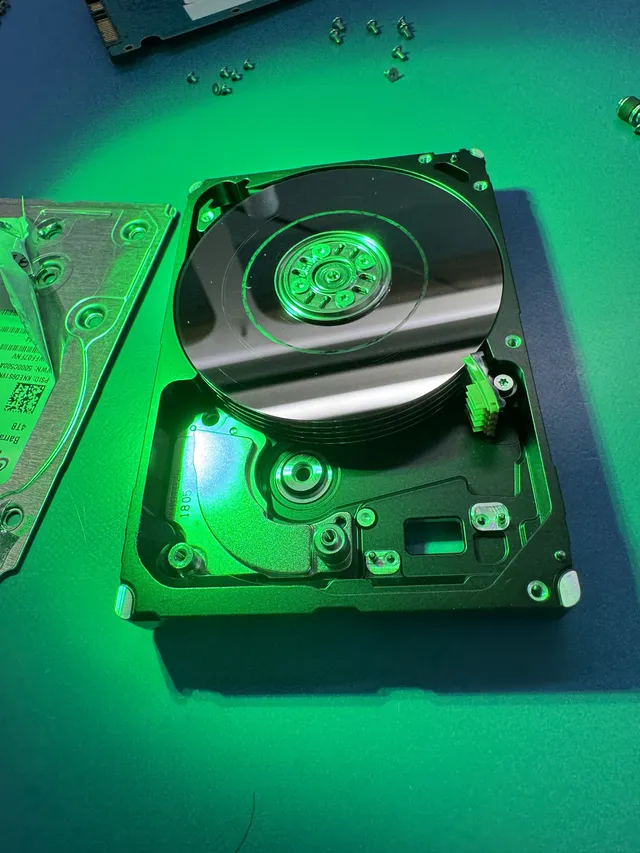
A hard disk drive, or HDD, stores data as magnetic patterns on rotating platters. Its read/write heads normally travel just above those surfaces on a thin cushion of air. The spacing is tiny, so a shock, damaged head, or contaminant can interfere with that movement. When a head strikes the disk surface, it is called a head crash; Seagate's drive documentation describes the resulting damage to the head.
Continued contact can scratch the platter and produce debris. That debris can interfere with other heads or damage a replacement head introduced during recovery. The problem can therefore extend beyond the first damaged spot.
The magnetic coating is where the information lives. A new head may read a surviving area that the old head could no longer read, but it cannot recreate coating that has been scraped away. This is the reason grinding is treated as a physical recovery problem even when the drive still appears in Windows or Finder.
Seagate warns that grinding or scratching can mean continued use is damaging the platters. Its internal-drive troubleshooting instructions call for immediate power-down when grinding comes from the drive.
A computer also contains other moving parts, especially fans. If you already know the noise came from a fan, that is a different repair. An SSD has no spinning platters or moving heads, so it cannot make an HDD head-crash noise. For a suspected grinding hard drive that is already off, identifying the sound is a job for inspection rather than another listening test.
Grinding, clicking, and beeping are different clues
A soft seek sound or a single click as a healthy drive parks can be normal. Persistent hard clicking, repeated clunks, and scraping belong in a different category. Clicking can accompany a damaged head or scratched platter, so it is not a less urgent sound simply because it lacks a grinding tone.
| Sound | What it can mean | Response |
|---|---|---|
| Grinding or sandpaper-like scraping | Mechanical contact or failure, with a risk of platter damage. | Keep the drive powered off for physical inspection. |
| Repeated hard clicking or clunking | The drive is having trouble operating or reading; physical damage is possible. | Use the same stop point as for grinding. |
| Beeping from a portable HDD | The drive may lack enough power to start, or its mechanism may be unable to turn. | Have the cause checked; a dropped or noisy drive is not a cable-test candidate. |
| Soft seeking or one click during shutdown | Normal head movement or parking can produce these sounds. | Judge the change from the drive's usual behavior and any access problem. |
A sound does not put the drive into a fixed recovery category. The condition of the heads, the platter surfaces, and the information needed to start the drive determine what work is possible. A brief scrape can hit an important area, while another fault can leave large areas readable.
What can survive a scratched platter?
A hard drive can have several recording surfaces, with a head serving each usable surface. Damage may affect one surface, several surfaces, or the regions holding information the drive itself needs to operate. That is why the location of a scratch matters as much as how large it looks.
Files are stored in sectors, and one file can occupy many separate areas. If a damaged sector belongs to the middle of a photograph, the file might open with part of the image missing. If the damage affects folder or file-system records, the contents may survive while their names and original folders are lost. Recovery software can sometimes find files by recognizing their contents, but it may return them grouped by file type instead of restoring the original organization.
In this recorded dropped-drive recovery, Joe found one scratched surface that held the file organization information. He disabled the damaged head, changed the firmware to allow operation with that head missing, and used PC-3000 to reach the readable surfaces. The result was 228 GB of files organized by extension, with one of four surfaces unreadable.
The drive also stores its own operating information in a service area. A failure there can keep the rest of the disk inaccessible even when some user-data surfaces remain intact. In another recorded dropped-drive case, a scratched platter and damaged copies of a service-area module prevented recovery. Replacement heads and attempts to repair that module did not restore access to the files.
The work behind mechanical recovery costs
See pricing for recovery of a grinding hard drive. The work depends on the heads and recording surfaces.
| Drive condition | Price range | Work involved |
|---|---|---|
| Limited damage, single head affected | $1,500 - $3,000+ | Head replacement, imaging, file reconstruction. |
| Multiple platter surfaces affected | $2,250 - $3,500+ | Head work, platter cleaning, and more involved imaging. |
| Severe surface damage and contamination | $2,250 - $3,500+ | Inspection and work around surviving readable areas. |
| Encrypted drive: BitLocker, FileVault, or VeraCrypt | $1,500 - $3,500+ for BitLocker or FileVault. By quote for VeraCrypt. | Unlocking the recovered file system with the required credentials. |
| Drive belonging to a RAID array | Contact for Quote | Array reconstruction in addition to work on the member drive. |
| Platters beyond reading | $100 diagnostic. Approved donor drives or replacement parts are non-refundable once ordered. | Inspection may establish that recovery cannot proceed. |
You approve the estimate before recovery starts, and the diagnostic is credited toward a successful recovery. The pricing page states, “The $100 diagnostic is non-refundable once diagnostics start, and donor drives or replacement parts you approve are non-refundable once ordered, even if recovery fails.”
Encryption still applies after the mechanical work. Reading sectors from a BitLocker-encrypted drive does not remove the need for its password or recovery key. Microsoft explains where to find a BitLocker recovery key, including the Microsoft account used to set up the device. Locate an existing key from another device while the failed drive remains off.
Why a software fix cannot remove the grinding
Recovery software can only search sectors the hardware can read.
A full scan is particularly unsuitable during mechanical contact because it asks for reads across the disk. A program may retry unreadable areas repeatedly, keeping a damaged mechanism in use. The problem remains even when a program is marketed as read-only: avoiding writes to the file system does not prevent physical contact inside the drive.
CHKDSK, fsck, and Disk Utility First Aid also serve a different purpose. They check or repair file-system structures. Microsoft documents that CHKDSK repair options change the file system. Such repairs belong after the files have been preserved in a separate full copy or image; they cannot repair a head crash.
Imaging tools can be more selective about reads. For example, GNU ddrescue prioritizes readable areas and keeps track of the regions still missing. It still relies on the hardware being able to return data. A grinding drive first needs its mechanical fault addressed, before imaging becomes a useful next step.
Head work comes before imaging
MDrepairs uses a laminar-flow work area when working on the heads and recording surfaces. Opening the mechanism there allows inspection for damaged heads, loose parts, and scratches. The work is chosen from what is found; every grinding drive does not need the same sequence of parts and procedures.
A recorded Seagate ST5000LM000 recovery shows why inspection comes first: one head slider had broken off and remained on a platter. Joe removed it, cleaned and checked the surfaces, and installed donor heads before working through a separate firmware problem. That drive ultimately yielded 3.5 TB through imaging in Data Extractor.
An image preserves the readable sectors for file reconstruction.
Surface damage can leave gaps in that image. A visible directory or a large recovered-file count is not the same as having every file intact. The recovered files need checking, especially the photographs, videos, databases, or project files that matter to you.
Do not swap the circuit board. The original can hold information unique to the drive, and a different board cannot fix damaged heads.
Leave the sealed lid closed. Never freeze, tap or shake the disk. Condensation, another jolt or dust on a platter can damage what remains readable.
Use a different drive for the recovered files and their backup.
Moving the drive after power-down
For transport, wait for the disk to stop spinning before moving the drive or tower. Keep the enclosure intact and place no heavy objects on it. Pack it with at least two inches of cushioning on every side. A bare internal drive belongs in an antistatic bag before the cushioning. Seagate's current packing instructions call for static protection and bubble-wrap cushioning, and advise against loose packing pellets or newspaper.
The standard recovery estimate is 4–6 weeks and may vary with the condition, parts, and imaging work. You can bring the drive to the lab in Lincroft, New Jersey, or mail it there. Keep the original enclosure, board, and any parts removed during an earlier attempt together with the drive so the recovery starts with its original hardware available.
Get help with data recovery
Bring your device to our Lincroft lab during opening hours, or mail it in.
How to mail your deviceThe $100 diagnostic is non-refundable once diagnostics start, and donor drives or replacement parts you approve are non-refundable once ordered, even if recovery fails.
Published by MDrepairs
MDrepairs is a data recovery and electronics repair lab in Lincroft, New Jersey. Our founder and lead technician Joseph Montanti films real cases for our YouTube channel, showing tools, repair steps and recovery outcomes.
Keep reading
- BitLocker Recovery Key Not Working? Check the Key ID Before Resetting
- exFAT Drive Corrupted? Cross-Platform Rescue Guide
- External Drive Painfully Slow? It May Be Dying