Drive Shows in Disk Management But Has No Letter: Fix and Recover
Our founder and lead technician, Joseph Montanti, handles cases personally.
If Disk Management shows a healthy data volume at its usual size and only the drive letter is missing, assign it an unused letter. Your files are usually intact, and the new letter lets you open them in File Explorer. If the volume shows RAW or the disk shows Unallocated, leave it as it is and check the status below.
CHKDSK can check a recognized volume by name. A mounted ISO appears as a virtual DVD drive and has its own drive-letter setting.
On this page
Check the partition before assigning a letter
Leave damaged drives off. Do not power a dropped or wet drive for these checks; disconnect an HDD that clicks, beeps or grinds, or stalls, or an SSD that repeatedly drops out or returns read errors. Power down a drive that heats up quickly or reports a SMART failure.
If an undamaged external drive runs normally but has no letter, try a different USB cable and port. If it disappeared after sleep, eject it if Windows still lists it, wait for confirmation, then unplug it and reconnect it once. Avoid cycling it through the ports repeatedly.
Press Windows+R, enter diskmgmt.msc and open Disk Management. If Windows offers to initialize the disk or File Explorer says you need to format it, click Cancel. Do not choose Format in Disk Management while you still need the files. The lower pane shows physical disks, their capacities and the partitions Windows recognizes. The upper list shows volumes. Match the disk you need by capacity and device identity before selecting a partition.
| Status | Meaning | Next action |
|---|---|---|
| Healthy data partition, NTFS/FAT32/exFAT, no letter | Windows recognizes a data volume but has no letter assigned to it. | Add an unused letter if this is an ordinary data partition on a stable device. |
| EFI, Recovery or System Reserved partition | A partition used for startup or recovery may intentionally have no letter. | Leave its assignment unchanged. |
| RAW | Windows cannot recognize a usable file system. | Preserve an image before file recovery or repair. |
| Not Initialized | On a disk that held files, Windows usually cannot read the partition table. | Cancel the prompt. Do not initialize the disk. |
| Unallocated | No recognized partition occupies that space. | Recover existing data before creating a new partition. |
| Offline with a signature-collision message | Another connected disk has a duplicate identity. | Separate the original and clone as described below. |
| Disk disappears, reports read errors or has the wrong capacity | Access to the storage is unstable or incomplete. | Stop using the drive and leave it off for assessment. |
Healthy is a Windows volume status, not a complete test of the files or physical media. Microsoft's troubleshooting guidance distinguishes these states. In particular, an unrecognized Mac or Linux file system can require the original operating system rather than a Windows repair.
If you already clicked Initialize or Format, stop using the drive now and write nothing to it.
Add a letter to a recognized data partition
For a stable drive with the expected size and a recognized data volume, letter assignment provides a path that File Explorer can open. It does not create a file system or recover a deleted partition. These are the steps in Microsoft's drive-letter instructions.
- In Disk Management, right-click the intended data partition in the lower pane.
- Select Change Drive Letter and Paths. If no letter is assigned, select Add.
- Choose Assign the following drive letter and select an unused letter.
- Confirm with OK, then open that drive under This PC in File Explorer.
If the folders open and the files read normally, copy the needed contents to another drive before making further changes. Try the documents or media you came to retrieve, rather than relying only on the folder names.
The letter matters to shortcuts, installed applications and backup jobs that use an absolute path such as E:\Projects. Pick the previous letter where it is available and those dependencies matter. Microsoft recommends leaving the letter of a Windows or application volume unchanged because software may depend on it.
If the menu is unavailable, check the partition type. Windows restricts letter assignment for several system and special-purpose partitions. A greyed-out menu is a reason to identify the volume, rather than immediately clearing its hidden attribute or deleting it.
Assigning a letter with DiskPart
DiskPart offers the same operation through a terminal. Use it for an identified, ordinary data volume with a recognized file system. It does not bypass the need for readable storage or convert RAW data into a healthy volume.
- Open Terminal or Command Prompt as an administrator and enter
diskpart. - Enter
list volume. Compare the label, size, file system and existing letter to identify the volume. - Enter
select volume X, replacingXwith that volume's number. - Enter
assign letter=E, using a letter that is free on your computer. - Enter
exitand check the assigned path in File Explorer.
Microsoft documents the assign command's restrictions. An already-used letter produces an error. System, boot, paging-file and certain special partitions have additional restrictions. If assignment fails, use that error and the partition's type to decide the next step; leave the partition type and attributes alone. Do not run clean or convert between MBR and GPT before imaging the disk.
Disk shows Offline: signature collision with another disk
Connecting an original disk and its clone at the same time can give Windows two disks with the same identity. It may leave one Offline with a signature-collision message. The disk identifier is separate from its visible label or drive letter, so renaming the volume does not resolve that conflict.
For two ordinary standalone disks, use the required original without its duplicate connected. Identify the original and clone by their physical serial numbers, capacities and source/destination roles. Disk numbers such as Disk 0 and Disk 1 can change between connections.
- Shut the computer down before disconnecting an internal disk. Identify the Windows startup disk so it remains connected.
- Disconnect the duplicate clone, leaving the identified original you want to read. For a simple external pair, safely disconnect the unneeded device.
- Start Windows, confirm the remaining disk's identity and bring only that standalone disk Online in Disk Management if needed.
- Check its volumes, then use the ordinary letter-assignment steps if a recognized data volume still lacks a letter.
Preserve both disks while the files matter. Changing the disk ID, initializing a disk or formatting it can change the storage configuration without retrieving a single file. DiskPart's uniqueid command can display or change an identifier, depending on its arguments; the collision does not require you to paste a new identifier from a tutorial.
RAID, dynamic disks and storage pools need a plan for the whole set. Microsoft notes that bringing dynamic disks online can resynchronize mirrored or RAID-5 volumes. Removing members or forcing them online independently can therefore start work you did not intend. The standalone-original-and-clone steps above apply to separate ordinary disks.
When the file system is RAW or the partition is missing
A missing drive letter can be secondary to missing file-system information. Assigning a letter supplies neither the missing directory information nor the old partition boundaries.
If the device reports the correct capacity and reads steadily, make a sector image of the whole disk to other storage. R-Studio's image documentation describes selecting the device and creating a byte-by-byte image. Scan that image for files and save recovered files to a separate destination.
TestDisk can list and copy files from supported file systems and search for lost partitions. Extract files from the preserved image before considering a partition-table repair, which changes the selected target.
PhotoRec searches recognizable file contents when directory records are missing. It generally loses original filenames and folders, and fragmented files can be difficult to reconstruct. A file-system-aware tool may preserve more organization when enough records remain.
If files were overwritten after initialization or formatting, recovering a partition entry will not restore the overwritten contents. Modern SSD erasure behavior can also limit recovery after deletion or formatting. Open the recovered files from their new storage to check them. Those saved copies remain usable even if the damaged source never receives a drive letter again.
| Situation | Cost |
|---|---|
| Assigning a letter in Windows | $0 |
| PhotoRec recovery from an image | Free |
| R-Studio or similar licensed software | Paid |
| Lab logical recovery from a readable RAW volume | $1,000 to $1,500 |
| Lab partition recovery from unallocated storage | $1,000 to $1,500 |
| Failing SSD recovery | $1,000 to $2,000+ |
| Failing HDD recovery | $1,000 to $3,500+ |
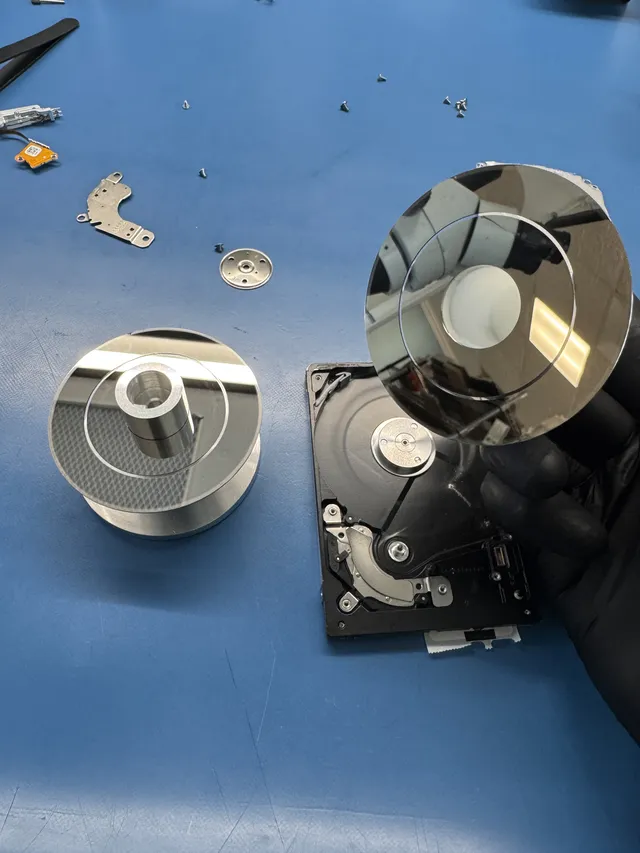
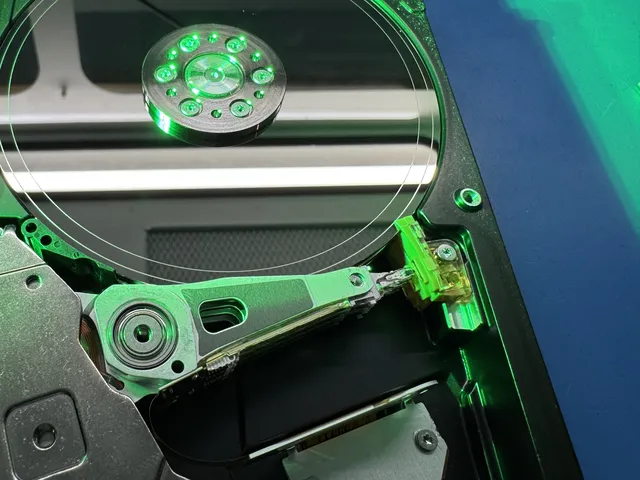
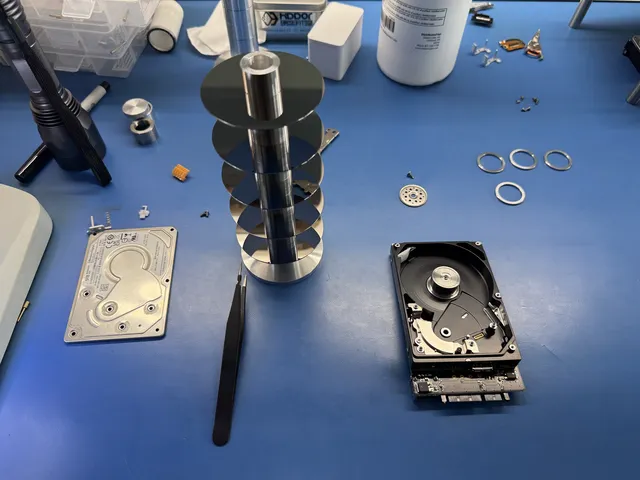
Lab recovery addresses the hardware or reading problem before file extraction. Head and platter work uses a laminar-flow work area. The standard recovery estimate is 4–6 weeks; drive condition, parts and the amount of readable data affect the work required.
CHKDSK without a drive letter
CHKDSK accepts a drive letter, mount point or volume name. For a volume already mounted at a folder, a status check can use that path, for example chkdsk C:\MountedData.
On a stable local drive, run mountvol in an administrator Command Prompt to list names such as \\?\Volume{...}\. If you cannot tell which volume name belongs to your drive, stop here. Copy the full name of the volume you identified and use it in chkdsk \\?\Volume{...}\, including the braces and final backslash. With no switches, CHKDSK reports what it finds without making repairs.
The repair switches /f, /r, /x and /b can modify a volume. Use repair only after preserving the files or an image. CHKDSK is a file-system tool; a missing partition or inaccessible physical device needs the preceding recovery path rather than a guessed volume name.
An ISO mounted but returned no drive letter
Windows mounts an ISO as a virtual optical disk. Mount-DiskImage returns disk-image information when used with -PassThru; the drive letter belongs to its volume. Its output therefore may not show the field your script expects.
Query the mounted volume with Get-DiskImage -ImagePath "C:\Images\disc.iso" | Get-Volume, substituting the ISO's full path. Microsoft documents this Get-DiskImage pipeline. Check the returned DriveLetter and FileSystemLabel before assuming that the mount failed.
If the ISO was mounted with -NoDriveLetter, the absent letter was requested. Eject that image and mount it normally, or assign a free letter to its identified virtual DVD volume in Disk Management. A problem with a downloaded ISO can also require obtaining a fresh copy from its publisher; none of these steps needs changes to the physical disk storing your files.
Get help with data recovery
Bring your device to our Lincroft lab during opening hours, or mail it in.
How to mail your deviceThe $100 diagnostic is non-refundable once diagnostics start, and donor drives or replacement parts you approve are non-refundable once ordered, even if recovery fails.
Published by MDrepairs
MDrepairs is a data recovery and electronics repair lab in Lincroft, New Jersey. Our founder and lead technician Joseph Montanti films real cases for our YouTube channel, showing tools, repair steps and recovery outcomes.
Keep reading
- External Drive Says “The Parameter Is Incorrect”: Data-Safe Checks
- External Hard Drive Freezes File Explorer or the Computer: Safe Next Steps

- “The Semaphore Timeout Period Has Expired” During a Drive Copy