"Disk Unknown Not Initialized" in Disk Management: What to Do
Our founder and lead technician, Joseph Montanti, handles cases personally.
“Disk Unknown, Not Initialized” means Windows has found a storage device but cannot use its existing disk layout. A damaged partition table, a bad connection, or a failing drive can cause it; a new blank disk can show the same status. If this disk held files you need, click Cancel on the initialization prompt. Recover the files before creating a new partition table.
On this page
What “Disk 1, Not Initialized” means
Disk 1 is the number Windows assigned to that device. It is not an error code or a particular type of failure. Disk 0, Disk 1, and Disk 2 can all show Unknown and Not Initialized. Match the model and capacity before selecting a disk, because the numbering can change between connections.
Open Disk Management by right-clicking Start and selecting it. In the lower panel, look at the disk's reported size and the area beside its name. Windows may show the expected capacity with unallocated space, or it may report no usable capacity. Those results lead to different next steps.
| Disk Management result | Meaning | Next step |
|---|---|---|
| Correct capacity, Unknown, Not Initialized | Windows has a disk size but no usable recognized layout | Check the connection, then recover from a copy |
| 0 bytes, No Media, or a very small wrong size | The storage is not being exposed at its expected capacity | Check the external connection; persistent wrong capacity needs diagnosis |
| Online, with a healthy volume but no letter | A volume exists but lacks a File Explorer address | Use Microsoft's drive-letter procedure after confirming the correct volume |
| RAW volume | Windows cannot recognize the volume's file system | Recover its files before formatting or repair |
| Offline | Windows is not making the disk available | Check the displayed reason; use Online only for the correctly identified disk |
Microsoft's Disk Management troubleshooting distinguishes these states. An uninitialized disk is not automatically empty. Windows needs readable information about where the partitions begin and end before it can offer their contents in File Explorer.
Check the connection before repair
Leave a damaged drive off. If it clicks, beeps, grinds, smells burned, was dropped, or got wet, skip power-on tests and use a recovery service. End a copy or scan when reads freeze, the disk drops offline or a hard drive begins clicking; do not initialize, format, run DiskPart clean, or repair the only copy of needed files.
For an undamaged external hard drive that stays connected normally, a cable or USB-port check is worthwhile. The absence of unusual sound is only permission to try the basic connection checks; an HDD can still have unreadable areas while spinning quietly. An SSD has no spinning mechanism to listen to.
- Try a known working USB data cable and a port directly on the computer. Bypass the hub for this check. A desktop external drive also needs its specified external power supply.
- Open Disk Management again. If needed, choose Action > Rescan Disks to refresh the list. Cancel any request to initialize the existing disk.
- Try another computer if the drive remains stable. If that computer can open the folders, save their contents on a separate disk before trying to fix the initialization error. Check the copies before continuing.
- If Device Manager shows a warning for the drive, open its Properties and read the device status. Use the matching Microsoft device error guidance.
To reinstall a problem disk driver, open Device Manager, expand Disk drives, identify the external drive, and choose Uninstall device. Follow Microsoft's driver reinstall procedure, which restarts Windows so it can attempt to reinstall the driver. Do this after saving any accessible files, and leave the internal system disk alone.
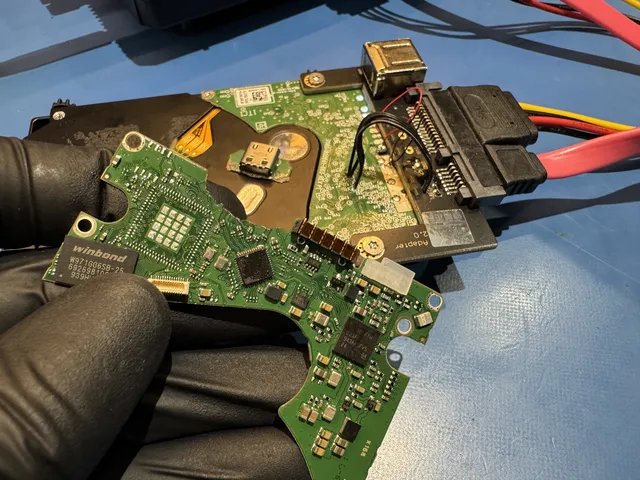
A USB enclosure can fail separately from the disk inside. A direct SATA connection is only appropriate when the exact enclosure contains a removable SATA disk and does not supply required encryption or sector translation. Some portable drives have USB on the drive board. Keep the original enclosure and board together; a general instruction to remove every drive from its case can create a second problem.
DiskPart capacity and status checks
DiskPart gives a text view of disks Windows detects. Its inspection commands are useful when Disk Management is unclear. They should not be mixed with commands that create, clean, or convert a disk.
- Open Command Prompt as administrator and enter
diskpart. - Enter
list disk. Compare the reported sizes with the disk you connected. - Enter
select disk X, replacingXwith that disk's number. Selection changes which disk subsequent commands address. - Enter
detail diskto see its status and associated volumes, thenexitwhen finished.
The commands are documented in Microsoft's DiskPart reference. Selecting a disk and reading its details does not rebuild its partition table. By contrast, clean removes partition or volume formatting from the selected disk.
If the disk is Offline and your needed files are already saved, online disk brings the selected disk online. Disk Management provides the same Online action. Microsoft's online/offline documentation explains that online disks normally become available with read and write access. Offline and Not Initialized are separate states; switching one will not necessarily resolve the other.
Partition-table damage and your files
The partition table describes the regions of the disk that hold volumes. The files and their directory structures occupy other areas. Damage to the table can therefore hide a volume while leaving recoverable contents behind. Recovering the old layout means finding those existing structures, rather than creating an empty replacement.
MBR stores its main partition entries at the beginning of the disk. GPT keeps a primary table near the beginning and a backup near the end. The UEFI GPT specification describes that redundancy. A readable backup can help reconstruct a damaged primary table, provided it describes the correct disk layout.
Do not choose GPT simply because it is newer when recovering an existing disk. Recovery software needs the layout the disk used before the failure. A drive's age or advertised capacity is not a reliable substitute for reading the surviving structures.
Initializing writes new disk-management information. Formatting then creates a file system. Neither action searches for your old folders. If you already clicked Initialize, stop before creating volumes or copying new files onto it. Recovery may still find surviving file-system structures, but additional writes can replace more of them.
CHKDSK repairs file-system structures rather than searching for a missing partition. Microsoft documents that /f changes errors it finds, while /r includes repairs and a search for bad sectors. Use those operations only after recovery or a full copy. The CHKDSK command reference explains the difference between reporting and repair.
Recover files before TestDisk Write
For a stable drive reporting its correct capacity, recovery software can search for existing partitions and files. Use a different device to store the program, any image, and recovered files. A full disk image gives you a copy of the readable sectors to examine without changing the source.
DMDE documents working with drive images and its Copy Sectors function. Check source and destination carefully: an image is saved as a file on another disk, while a direct clone overwrites its destination disk. An unstable or damaged source belongs with a specialist rather than a long home imaging attempt.
TestDisk can locate a lost partition and list files before writing a repaired table.
- Download TestDisk from its developer onto a different drive, extract it, and run
testdisk_win.exeas administrator. Work on the image or clone when available. - Choose Create for a log, then select the correct disk or image by size. Use the original partition-table type. TestDisk usually detects it; Intel is its MBR option and EFI GPT is its GPT option.
- Choose Analyse, then Quick Search. Highlight a found partition and press
Pto list its files. PressQto return. Check that the names and contents are the ones you expect. - Copy needed files to another disk before any repair. In the file list, use the displayed copy controls and select a destination outside the source. Verify the recovered copies by opening them.
- Only after the recovered files are checked, work on an expendable copy and review the full partition list. Check each partition's size and files. Use the arrow keys to change each partition you intend to keep or recover from D (deleted) to the appropriate non-deleted status: P (primary), L (logical), or * (bootable) for an MBR layout. Mark no more than one bootable partition. Resolve overlaps and leave incomplete or unverified layouts unwritten. Only when the complete layout is correct, choose Write, confirm, and restart or reconnect as instructed.
The TestDisk partition-recovery instructions require the complete correct partition list before Write. Its FAQ also describes listing and copying wanted files. Finding one familiar folder is useful, but it is not a reason to overwrite a table that still has missing or overlapping partitions.
If Quick Search does not find the expected layout, TestDisk offers Deeper Search. On a stable image, that is a reasonable way to look further. R-Studio or DMDE can also scan a readable image for file-system structures and file contents; R-Studio's manual describes recovery from images and damaged sectors. A file preview helps you judge what was found before saving a recovery.
0 bytes and a disk that won't initialize
A disk reporting 0 bytes is failing earlier in the access process than a readable disk with a lost partition. Windows has a device entry but no usable storage range to scan. A bad connection or interface can cause that, as can a drive that cannot complete startup or read its own management information.
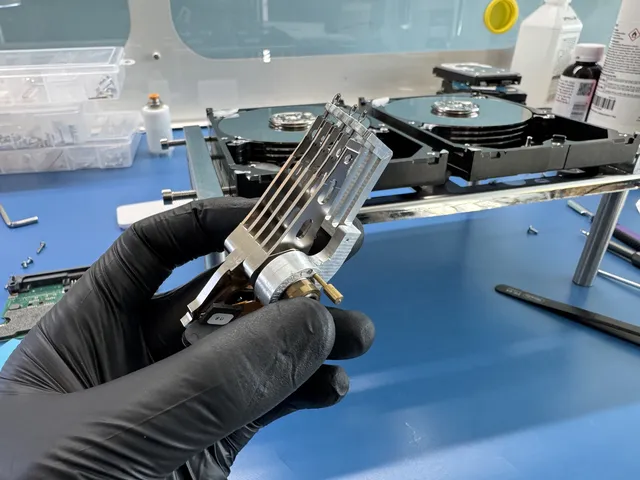
On a hard drive, firmware manages startup and the translation between requested sectors and the recorded data. Heads also have to read the information the drive needs to operate. A problem in either part can prevent normal access. An SSD's controller likewise has to present its flash storage as readable sectors before Windows or recovery software can use it.
This is why a new partition table cannot fix every “SSD not initialized” result. If the SSD stays at 0 bytes or disappears on another suitable connection, more initialization attempts will not recover its addressable storage. The controller, interface, firmware, and memory need diagnosis.
If a hard drive won't initialize and reports an I/O error, Windows could not complete the requested input/output operation. CRC errors also indicate a failed data-integrity check. Repeating the write operation is not a way to retrieve existing files. Use the original error and connection behavior to choose between connection repair and hard drive recovery.
Recovery work for an uninitialized drive
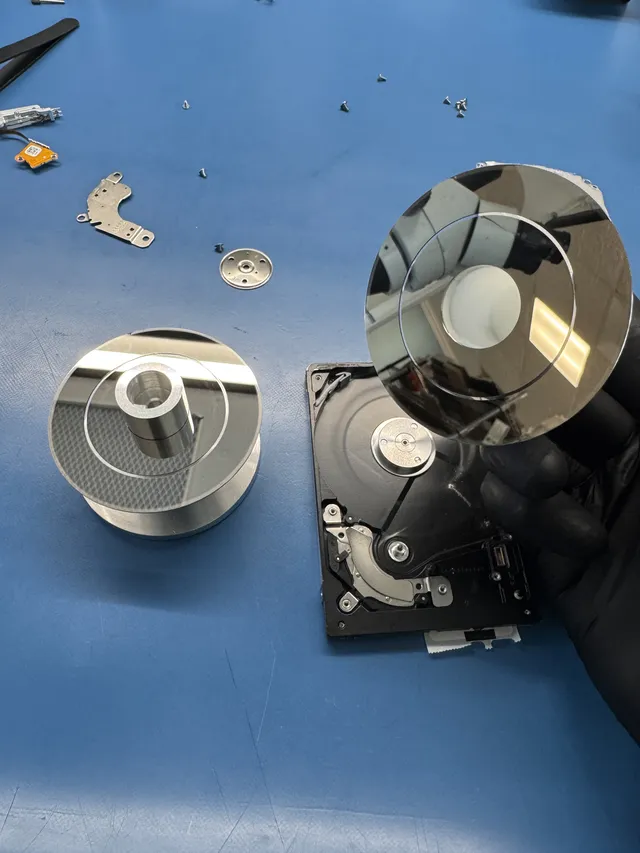
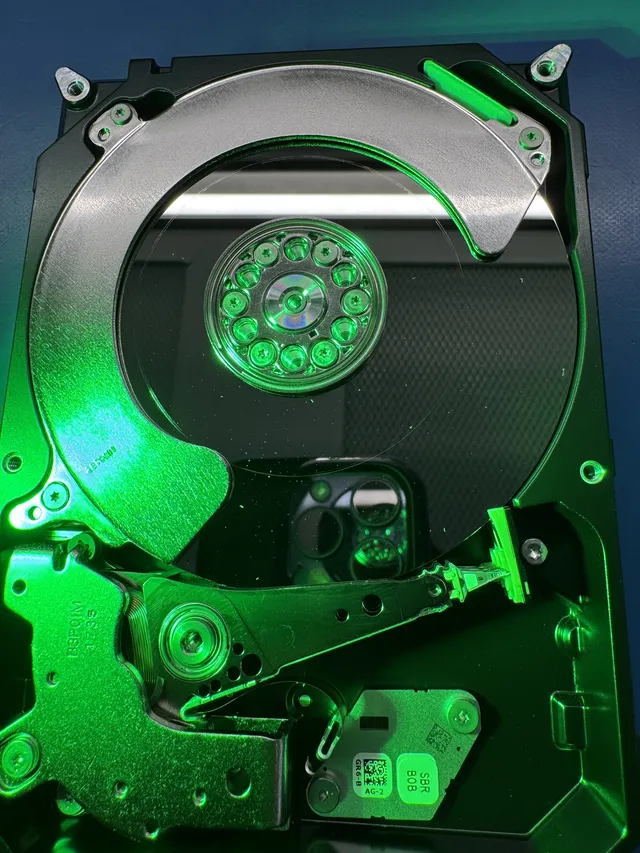
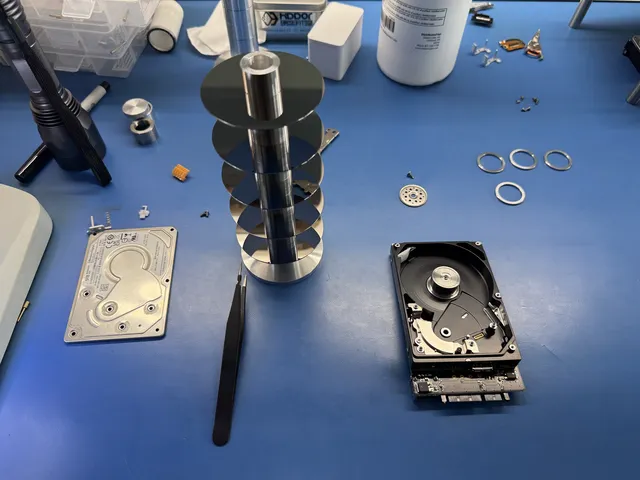
A drive that still reports the wrong capacity, repeatedly disconnects, or cannot finish a read needs help beyond partition software. Physical damage and persistent clicking also belong here. Head and platter work at MDrepairs is performed in a laminar-flow work area; the exact fault determines whether such work is needed.
Partition repair, firmware recovery, and mechanical repair involve different work:
| Work | Price |
|---|---|
| TestDisk partition-table repair after files are saved | $0 |
| Hard drive firmware recovery | $1,000 - $1,500 |
| Head swaps and mechanical repairs | $1,500 - $3,000+ |
The diagnostic costs $100 and is credited toward a successful recovery; the estimate is yours to approve before recovery starts. The pricing page gives the wider service structure, and mail-in recovery is available if you cannot bring the drive to Lincroft.
When initializing is the right step
For a genuinely new disk that has never held needed files, initialization is normal setup. Microsoft describes initializing a new empty disk, choosing a partition style, and then creating a volume and drive letter. An existing disk whose recovered files have been checked elsewhere can also be prepared for reuse if the hardware is sound.
If Unknown or Not Initialized returns, replace it or resolve the remaining connection fault before trusting it again.
Get help with data recovery
Bring your device to our Lincroft lab during opening hours, or mail it in.
How to mail your deviceThe $100 diagnostic is non-refundable once diagnostics start, and donor drives or replacement parts you approve are non-refundable once ordered, even if recovery fails.
Published by MDrepairs
MDrepairs is a data recovery and electronics repair lab in Lincroft, New Jersey. Our founder and lead technician Joseph Montanti films real cases for our YouTube channel, showing tools, repair steps and recovery outcomes.
Keep reading
- External Drive Says “The Parameter Is Incorrect”: Data-Safe Checks
- External Hard Drive Freezes File Explorer or the Computer: Safe Next Steps

- “The Semaphore Timeout Period Has Expired” During a Drive Copy