How to Fix "Data Error (Cyclic Redundancy Check)"
Our founder and lead technician, Joseph Montanti, handles cases personally.
“Data error (cyclic redundancy check)” means Windows could not verify data it was reading or transferring. On a hard drive, unreadable sectors and a faulty cable or connection are common causes. A damaged download or archive can produce a CRC error during extraction too. The fix depends on where the error occurs: check a sound drive's connection first, preserve the readable files, and use file-system repair only after the data is safe elsewhere.
On this page
What is a CRC error?
A cyclic redundancy check calculates a short value from a block of data. Comparing that value with the expected value helps detect a change or transmission error. A mismatch means the check failed. CRC checks appear in several places, including data links and compressed archives, so the message can arise at different stages of a read or copy.
Windows lists this message as ERROR_CRC, error 23, in its system error codes. It is too broad to attribute every instance to the file system. A damaged file, an unreadable disk location, and errors across a connection need different responses.
| Where it appears | What may be happening | First useful action |
|---|---|---|
| Copying one particular file | The file's contents or the sectors holding it are unreadable. | Use another copy if one exists; preserve other accessible files rather than repeatedly retrying that file. |
| Copying many unrelated folders | A drive or connection problem is interrupting reads. | Check the cable and port if the drive has no physical damage symptoms. |
| Initializing a disk or using DiskPart | Windows is failing to access the disk reliably. | Cancel initialization if the disk contains needed files. |
| Extracting a ZIP or 7z archive | The archive's integrity check has failed. | Obtain a fresh copy from its original source and extract it on a working disk. |
| Running CHKDSK | The repair tool is encountering unreadable data too. | Preserve or recover the files before further repair attempts. |
Why a drive starts reporting CRC errors
A hard drive reads magnetic information from its platters and uses error correction to recover readable data from imperfect signals. A damaged area or a weak read head can exceed that correction capability. Reads then fail, sometimes repeatedly at the same file or position in a copy.
Drives keep spare sectors for replacements, but unreadable data can be a problem before that spare space runs out. Reassigning a bad location makes an address usable again; recovering the old contents requires reading them successfully first. That is why clearing a bad-sector counter and recovering a missing photograph are different jobs.
A cable or connector can interrupt otherwise readable data on its way to the computer. On SATA drives, an increasing UltraDMA CRC Error Count is a clue to that connection. Reallocated, pending, and uncorrectable-sector counts concern the storage media instead. Seagate's SMART definitions explain these separate counters.
File-system damage can coexist with a CRC error. NTFS, FAT32, and exFAT keep records of which locations belong to each file. Interrupted writes can leave those records inconsistent; an unreadable location can also prevent Windows from reading them. File-system repair addresses the records. It cannot make a damaged head or platter read normally.
Firmware faults are another possible reason a disk becomes inaccessible. A specific older example is Seagate's Barracuda 7200.11: Lenovo documented a firmware issue affecting its ST3500820AS and ST31000340AS drives after a power cycle. That history is a reason to identify the model before firmware work, rather than install an update in response to any CRC message. Firmware updates belong after the needed data is preserved.
Check the connection and save readable files
Check for damage before cable tests. Leave a dropped or wet hard drive powered off. If it is repeatedly clicking, grinding, struggling to spin, or smells burned, disconnect it and arrange hard drive recovery before trying cables, scans, or repairs.
For an undamaged drive that starts normally, the simplest checks are outside the enclosure. Seagate's USB troubleshooting steps include a different cable, a direct USB port, and another computer.
- Replace the detachable USB cable with a known working, compatible cable and connect directly to the computer, without a hub. For an internal SATA drive, shut down and disconnect computer power before checking its data and power connections.
- If the connection still fails, try another computer. A drive that works there points toward the first computer's connection, though an intermittent drive fault is still possible.
- If folders open and files transfer normally, copy the files you need onto a separate disk. End the copy if the drive starts stalling, dropping out, or returning further read errors.
CrystalDiskInfo can display the drive's SMART report without starting a full surface test. Check 05 Reallocated Sector Count, C5 Current Pending Sector Count, and C6 Uncorrectable Sector Count, along with C7 interface CRC errors on SATA devices. Its published health-status rules explain Caution and Bad. A Good label is useful context, but symptoms such as failed reads still need attention.
Some USB enclosures block SMART reporting. Removing the enclosure is not a universal workaround: portable drives can have USB built into the drive board, and some external products use hardware encryption. Western Digital documents encryption in its My Book manual. Keep the original electronics with the drive. A direct SATA connection is appropriate only for a confirmed SATA model whose data access does not depend on the original bridge.
When the disk needs recovery before repair
Repeated unreadable areas, a drive that disconnects under load, or a disk that will not reveal its files needs a recovery approach. Imaging reads the accessible sectors onto another device, so file extraction and file-system work can use that copy. A damaged drive may need component or firmware work before a useful image can be made.
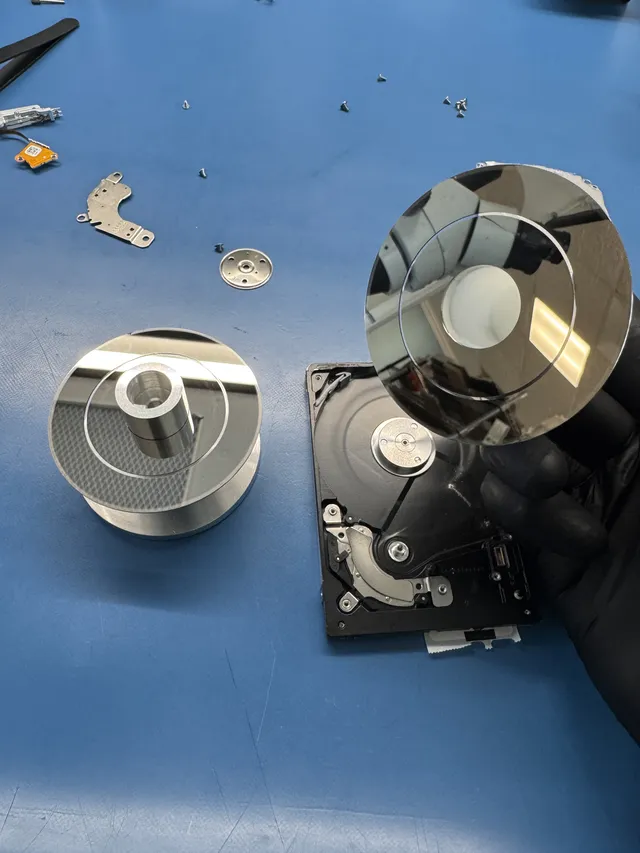
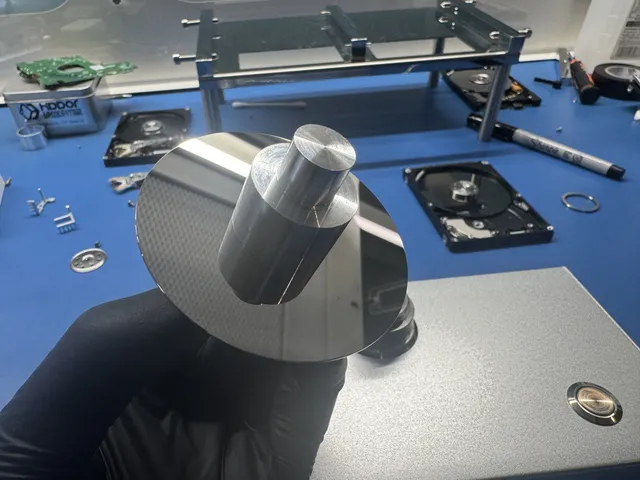
In our WD20SDRW recovery video, an external drive spun quietly but would not initialize, and the work exposed failed reading heads and small platter scratches. We replaced heads, preserved the drive's translator information, and used that saved information in memory after the translator became corrupt. Imaging recovered most of the data, with some remaining unreadable.
The translator is the drive's internal mapping between requested addresses and the places holding the data. That job happens below the file system. A Windows repair command cannot replace it or repair the heads used to read the platters.
The work required, rather than the text of the error message, determines the recovery cost:
| Fault | Cost | Work involved |
|---|---|---|
| File-system corruption only | $1,000 - $1,500 | File-system reconstruction and extraction from readable storage. |
| Bad sectors, minor | $1,000 - $1,500 | Imaging readable areas and attempting difficult sectors. |
| Head degradation | $1,500 - $3,000+ | Head replacement in a laminar-flow work area and subsequent imaging. |
| Severe platter damage | $2,250 - $3,500+ | Work around damaged surfaces; recovery can be partial. |
| Firmware corruption | $1,000 - $1,500 | Restore the access needed to read and image the drive. |
The diagnostic is $100, credited toward a successful recovery; you approve the estimate before any recovery work starts.
Using CHKDSK after recovering the files
CHKDSK repairs file-system structures. A drive holding the only copy of needed files is the wrong place to begin that work. First recover the files from a backup or image and open them to check the copies. The GNU ddrescue manual explains the reason for rescuing a copy before repairing a file system on a disk with read errors.
If you need to repair the copied file system, use a writable working clone and keep the original image unchanged. This gives you a way back if the repair removes damaged directory entries or fails to produce usable files.
- Disconnect the original problem drive. Connect the working clone and identify its volume label, capacity, and drive letter in Disk Management.
- Open Start, type
cmd, right-click Command Prompt, and choose Run as administrator. - Run
chkdsk X: /f, replacingX:only with the drive letter of that working clone. The/foption fixes file-system errors on the selected volume. - When it finishes, inspect the files on the repaired copy and compare them with the files already recovered.
The longer command chkdsk X: /f /r adds a search for bad sectors and recovery of readable information; /r includes /f. On a clone, it reads the clone's storage, so it cannot retrieve sectors that never made it off the original disk. It also takes longer because it checks the surface. Microsoft documents the flags and their effects.
If Windows identifies the volume as RAW, ordinary CHKDSK repair is not the route to the files. Keep the preserved image and recover its file system or extract files from it. Initializing, creating a new volume, or formatting changes the structures needed for that recovery.
Windows system files and Disk Management errors
SFC has a narrower purpose than CHKDSK: it repairs protected Windows system files. It does not repair photographs, ZIP archives, or unreadable sectors on an external drive. After your data is backed up and the system drive is working reliably, Microsoft's system-file repair sequence is to run DISM.exe /Online /Cleanup-image /Restorehealth from an administrator Command Prompt, followed by sfc /scannow after DISM completes successfully.
“DiskPart has encountered an error: Data error (cyclic redundancy check)” means the disk operation encountered the same storage error. If the disk contains files you need, cancel the operation. Microsoft's initialization procedure is intended for new disks without existing data. DiskPart clean removes partition information; it is not a data recovery command.
Reformatting becomes an option only when the needed files have been recovered and checked elsewhere, or when you do not need anything on the disk. It creates a file system for reuse and does not repair defective hardware. A full format adds extensive writes, so it has no place in retrieving the old files. If errors persist on a known working connection, replace the faulty device instead of treating repeated formatting as maintenance.
CRC errors while extracting ZIP or 7z files
An archive can list its filenames successfully and still fail when extracting the contents. The directory information and compressed data occupy different parts of the archive; reading the list does not mean every compressed block is intact. 7-Zip's recovery documentation describes this distinction.
If the archive came from a download, download a fresh copy from the original publisher to a working disk. If someone sent it, obtain another copy from the sender. For a split archive, you need the complete set of parts from the same archive. Use a current release of the archive program when testing the new copy.
A fresh archive that extracts correctly resolves the file problem without disk repair. If several unrelated archives or ordinary file copies fail from the same storage device, return to the connection and drive checks above. If the damaged archive is the only copy, keep it intact and attempt recovery on a duplicate; changing its checksum to hide the error will not reconstruct missing contents.
Get help with data recovery
Bring your device to our Lincroft lab during opening hours, or mail it in.
How to mail your deviceThe $100 diagnostic is non-refundable once diagnostics start, and donor drives or replacement parts you approve are non-refundable once ordered, even if recovery fails.
Published by MDrepairs
MDrepairs is a data recovery and electronics repair lab in Lincroft, New Jersey. Our founder and lead technician Joseph Montanti films real cases for our YouTube channel, showing tools, repair steps and recovery outcomes.
Keep reading
- External Drive Says “The Parameter Is Incorrect”: Data-Safe Checks
- External Hard Drive Freezes File Explorer or the Computer: Safe Next Steps

- “The Semaphore Timeout Period Has Expired” During a Drive Copy