Time Capsule Dying? Rescue Your Backups Now
Our founder and lead technician, Joseph Montanti, handles cases personally.
The Time Capsule was a lovely idea: a Wi-Fi router with a backup drive inside, and your Mac just quietly backed itself up. The problem in 2026 is that "quietly" became "for eight to eighteen years straight, in a sealed enclosure, with a single consumer hard drive and no health reporting you'd ever see." The fleet is dying, and because a Time Capsule holds backups, people only discover the death when they need the backup. Let's get ahead of that.
On this page
Why every Time Capsule is on borrowed time
- Age. The newest Time Capsule (the 2013 tower) is over a decade old. The flat models go back to 2008. Hard drives are consumables with a typical healthy life of three to five years under load; these have doubled or tripled it.
- Heat. The enclosure packs a 3.5-inch drive, a router board, and a power supply into a tight, quiet box. They run warm their entire lives, and heat is the great accelerant of drive wear. The power supplies themselves are also a known failure point, often from heat-stressed capacitors.
- No warnings. A Time Capsule doesn't surface SMART data or pre-failure warnings to you. It works until the night it doesn't.
- No parts, no service. Apple ended support long ago. When it fails, there's no repair path, only recovery.
Signs yours is dying right now
Any of these means the drive is failing, and the remaining copies should be treated as at-risk:
- Time Machine reports "backup failed" or "the backup disk image could not be accessed" repeatedly. Our Time Machine backup failures guide covers the software causes, but on a Time Capsule this age, assume hardware until proven otherwise.
- Backups that used to take minutes now run for hours or never finish (a drive re-reading weak sectors over and over).
- The Time Capsule disappears from Finder or drops off the network when the disk is accessed, then returns after a reboot.
- Clicking, buzzing, or repeated spin-up sounds from the enclosure. Mechanical failure, full stop.
- Verification errors: macOS offers to "repair" or start a new backup because the old one is damaged. Don't rush to click yes; that can discard recoverable history.
Rescue plan for a Time Capsule that still works
If yours is alive, this is the good timeline. Move your data off it now, in this order:
When it's already dead
Won't power on, disk not found, endless clicking: recovery is still very much on the table, because inside every Time Capsule is a standard 3.5-inch SATA hard drive (commonly Seagate or Western Digital, 1TB to 3TB). The enclosure's death and the drive's death are separate questions:
- Enclosure dead, drive healthy: a failed power supply takes the whole unit down while the disk inside is fine. The drive can be removed and read directly. This is the happiest version.
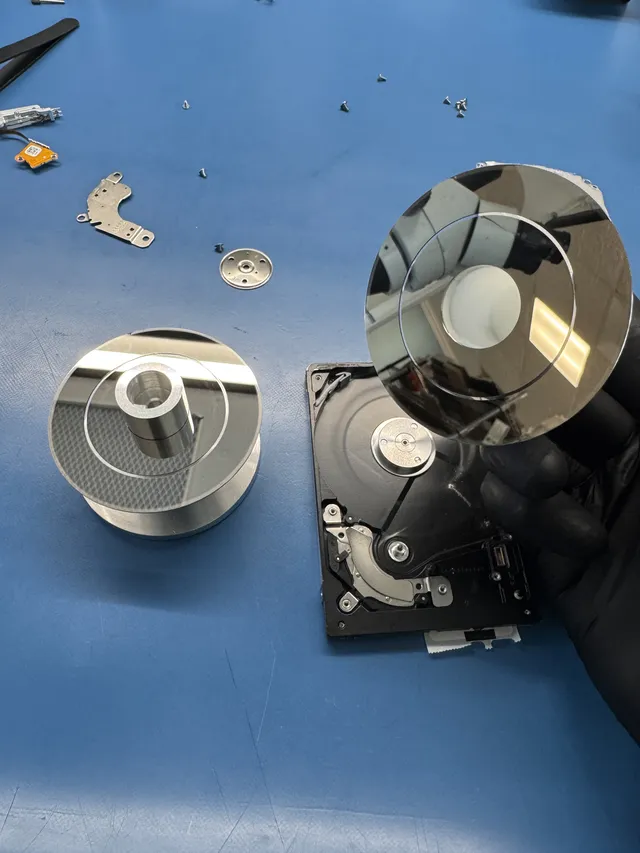
- Drive dead: the disk itself failed mechanically or electronically. Hard drive recovery involving head work needs a clean, filtered work area. The Time Capsule wrapper doesn't change the physics.
Should you pull the drive yourself?
On a dead unit where the data matters, our honest advice is no, for one reason: you can't tell from outside whether the drive is healthy. If the enclosure died and the drive is fine, a careful extraction and a SATA dock would work. But if the drive is the failed part, powering it repeatedly in a dock is exactly the harm we always warn about, and the flat Time Capsules in particular require prying a glued rubber base to open, with the temptation to rock and bump the drive throughout. If you do open one: mind the power supply (capacitors can hold a charge), handle the drive by its edges, and the moment you hear clicking or see the dock hang, stop. A drive that matters gets one gentle chance, not ten.
Recovered backups usually need a Mac-literate lab on the logical side too: sparsebundle repair, HFS+ structures, and Time Machine's hard-link forest are their own specialty, the same family of work as our MacBook data recovery service handles. If the goal is specific files rather than the whole history (the wedding photos, the tax folder), say so up front; targeted extraction from a repaired backup image is often faster and cheaper than resurrecting everything.
Frequently Asked Questions
Can data be recovered from a dead Apple Time Capsule?
Recovery depends on the drive's condition. Inside is a standard SATA hard drive. Head and platter work uses a clean, filtered work area. The extra step unique to Time Capsules is reassembling and repairing the sparsebundle backup image so your Time Machine history actually mounts and browses.
How do I get my backups off a Time Capsule before it dies?
Connect to the Time Capsule's disk in Finder and copy the entire .sparsebundle file for your Mac to a healthy external drive, letting it run uninterrupted (overnight is normal). Then verify the copy by double-clicking it: it should mount and show your backup folders. Make a fresh direct backup of your Mac first, so the current data is protected regardless.
What hard drive is inside a Time Capsule?
A standard 3.5-inch SATA drive, typically 1TB, 2TB, or 3TB, usually Seagate or Western Digital depending on year. Apple used ordinary consumer and light-NAS drives, not anything exotic. That's good news for recovery: donor parts and imaging procedures are all standard.
Is it worth recovering a Time Capsule, or should I just start fresh backups?
If your Mac is alive and current, and the Time Capsule only held redundant history, start fresh and move on. Recovery is worth it when the Time Capsule holds the ONLY copy of something: files from a Mac that's gone, deleted photos still living in old backup snapshots, or years of history you may need to dig into. Be honest about which situation you're in before spending money.
What should replace a Time Capsule for Mac backups?
The resilient setup is boring and works: one external SSD or hard drive plugged in for Time Machine, plus one offsite or cloud copy of the irreplaceable stuff. Any modern NAS can also serve Time Machine over the network if you liked the wireless convenience. Whatever you pick, verify a restore once a year; a backup you've never tested is a hope, not a plan.
Get help with data recovery
Bring your device to our Lincroft lab during opening hours, or mail it in.
How to mail your deviceThe $100 diagnostic is non-refundable once diagnostics start, and donor drives or replacement parts you approve are non-refundable once ordered, even if recovery fails.
Published by MDrepairs
MDrepairs is a data recovery and electronics repair lab in Lincroft, New Jersey. Our founder and lead technician Joseph Montanti films real cases for our YouTube channel, showing tools, repair steps and recovery outcomes.
Keep reading
- External Drive Says “The Parameter Is Incorrect”: Data-Safe Checks
- External Hard Drive Freezes File Explorer or the Computer: Safe Next Steps

- “The Semaphore Timeout Period Has Expired” During a Drive Copy